Onboard: approve the Entra application
Introduction
This step attaches your Entra ID tenant to the Biza-managed Biza ID application, so your staff can log in to Biza ID with their Entra ID identity.
Prerequisites
- Before you can onboard users to Biza ID, our admin team must complete some configuration, which needs your
base_domain(see Entra ID federation). If you haven't already done so, contact your Biza representative to confirm this is ready. - Identify your organisation's global Entra ID administrator, or another administrator with the right permissions. They will need to approve admin consent (step 4).
Before you start
Any user from your organisation can carry out steps 1 to 3. Your global Entra ID administrator must carry out the remaining steps.
Your global Entra ID administrator should go to Entra ID > Enterprise Applications > Consent and permissions > Admin consent settings and check that Users can request admin consent to apps they are unable to consent to is set to Yes. If it is set to No, your global Entra ID administrator must log in to Biza Guides with their own administrator account to trigger the consent (see step 3 below).
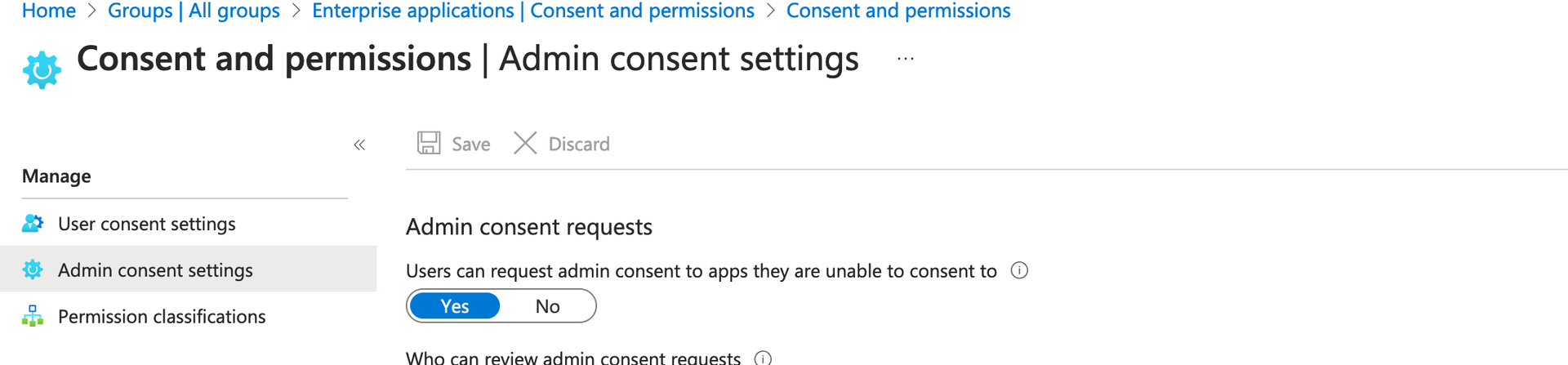
Admin consent settings
Procedure
1. Go to https://vtt.cdr.zone, enter nobody@biza.io in the email address field and click Continue.
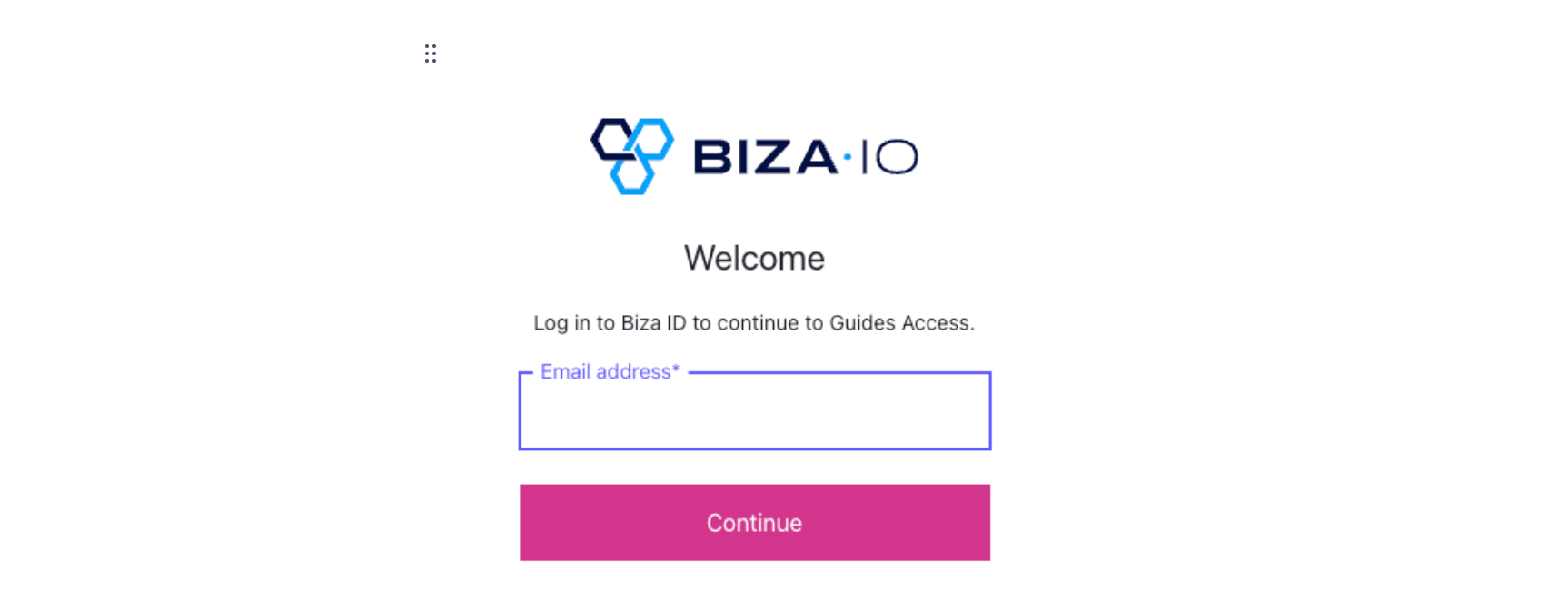
Biza ID log in screen
2. Enter your work email address in the Microsoft sign-in box.
3. You are asked to get administrator approval. Enter a justification for the request and click Request approval.
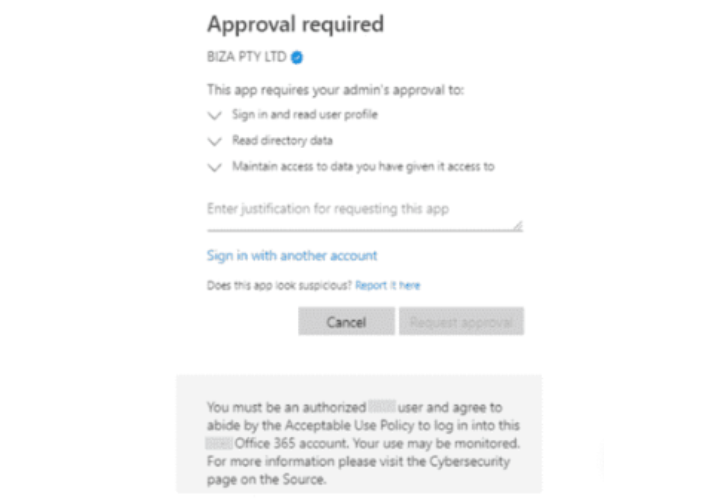
Administrator approval request
4. [Entra ID administrator] Approve the pending admin consent request. Log in to Entra ID and go to Applications > Activity > Admin consent requests. The request appears under pending consent requests.
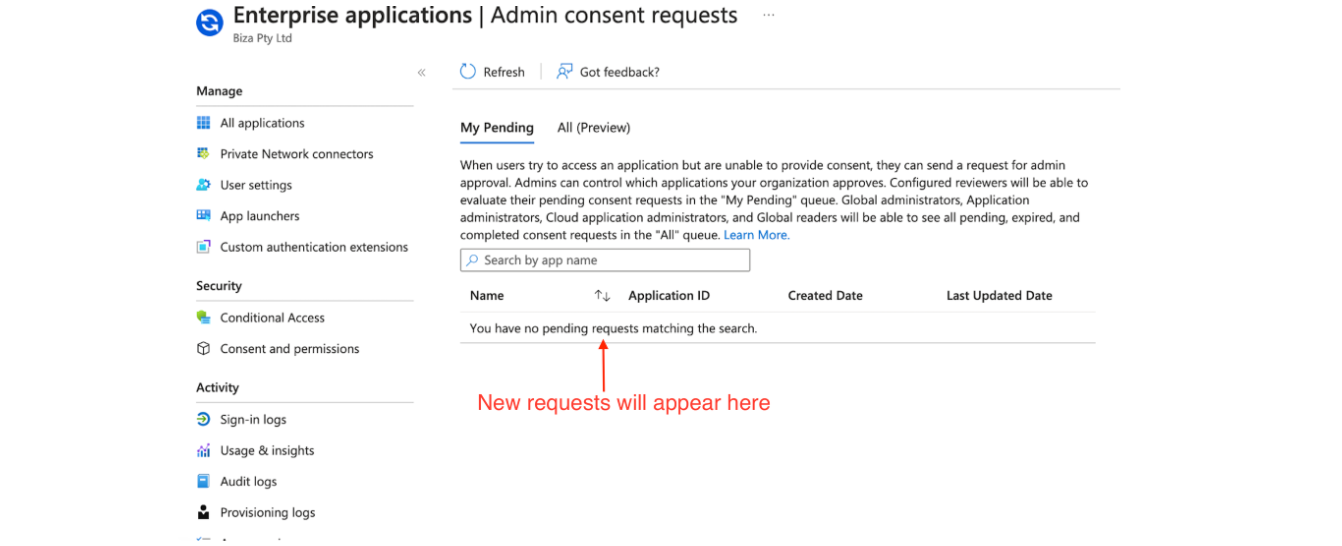
Administrator consent requests
5. [Entra ID administrator] Once consent is given, the Biza ID application appears under Enterprise applications.

Enterprise applications list