Visual API Testing
Call the Common, Banking and Energy Data APIs on an arrangement and see the response, without writing code.
Visual API Testing is the part of VTT that calls a Data Holder's CDR Data APIs over a VTT arrangement and shows the response. You choose the call and its parameters in a form, and VTT shows the result as a table or as JSON, together with any problems it finds when it validates the response against the Consumer Data Standards (CDS).
How it works
- Top-level calls are on the arrangement's Get Arrangement Details page. The chooser offers the calls for the Data Holder's industry: Choose a Banking Api Call or Choose an Energy Api Call.
- Account-scoped calls are on the result page of Get Accounts (Banking) or Get Energy Accounts (Energy), under Account Specific Api Calls. Service point calls are on the Get Service Points result page (Energy), under Service Point Specific Api Calls.
- Each call has x-min-v and x-v fields for the requested API version. On the arrangement page they default to 1 and 999.
- After Submit, VTT sends the request through Open Gateway to the Data Holder. It shows the result on a new page, with breadcrumbs back to the arrangement and to the page you came from.
What it does
Common calls
- Get Customer: the customer behind the arrangement, shown as JSON. For an individual Principal it is a
person; for a non-individual Principal it is anorganisation. The page's Operations include Get Customer Detail.
Get Customer is offered in both the Banking and the Energy chooser.
Banking calls
| Where | Calls |
|---|---|
| Get Arrangement Details | List Accounts, List Payees, Get Customer, Get Bulk Scheduled Payments, Get Bulk Direct Debits, Get Bulk Balances, Get Bulk Instalment Plans |
| Get Accounts result page | Get Transactions, Get Account Balance, Get Balances For Specific Accounts, Get Scheduled Payments For Account, Get Scheduled Payments For Specific Accounts, Get Direct Debits For Account, Get Direct Debits For Specific Accounts, Get Instalment Plans For Account, Get Bulk Transactions |
- The bulk calls take filters, such as Account Status, Product Category and Is Owned?, or Plan Status for instalment plans.
- The Get Accounts result page lists each account's ID, creation date, open status and nickname. It also has a Get Accounts Api Call form, which re-runs the call with a different Open Status (ALL, OPEN or CLOSED).
- An account ID links to Get Account Detail. A payee ID on the Get Payees page links to Get Payee Details.
- Get Transactions lists the account's transactions. VTT has no transaction detail page: the account ID on a transaction row links to Get Account Detail.
Energy calls
| Where | Calls |
|---|---|
| Get Arrangement Details | Get Customer, Get Service Points, Get Bulk Usage, Get Bulk DER, Get Energy Accounts, Get Bulk Balances, Get Bulk Invoices, Get Bulk Billing |
| Get Energy Accounts result page | Get Energy Account Detail, Get Agreed Payment Schedule, Get Concessions, Get Balance For Energy Account, Get Balances For Specific Energy Accounts, Get Bulk Balances for Energy, Get Invoices For Account, Get Invoices For Specific Accounts, Get Billing For Account, Get Billing For Specific Accounts |
| Get Service Points result page | Get Service Point Detail, Get Service Point Usage, Get Usage For Specific Service Points, Get Service Point DER, Get DER For Specific Service Points |
- Usage calls take Oldest Date, Newest Date and, for bulk and specific usage, Interval Reads (NONE, MIN_30 or FULL). Invoice calls take Oldest Date and Newest Date. Billing calls take Oldest Time and Newest Time.
- The usage and DER calls are served by the Secondary Data Holder.
Single, specific and bulk calls
Account and service point calls come in three shapes:
- For one account or service point: choose it in Choose an Account or Select Service Point.
- For specific accounts or service points: choose one or more in the Select Accounts or Select Service Points multi-select. The result page shows the chosen IDs under Active Filters.
- Bulk: every account or service point in the arrangement, with no selection.
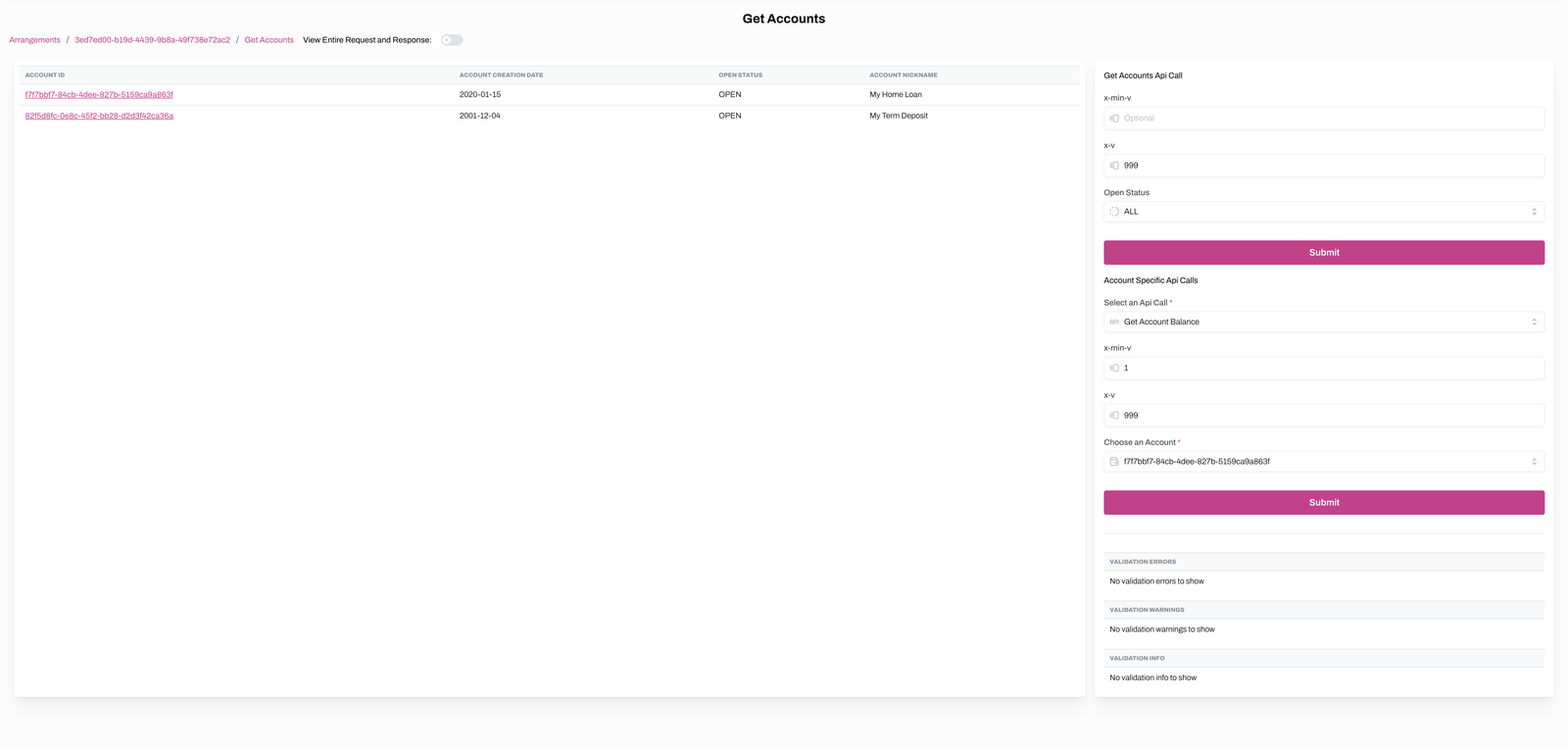
An account-scoped call, ready to submit
Form behaviour
- Required fields have a red asterisk (
*): the call chooser, the account or service point selector, and the multi-selects. Submit stays disabled until they are set. - Loading state: Submit shows a spinner while the request is in flight, which also stops duplicate submissions.
- Empty parameters are dropped instead of being sent to the Data Holder, which avoids unexpected validation failures.
Validation results
Every result page has a validation panel with three sections: Validation Errors, Validation Warnings and Validation Info. VTT checks the response against the CDS schema and lists each finding with its type, the field path and a message. For example, an optional field that the Data Holder left out shows in Validation Info as ATTRIBUTE_INVALID, person.prefix, "Not specified but is not required". When there is nothing to report, each section says so.
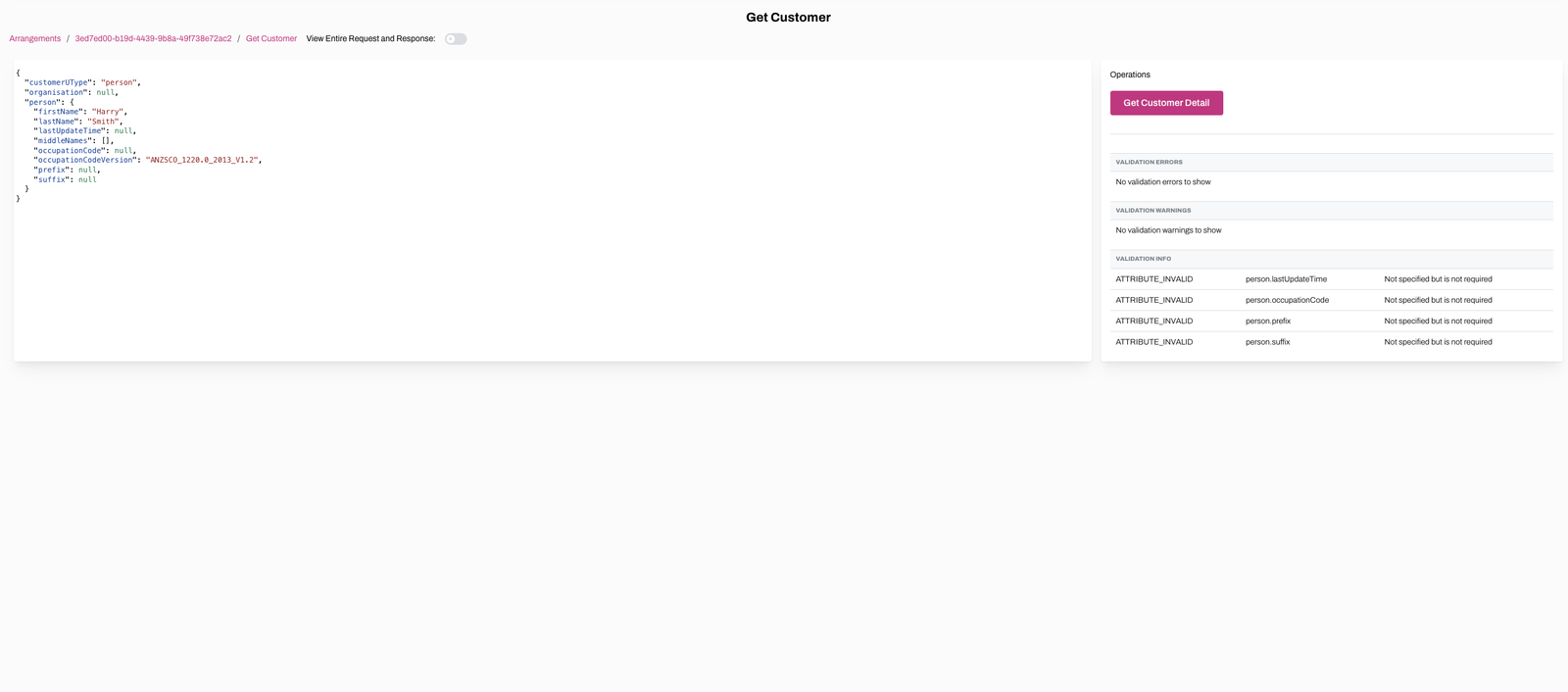
Get Customer, with findings under Validation Info
Full request and response
View Entire Request and Response shows the request VTT sent, including its headers and parameters, and the full response.
Errors
If the Data Holder returns an error, VTT shows An Error Occurred. The page shows the VTT build, the URL, the HTTP status, the error message and the request. Copy issue report information copies these details for a support ticket.
Customer value and use cases
- Targeted, exploratory testing: call one endpoint with specific parameters and versions to reproduce and diagnose an issue.
- No code required: exercise the Common, Banking and Energy Data APIs without building your own test client.
- Immediate feedback: see the response, the full request and any schema findings as you test.