New arrangement: Banking
How to create a Banking arrangement in VTT, from the consent screen to Arrangement Created.
This guide creates an arrangement with the Biza test holder Azib Bank. The steps are the same for your own Banking Data Holder, but the identification, customer and account screens are your Data Holder's own. For how arrangements behave, see VTT arrangements.
The screenshots are from VTT 4.0.0. All the customer and account data shown is mock data from the test personas.
Start the arrangement in VTT
1. Sign in to VTT.
2. On the VTT home page, click New Arrangement.
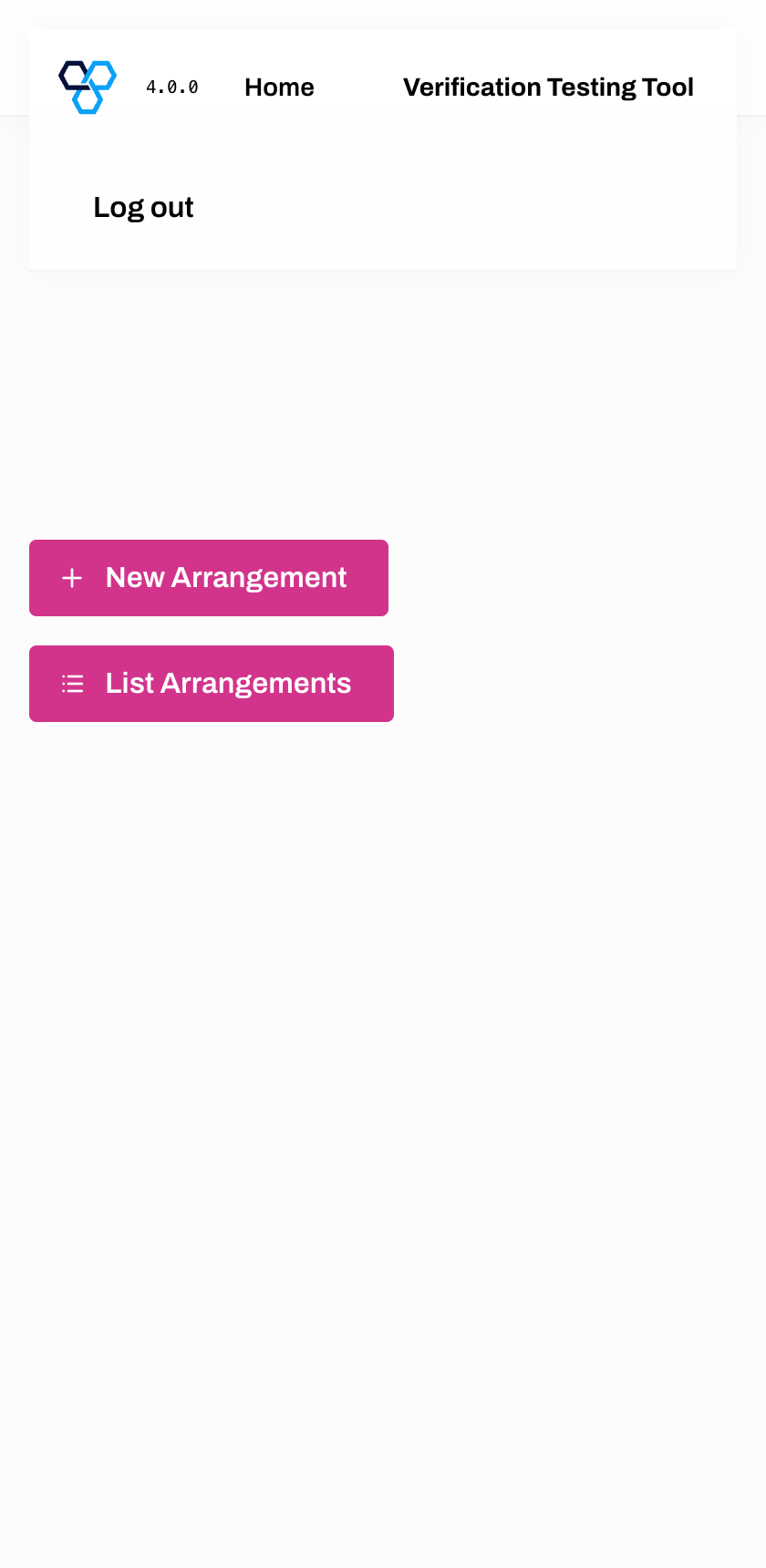
VTT home page
VTT opens the Open Gateway consent screen. The whole consent is on this one screen.
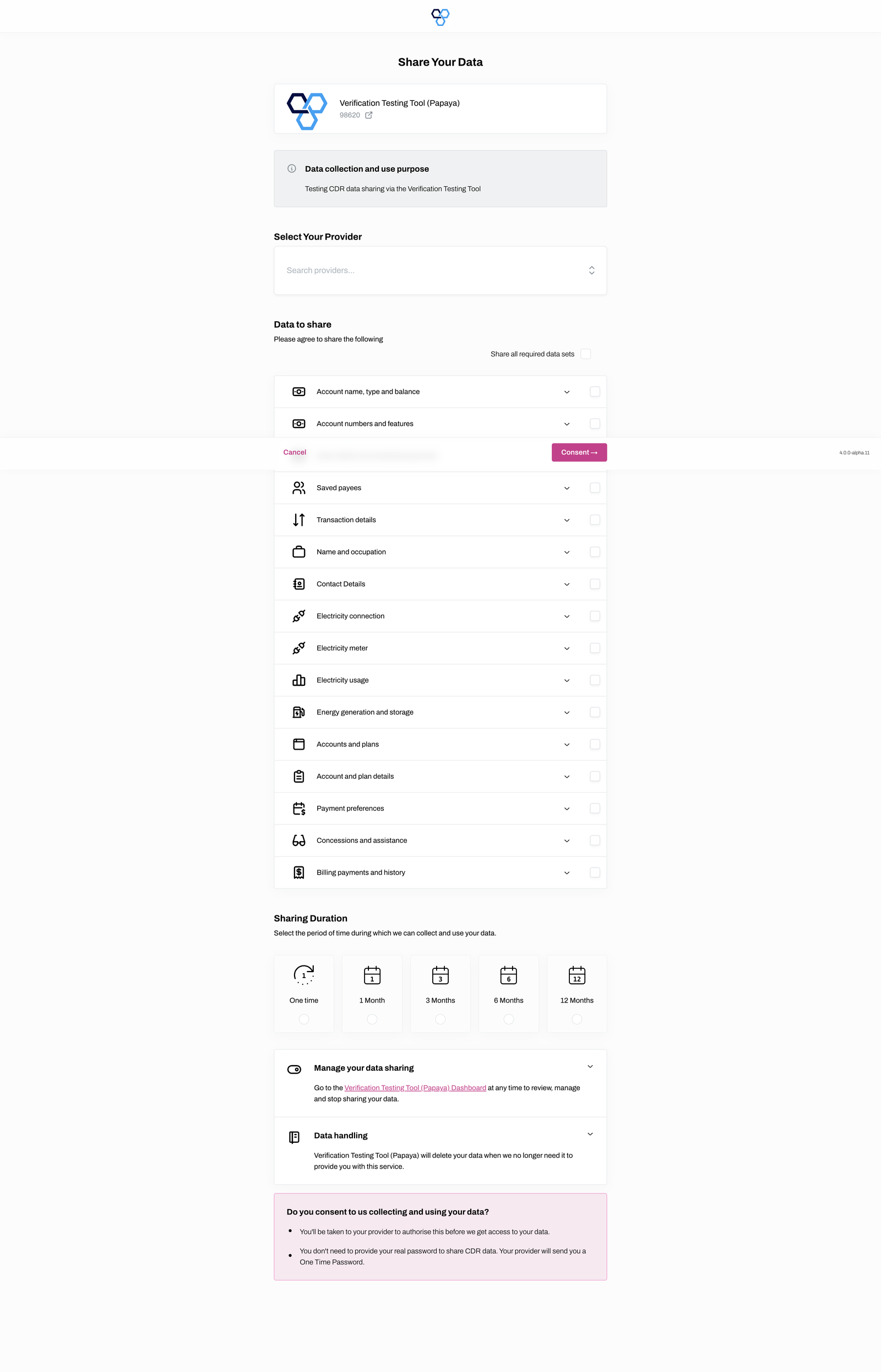
The consent screen before a provider is chosen
Give consent
3. Under Select Your Provider, type the Data Holder's name in the search field, then choose it from the list. Providers are grouped by brand group; Azib Bank is under Model Environments.
You can collect data from only one Data Holder per arrangement.
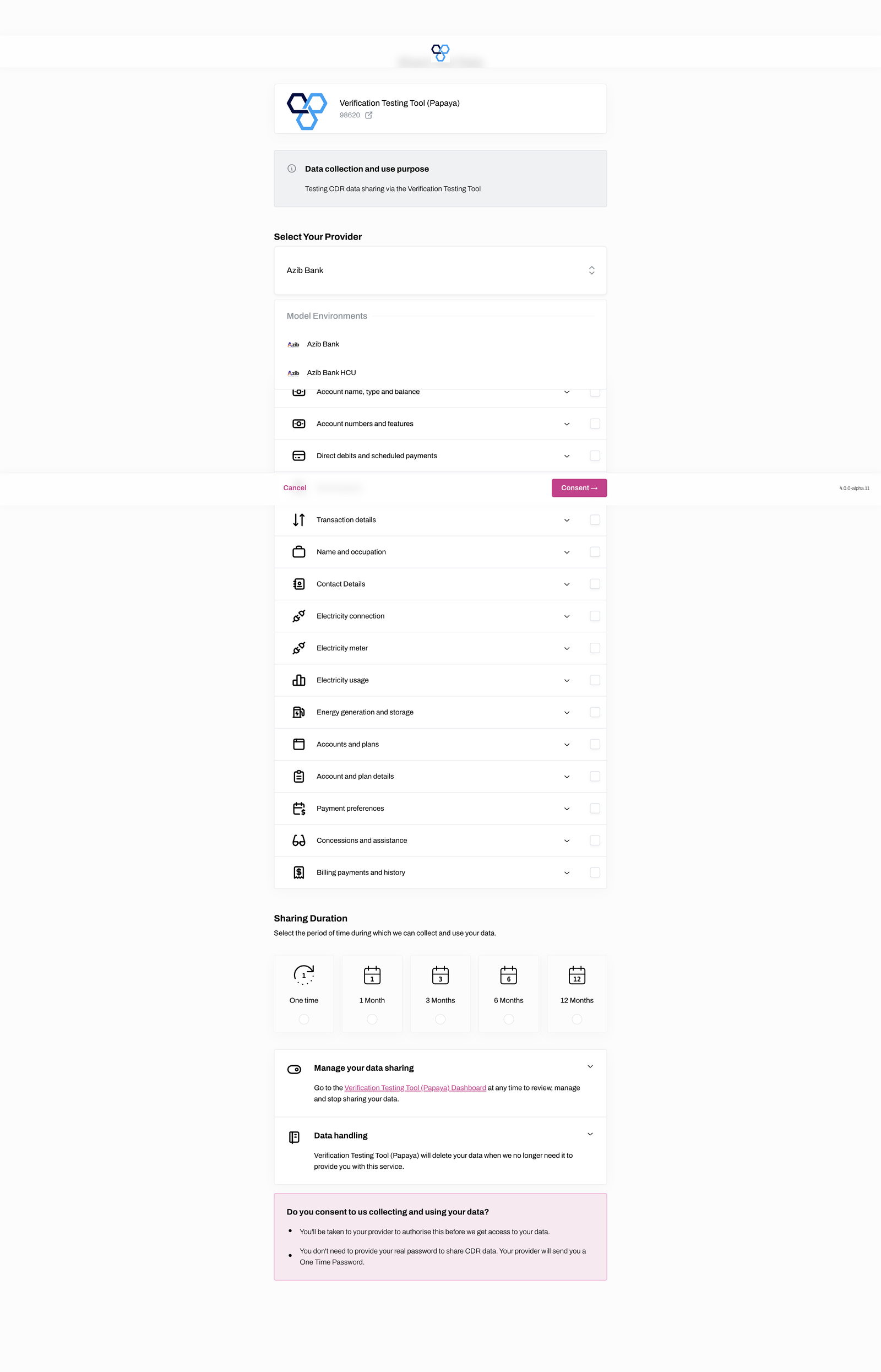
Choose the provider
4. Under Data to share, tick the data clusters to collect, or tick Share all required data sets. Once you choose a Banking provider, only the Banking clusters are listed. Expand a cluster to see what data it covers.
5. Under Sharing Duration, choose One time, 1 Month, 3 Months, 6 Months or 12 Months. The line under the heading shows when sharing will end, for example "We'll access your data for 3 months, until Tue Feb 09 2027".
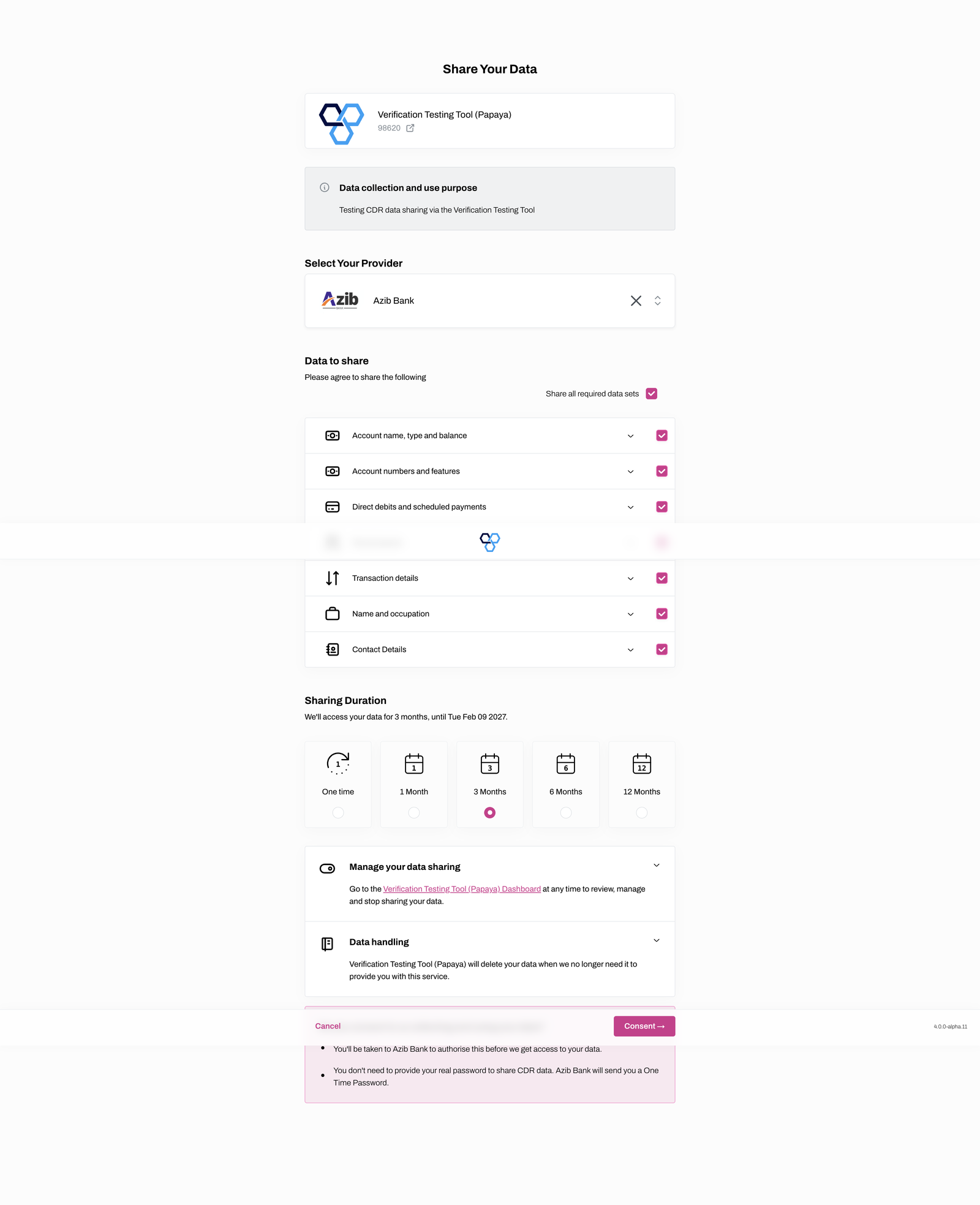
Data clusters and duration chosen
6. Read Manage your data sharing, Data handling and the consent statement, then click Consent.
The browser goes to the Data Holder's authorisation pages. It doesn't return to VTT until you confirm or cancel at the Data Holder.
Identify yourself at the Data Holder
7. On the Data Sharing page, enter the persona's Member ID and click Next.
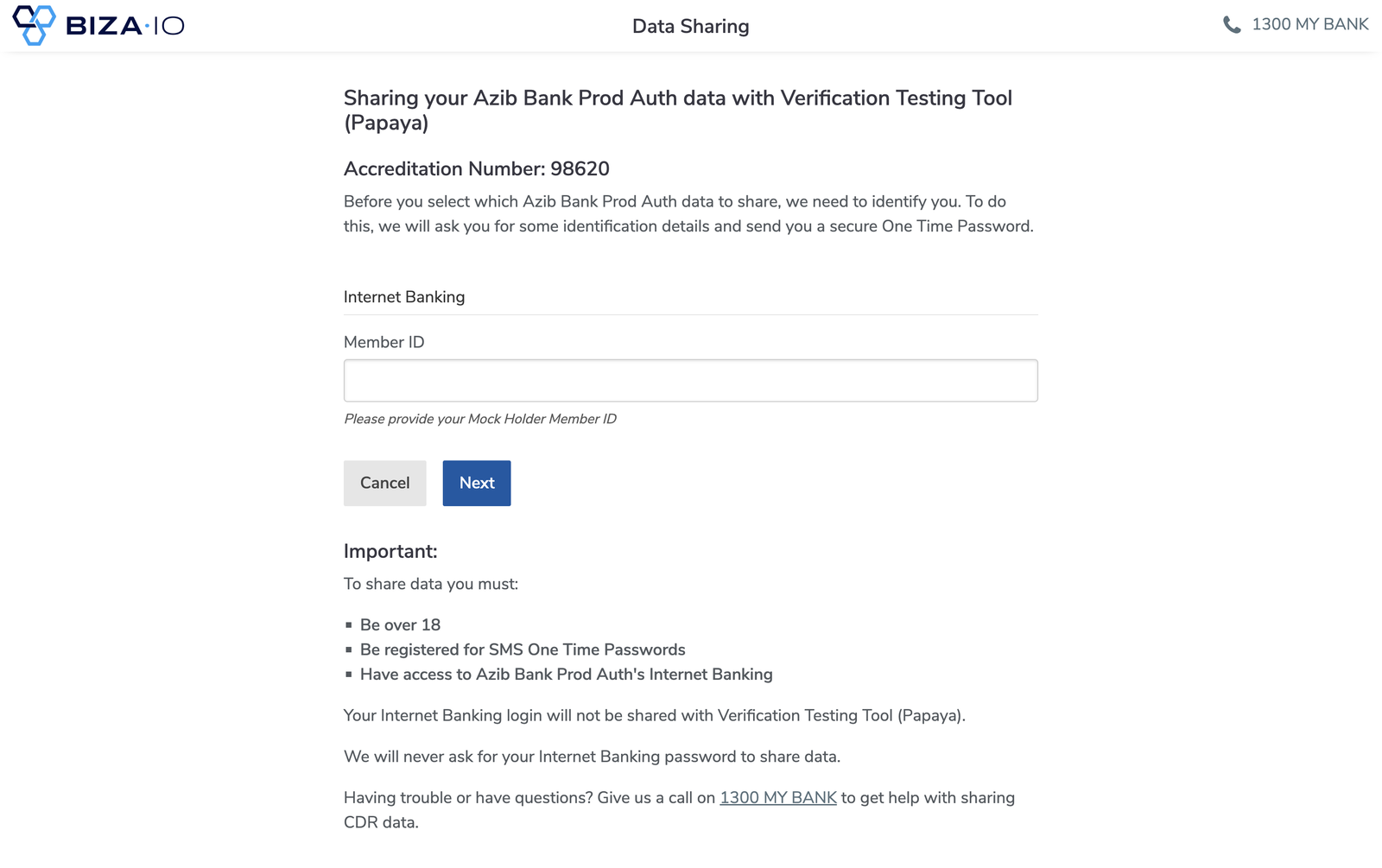
Azib Bank asks for a Member ID
8. Enter the One Time Password (OTP) and click Next. Each test persona has a fixed OTP. A real Data Holder sends the OTP to the Consumer; Azib Bank asks you to be registered for SMS OTPs.
Choose the customer and accounts
9. On Select Customer, choose the customer to share data for, then click Next. This is the Principal selector. It appears when the login can access more than one customer, and the page says the login "has the Authority To Operate on other customer(s)". The Azib Bank persona offers three Eligible Customers:
- Harry Smith: share as the individual. This guide follows this path.
- Biza Pty Ltd: share as the business, a non-individual customer. The next screens then list the business's accounts, and the Confirm screen describes the organisation's data. New arrangement: Energy shows this path at Azib NRG.
- Joe Blogs - Power Of Attorney: the third Eligible Customer. This guide doesn't cover this path.
If the login has only one customer, the Data Holder skips this screen.
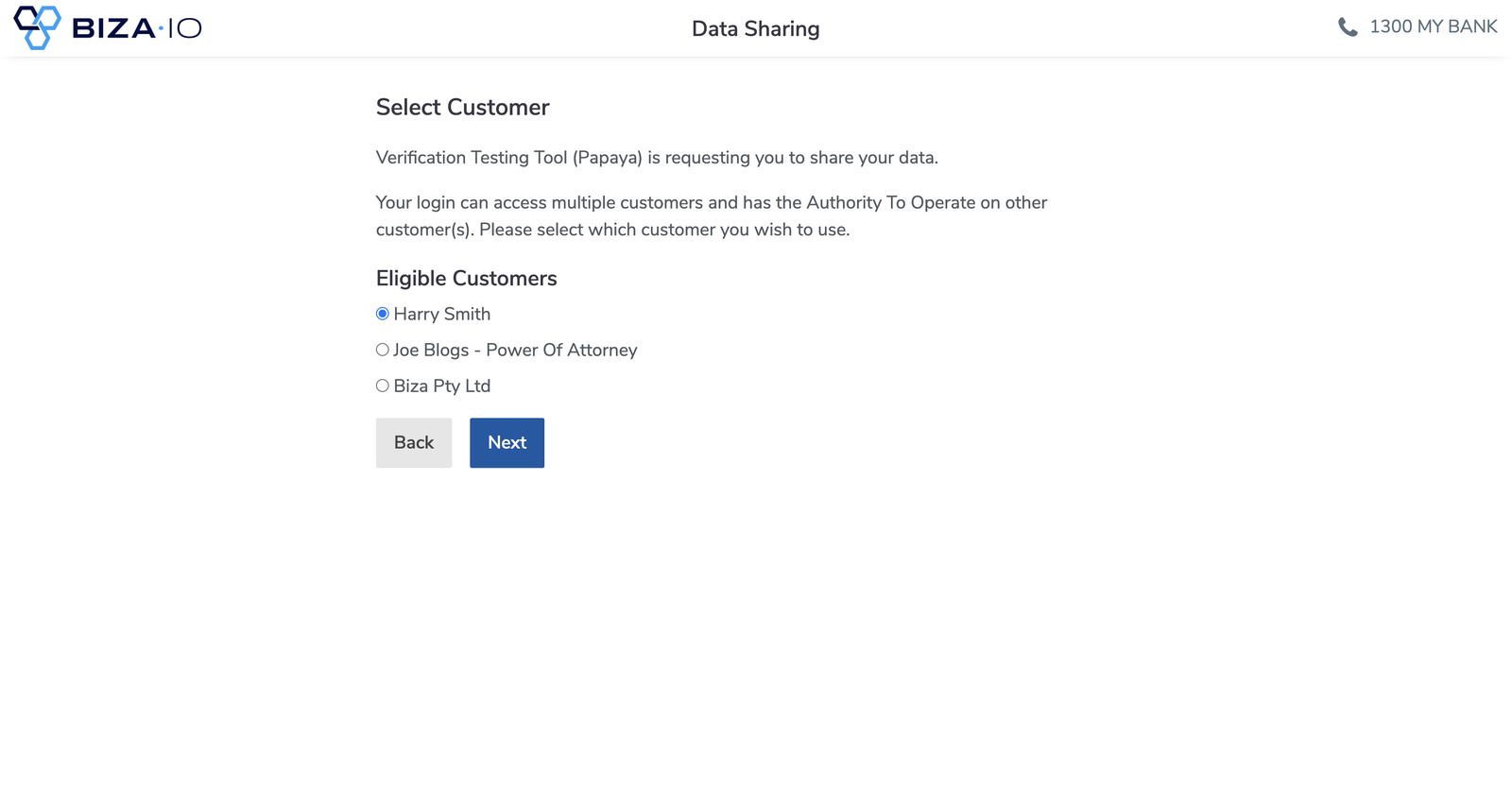
The Principal selector, with the individual chosen
10. On Select accounts to share, tick the accounts to share, then click Next. Next stays disabled until you tick at least one account.
- Account numbers are masked, for example "My Home Loan (xxxxx3456)".
- Closed accounts are labelled "- Closed".
- When you tick a joint account, Things you should know explains that the other joint account holders will be notified, and that they can also share the joint account's data.
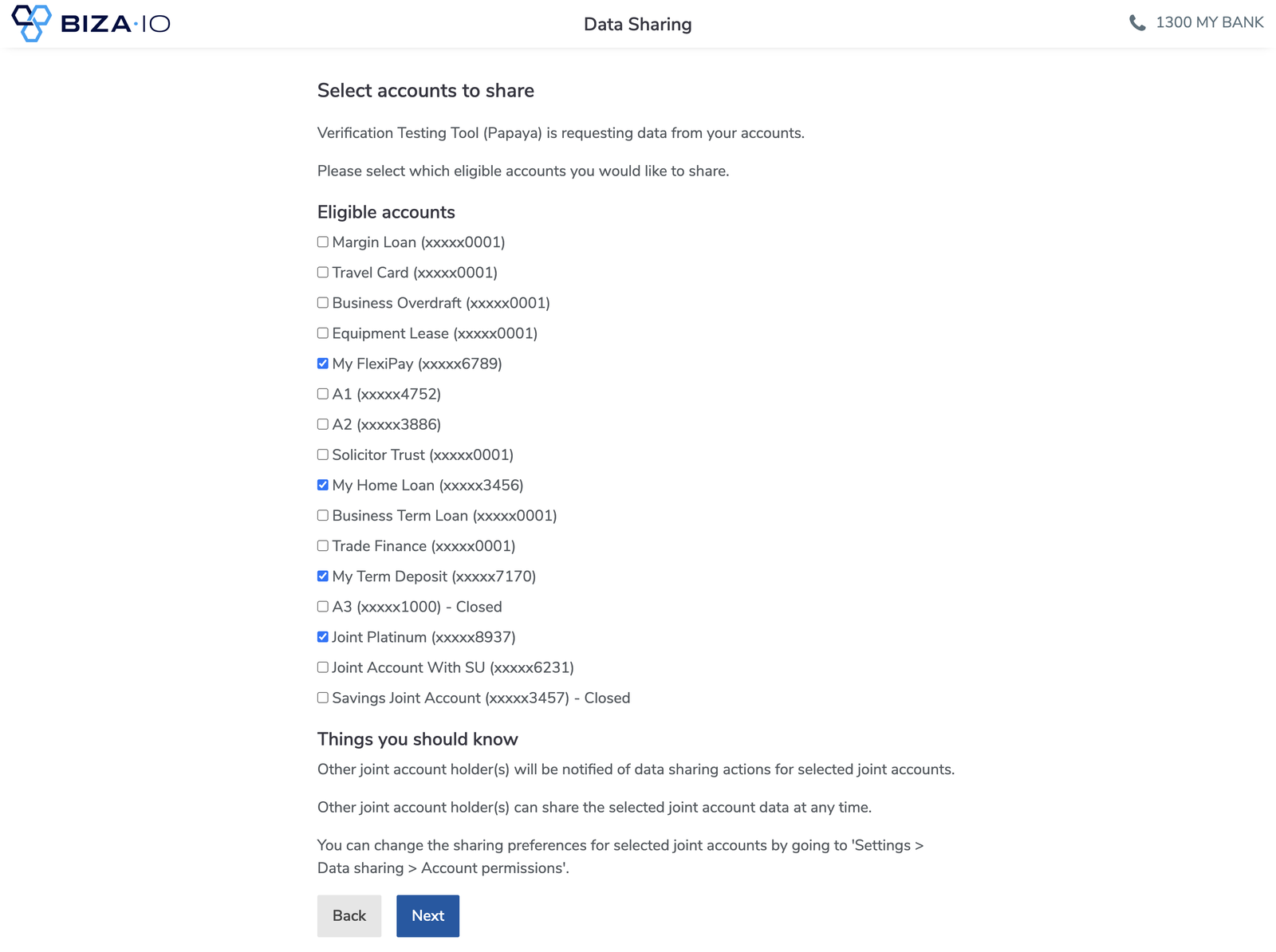
Accounts chosen, including a joint account
Confirm
11. On Confirm, check the details, then click I Confirm. The screen shows:
- the Selected Customer and Selected account(s)
- Data to be shared, one expandable section per cluster
- how far back the data goes ("Data being shared can date back to January 1, 2017")
- When your data will be accessed: the collection window and how long sharing lasts
- Where to manage this sharing at the Data Holder, and a link to its CDR Policy
- a joint account notice, if you chose a joint account
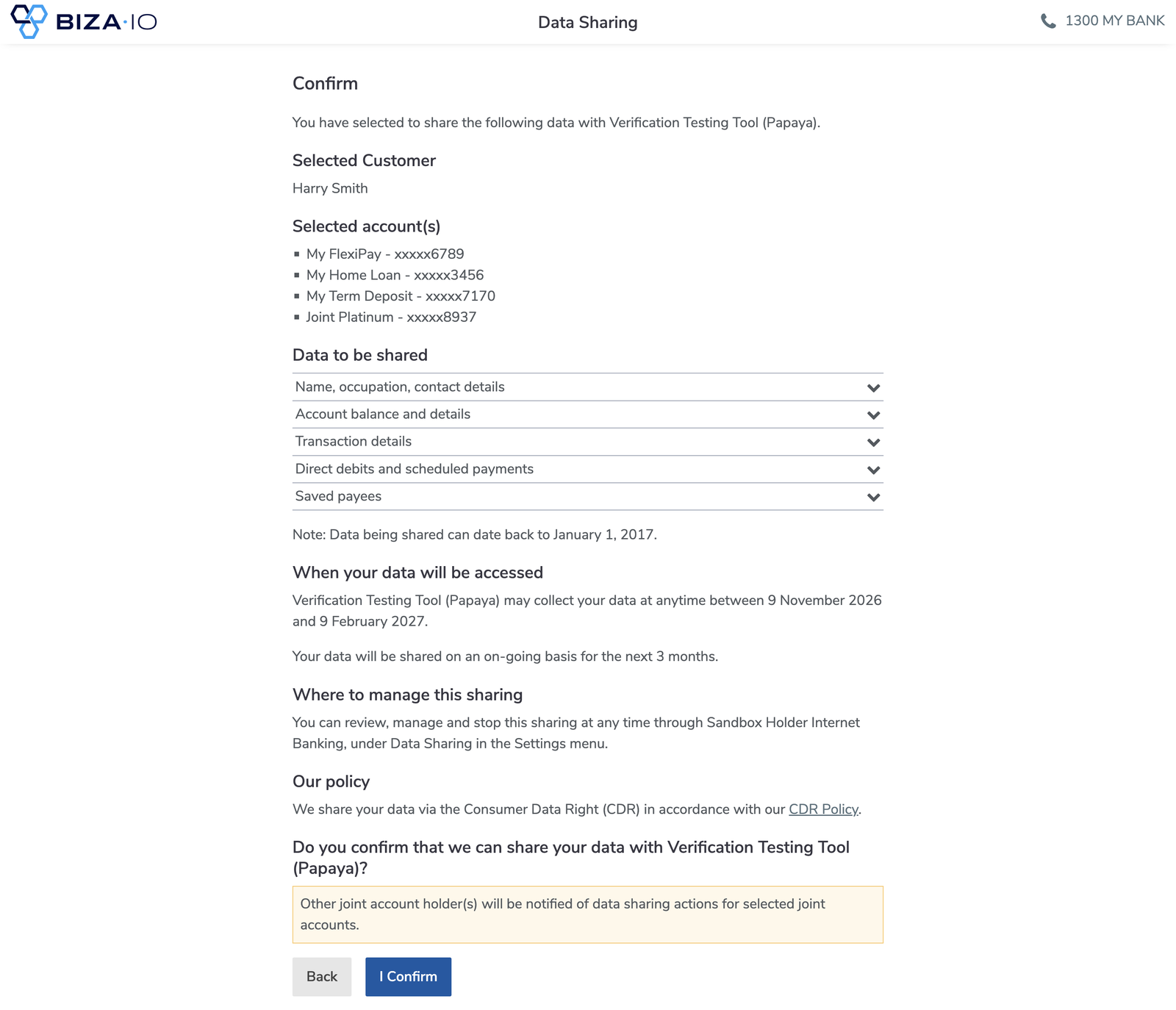
Confirm the data sharing
Use Back on any Data Holder screen to change an earlier choice.
Back in VTT
12. The Data Holder returns you to VTT, which shows Arrangement Created. Click Use New Arrangement to open it, or List Arrangements to see all your arrangements.
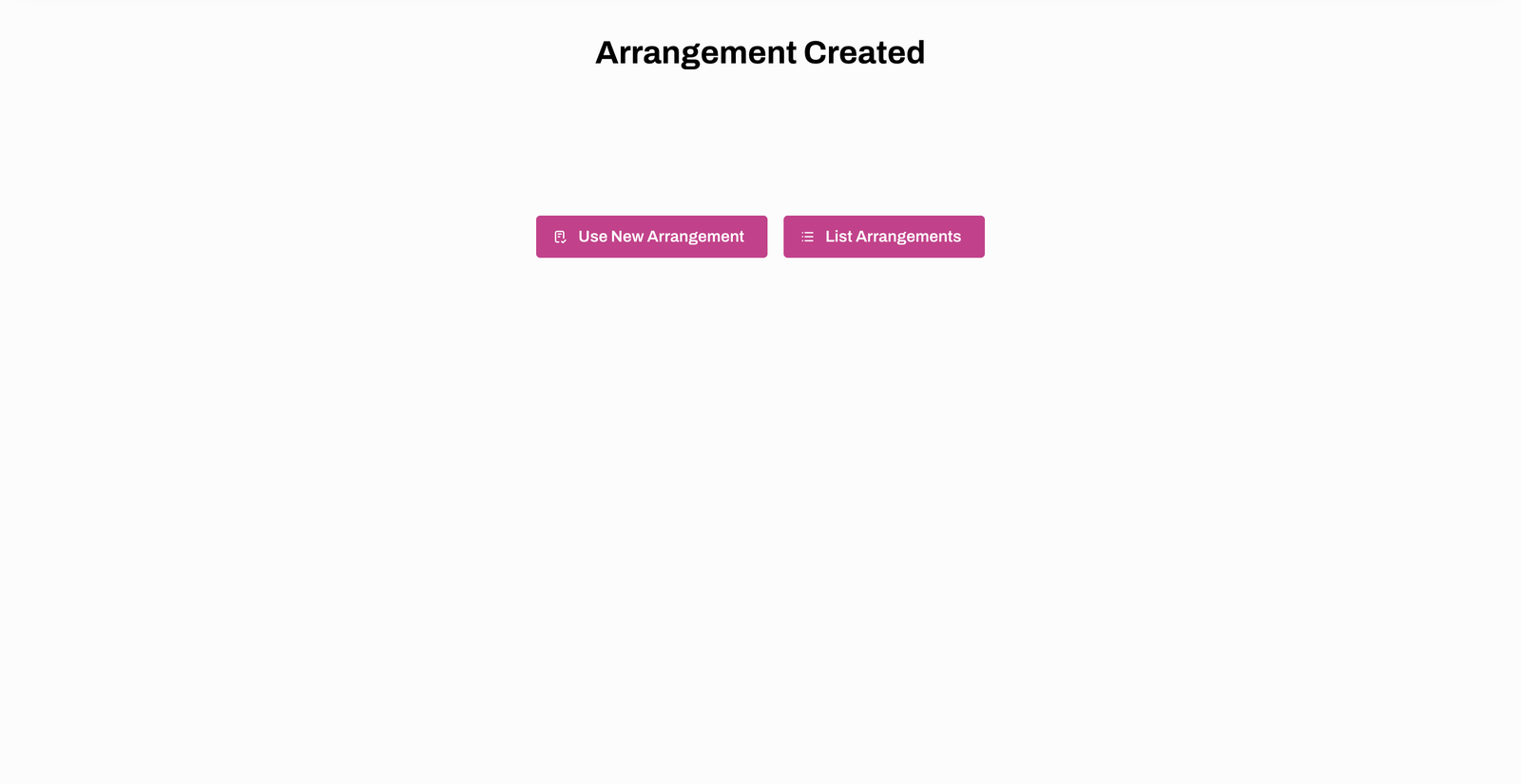
Arrangement Created
13. Get Arrangement Details shows the new arrangement. Check that status is ACTIVE and that collectionConsent.scopes lists the data you agreed to.
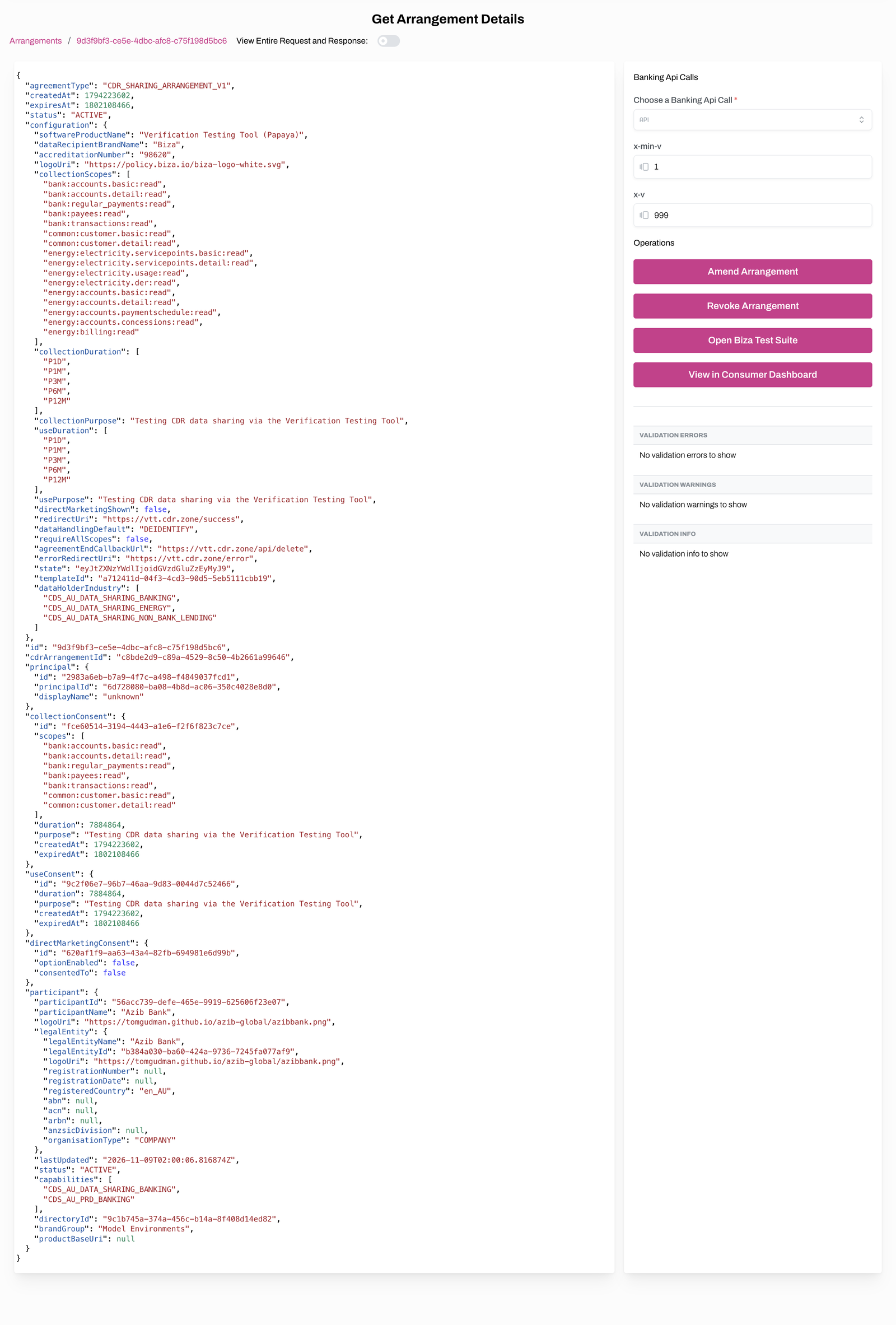
The new arrangement
Next steps
- Visual API testing: Banking: call the Banking APIs on the arrangement.
- Run the Biza Test Suite.
- View and manage arrangements: list, amend or revoke the arrangement.