Run the Biza Test Suite
How to prepare for a Biza Test Suite (BTS) run, run it, read the results and save them.
This guide shows you how to:
- prepare for a test run: the sharing arrangement and the test data
- start the run from VTT
- read the summary counts and the results by endpoint
- show only failed cases, and expand an endpoint to see its problems
- download the results
For what the suite tests and how it grades results, see Biza Test Suite.
The screenshots are from VTT 4.0.0, with runs against the Biza test holders Azib Bank (Banking) and Azib NRG (Energy).
Preparation
Preparing to run BTS has two parts:
- Test data
- Sharing arrangement
VTT selects the test cases automatically from the industry the Data Holder advertises.
Test data
The exact steps depend on your underlying data store, so this guide only outlines the general approach.
Before you start a BTS run, review the test scenarios and check that the data they need exists in your system. Pay particular attention to filtering tests: make sure every required permutation exists. Incomplete test data may not cause a test to fail outright, but it makes the results less useful.
Sharing arrangement
Before you can run a test, a sharing arrangement MUST be active between VTT and the target Data Holder. The arrangement:
- MUST include every data scope the Data APIs under test need.
- MUST stay active for the whole test run.
To set one up, follow New arrangement: Banking or New arrangement: Energy.
Run the tests
1. In VTT, click List Arrangements, then click the Arrangement ID of the arrangement to test against.
2. On Get Arrangement Details, under Operations, click Open Biza Test Suite. The test suite opens in a new browser tab.
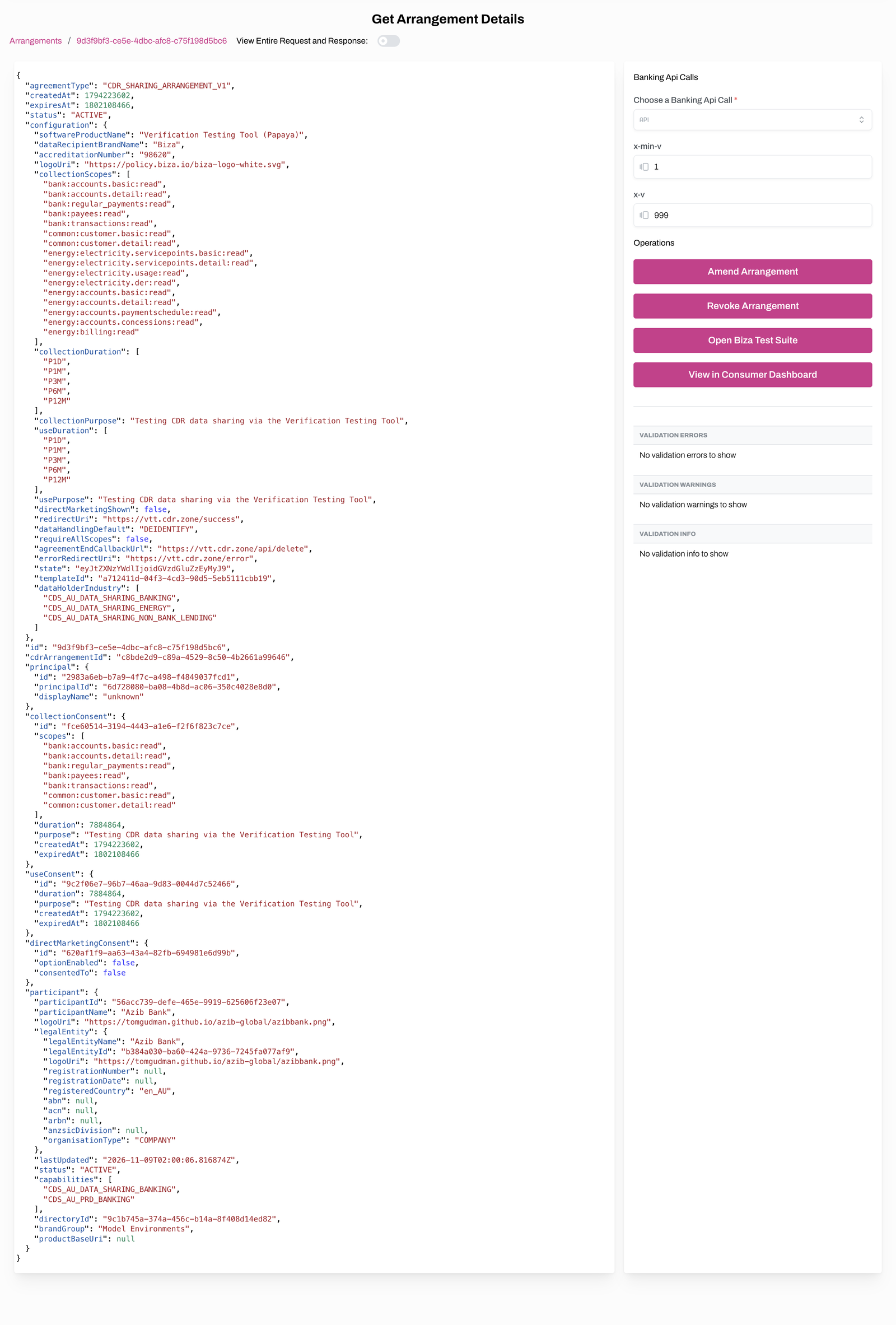
Open Biza Test Suite is under Operations
Open Biza Test Suite is disabled while an abandoned amendment leaves the arrangement in INIT. See Amend an arrangement.
3. Check the page before you start. It has these sections:
- Participant: the Data Holder under test, and its industry, for example
CDS_AU_DATA_SHARING_BANKING. - Agreement Scopes: scopes from the sharing arrangement.
- Test Overview: End Points in Test, the number of endpoints the run will test (21 for Azib Bank, 17 for Azib NRG), and the Start Test button.
- Results Summary: empty until the run starts. Download Test Results is disabled.
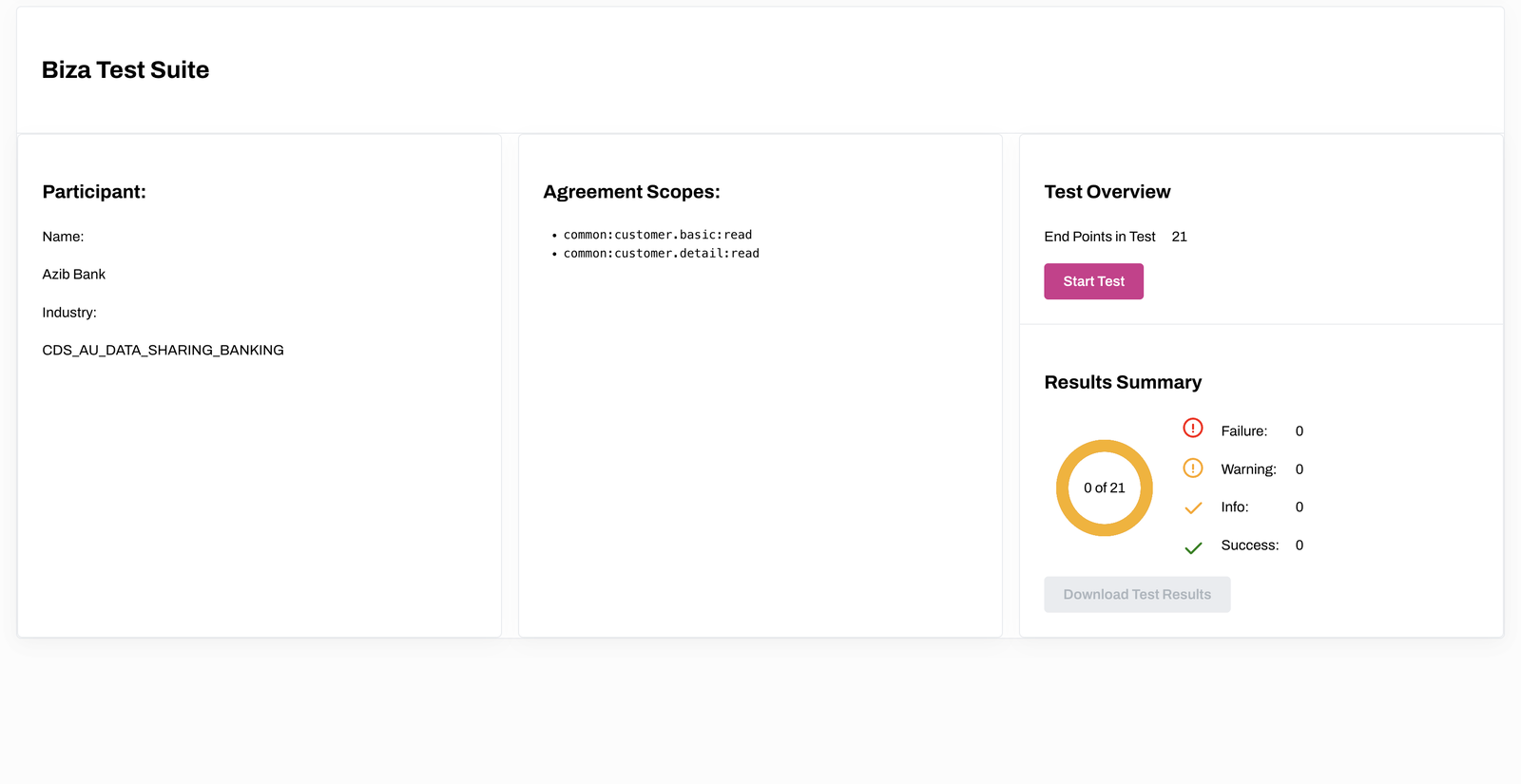
The Biza Test Suite, before Start Test
4. Click Start Test. VTT tests the endpoints one at a time. The ring chart in Results Summary counts up ("n of 21"), and a card appears for each endpoint under Results By Endpoint.
Keep the tab open until the count is complete.
Read the results
Results summary
When the run finishes, the ring is full ("21 of 21"), and the counts beside it total each outcome across every endpoint: Failure, Warning, Info and Success. One Banking run against Azib Bank gave 4 failures, 7 warnings, 66 info and 425 successes.
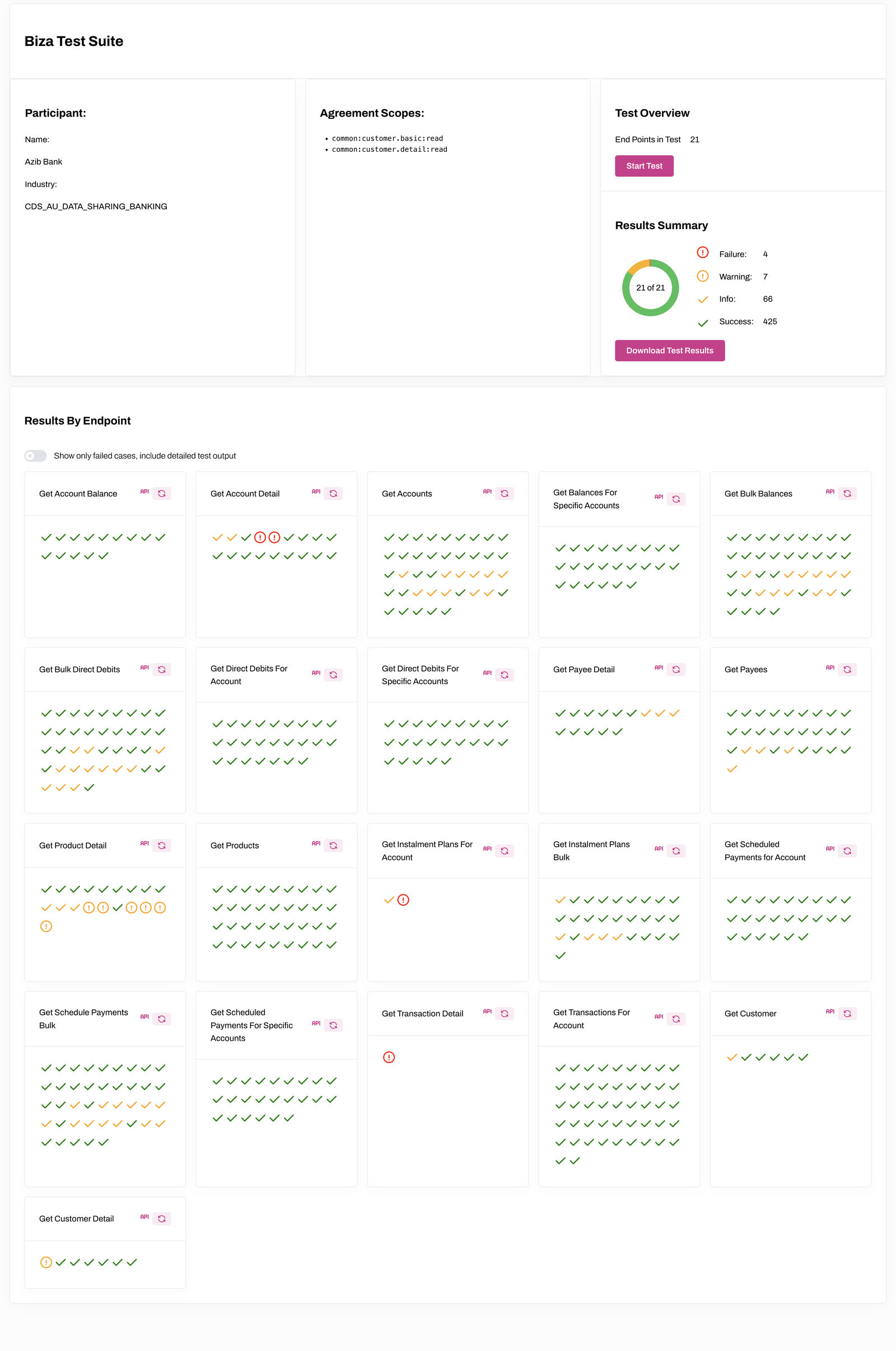
A completed Banking run
An Energy run against Azib NRG tests 17 endpoints. One run gave 0 failures, 0 warnings, 7 info and 302 successes.
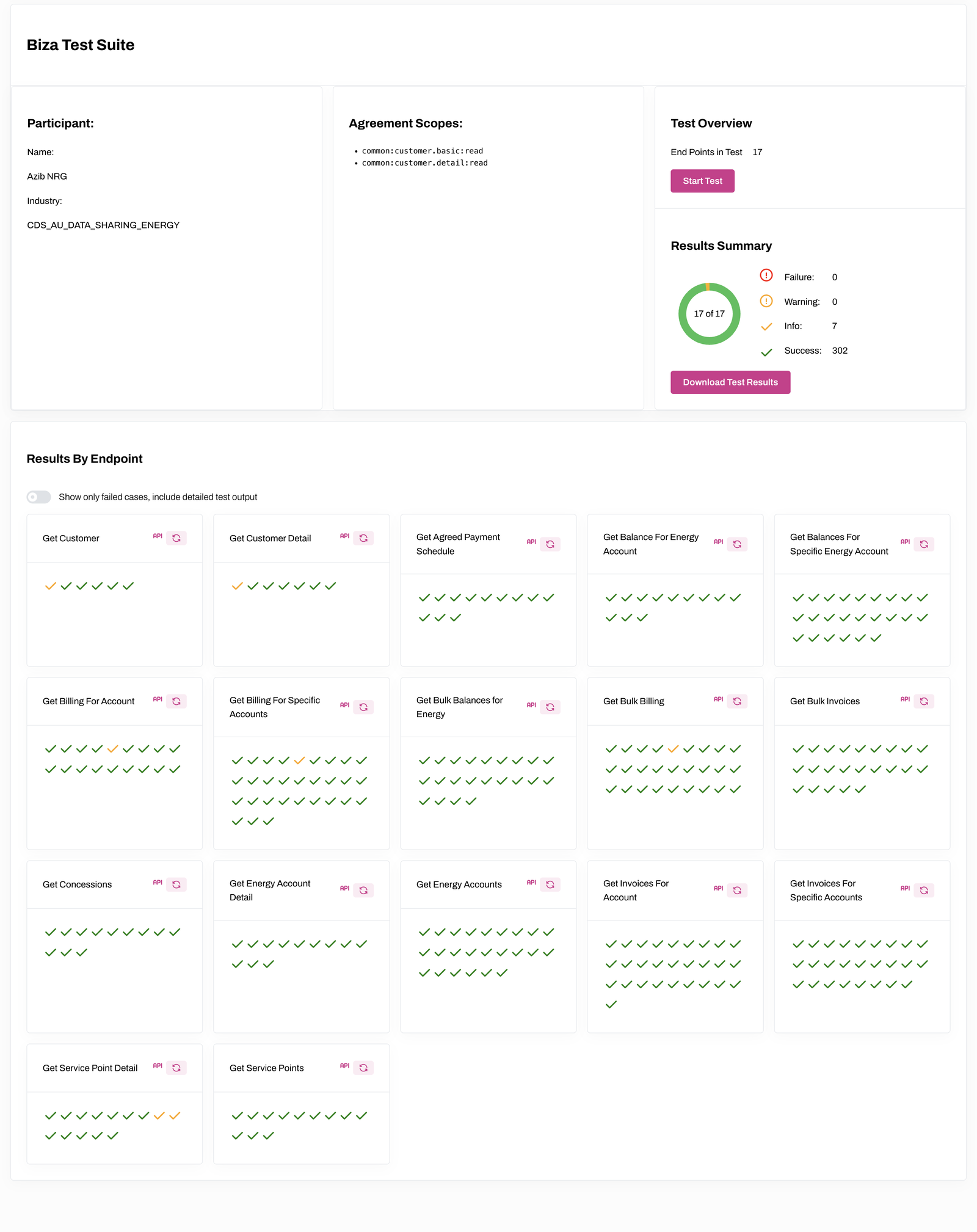
A completed Energy run
Results by endpoint
Each endpoint card has:
- the endpoint name, and an API link to its Consumer Data Standards documentation
- an icon for each scenario run against it
- a button to run that endpoint's tests again
Hover over an icon to see which scenario it represents and its result.

Hover over an icon to see the scenario
The icons mean:
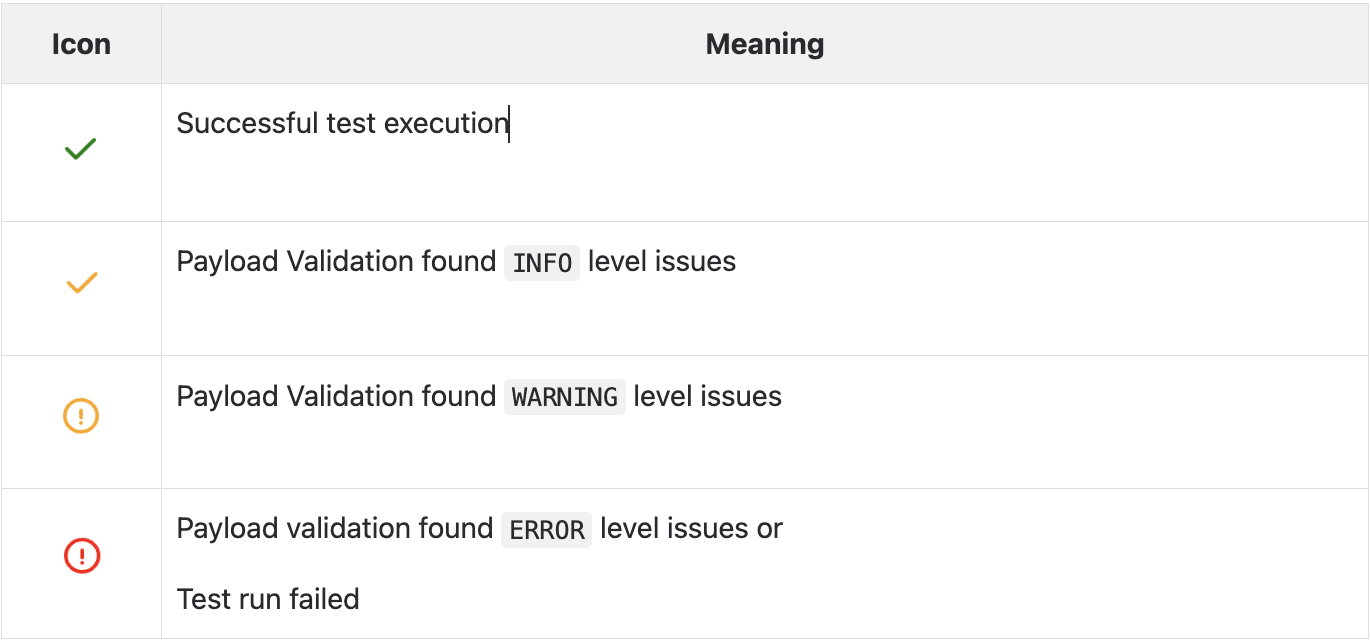
Icon interpretation
Show only failed cases
5. Turn on Show only failed cases, include detailed test output. The cards change to a list of the endpoints that have problems, each with a count, for example "Get Accounts — Found 11 problems". Endpoints with no problems are left out.
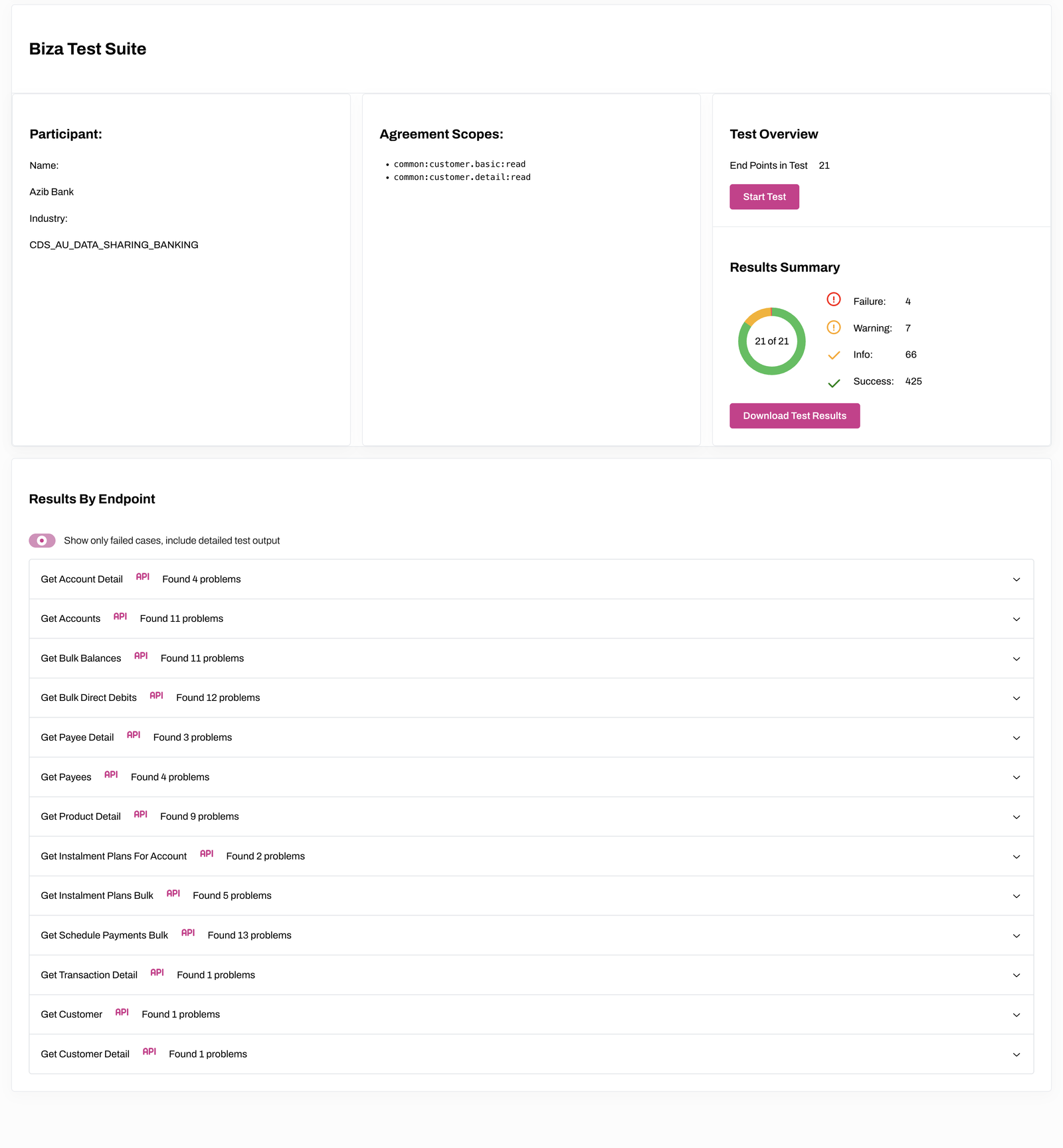
Only the endpoints with problems
6. Click an endpoint to expand it. Each problem shows:
- the Api and the Scenario
- the Message, for example "getCustomer expected 400: Invalid Page Size but returned 200"
- the Request and Response payloads
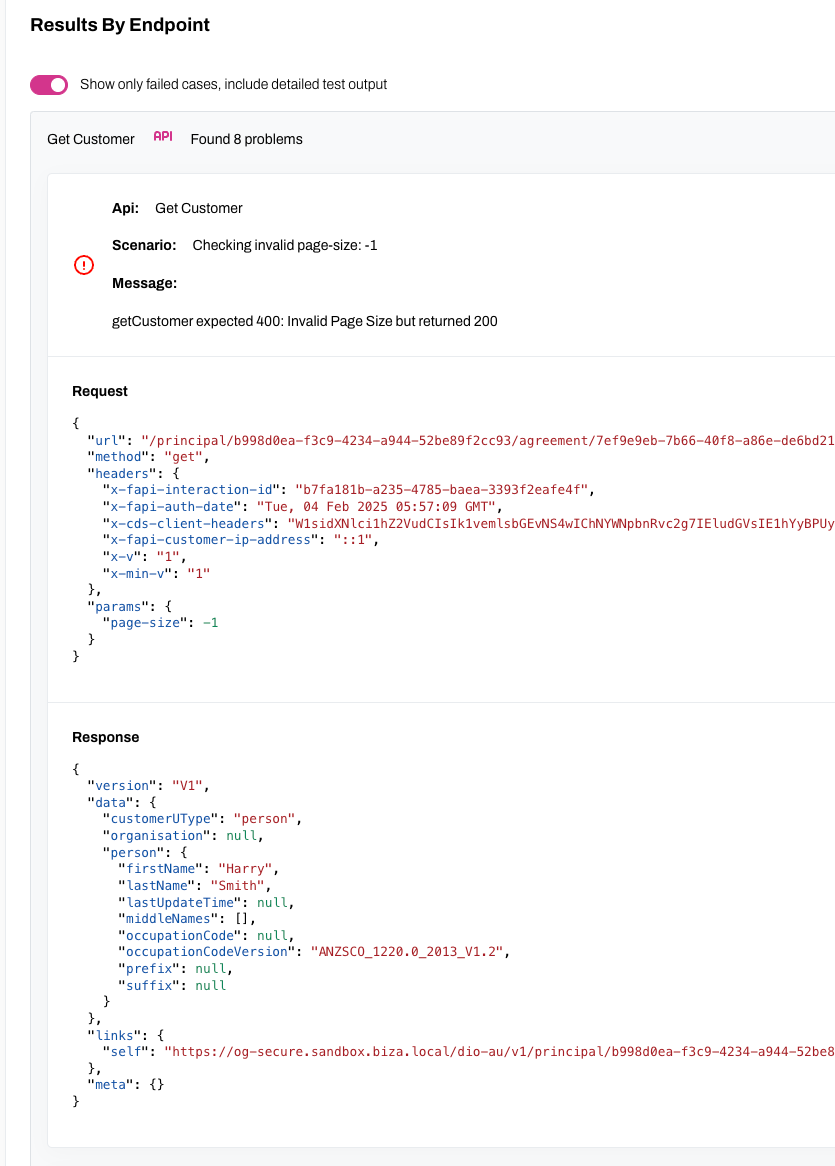
An expanded endpoint
The detailed output shows failed cases only. To see the payloads for successful scenarios, use Download Test Results.
Save the results
VTT doesn't store test results. Leaving or reloading the page loses them.
7. Click Download Test Results. VTT creates a CSV file with the result of every scenario, whatever its outcome, including the request and response payloads.
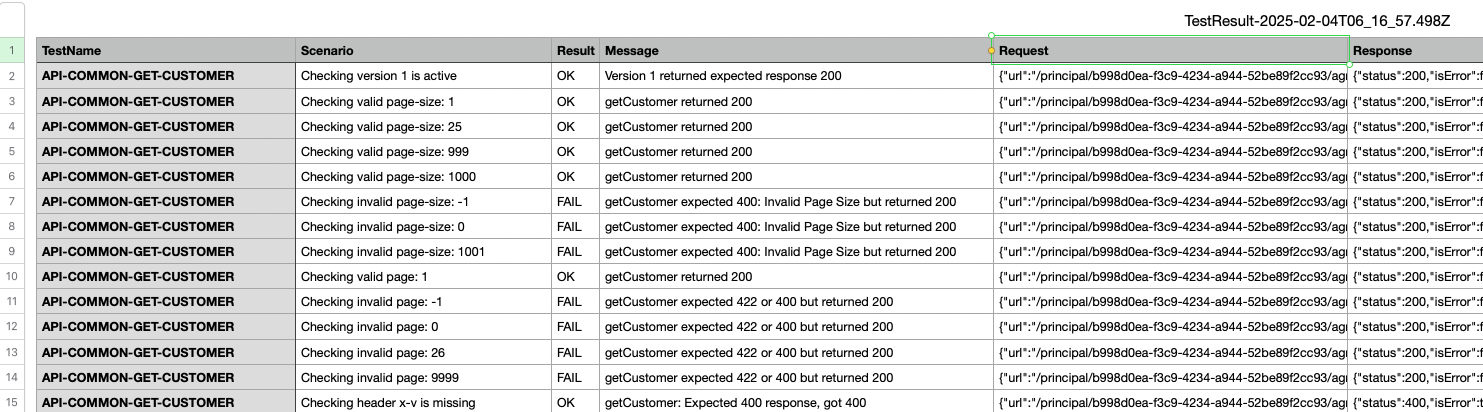
Exported test results