Revoke an arrangement
How to revoke a data sharing arrangement, and what VTT shows afterwards.
You can revoke an arrangement in VTT, or in the Open Gateway Consumer Dashboard. For how revocation behaves, see VTT arrangements.
Revoke in VTT
Revoke Arrangement revokes the arrangement in one click. There is no confirmation dialog.
The screenshots in this section are from VTT 4.0.0, revoking an Azib NRG arrangement.
1. Sign in to VTT.
2. Follow the steps to view an arrangement, and open the arrangement to revoke.
3. Under Operations, click Revoke Arrangement. VTT revokes the arrangement and shows "Success: Agreement has been revoked."
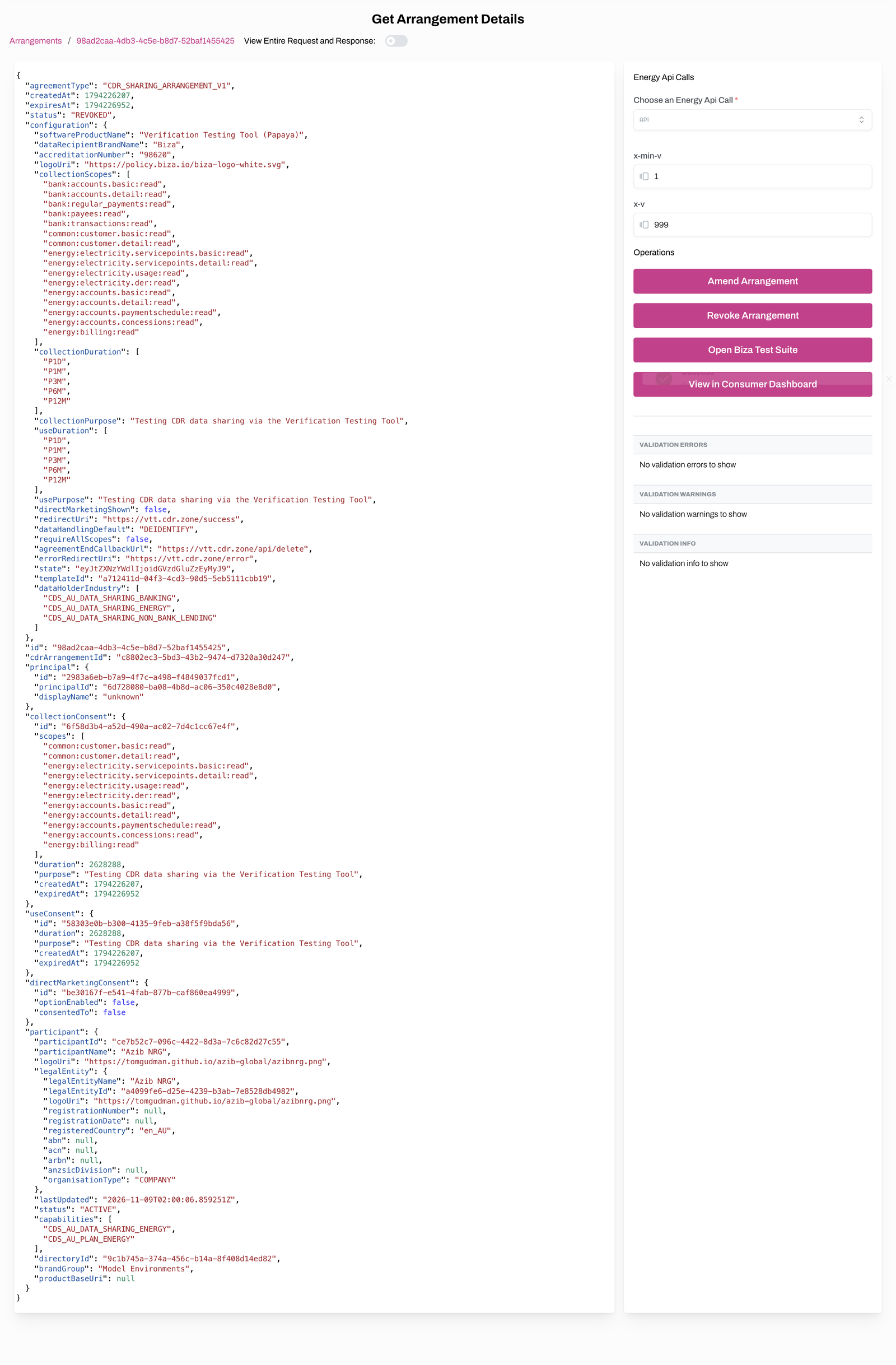
Agreement has been revoked
Revoke Arrangement is disabled while an abandoned amendment leaves the arrangement in INIT. See Amend an arrangement.
Check the result
4. Reload Get Arrangement Details. The arrangement JSON shows "status": "REVOKED".
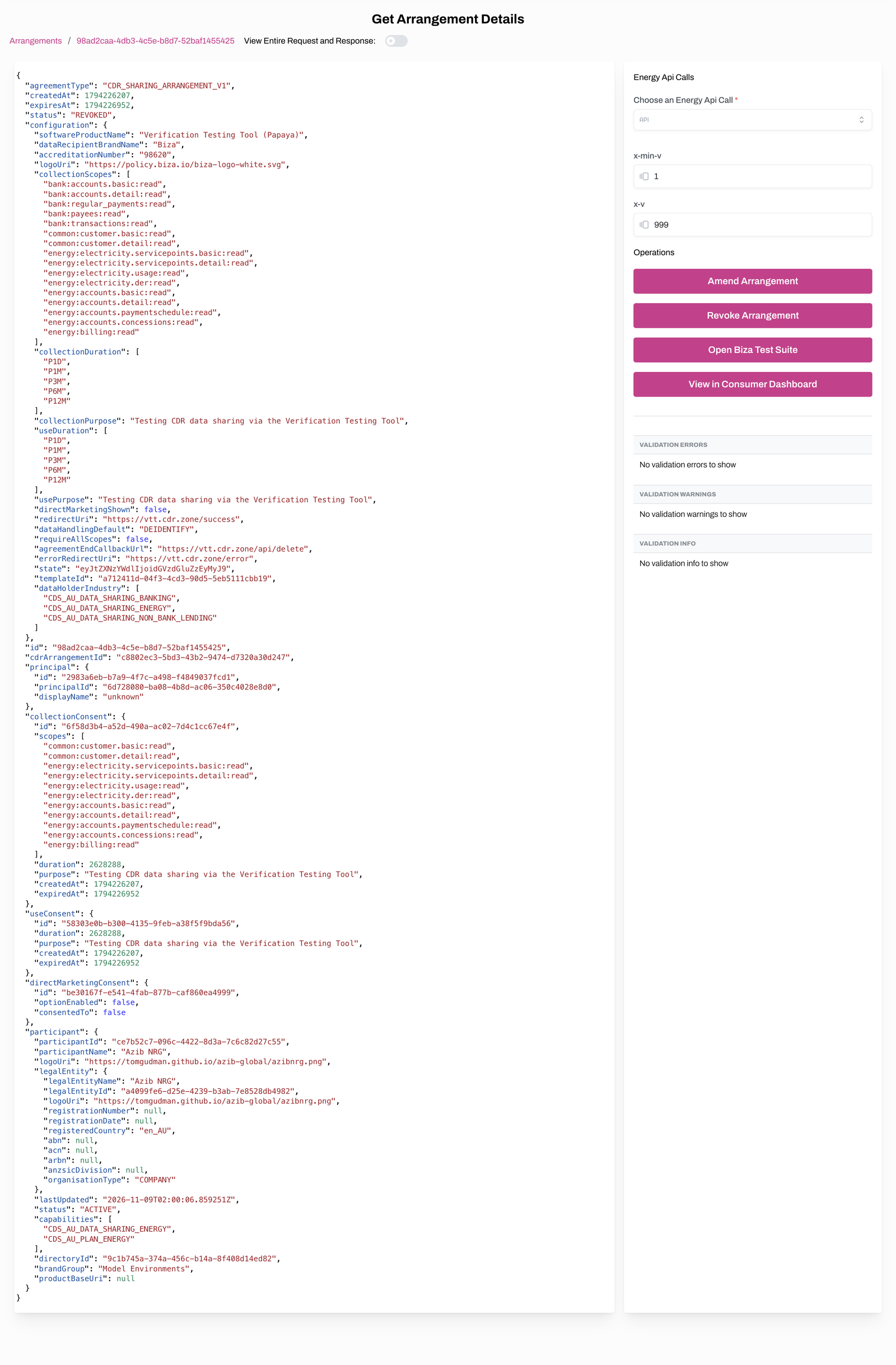
The arrangement status is REVOKED
5. Go to Arrangements. While Show Active Arrangements Only is on, which is the default, the revoked arrangement isn't listed. Turn the switch off to see it.
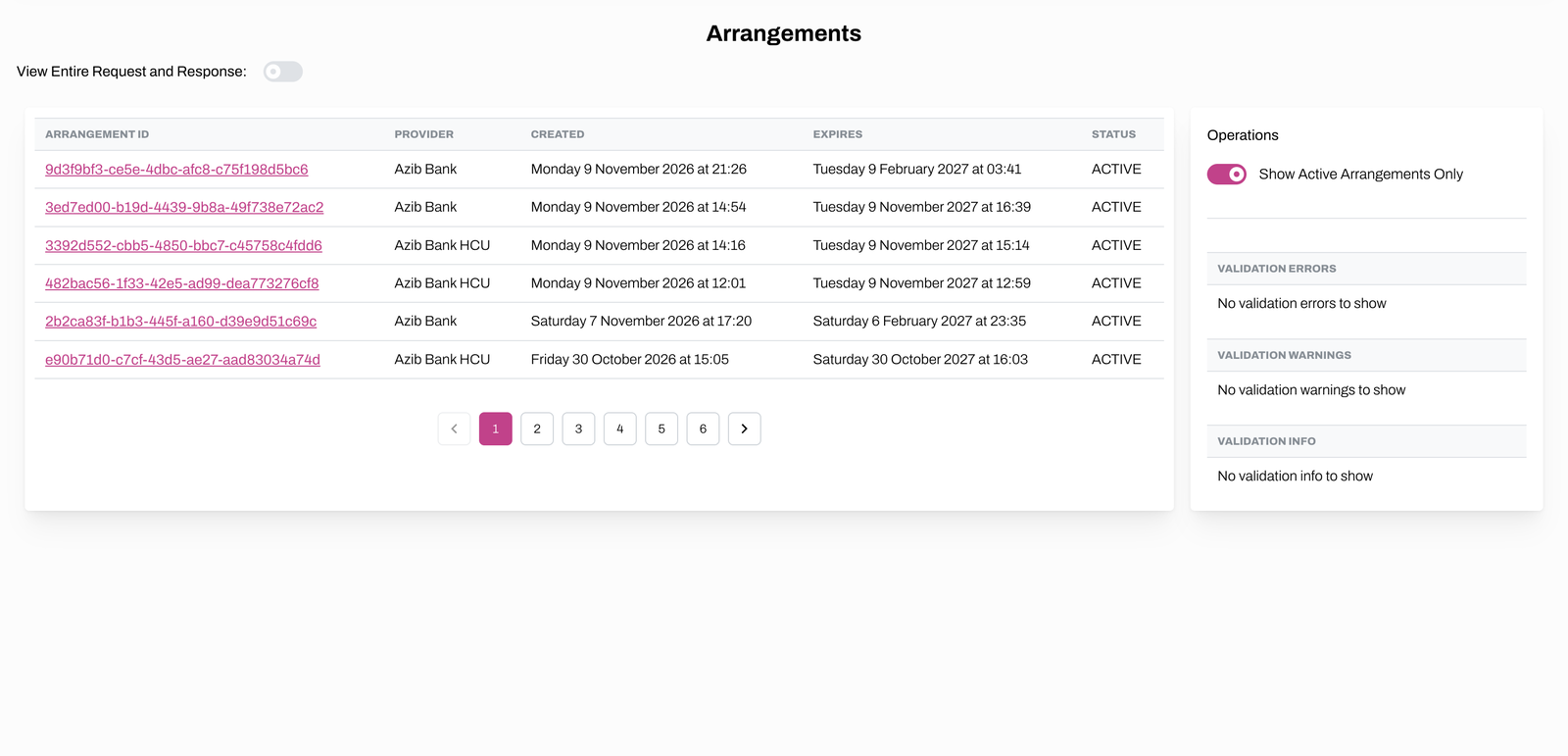
The revoked arrangement drops out of the active list
6. Data calls on the revoked arrangement now fail. The Data Holder returns 403 with:
{
  "code": "urn:au-cds:error:cds-all:Authorisation/RevokedConsent",
  "title": "Consent Is Revoked",
  "detail": "The consent status is REVOKED on <revocation time>"
}
VTT shows this on its An Error Occurred page, with the request it sent. Use Copy issue report information if you need to raise a ticket.
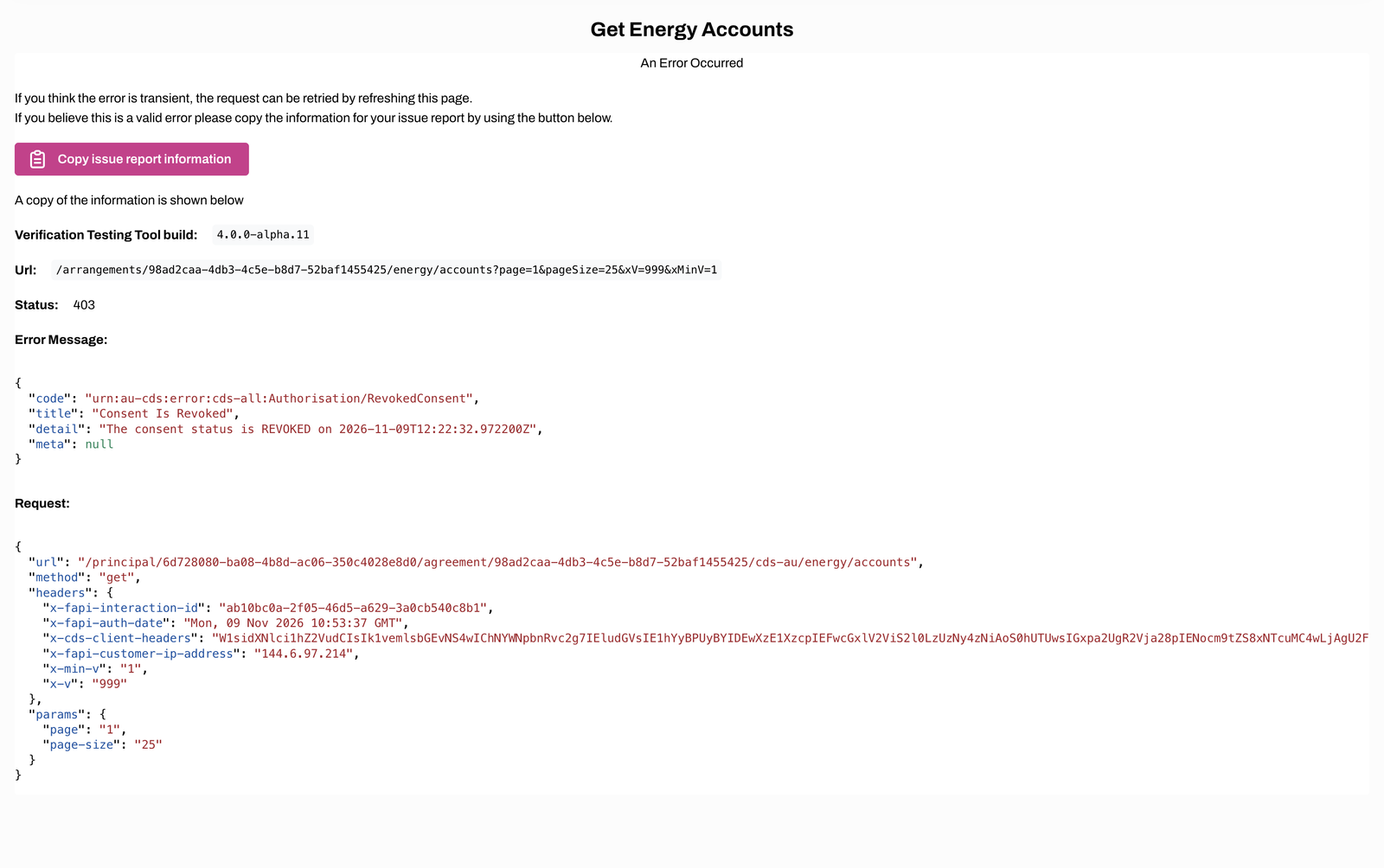
A data call after revocation
Revoke in the Open Gateway Consumer Dashboard
1. Open the arrangement in VTT, then click View in Consumer Dashboard. The dashboard opens in a new browser tab. Sign in if prompted.
2. On the Arrangement Details page, click Stop access.
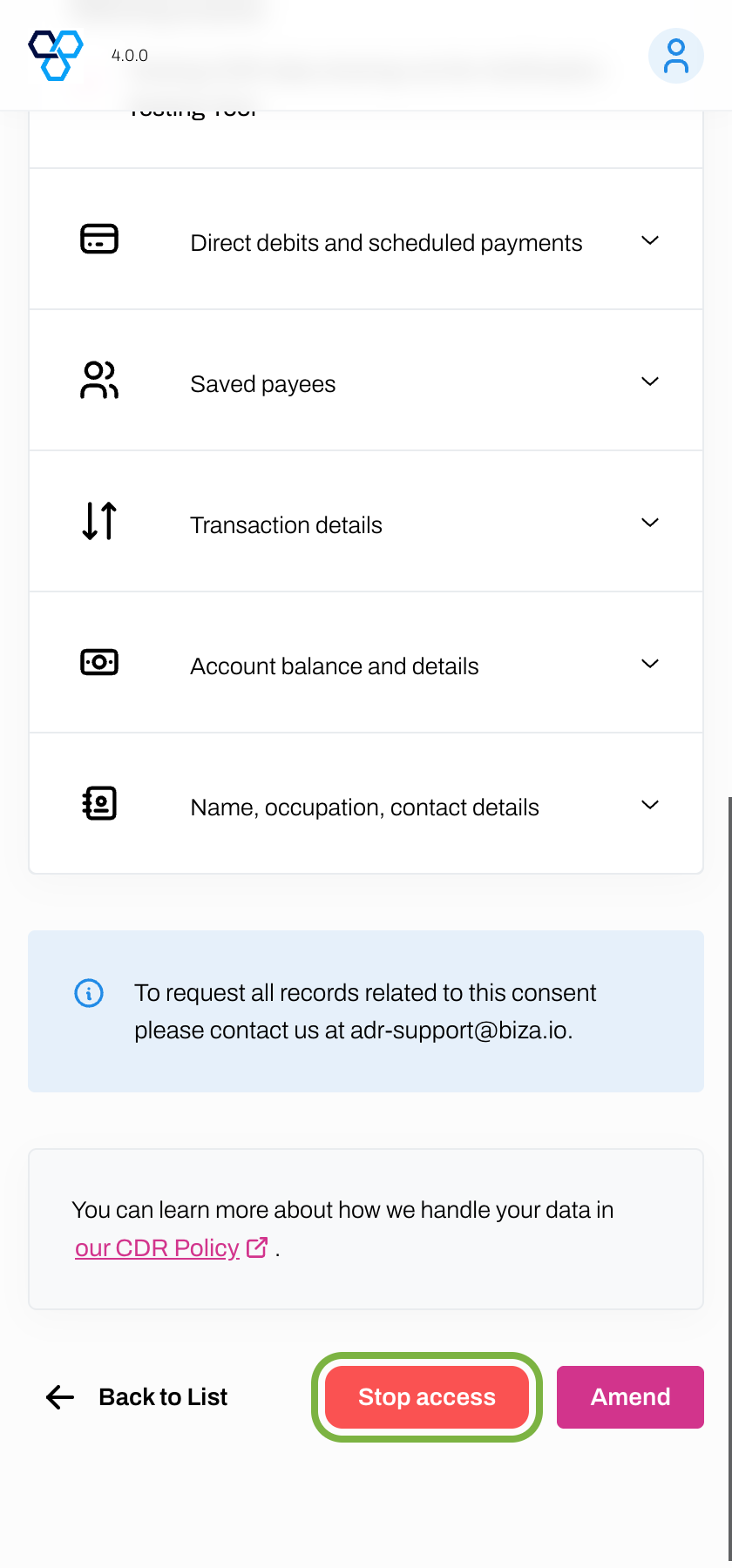
Stop access
3. In the Stop access dialog, click Stop access.
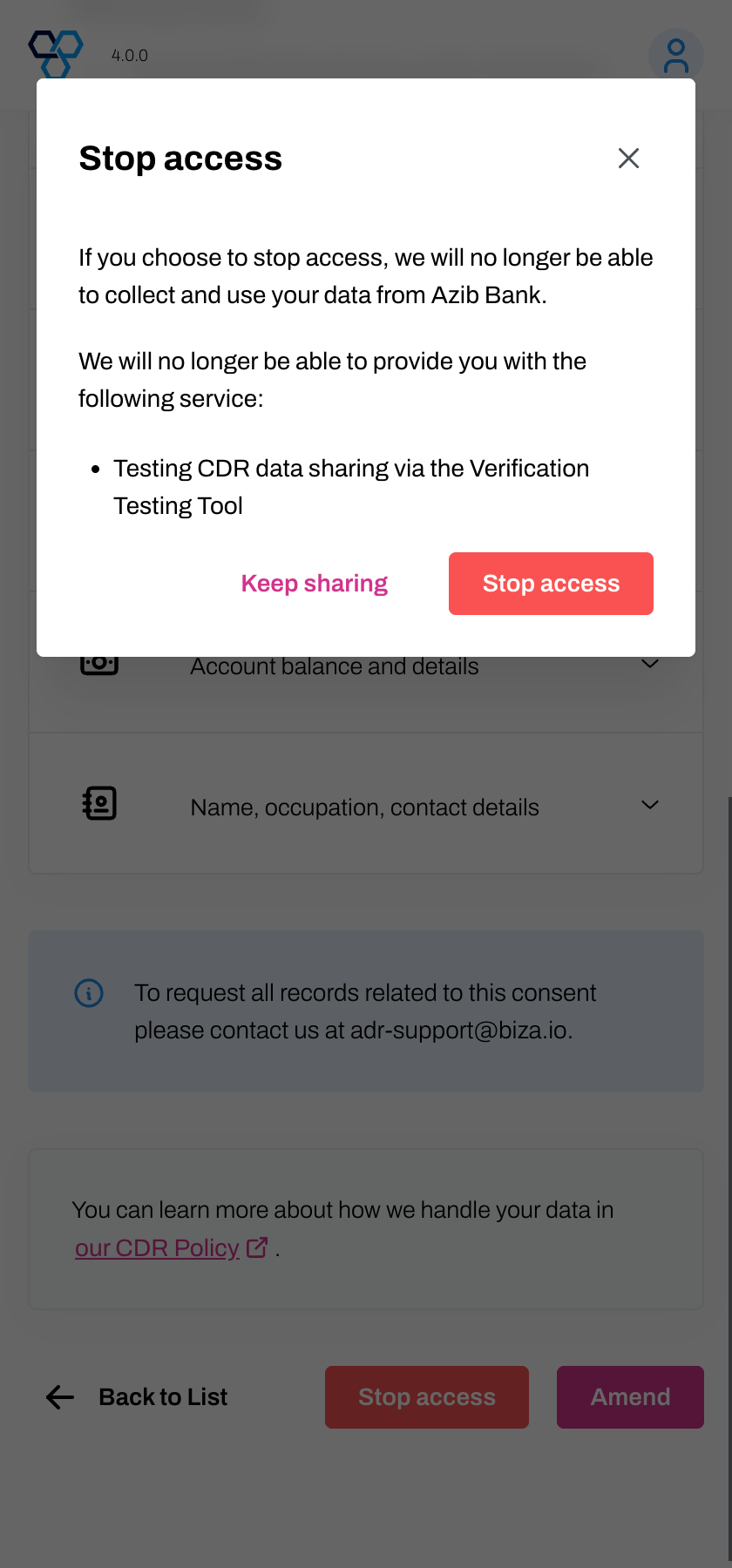
Confirm Stop access
4. The revoked arrangement now appears on the Inactive tab of the Data Sharing Arrangements page.
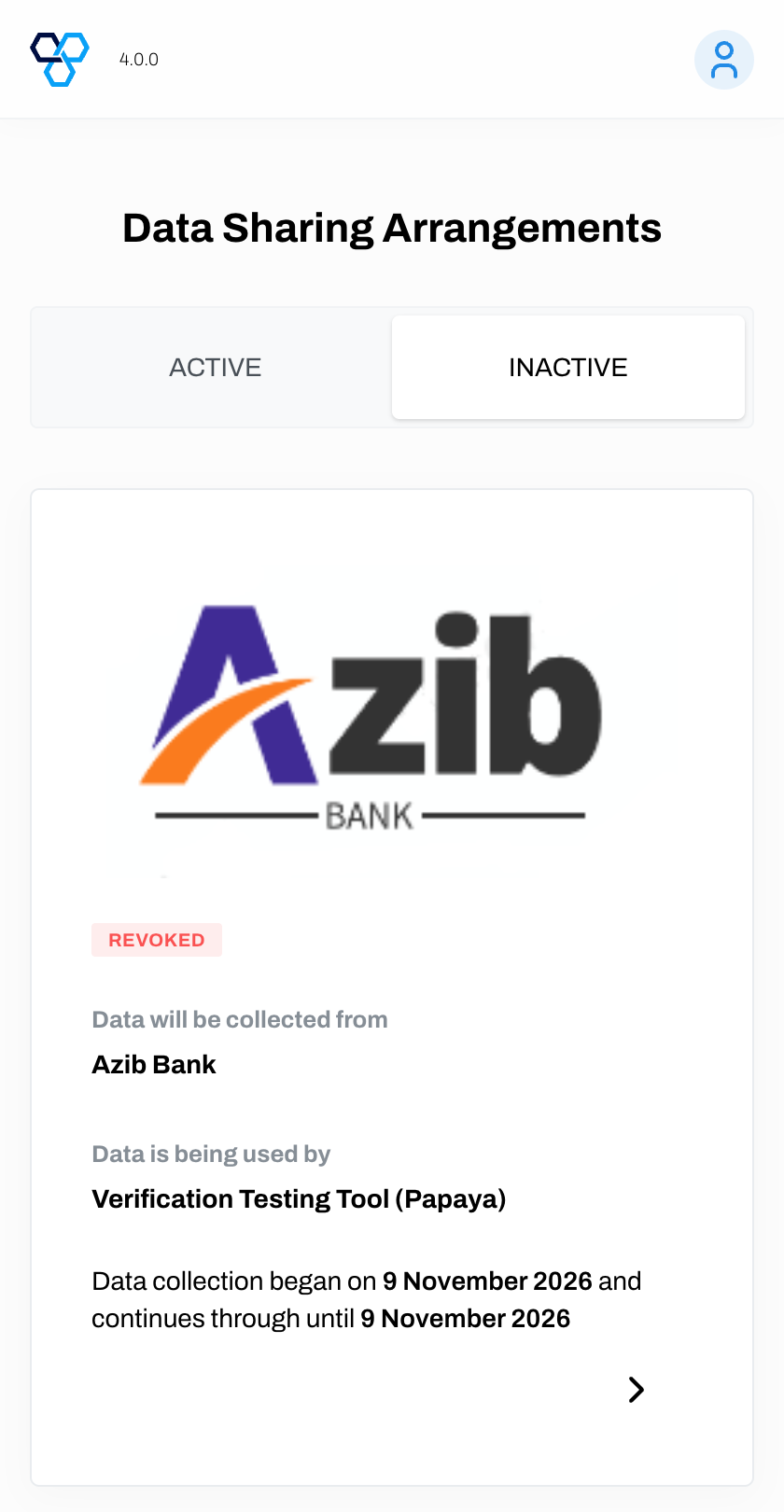
The Inactive tab