Visual API Testing: Banking
How to run the Common and Banking API calls on an arrangement and read the results.
Use Visual API Testing to call the Banking APIs a Data Holder exposes, with your own parameters. This guide uses an Azib Bank arrangement. For what each call and field does, see Visual API Testing.
The screenshots are from VTT 4.0.0. All the customer and account data shown is mock data.
Before you start
Create a Banking arrangement that includes the data clusters for the calls you want to make.
Open the arrangement
1. On the VTT home page, click List Arrangements.
2. Click the Arrangement ID of the arrangement to test. The list shows active arrangements only, unless you turn off Show Active Arrangements Only.
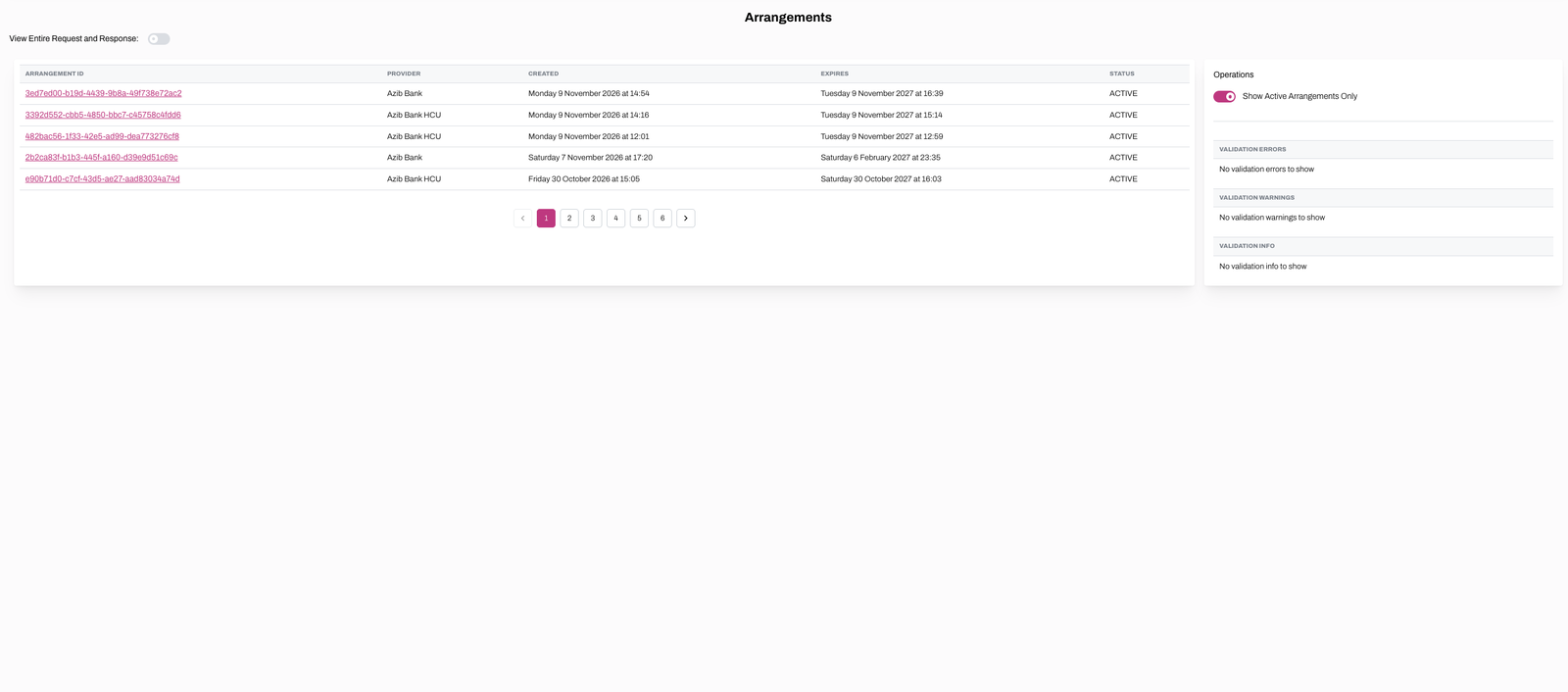
Arrangements
Get Arrangement Details opens. The Banking Api Calls panel on the right has the top-level calls.
Run a top-level call
The top-level calls are List Accounts, List Payees, Get Customer, Get Bulk Scheduled Payments, Get Bulk Direct Debits, Get Bulk Balances and Get Bulk Instalment Plans.
3. In Choose a Banking Api Call, choose a call. The form adds the fields that call takes. For example, List Accounts adds Page, Page Size and Open Status; the bulk calls add filters such as Account Status, Product Category and Is Owned?.
4. Change x-min-v and x-v if you want to request particular API versions. They default to 1 and 999.
5. Click Submit. VTT sends the request through Open Gateway to the Data Holder and opens the result page. The result can take a few seconds.
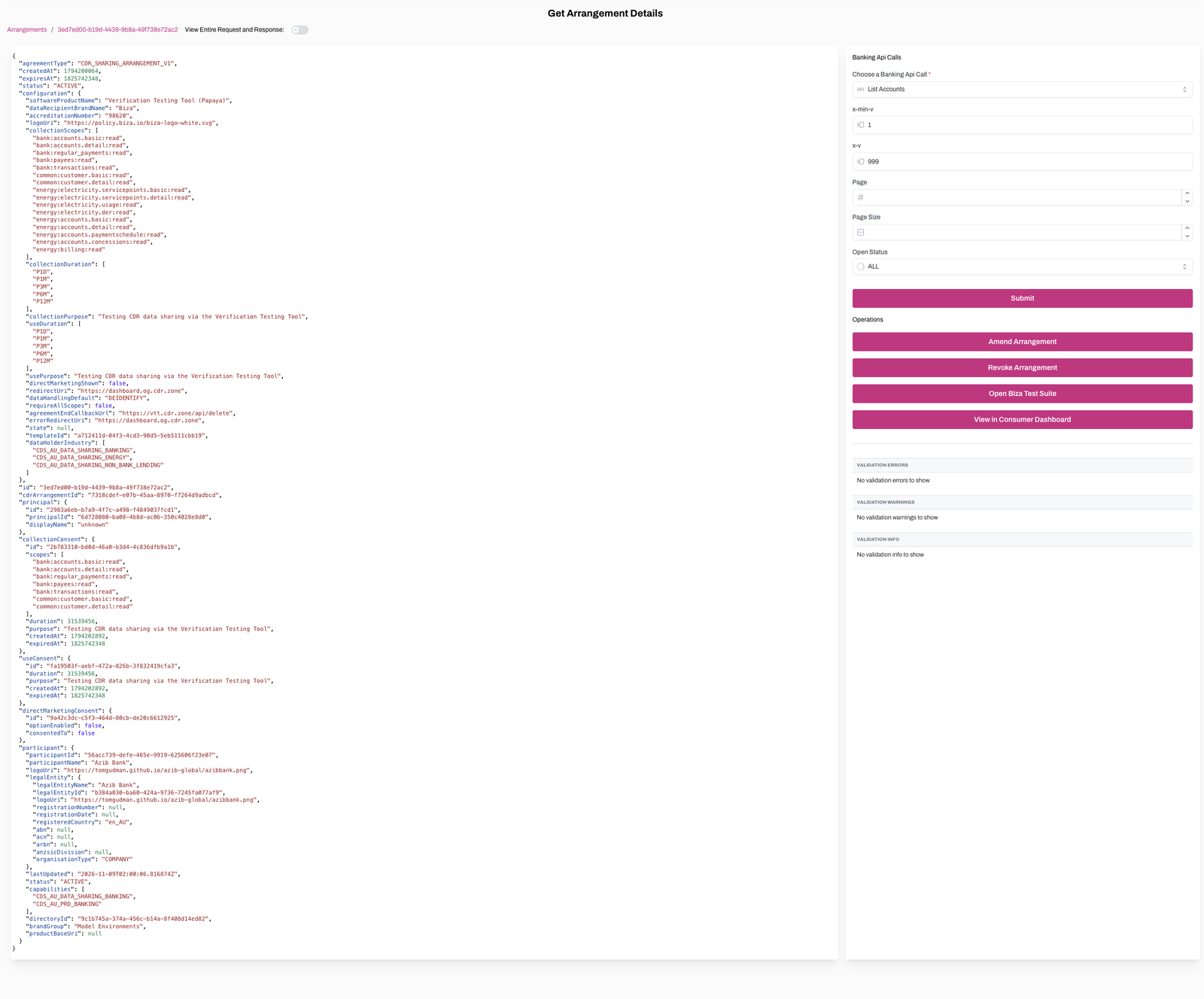
A top-level call, ready to submit
6. Read the result. List calls show a table; single-resource calls, such as Get Customer, show the JSON response. The validation panel on the right lists any Validation Errors, Validation Warnings and Validation Info.
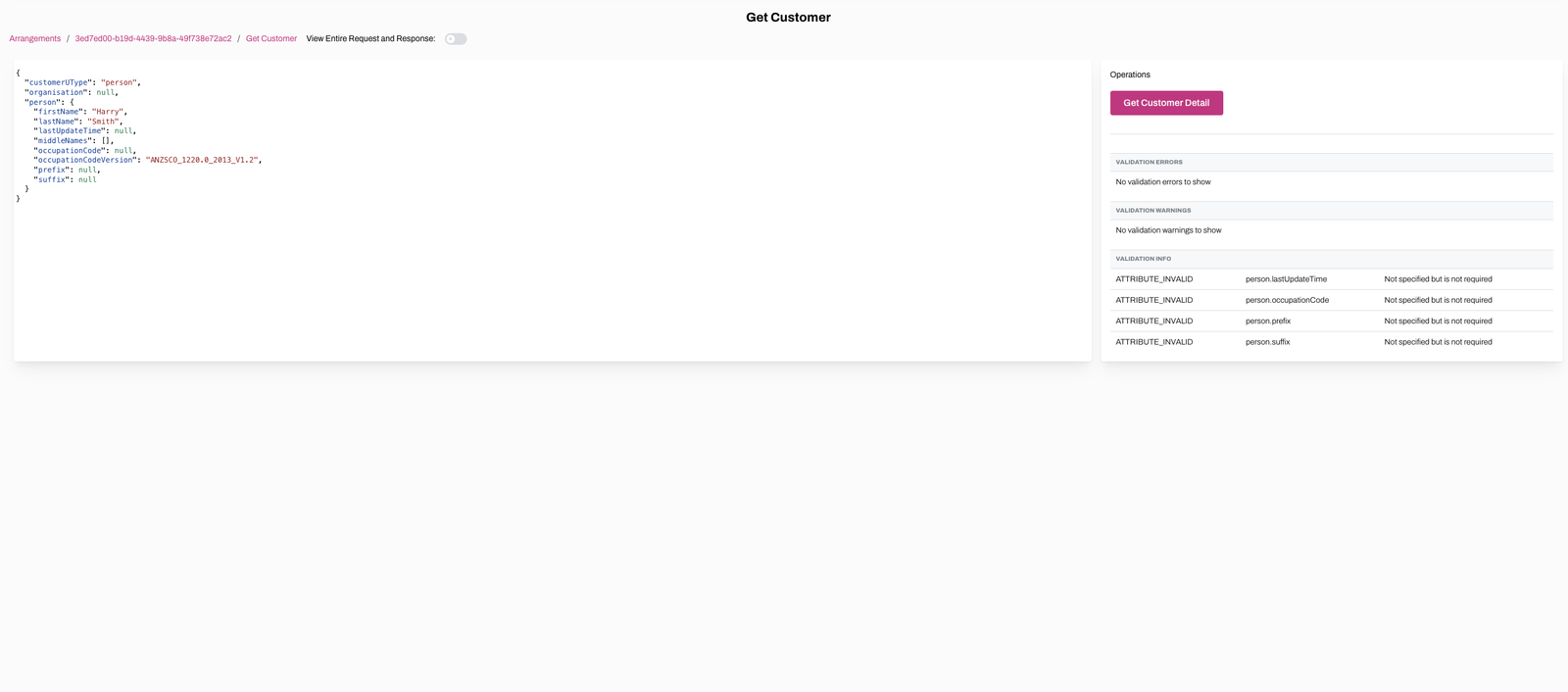
Get Customer: the response, with validation info
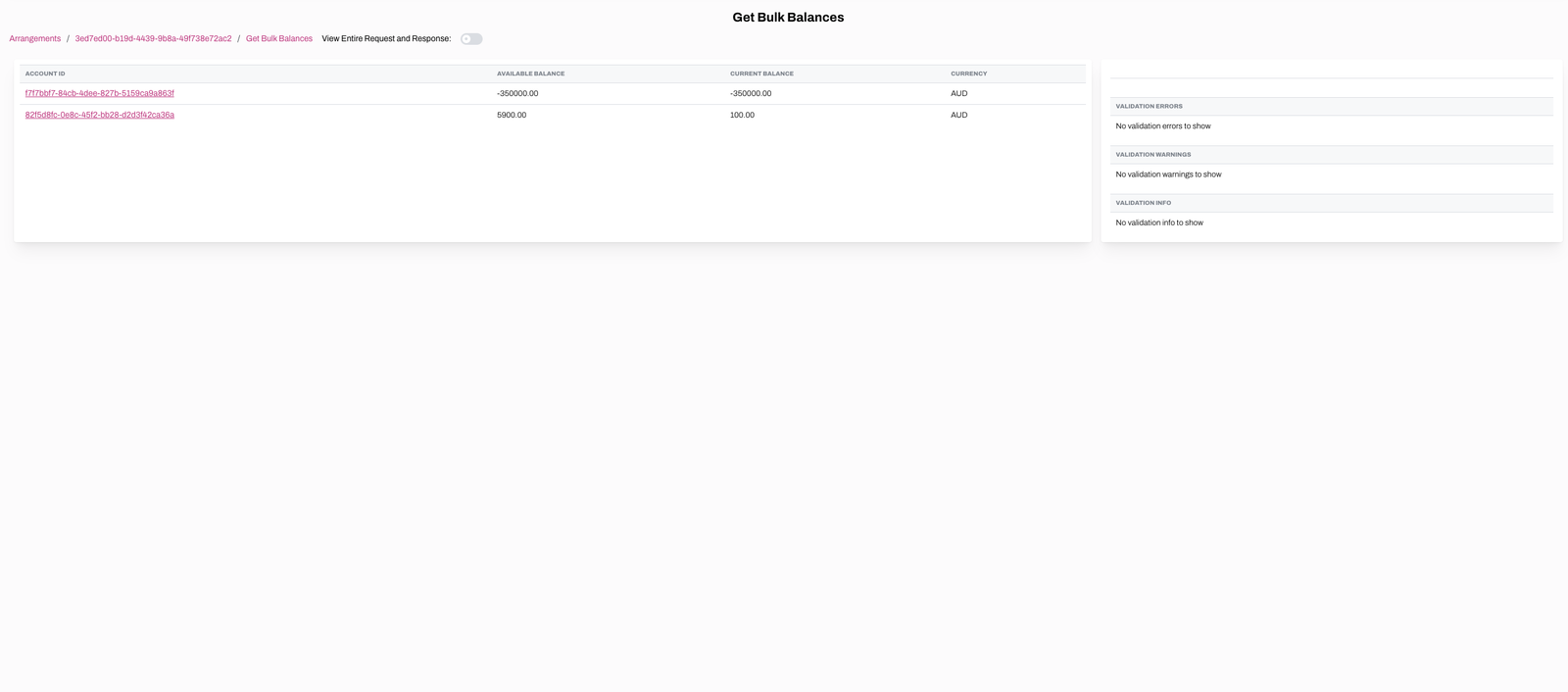
Get Bulk Balances: a list call
7. To see the request VTT sent and the full response, turn on View Entire Request and Response.
8. Use the breadcrumbs at the top of the result page to go back to the arrangement.
Run an account-scoped call
Account-scoped calls are on the Get Accounts result page.
9. Run List Accounts as above. The result lists each account's ID, creation date, open status and nickname. To list only open or closed accounts, use the Get Accounts Api Call form: choose an Open Status and click Submit.
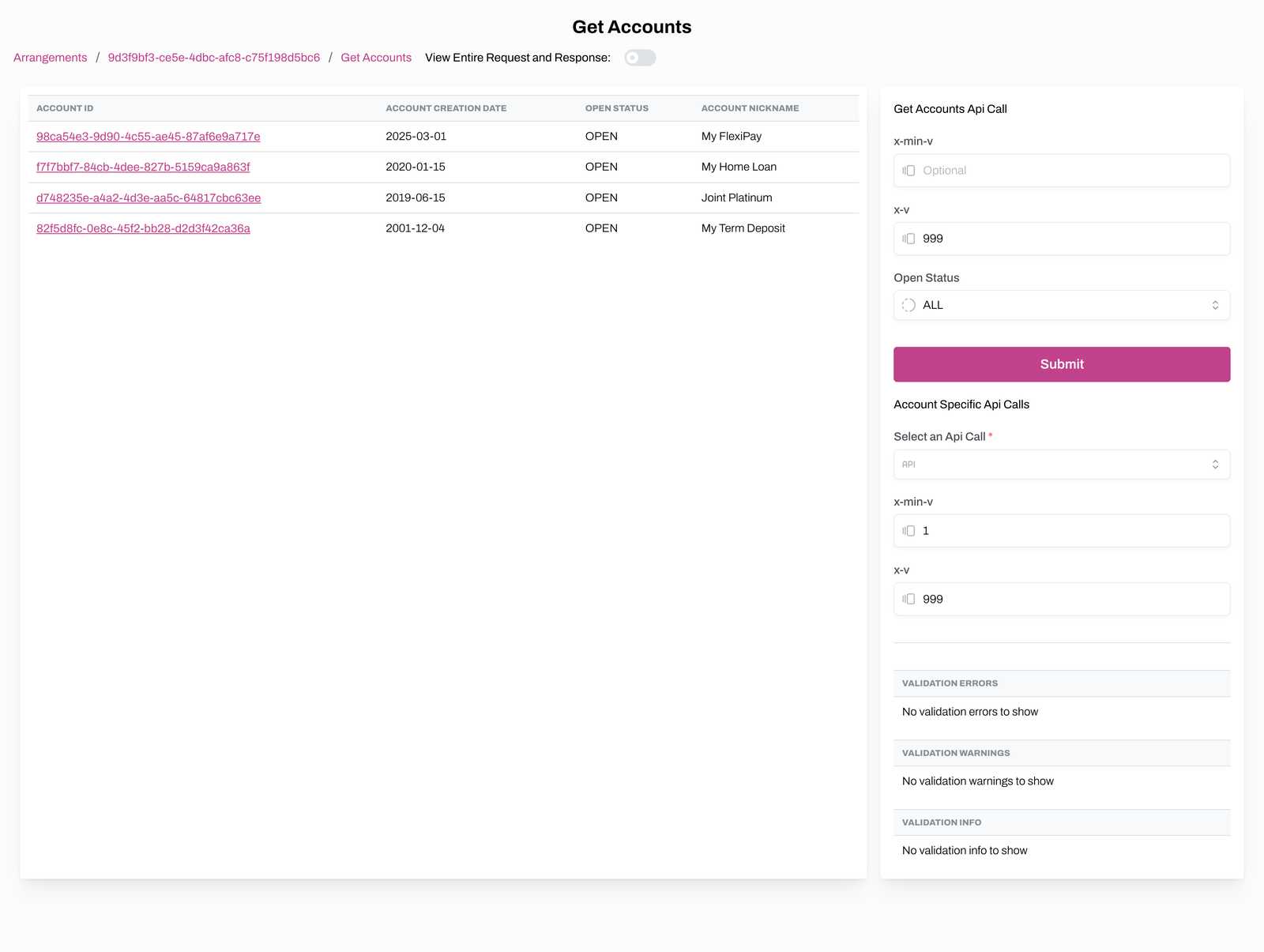
Get Accounts, with the account-scoped calls on the right
10. Under Account Specific Api Calls, choose a call in Select an Api Call. These calls take one account:
- Get Transactions
- Get Account Balance
- Get Scheduled Payments For Account
- Get Direct Debits For Account
- Get Instalment Plans For Account (with Plan Status)
- Get Bulk Transactions
11. In Choose an Account, choose the account. Submit stays disabled until you do.
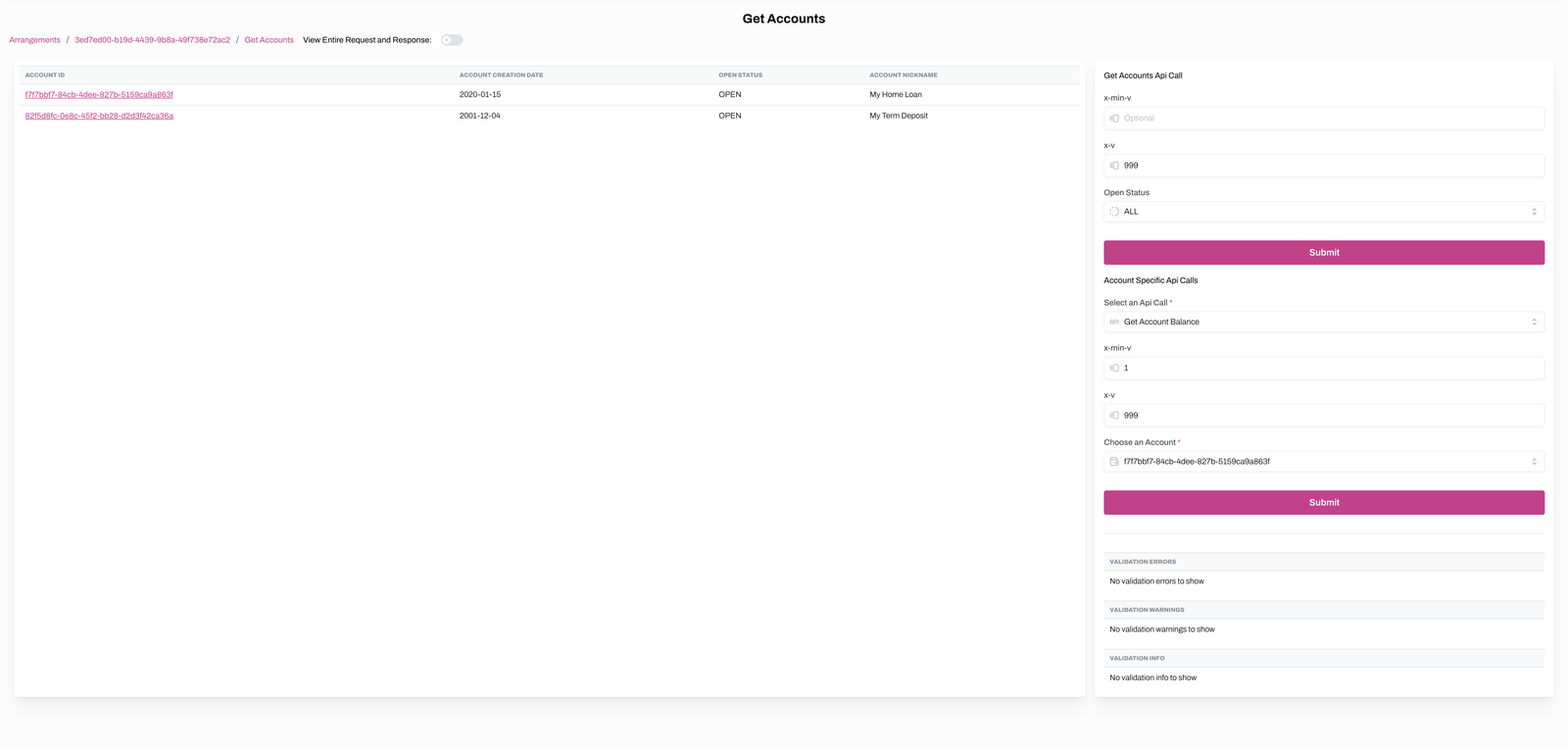
An account-scoped call, ready to submit
12. Click Submit. The breadcrumbs now include the account ID.
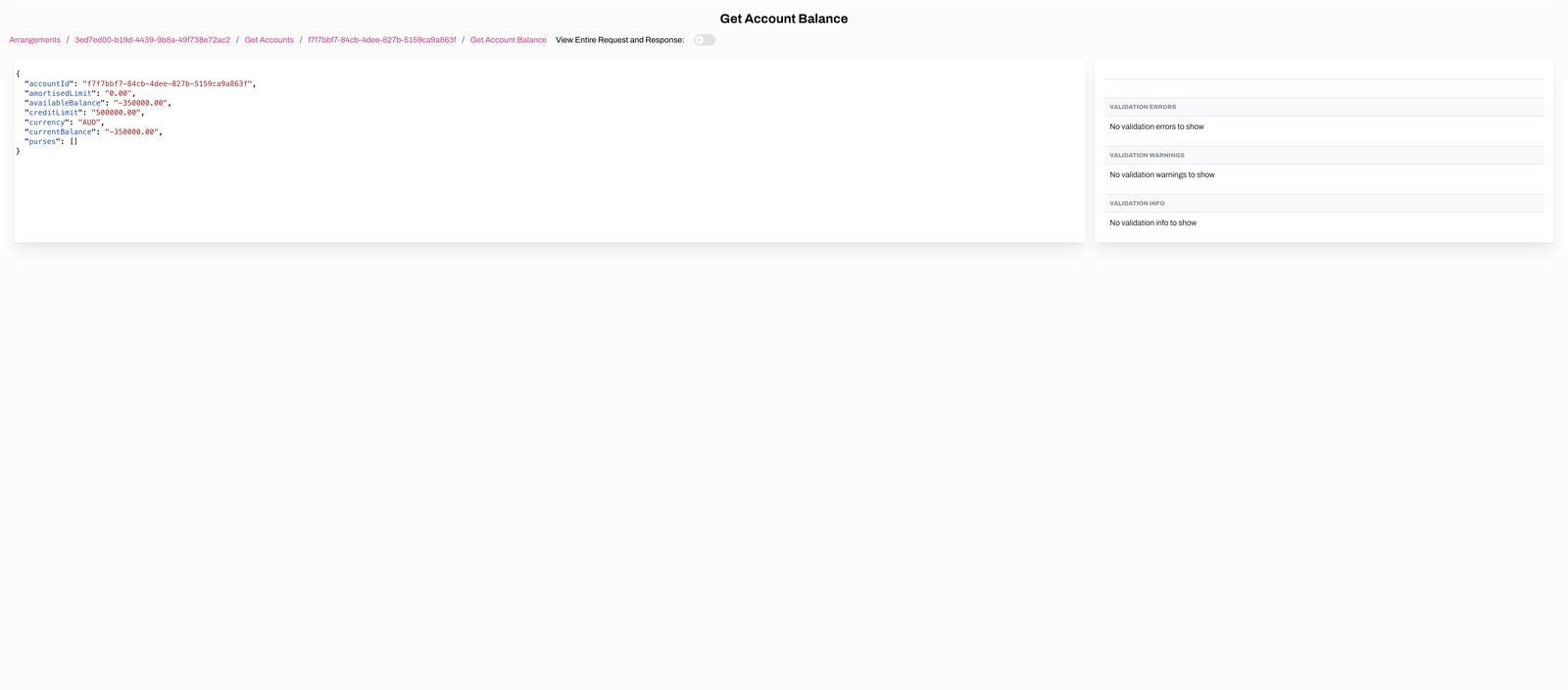
Get Account Balance
Transactions
Get Transactions and Get Bulk Transactions also take Page, Page Size, Oldest Time and Newest Time. Get Bulk Transactions also takes Min Amount and Max Amount.
If you submit Get Bulk Transactions without an account, VTT goes to an /accounts/missing/bulk_transactions page. Always choose an account first.
The Get Transactions result lists each transaction's account ID, amount, ID, and execution, posting and value dates. VTT has no transaction detail page: the account ID on a transaction row opens Get Account Detail for that account.
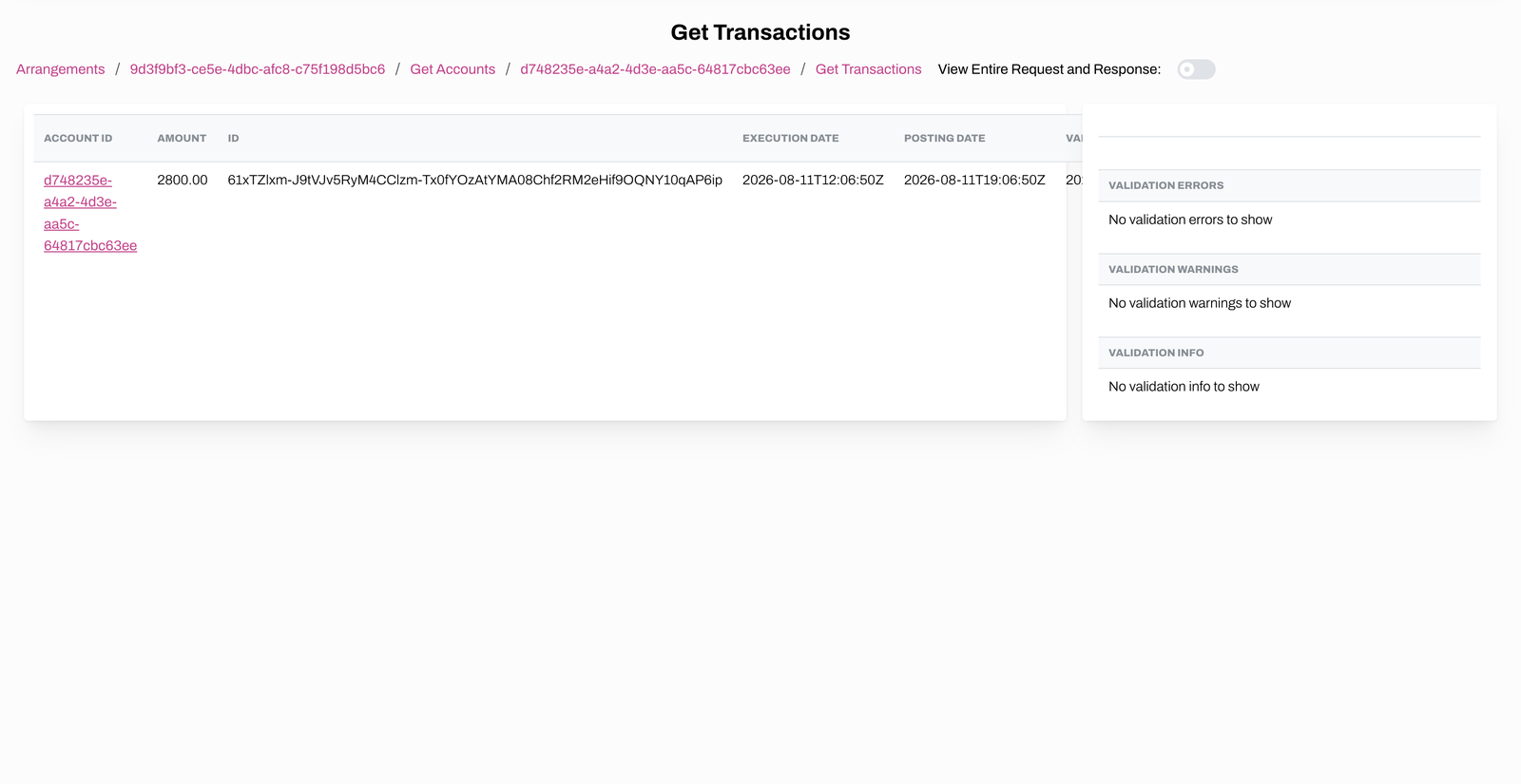
Get Transactions
Account detail
Click an account ID on the Get Accounts page, or on a transaction row, to open Get Account Detail. It shows the account's full JSON. Use Query Settings to request it again with a different x-min-v or x-v.
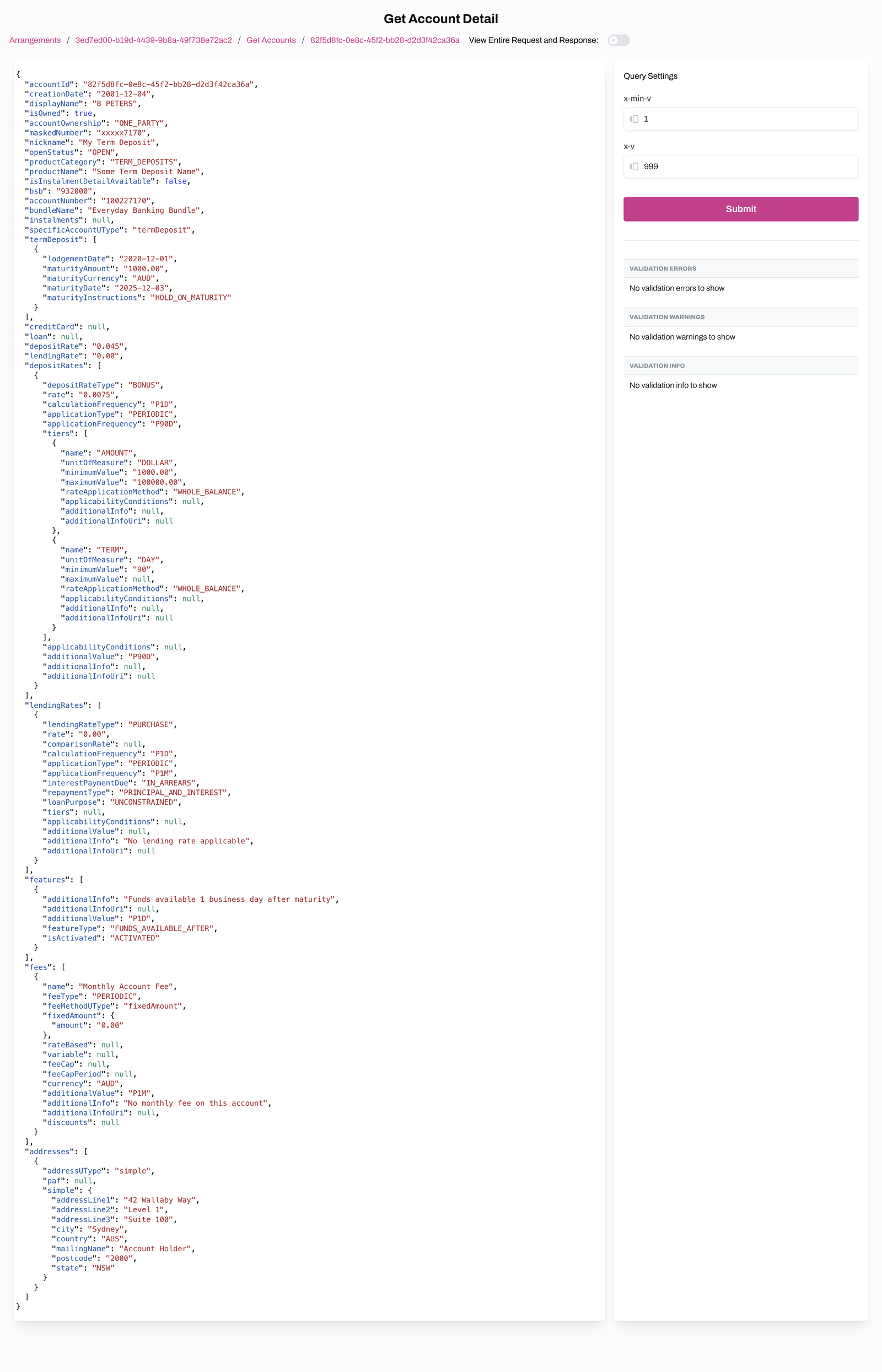
Get Account Detail
Run a Specific Accounts call
The Specific Accounts calls take one or more accounts:
- Get Balances For Specific Accounts
- Get Scheduled Payments For Specific Accounts
- Get Direct Debits For Specific Accounts
13. On the Get Accounts result page, under Account Specific Api Calls, choose one of these calls. The form shows a Select Accounts multi-select in place of Choose an Account.
14. Click Select Accounts and pick each account to include. Press Escape to close the list. Submit stays disabled until at least one account is picked.
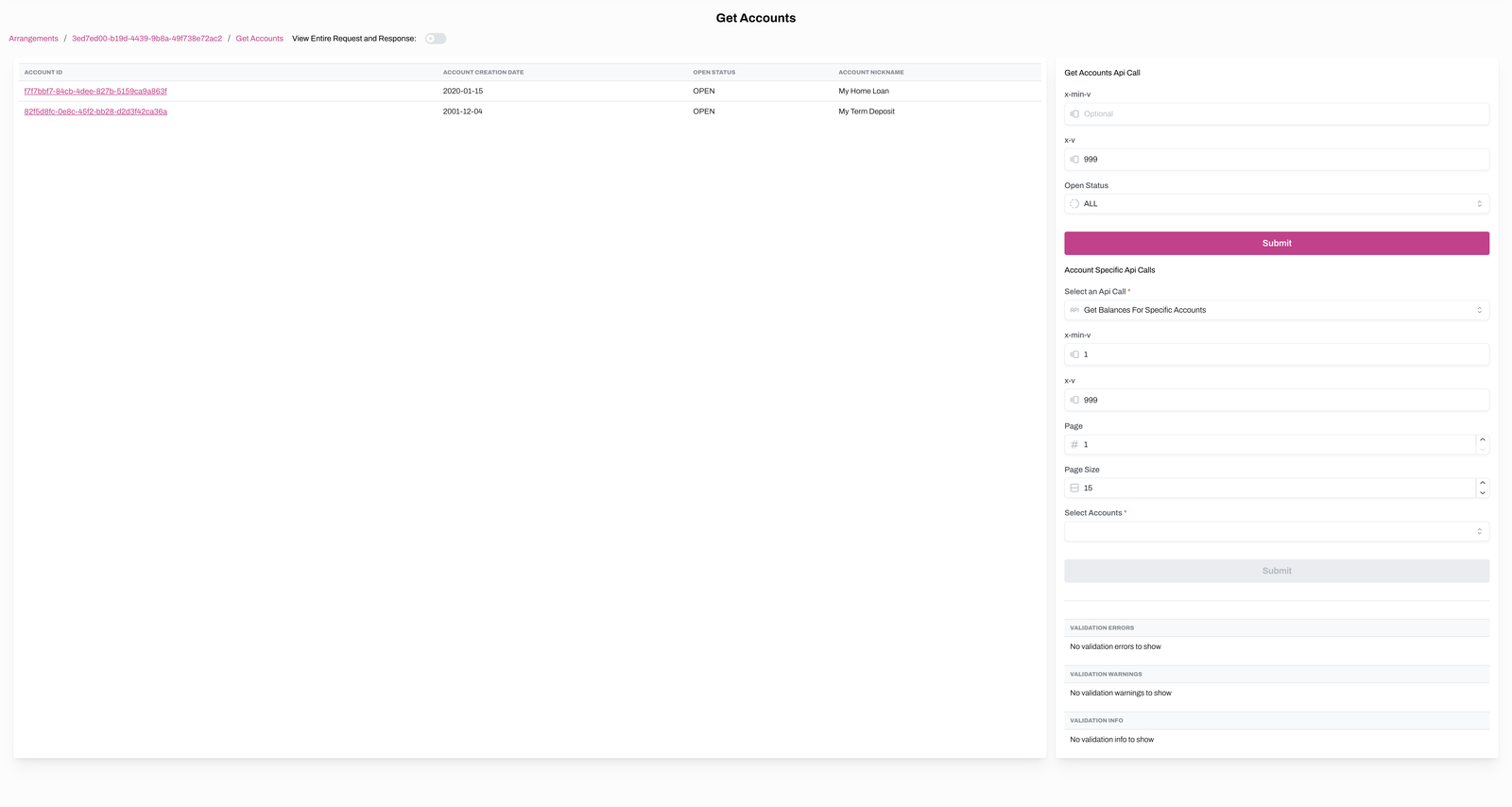
The Select Accounts multi-select, before any account is picked
15. Click Submit. The result page shows the accounts you picked under Active Filters.
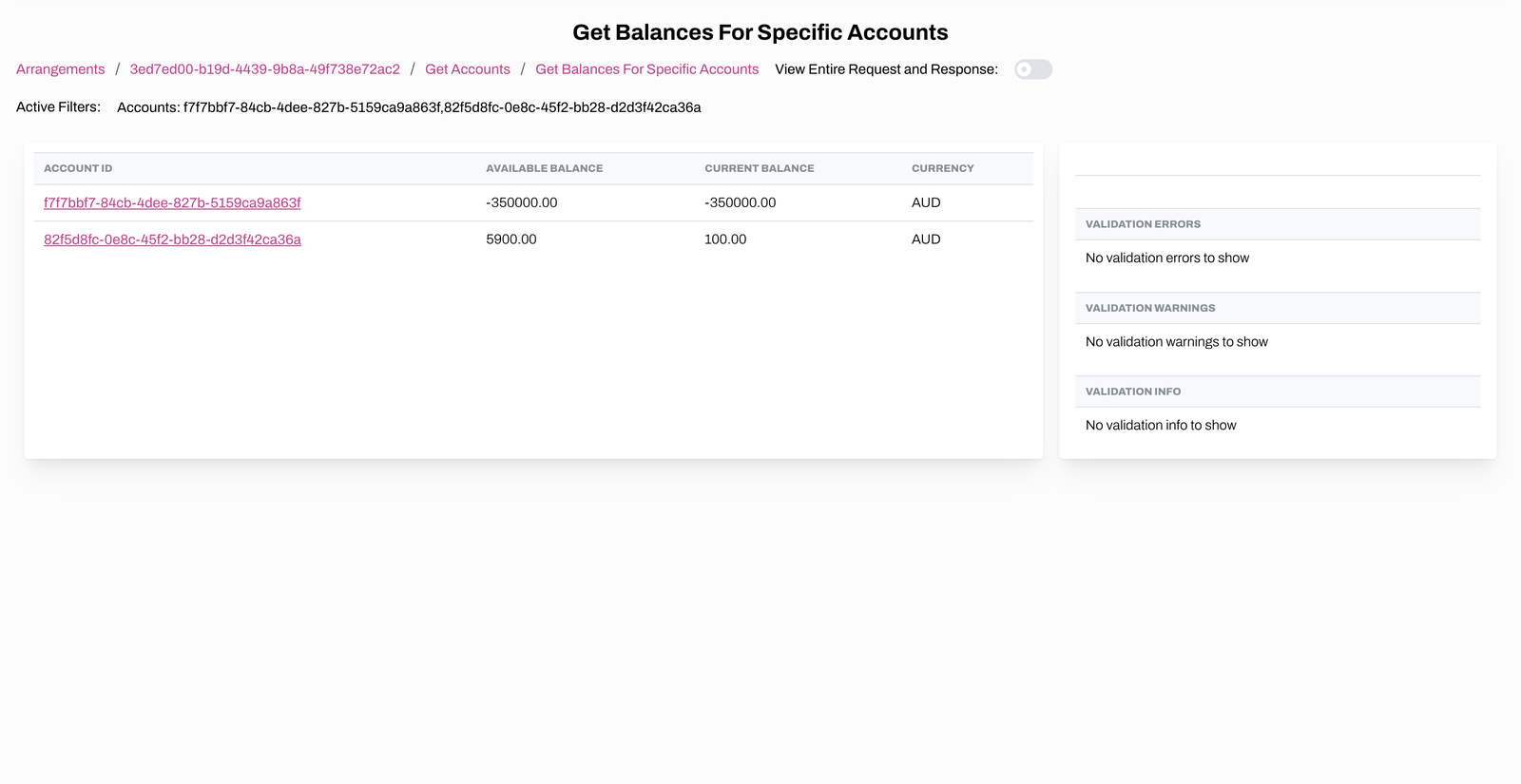
Get Balances For Specific Accounts
If a call fails
If the Data Holder returns an error, VTT shows An Error Occurred, with the VTT build, the URL, the HTTP status, the error message and the request. Click Copy issue report information to copy them for a support ticket.