Renewing ACCC Certificates
This page provides information on how to renew your Australian Competition and Consumer Commission (ACCC) SSL certificates, and how to communicate these with Biza.
Biza does not have access to the ACCC portal. Should the ACCC issue an update to the CDR portal, these steps may need to be modified. If you notice inconsistencies between what you see when completing the process and this documentation, please let us know with screenshots and a brief description on how this has changed or could be improved. This documentation is community driven.
Background
Please note that depending on your activation date, you may have previously had either one or two SSL certificates signed. We now only provide one (1) SSL certificate.
We have outlined 2 separate renewal processes below. The first is for those who are moving from two certificates to one. The second is the normal renewal process for customers who have already moved to one certificate. Please speak to your Biza representative if you are unsure about which process to follow.
When you are part of the CDR ecosystem, the ACCC signs an SSL certificate used on the holder or brand (hosted by Biza). This SSL certificate is used to secure communications between the Accredited Data Recipients and Data Holders. The certificate has a lifespan of one (1) year. Consequently, this means that a holder must renew their ACCC certificate each year before the expiration date. An expired certificate will trigger an outage as the ADRs will reject any communications from a holder with untrusted/expired certificates. We recommend you prepare for this operation 30 days in advance.
At a high-level, the steps you need to take are noted below. You will find more comprehensive instructions in the next section.
1. Request your CSR file from Biza via a Service Desk ticket. Note that Biza also tracks the expiry dates of certificates, and we may raise a ticket through the Service Desk to bring this to your attention. You may be aware that ACCC Certificates cannot be requested within 30 days of expiry. We aim to contact you to have this completed within sufficient time. We recommend you track the expiry of this certificate also.
2. Download the CSR file from the ticket and verify that it covers the domains registered with the ACCC. This is usually secure-auth.cdr.yourdomain.com.au and api.cdr.yourdomain.com.au. Let us know if it does not match and we will create a new CSR as appropriate.
3. Upload the CSR to the ACCC.
4. You should receive a download link for the certificate within a few days. This link from the ACCC is a one-time use so please download the certificate and store it appropriately.
5. Attach the ACCC signed certificate to the Service Desk ticket in a response to our original request.
If the ACCC certificate download link has expired, the error below will appear. If this is encountered and the certificate has not been successfully downloaded yet, please reach out via email to the ACCC technical team and ask them to reissue the download link.
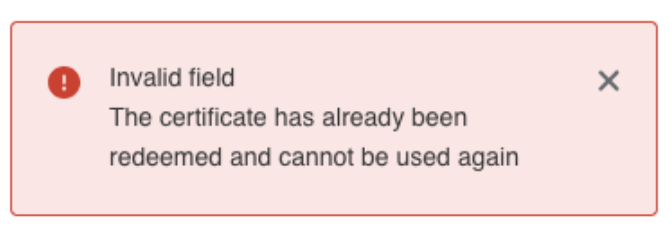
error message
Process for renewing when moving to one certificate
You will need to have your Certificate Signing Request (CSR) file on hand to complete this process. Please request this from Biza via a Service Desk Ticket.
Please only follow this process if you are transitioning from two certificates to one certificate. If you have already moved to one certificate, please follow the renewal process below.
- Go to the CDR Portal and login.
- Click Participation in the top navigation bar.
- Select View for the brand you are renewing.
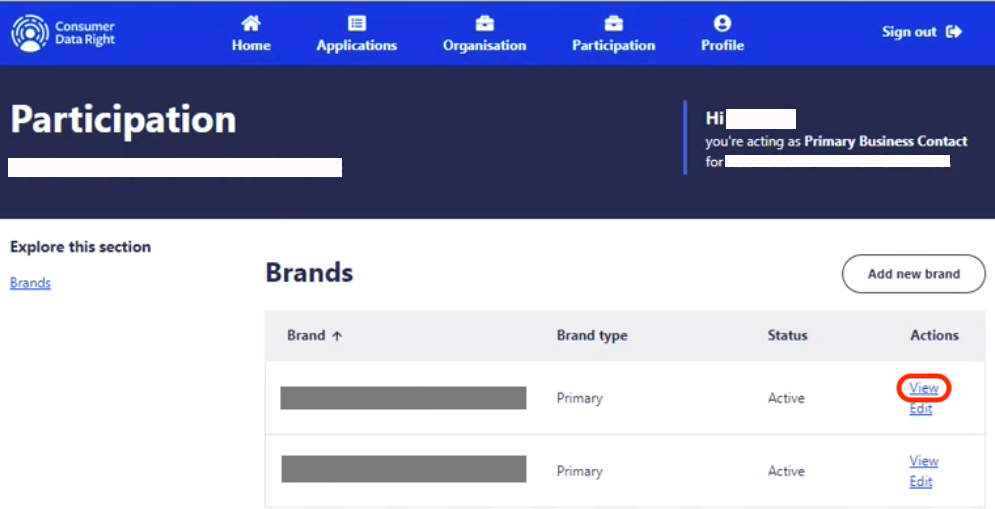
View Brand
- Under the Brand Participation heading, select the View action.
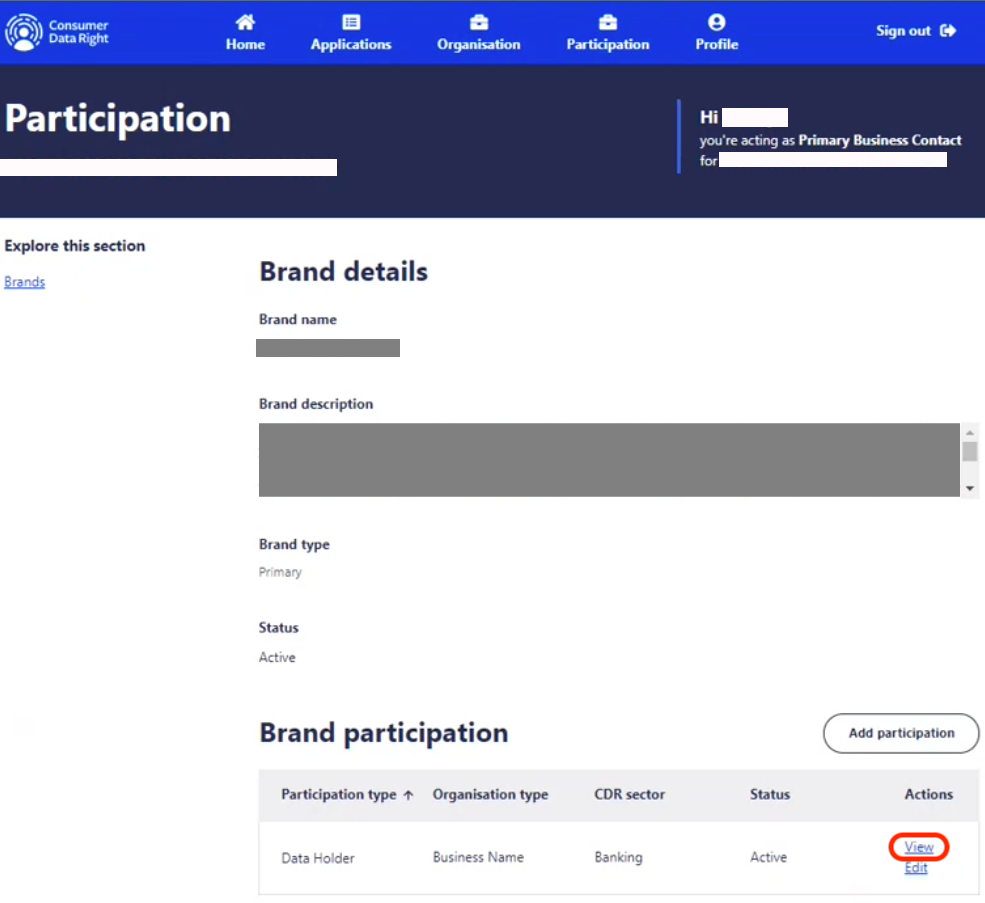
Brand Participation
- Click Production Details at the bottom of the Production and CTS details page.
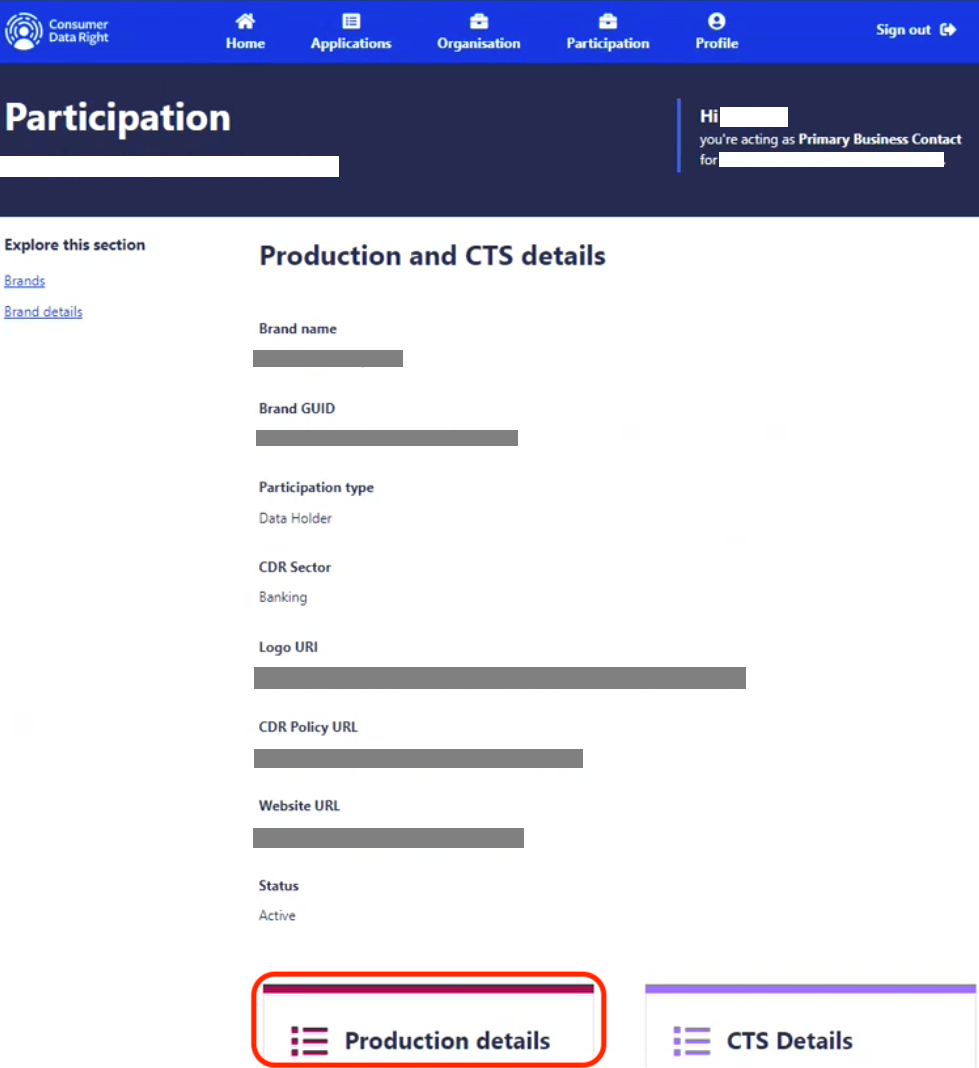
Production Details
- Click Request a certificate.
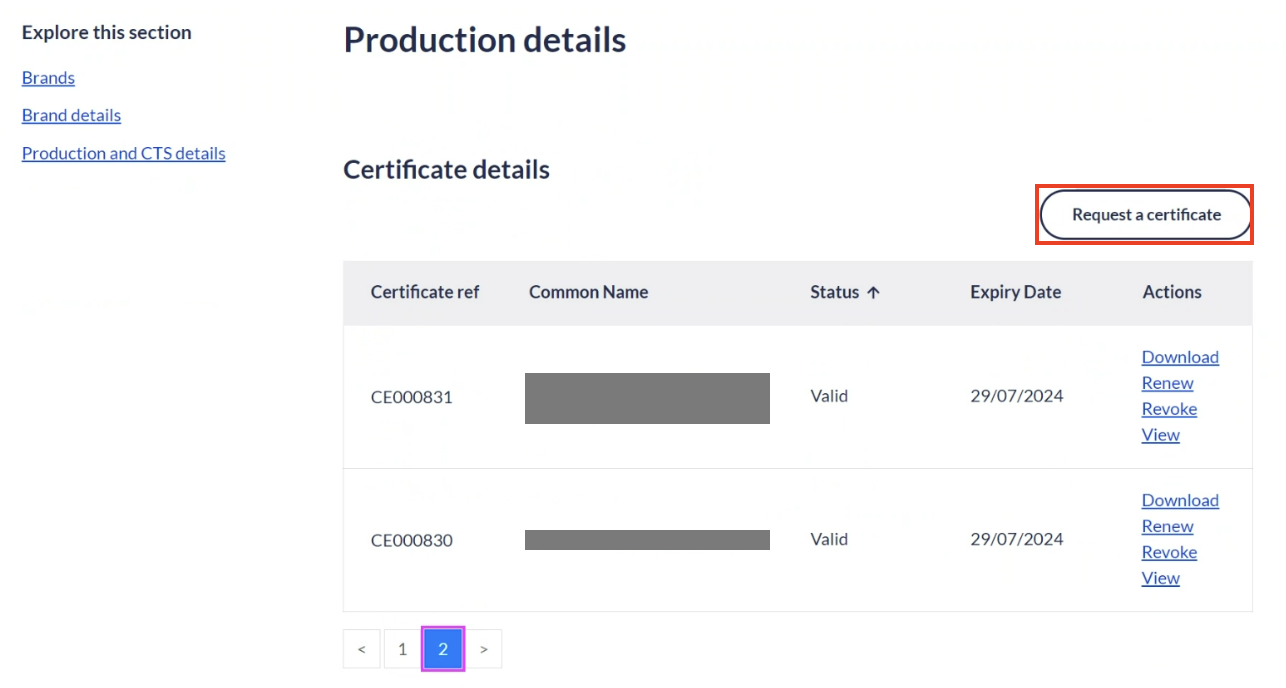
Request a Certificate
- Paste the entire CSR content into the Certificate Signing Request box.
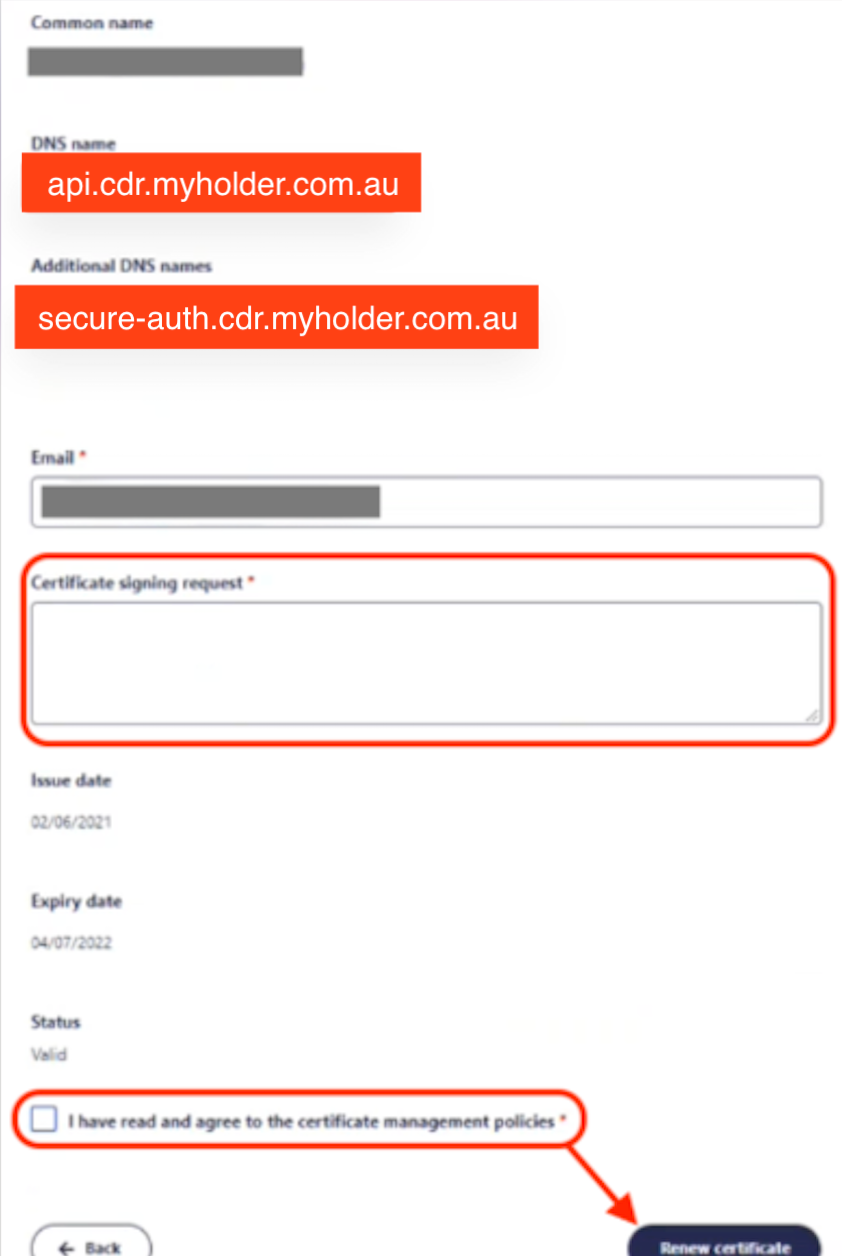
Request a Certificate
- Enter the email address you want to renewed certificate sent to.
- Tick the “I have read and agree to the certificate management policies" box.
- Click Request Certificate.
If you previously had 2 certificates signed, you will see that they remain in your certificates list. You may wish to revoke these to avoid receiving alerts about their impending expiry.
Normal process for renewing certificates
You can follow this process if you have already moved to one certificate, or are planning on renewing two certificates.
- Go to the CDR Portal and login.
- Click Participation in the top navigation bar.
- Select View for the brand you are renewing.
View Brand
- Under the Brand Participation heading, select the View action.
Brand Participation
- Click Production Details at the bottom of the Production and CTS details page.
Production Details
- In the Certificate details section select the Renew action against the valid certificate you are renewing.
When a certificate expiry date has lapsed, the Renew button will no longer be available. You will need to request a new certificate using the Request a New Certificate procedure.
- Paste the entire CSR content into the Certificate Signing Request box.
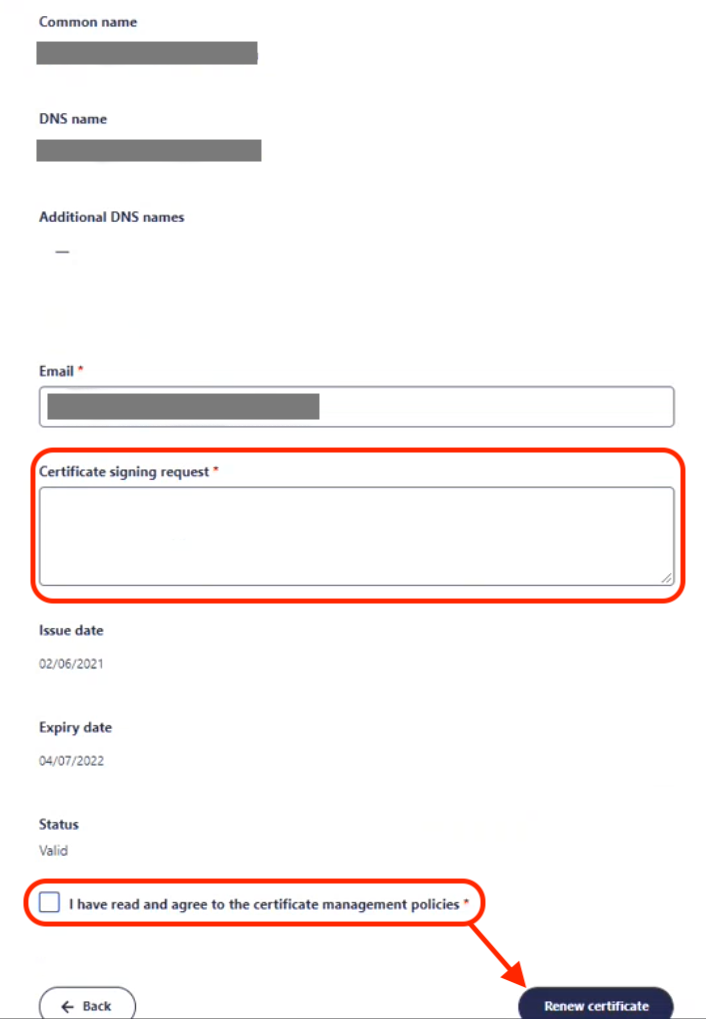
Renew Signing Certificate Request
-
Enter the email address you want to renewed certificates sent to.
-
Tick the “I have read and agree to the certificate management policies" box.
-
Click Renew Certificate.
-
Repeat these steps for any other certificates if required.
How to get the new SSL certificate from the ACCC
The freshly signed certificate will be sent to the email address that was provided in Step 8 above. Alternatively, they can be downloaded from the CDR Portal. You should receive the signed certificate within a few days. You can contact the ACCC if you have any questions about the progress.
We recommend you download the certificate from the portal as the email sent by the ACCC/Digitcert can be confusing. However, if you wish to use the email then you can paste the content of the entire email in a text file with the name of the certificate followed by the year and a .txt suffix.
How to provide Biza with the new ACCC certificates
Please send the renewed certificate to Biza via a Service Desk Ticket.