Adapter Reconnection: Azure Private Link Load Balancer
Introduction
As part of Biza’s network infrastructure upgrades, we will be requesting new data adapter connections for our Azure customers to support our internal migration efforts. To facilitate this, customers must authorise and accept new connection requests to their existing Private Link Services.
Table of Accounts
| Subscription ID | Description |
|---|---|
6d304c08-2dc0-4bf1-bb2a-eba53d6a21aa | NON-PROD spaces |
09fc915a-7931-442a-ab2f-4802a1a5ab23 | PRODUCTION spaces |
Prerequisites
Authorise new connection requests
To authorise new connection requests to your Private Link services, please follow the steps below.
- Navigate to Azure Portal > Private Link Center > Private Link Services.
- Select the service that represents your HaaS data adapter, or UniverseDB connection, from the list of Private Link services.
- Verify under Settings > Access Security from the sidebar that Biza’s subscription ID is authorised to request access
if restrictions are enabled. For non-production spaces, the subscription ID is
6d304c08-2dc0-4bf1-bb2a-eba53d6a21aa. If the subscription ID is not present, please add it by clicking Add subscriptions.
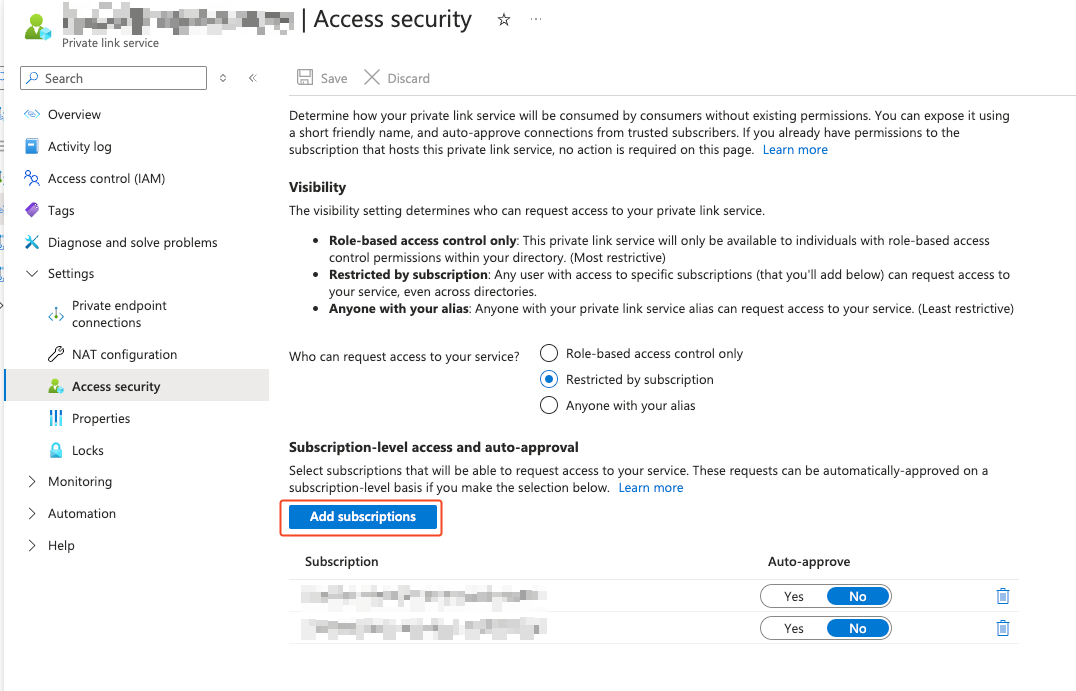
Add Subscriptions screen
- Wait for notification of Biza’s connection request.
When you have completed the prerequisites, please let us know via a ticket. You can then expect to receive a notification of Biza's connection request, and you can follow the steps below to complete the process.
Actions
Accept new connection request
Before the new Private Link connection request becomes active, the service owner must approve the connection request by following the steps below.
- Type Private Link Center into the Azure portal search bar and select it.
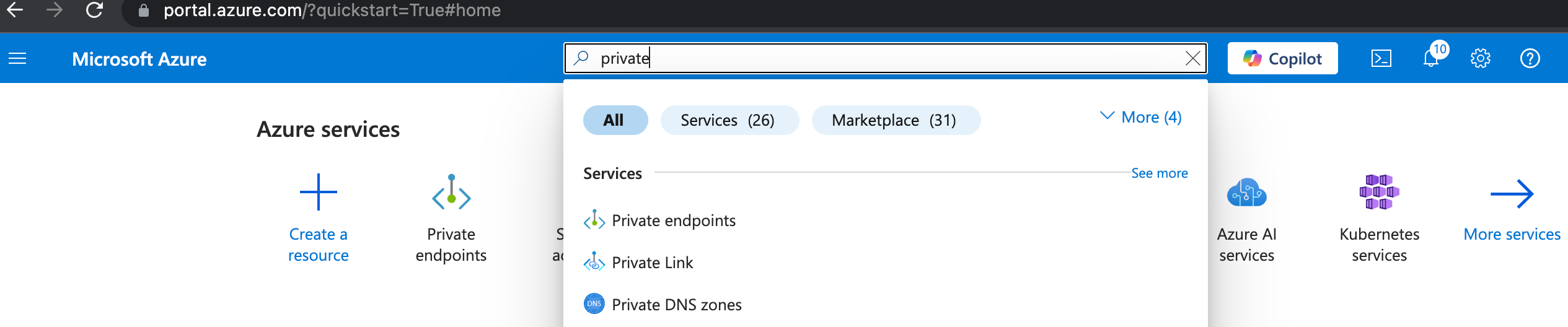
Private Link Center
- Go to Pending connections, click on the pending private endpoint request that matches your resource type and check the details, including:
- Requester’s Subscription ID and VNet.
- Resource Type.
- Private Link Service Details.
- Confirm that the request comes from a trusted source.
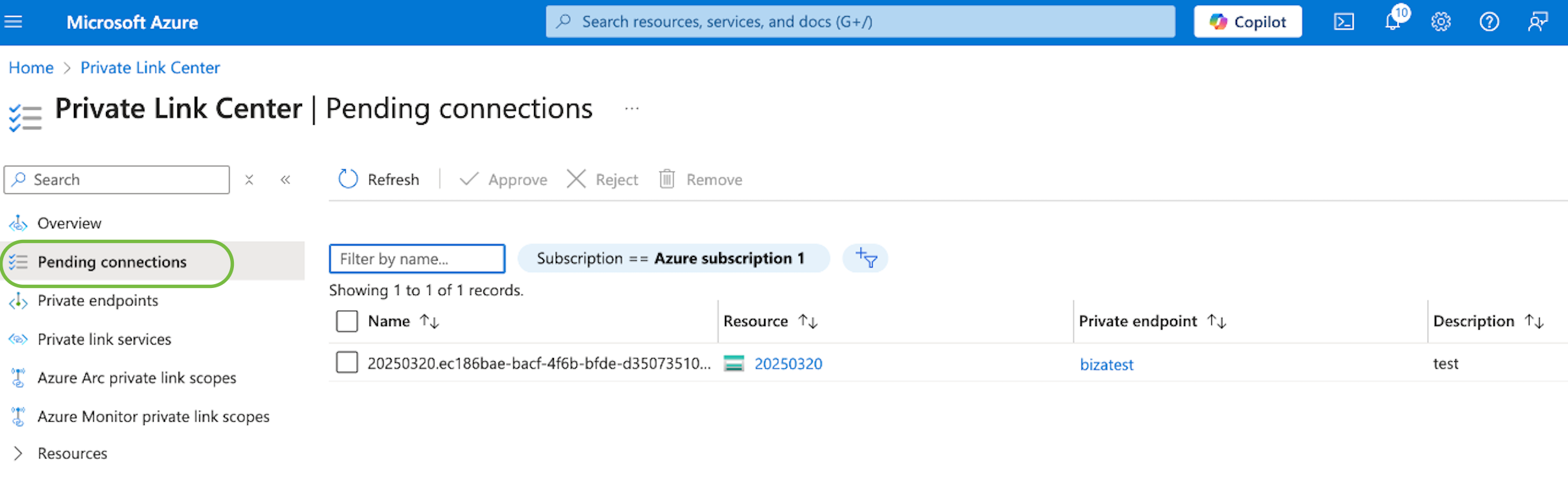
Pending connections
- Click Approve.
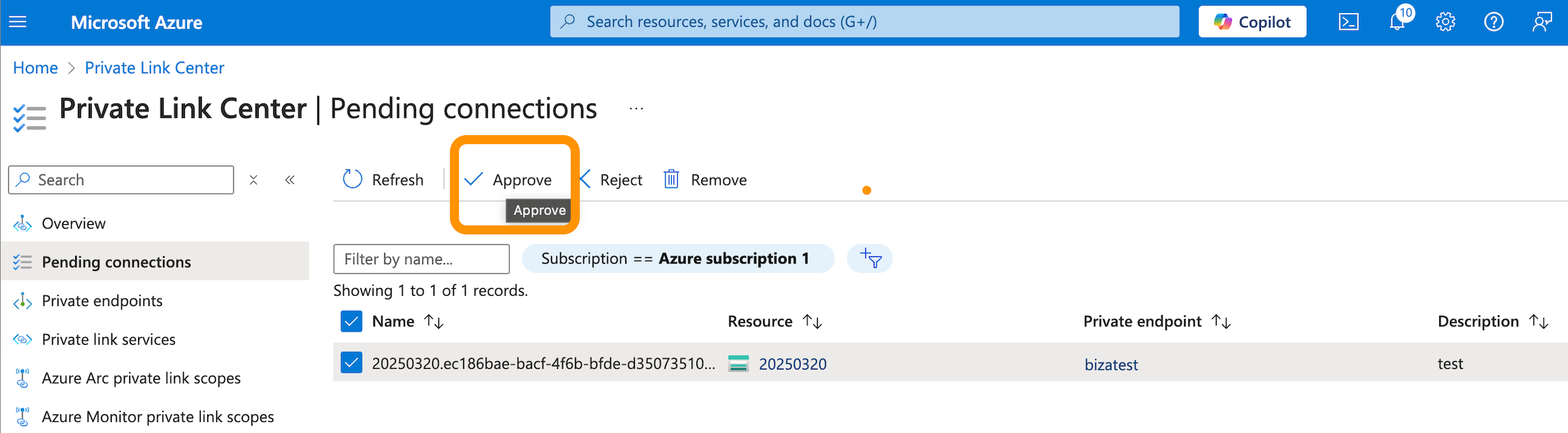
Approve new connection
- Enter a description or justification for the approval (optional). Click Yes to complete the approval.
Verify the Connection
- Go to Private Link Center > Resources > Active connections where you should see the new Private Link connection.
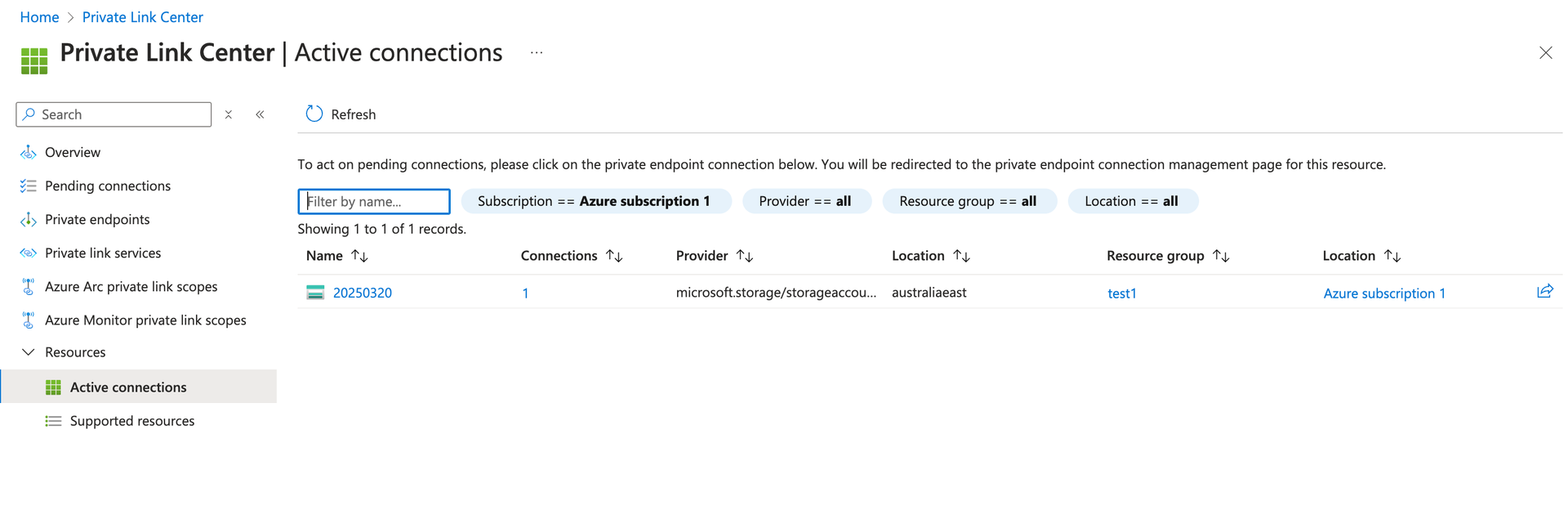
Active connection