Step 1. Enter username
The first step when logging into the Dashboard is to initiate user authentication, whereby there are two methods available.
The Double-blinded (DBL) method initiates One Time Password (OTP) authentication using a supplied username and will receive a request identifier to present the supplied OTP back with. This is the default method of user identification within the HaaS environment.
The Biza Managed (BM) method initiates authentication whereby Biza is responsible for OTP generation, delivery, and verification of the customer’s details.
Screen displayed to user
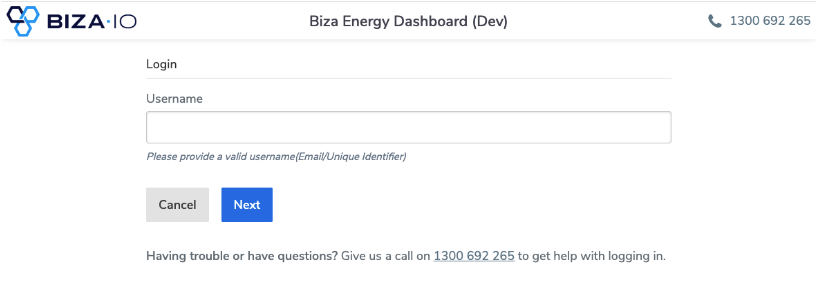
When logging into the dashboard, users will be presented with a screen similar to the following
Data Adapter Call
In the case where no fields are supplied, the data adapter will not be called. At least one field must be specified.
Double-blinded (DBL) authentication
Init Login
POST/login/init
Biza-Managed (BM) authentication
Get Username Attributes
POST/user/attribute
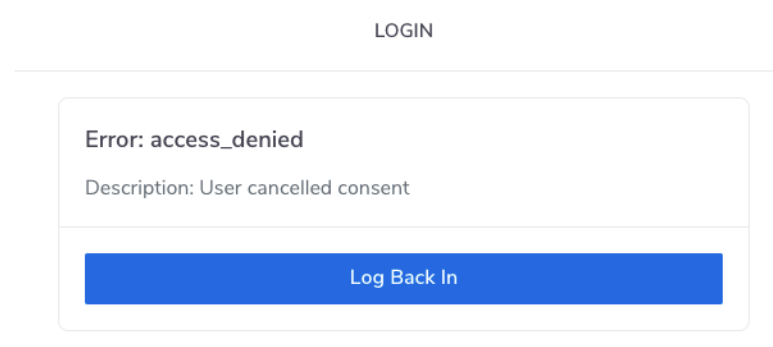
If a user clicks "Cancel" on the login screen there will be an access_denied OAuth error as seen in the screenshot below.
Double-blinded (DBL) Responses and Error Mapping
HTTP Status - 200 - Success
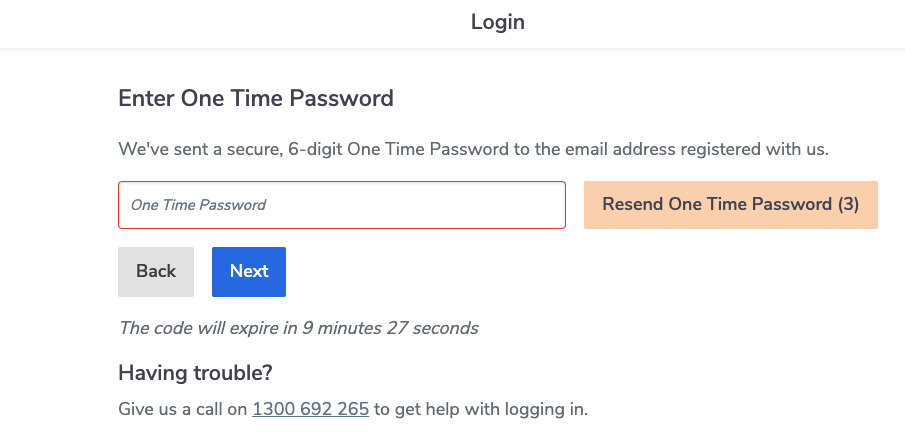
This applies when a user has entered the correct email address in the right format and has clicked 'Next' on the login screen.
- Next action
- User will be taken to Step 2 (Get Verify Login - OTP entry screen)
- Screen displayed
HTTP Status - 400 - Missing required field
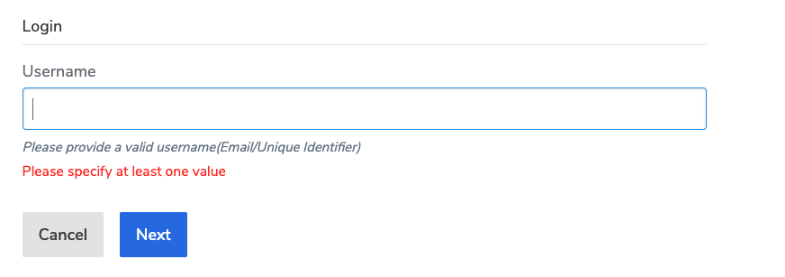
This applies when the Username field is left blank and the user clicks ‘Next’ on the login screen.
- URN code
"urn:au-cds:error:cds-all:LoginInitField/Missing"
- Next Action
- Dashboard remains on this step (Step One) and displays the message tagged in the meta.
- Error to User
- "Please specify at least one value"
- Screen displayed to user
- Note - The message in the screenshot below occurs where the data adapter is not called. The error message will differ if more than one field is left blank.
HTTP Status - 400 - Invalid field
This applies when a user enters an invalid username.
- URN code
"urn:au-cds:error:cds-all:LoginInitField/Invalid"
- Next Action
- Dashboard login remains on this step (Step One) and displays the message tagged in the meta.
- Error to user
- Field is invalid
- Screen displayed to user
- coming soon
HTTP Status - 400 - Invalid header
- URN code
"urn:au-cds:error:cds-all:Header/Invalid"
- Next Action
- OAuth server error. Redirect back to Dashboard Login screen upon clicking “Log Back In”.
- Error to user
- Server_Error
- Screen displayed to user
- coming soon
HTTP Status - 429 - Too many requests
- Next action
- OAuth server error. Redirect back to Dashboard Login screen upon clicking “Log Back In”.
- Error to user
- Server_Error
- Screen displayed to user
- coming soon
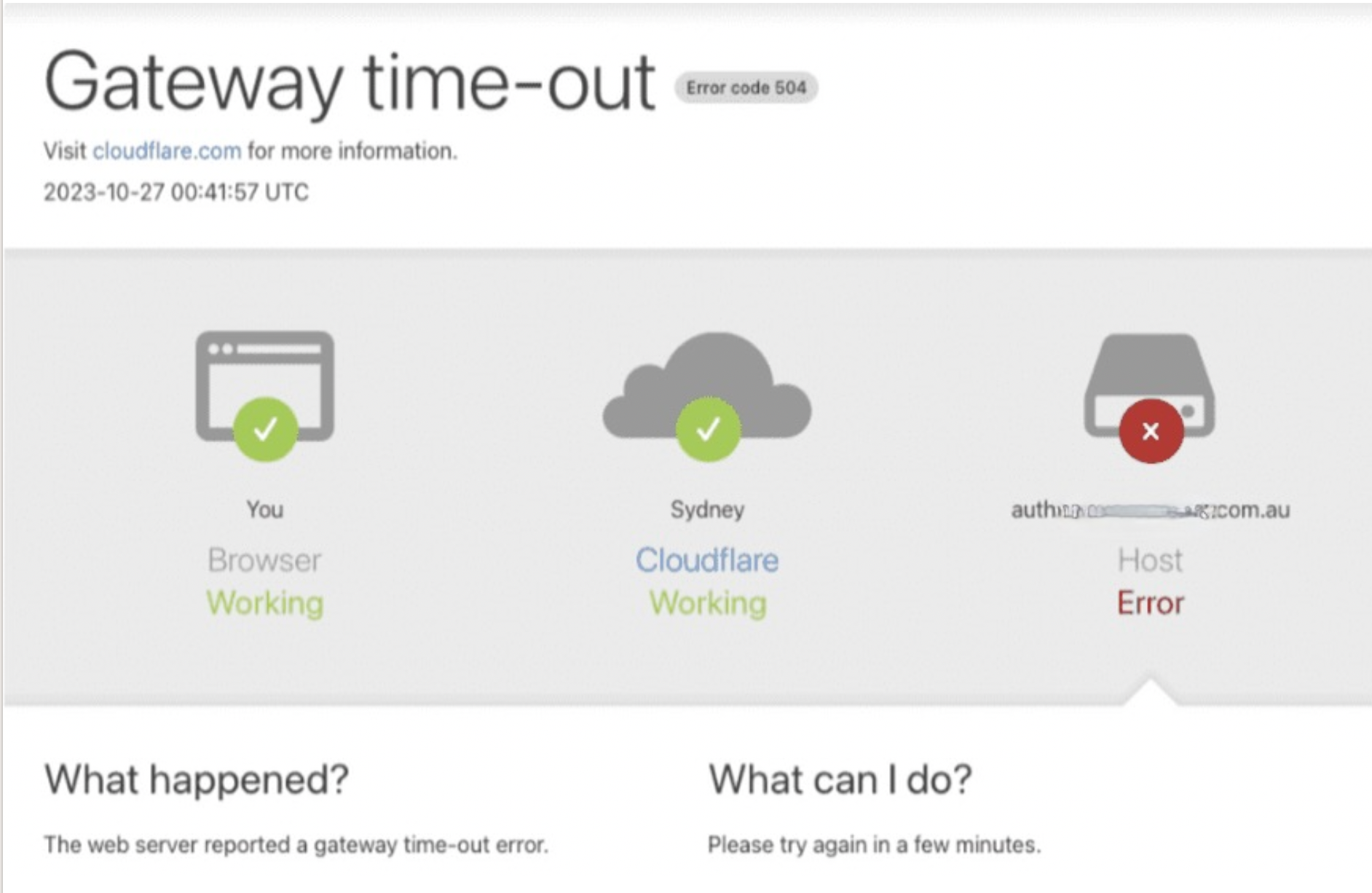
HTTP Status - 504 - Gateway timout
This error applies when there is a network connection issue or when the web server has not received a timely response from an upstream server that it needed to access to complete the request.
- URN code
- TBA
- Error to User
- Gateway timeout
- Screen displayed to user
- Please note that the screen below will only be displayed in production (not in the test environments)
Biza-Managed (BM) Responses and Error Mapping
HTTP Status - 200 - Success
This applies when a user has entered the correct email address in the right format and has clicked 'Next' in the login screen.
- Next action
- User will be taken to STEP 2 (Get User Principal Login - OTP entry screen)
- Screen displayed
HTTP Status - 400 - Missing required field
This applies when the Username field is left blank and the user clicks ‘Next’ on the login screen.
- URN code
"urn:au-cds:error:cds-all:LoginInitField/Missing"
- Next Action
- Dashboard remains on this step (Step One) and displays the message tagged in the meta.
- Error to User
- "Please specify at least one value"
- Screen displayed to user
- Note - The message in the screenshot below occurs where the data adapter is not called. The error message will differ if more than one field is left blank.
HTTP Status - 400 - Invalid field
This applies when a user enters an invalid username.
- URN code
"urn:au-cds:error:cds-all:LoginInitField/Invalid"
- Next Action
- Dashboard login remains on this step (Step One) and displays the message tagged in the meta.
- Error to user
- Field is invalid
- Screen displayed to user
- coming soon
HTTP Status - 400 - Invalid header
- URN code
"urn:au-cds:error:cds-all:Header/Invalid"
- Next Action
- OAuth server error. Redirect back to Dashboard Login screen upon clicking “Log Back In”.
- Error to user
- Server_Error
- Screen displayed to user
- coming soon
HTTP Status - 404- Invalid Resource
- URN code
"urn:au-cds:error:cds-all:Resource/Invalid"
- Next Action
- OAuth server error. Redirect back to Dashboard Login screen upon clicking “Log Back In”.
- Error to user
- Server_Error
- Screen displayed to user
- coming soon
HTTP Status - 429 - Too Many Requests
- Next Action
- OAuth server error. Redirect back to Dashboard Login screen upon clicking “Log Back In”.
- Error to user
- Server_Error
- Screen displayed to user
- coming soon
Status code - 451 - Legal Block
This applies when a user exists in the system but can not be allowed to authenticate for legal reasons.
- URN code
"urn:dio:error:cds-all:Resource/LegalBlock"
- Next Action
- Set to appear as though the OTP has been sent.
- Error to user
- No error will be shown to the user.
- Screen displayed to user
HTTP Status - 504 - Gateway timout
This error applies when there is a network connection issue or when the web server has not received a timely response from an upstream server that it needed to access to complete the request.
- URN code
- TBA
- Error to User
- Gateway timeout
- Screen displayed to user
- Please note that the screen below will only be displayed in production (not in the test environments)