Requesting a new CTS Certificate
These steps will guide you through how to request new CTS certificates. 1. Login to the CDR Participant Portal using your CDR Participant Portal account details (see here for information on registering for an account).
2. Go to Brands and select View to the right-hand side of the brand you are requesting the certificate for.
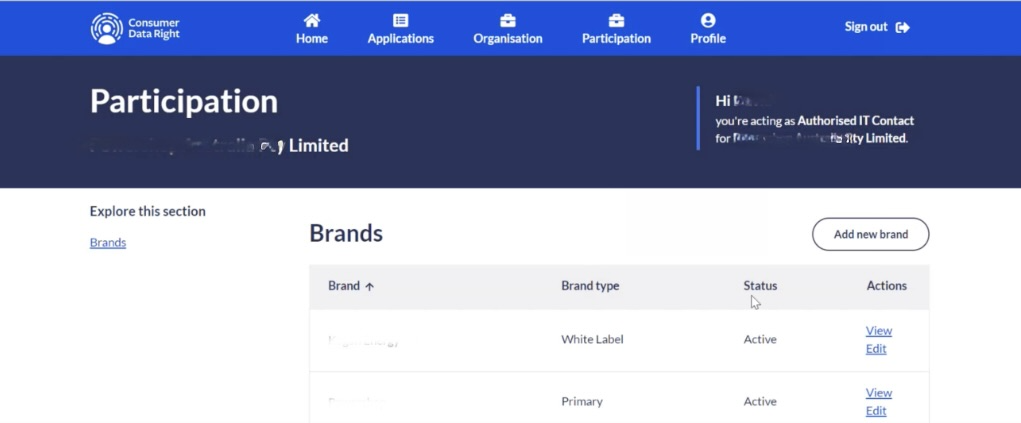
CDR Brand Screen
3. On the Brand Details page scroll to the bottom of the page and under Actions click "View".
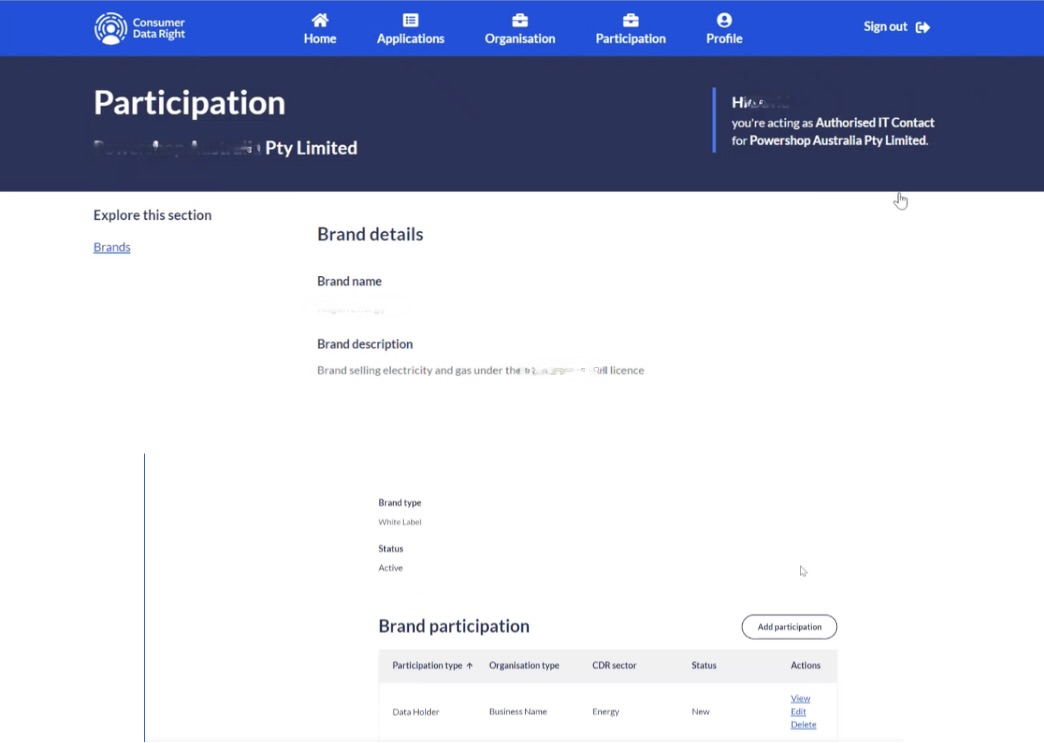
Brand Details Screen
4. On the Production and CTS details page, scroll to the bottom and click the "CTS Details" box.
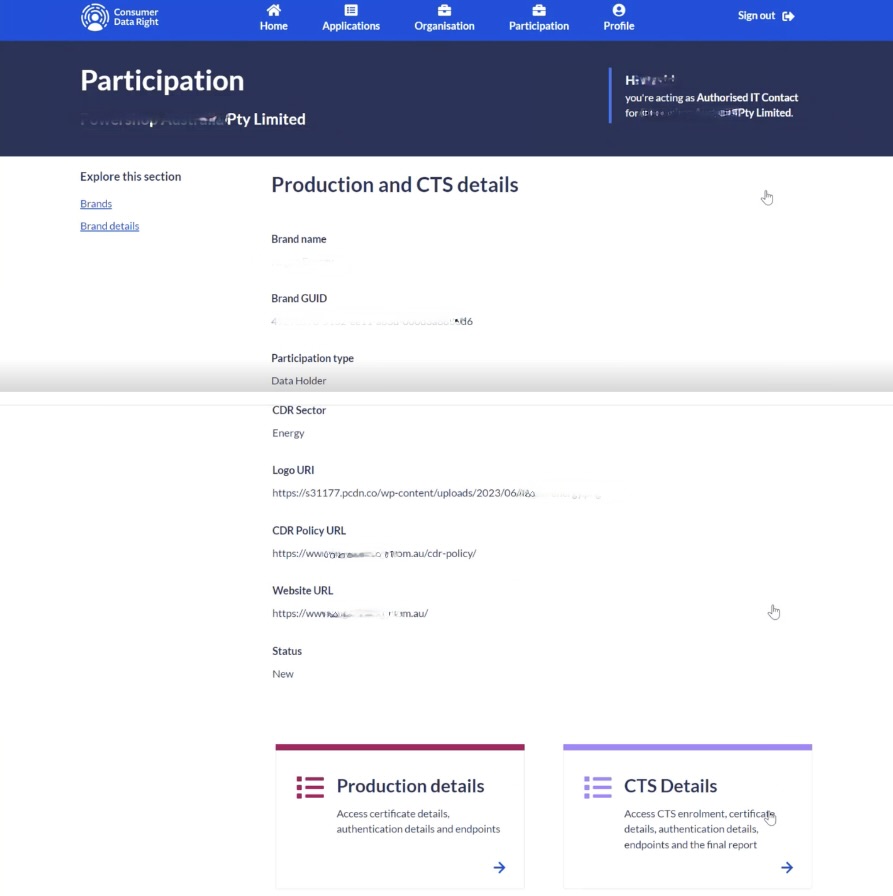
Production and CTS Details
5. On the Conformance Testing Suite (CTS) details page click “Request a CTS Certificate”.
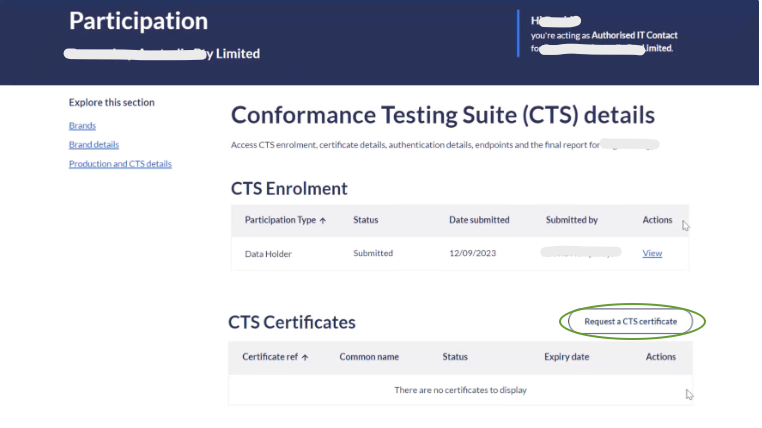
CTS Details Page
6. Populate the Request a CTS certificate form, click “I have and agree to the certificate signing request” and then click “Request CTS Certificate”.
The information you need to populate this form (e.g., CTS Certificate type, CTS DNS name, etc.) will have been sent to you via a Self Service Desk (SSD) ticket. The CTS email address field is determined by your organisation.
Ensure you copy and paste the entire CTS Certificate signing request, including ----BEGIN CERTIFICATE REQUEST---- and ----END CERTIFICATE REQUEST----. Also ensure the text is single spaced.
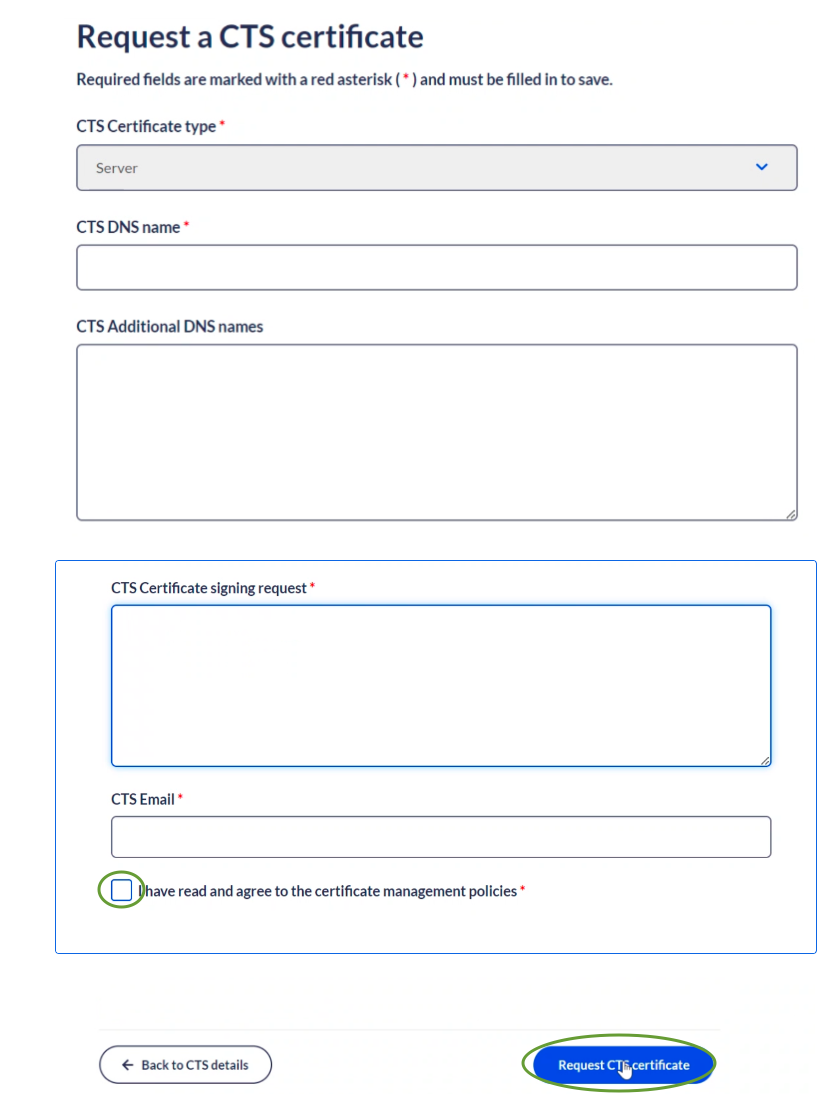
Request CTS Certificate Page
7. If successful, the following Approved screen will be displayed. Click "Download".
CTS Cert Request Approved
8. Scroll to the bottom of the Download CTS Certificate screen and click “Download CTS Certificate”.
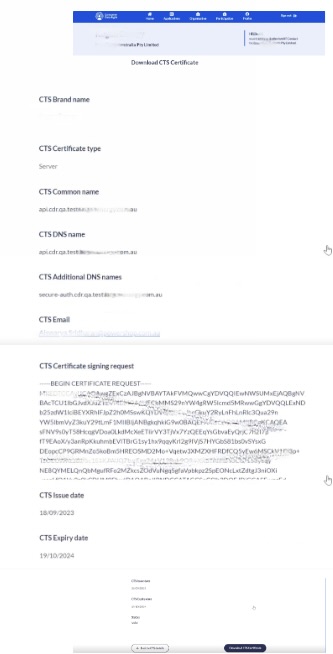
Download CTS Cert Page
9 You will now see the Your download will start automatically screen.
Please ensure you allow pop-ups on your browser.
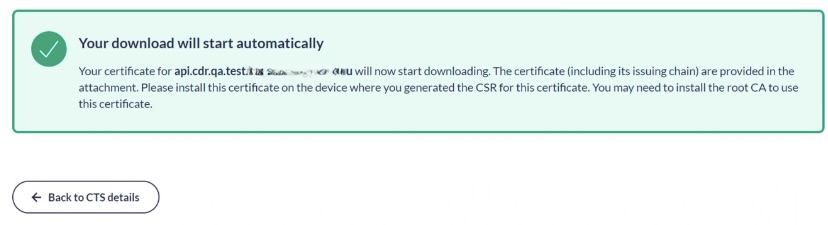
CTS Automatic Download Page
10. The CTS Certificate file will download and the link should appear at the top right of your browser. Please save the file locally.
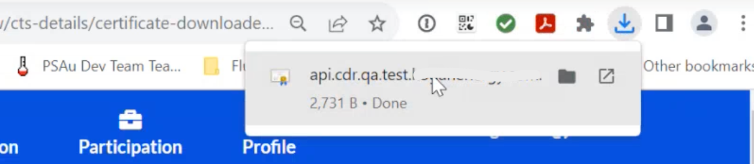
CTS Automatic Download Page
11. The final step is to send the CTS certificate to Biza via the Support Portal.