New Arrangement - Energy
Learn how to initiate a new Banking arrangement
You can initiate consents via the Verification Testing Tool (VTT). The New Arrangement created contains consent data information (i.e., Consent ID, the user ID of the user who the consent was initiated by, the data holder brand ID, the consent creation and expiry time, and the number of scopes that were selected during the consent initiation). You can also manage the new arrangement by following the instruction here.
New Arrangement in VTT.
1. Sign-in to your VTT account.
2. On the VTT home-screen, click + New Arrangement.
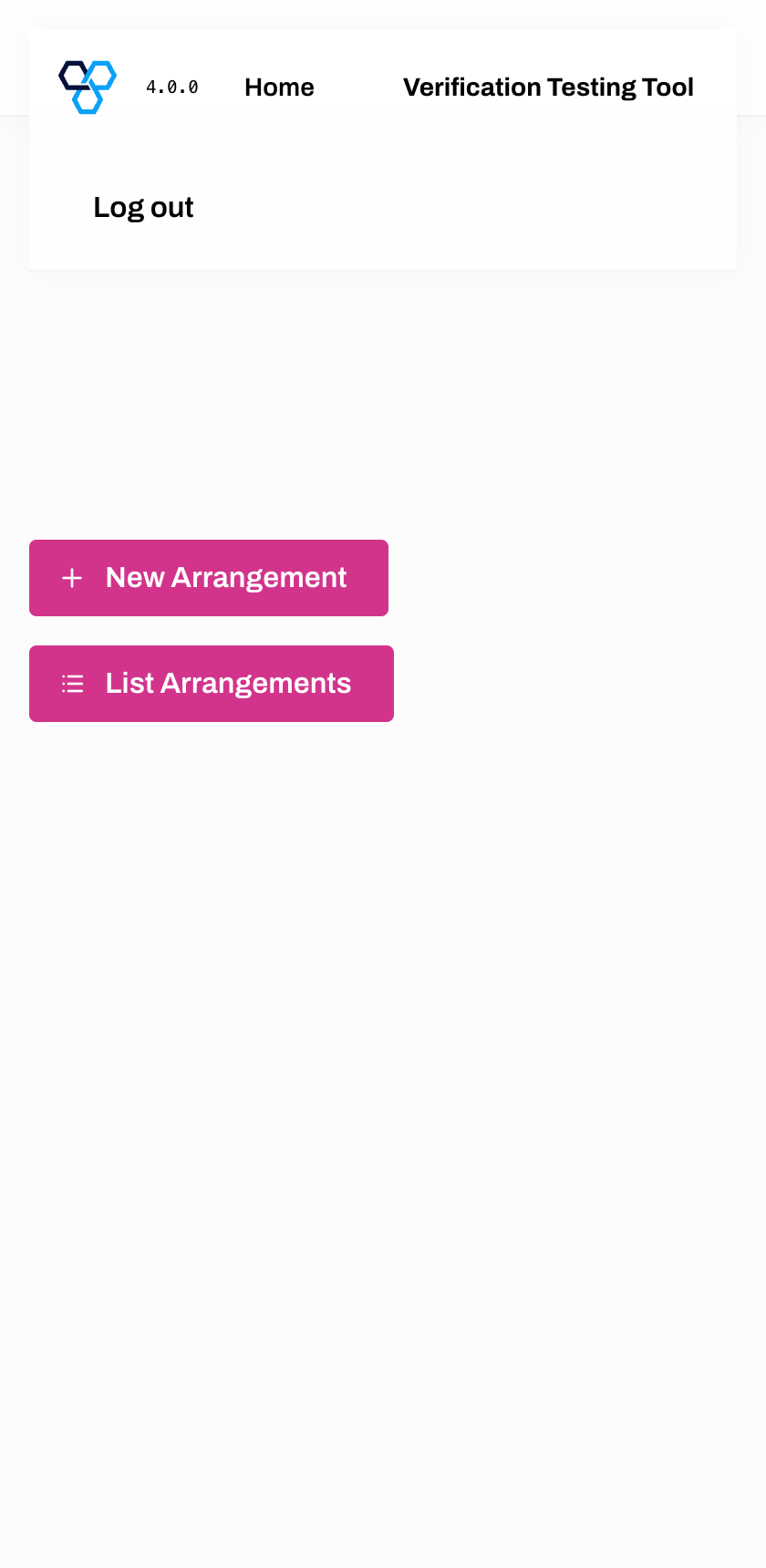
VTT Homepage
3. You have now left VTT and been re-directed to the Consent App, which presents the whole consent on a single screen. Under Select Your Provider, use the search field, or open the list, to locate and select your holder brand (note that Azib NRG is used as an example).
Data can only be collected from one data holder at a time.
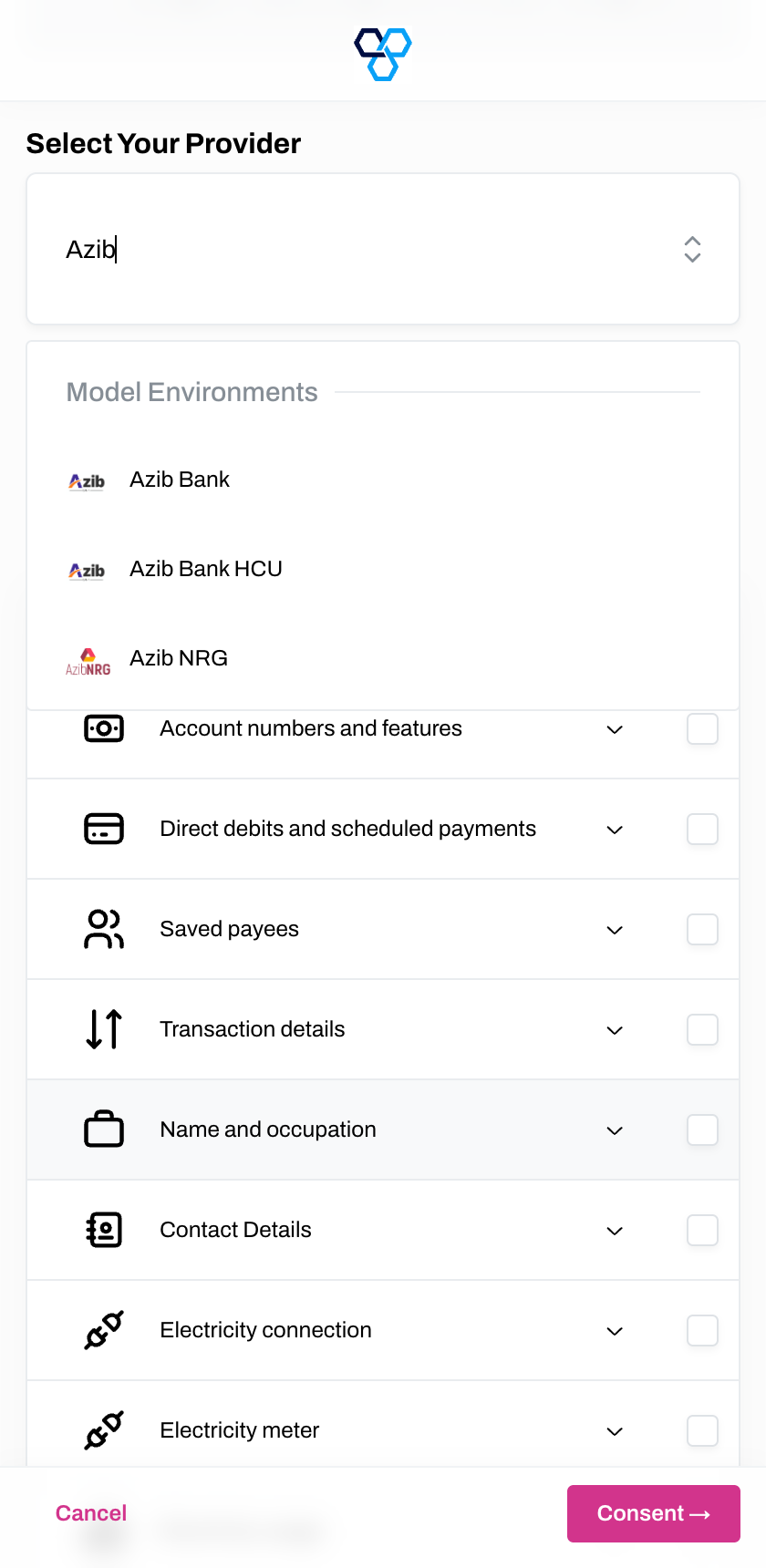
Select your Provider
4. Under Data to share, select the data you want collected from the data holder, or select Share all required data sets. Only the data groups the selected holder supports are listed.
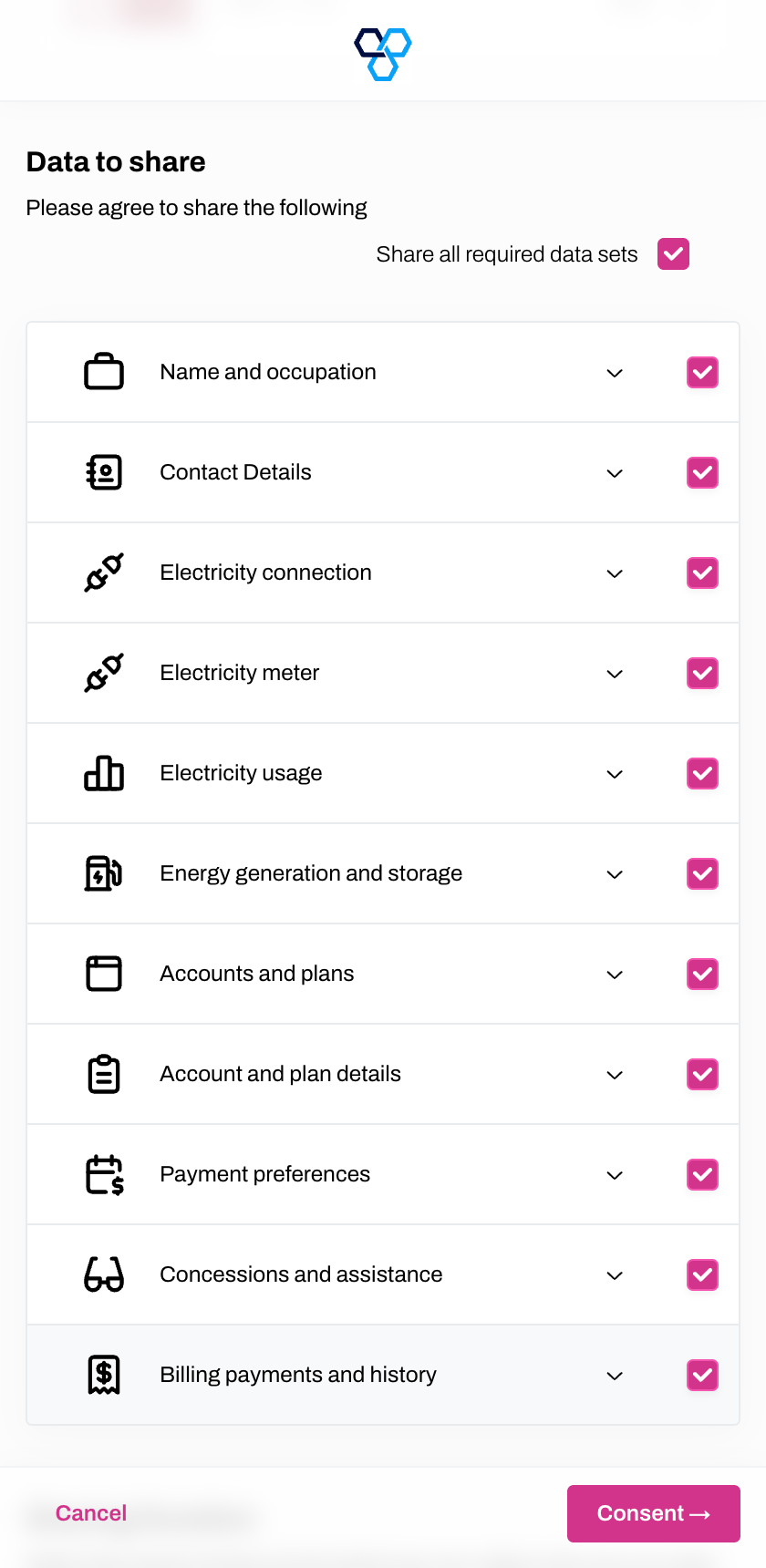
Choose Data to Share
You can expand and collapse the fields for further information on what data is covered for each.
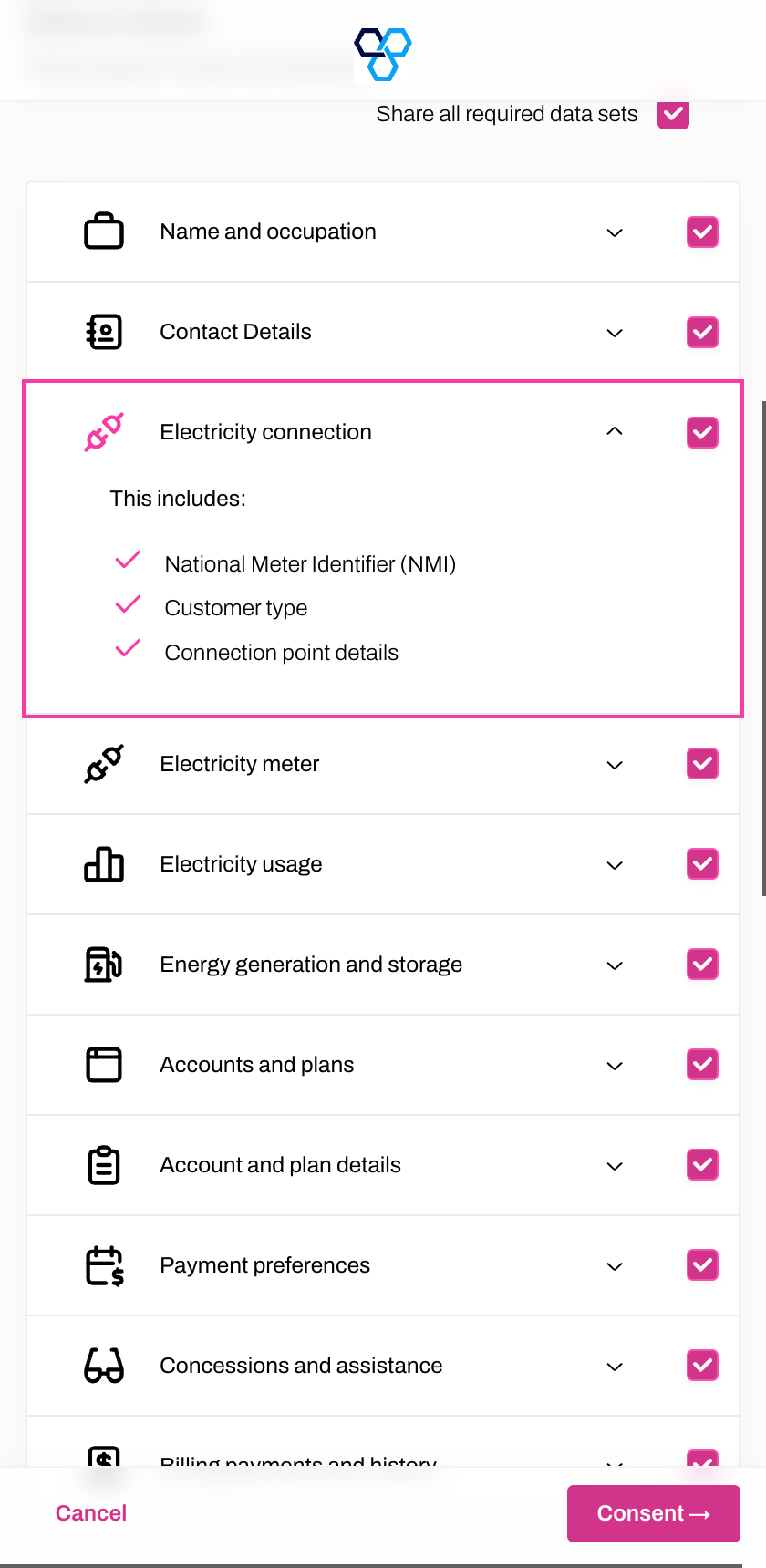
Choose Data to Share
5. Under Sharing Duration, select a data sharing duration. The date the sharing will end is shown beneath the heading.
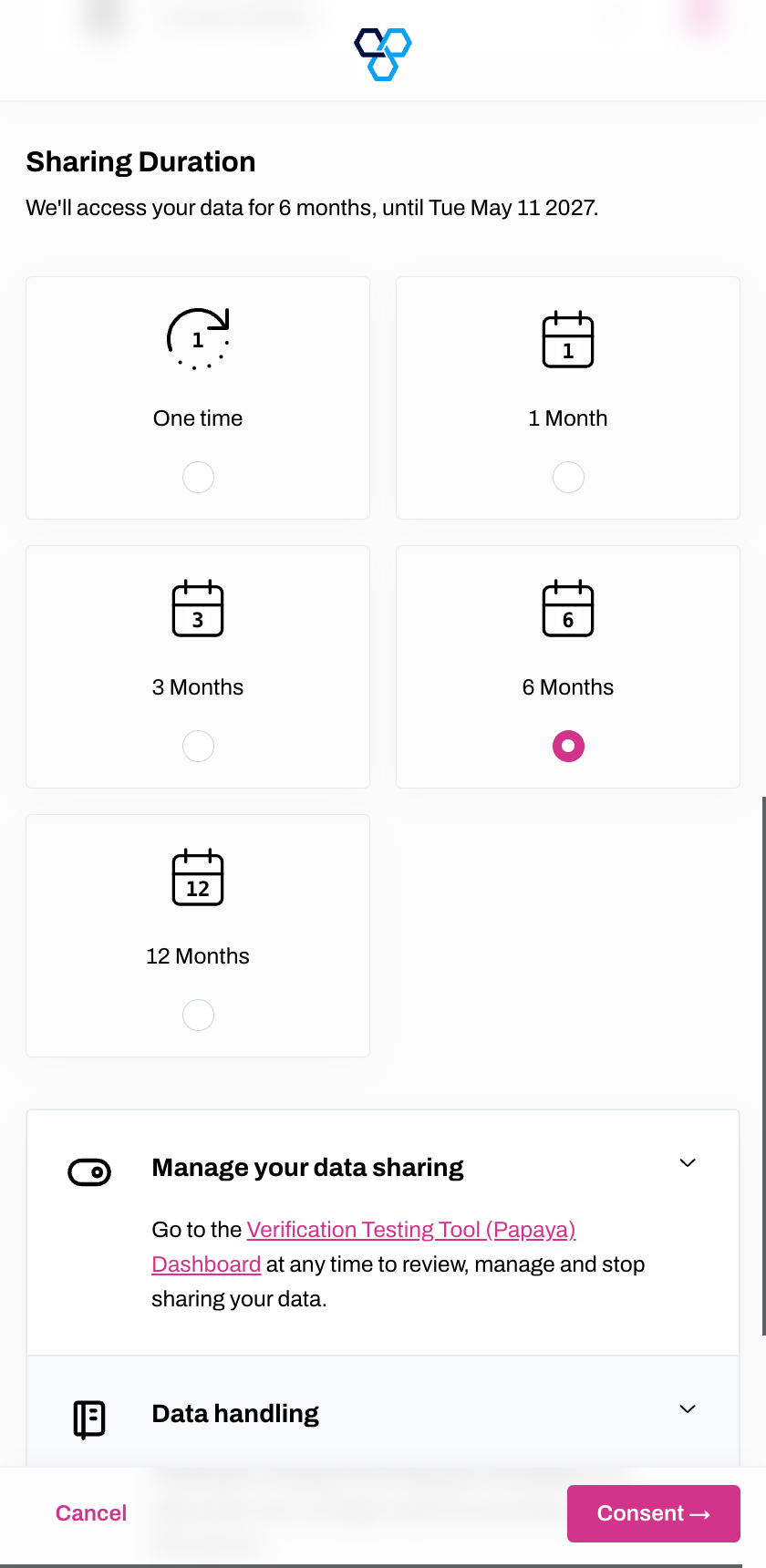
Sharing Duration
6. At the bottom of the screen, the consent information explains how the data is managed and shared. Click Consent to proceed.
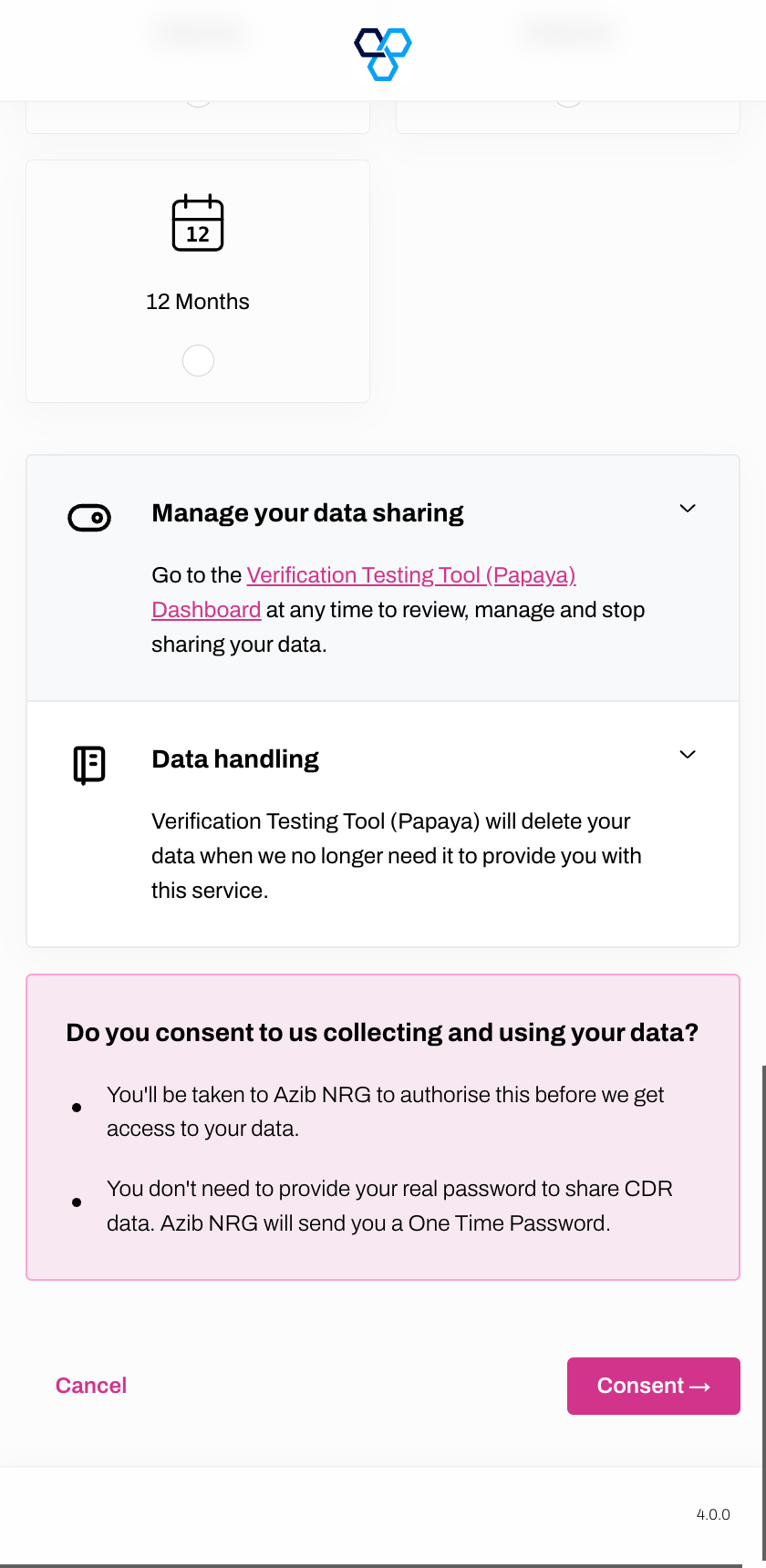
Consent to Share Data
After clicking Consent, the browser is redirected to your Data Holders authorisation service login page, not the Accredited Data Recipients (ADRs) page.
7. Enter a Member ID and click Next.
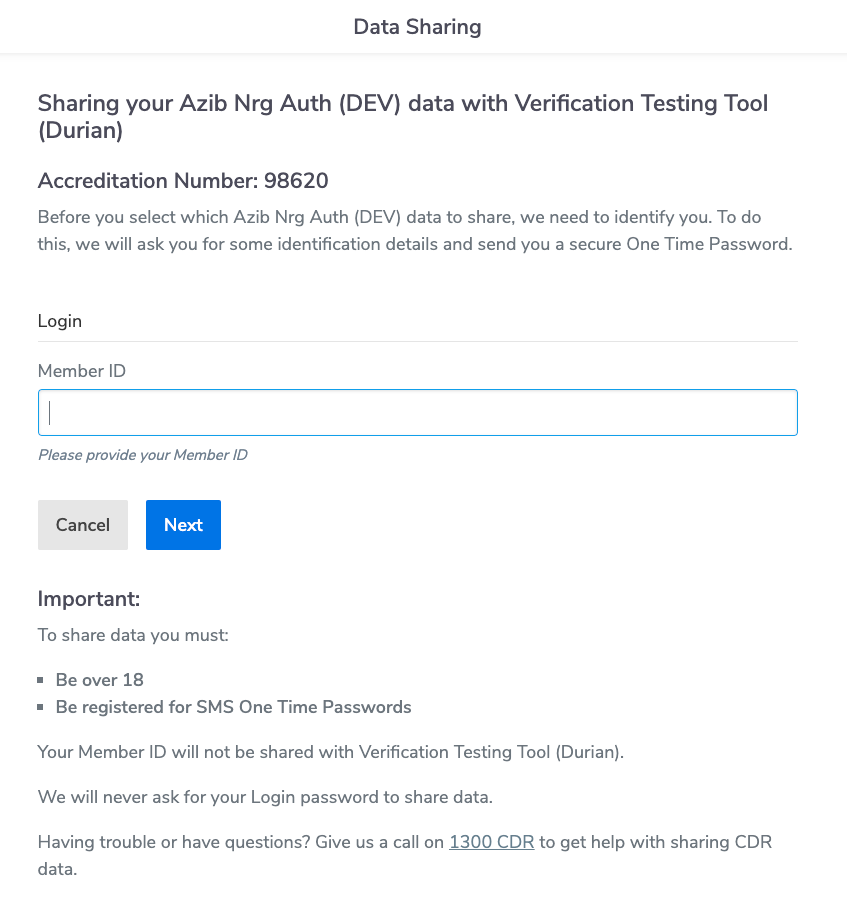
Data Sharing
8. Enter the One Time Password (OTP) and click Next.
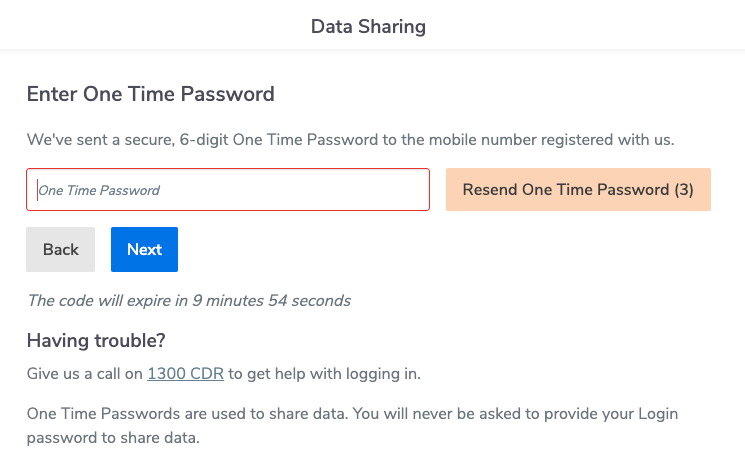
OTP Screen
9. Select the Eligible Customer you wish to share data from and click Next.
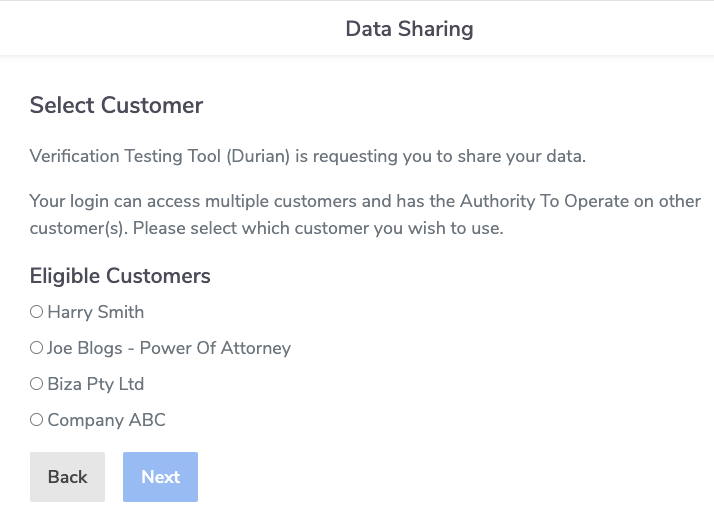
Eligible Customer Selection
10. Select the Eligible account(s) you wish to share data from and click Next.
Note that this step may be skipped if there is only one account.
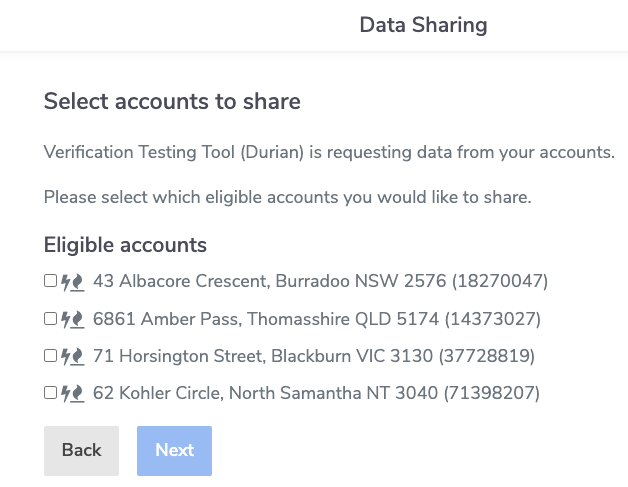
Eligible Account Selection
11. Click I Confirm if you wish to proceed sharing your data with VTT.
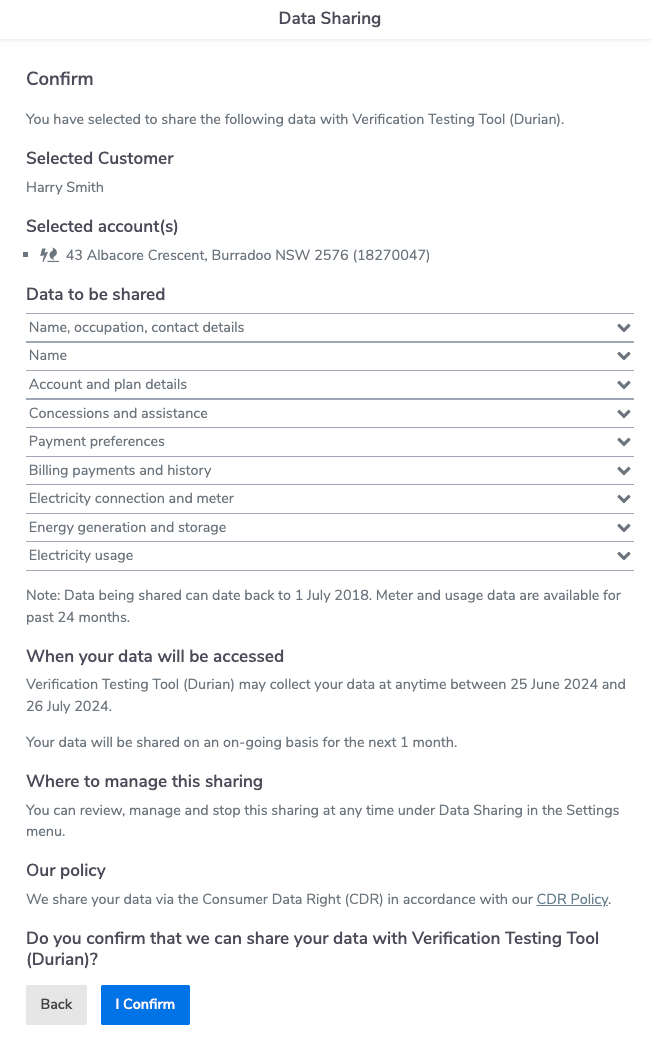
Confirm Data Sharing
12. Click the List Arrangements button to see a list of current arrangements.
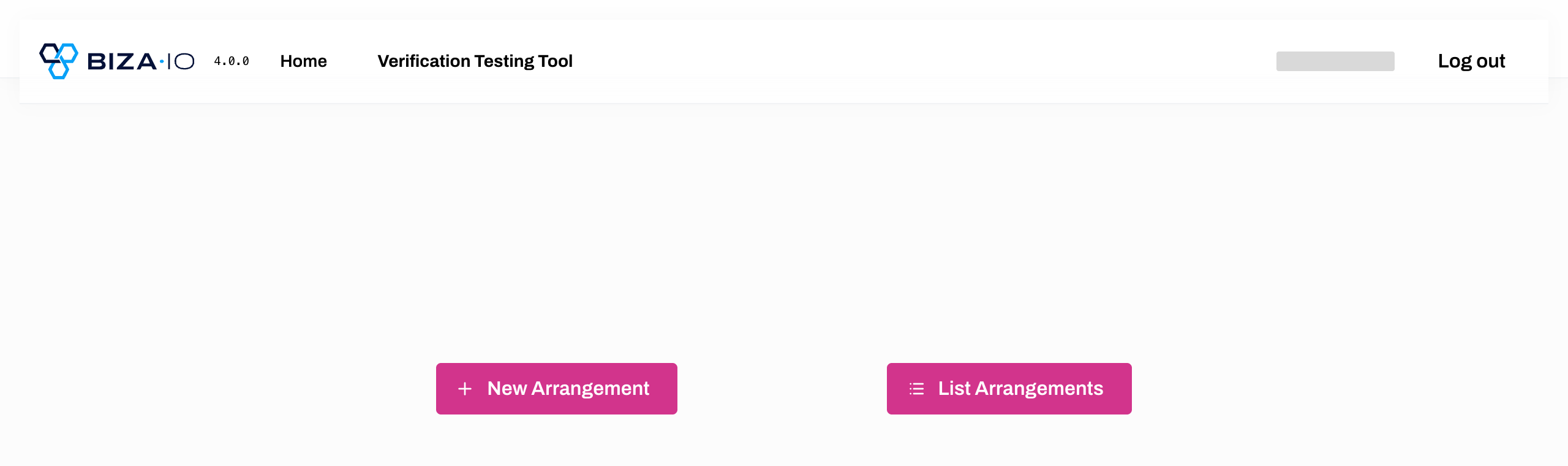
List Arrangements
13. Select the relevant arrangement from the list.
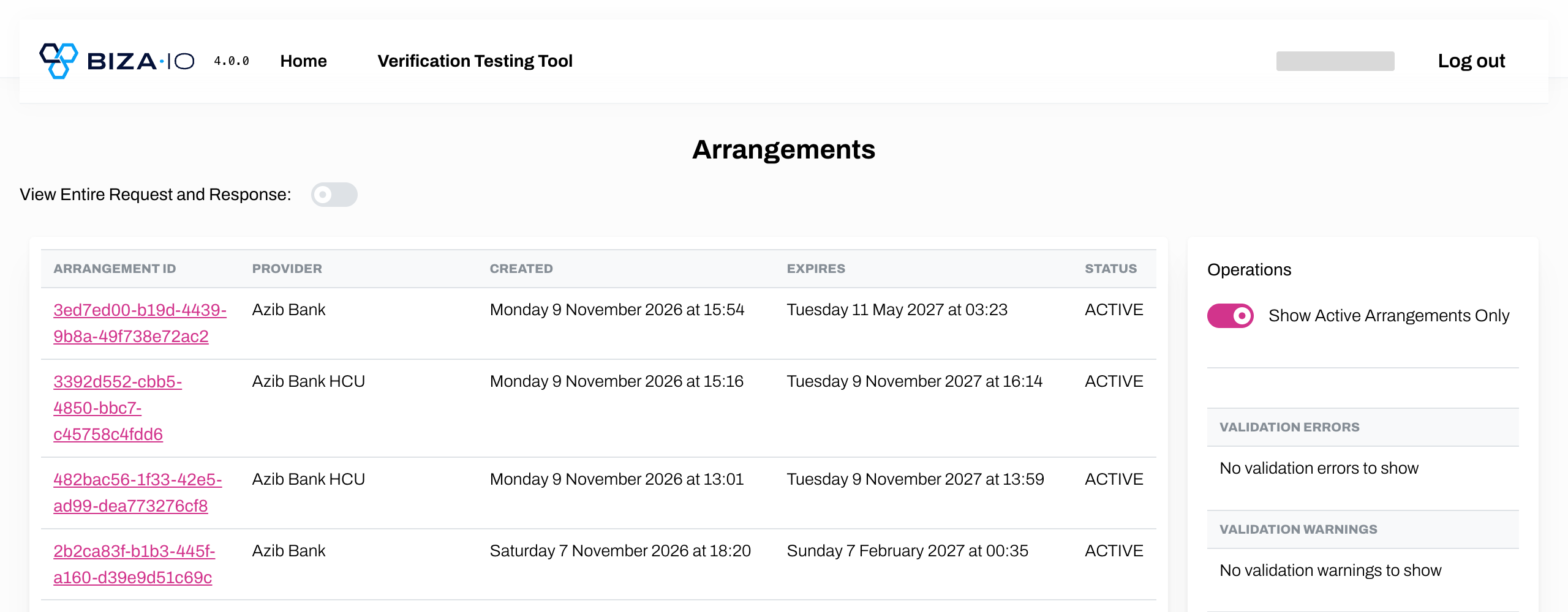
Arrangements
Go to View and Manage Arrangements to learn how to view or amend arrangements.