Run Biza Test Suite
Learn how to use the Biza Test Suite (BTS)
After following this guide you will be able to:
- Understand how to prepare for test execution, including:
- Setting up an Arrangement
- Test Data considerations
- Navigate to the Biza Test Suite tool and view results
- Save the results of a Test Run.
Preparation
Preparation for running BTS is broken down into two parts
- Test Data
- Sharing Arrangement
Based on the advertised industry of the holder, the appropriate test cases will automatically be selected.
Test Data
The specific steps will vary depending on the underlying data store and are too varied to cover in this guide. However, the general approach is outlined below.
Before starting a BTS run, you must review the test categories and verify that the necessary data is available in the system. Particular attention should be paid to filtering tests to ensure that all required permutations exist. Incomplete preparation may not cause a direct failure but can lead to less effective results.
Sharing Arrangement
Before a test can be executed, a sharing arrangement must be active between VTT and the target holders. This includes;
- All the required data scopes to allow data API access.
- Sharing arrangement must be active for the duration of the test run.
Sharing arrangements are easily set up by following these Guides: New Arrangement Banking or New Arrangement Energy
Test Execution
1. Using VTT, navigate to the sharing arrangement required to underpin the test execution. Click List Arrangements.
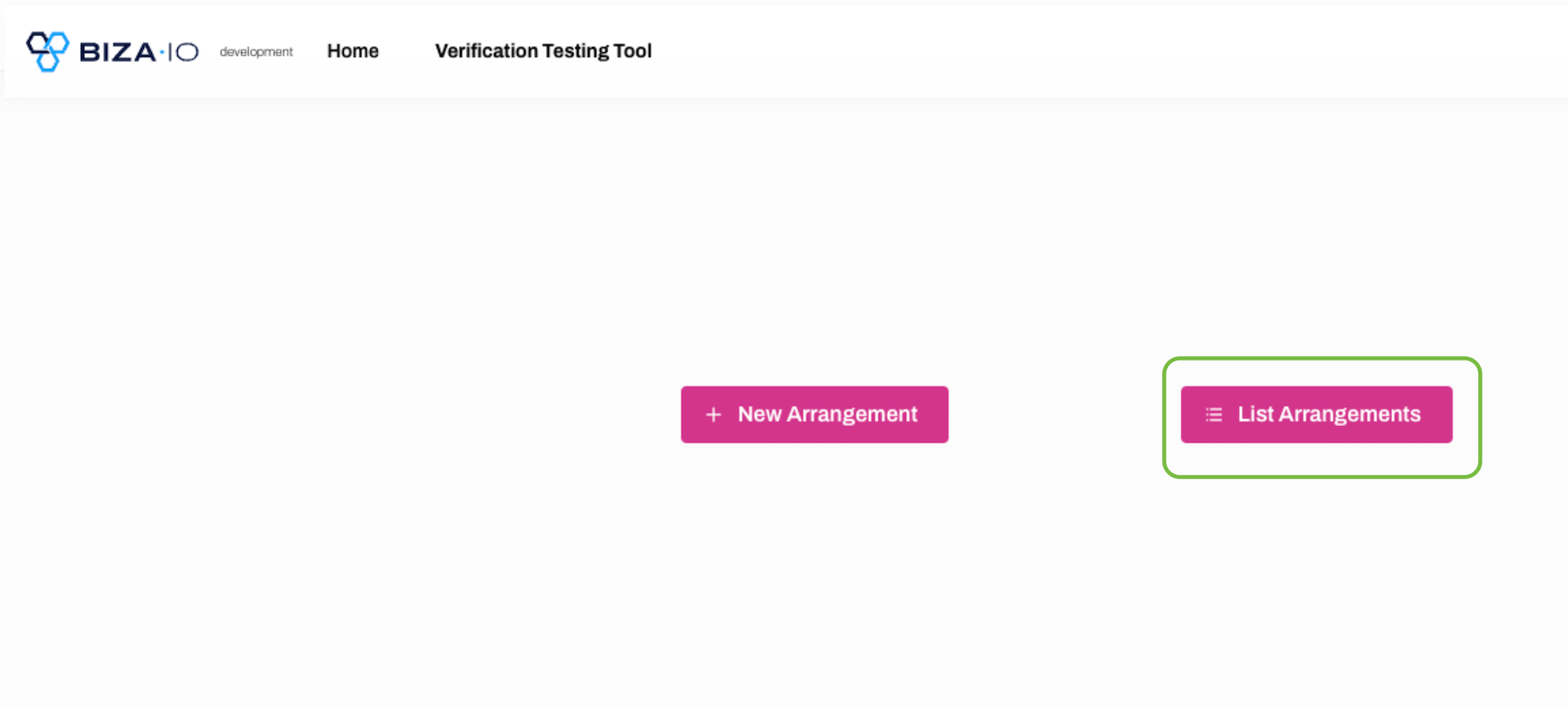
List Arrangements
2. Select the relevant sharing arrangement.
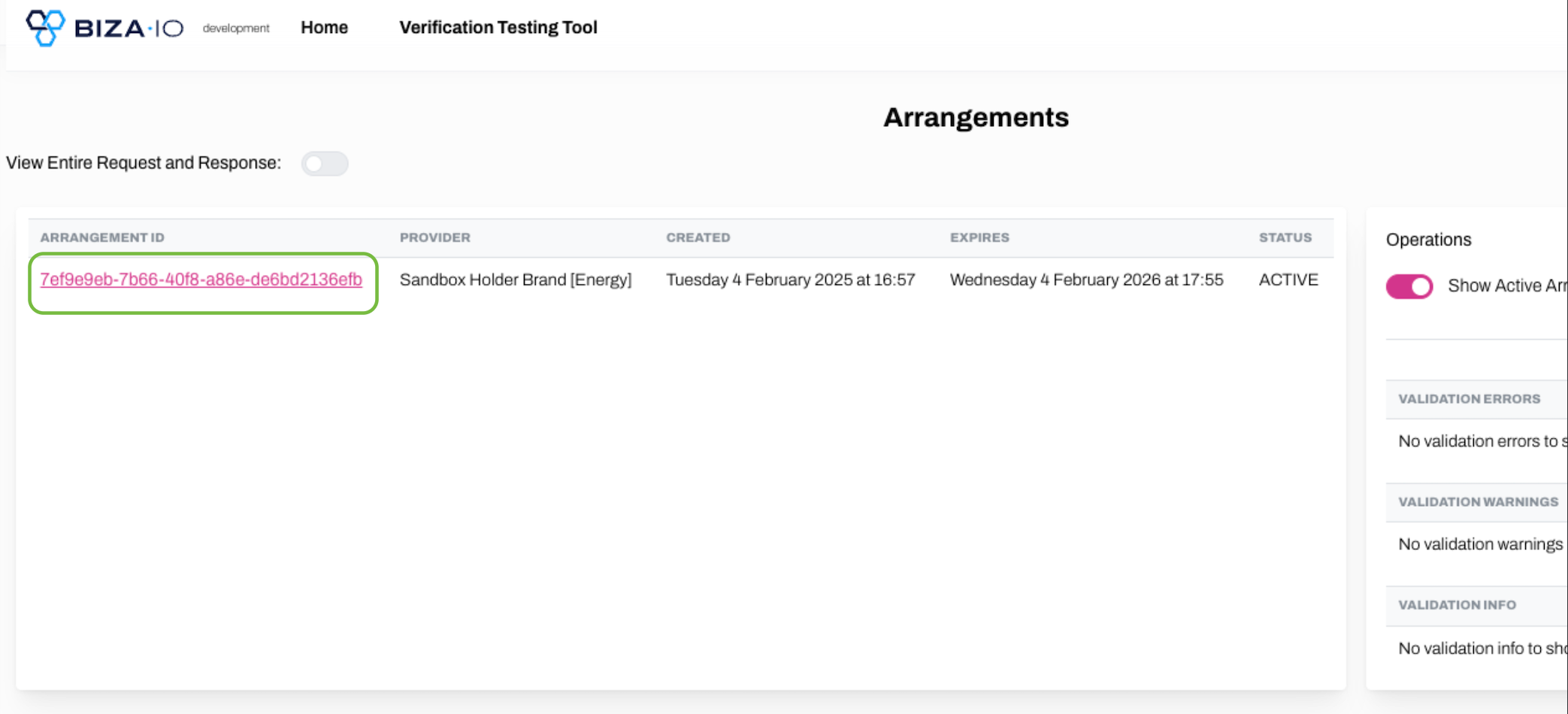
Sharing Arrangement Selection
3. Click Open Biza Test Suite.
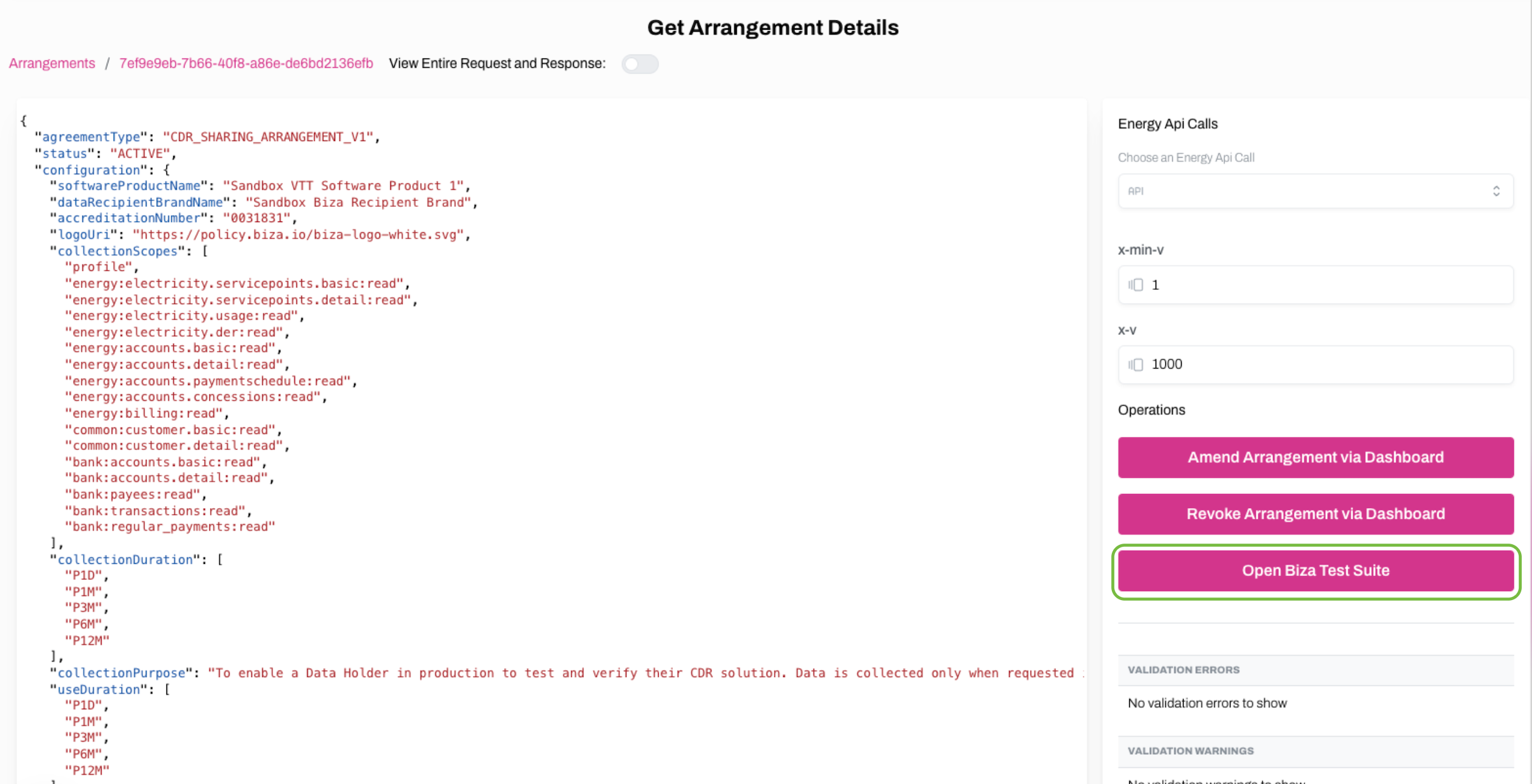
Open Biza Test Suite
4. The following screen will open, which is broken into three sections;
- Participant: basic information about the participant that will be used for the test, which is taken from the sharing arrangement.
- Agreement Scopes: lists the scopes that were selected during the creation of the sharing arrangement.
- Test Summary: this section outlines how many endpoints are included in the test, and a button to trigger a test execution.
If you are satisfied with the chosen arrangement, VTT is now ready to execute the tests. Click Start Test to begin.
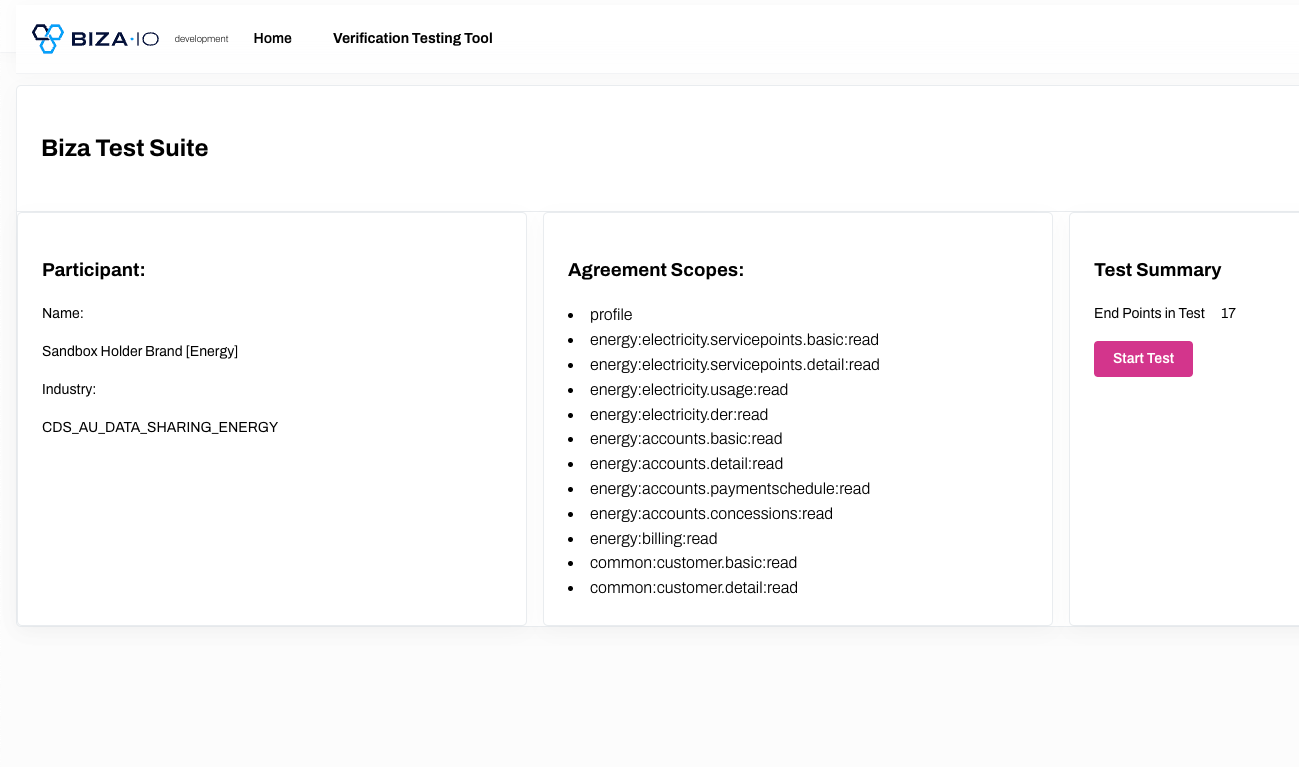
Biza Test Suite
5. Test progress is shown during execution.
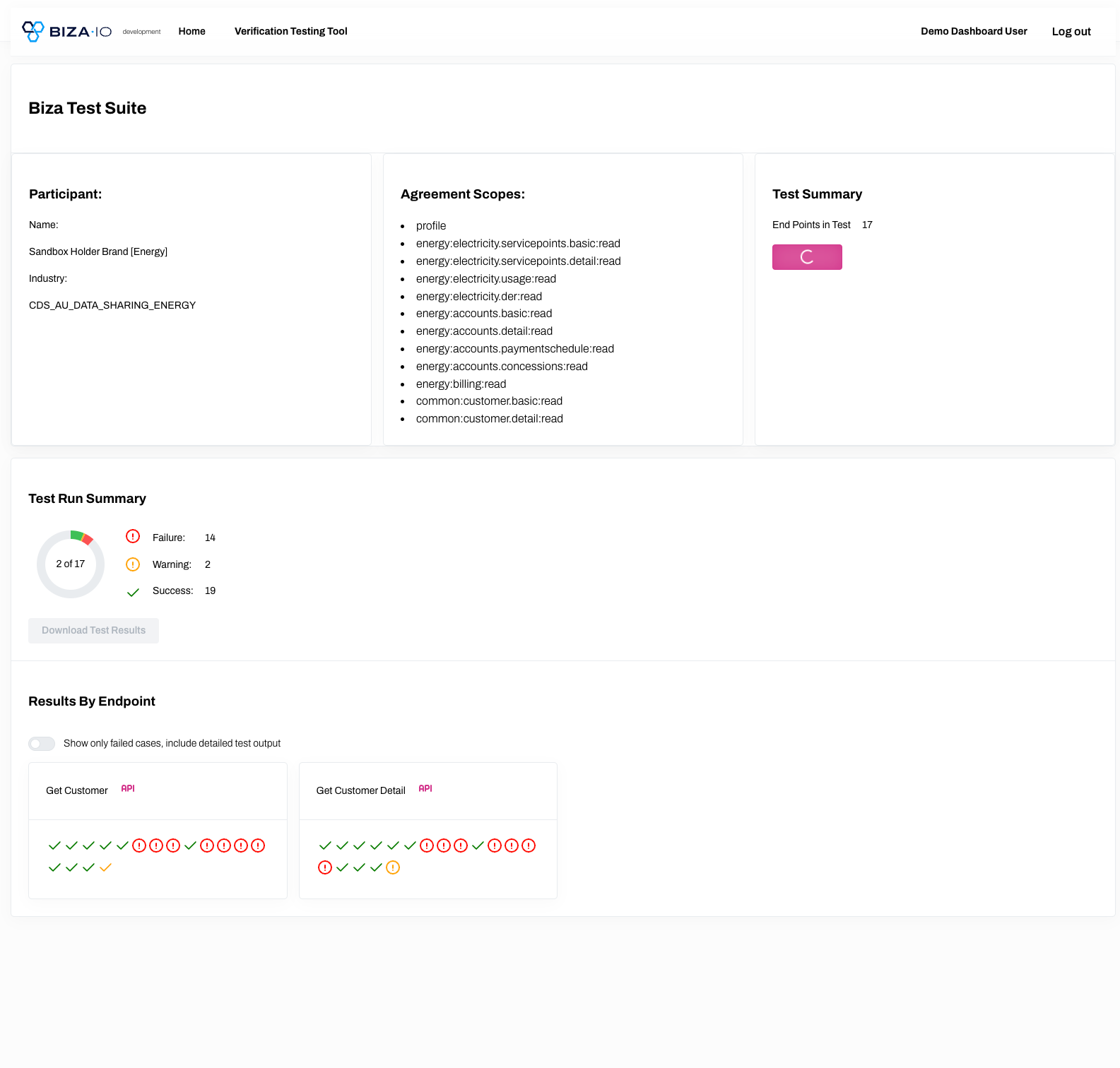
Test Progress Screen
Test Run Summary
This section provided overall information on the in-progress or completed test run.
Test Progress
Test Progress is shown in a circle widget and includes any failures, warnings and successful tests. A fully coloured circle indicates that all endpoints have been tested. Individual tests are broken down by outcome and summarised across all endpoints.
Test results are not automatically stored. Results must be manually saved by clicking Download Test Results.
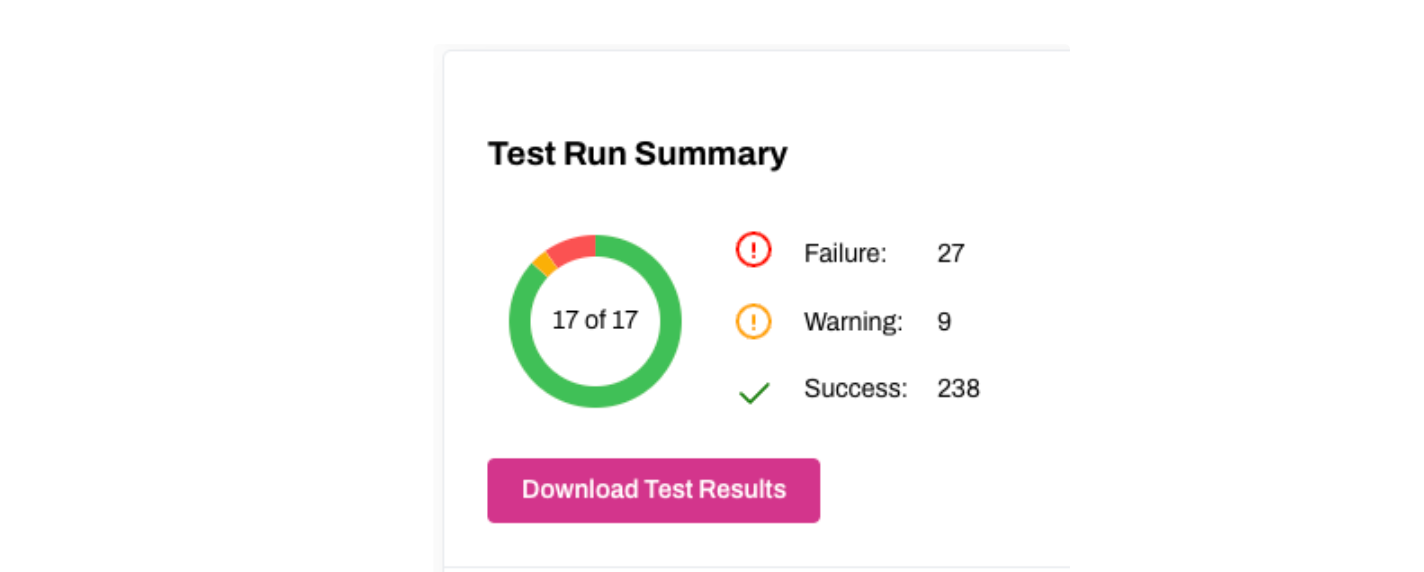
Test Summary screen
If Download Test Results was clicked, a .csv file is generated with the detailed results, irrespective of the actual test result. Requests and Response payloads are also included in the file.
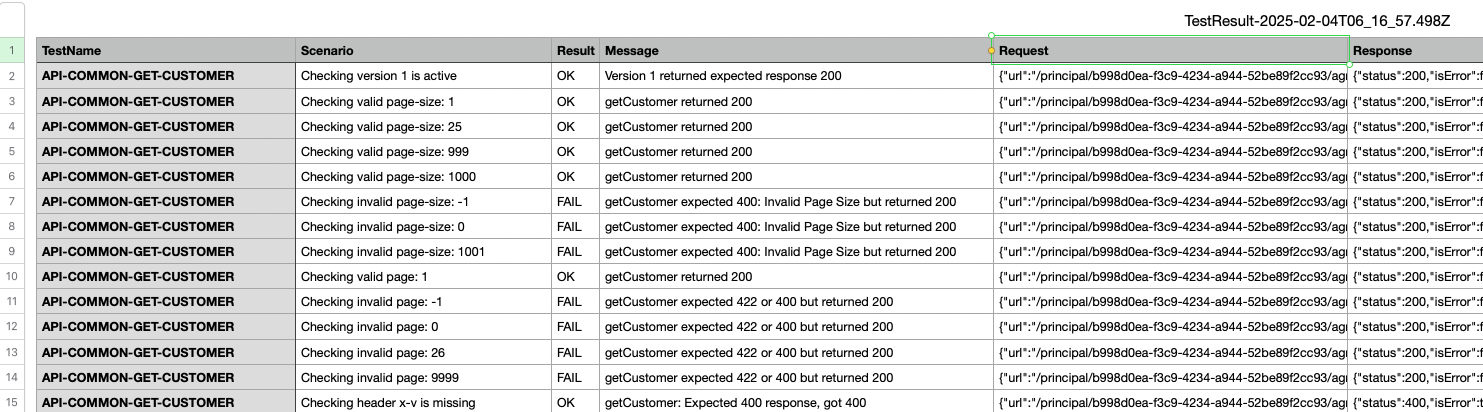
Test Results
Results by Endpoint
This section shows individual scenario outcomes grouped by endpoint. Each endpoint provides a CDS API link for easy reference. The individual scenarios run, and the result, are under ech endpoint name.
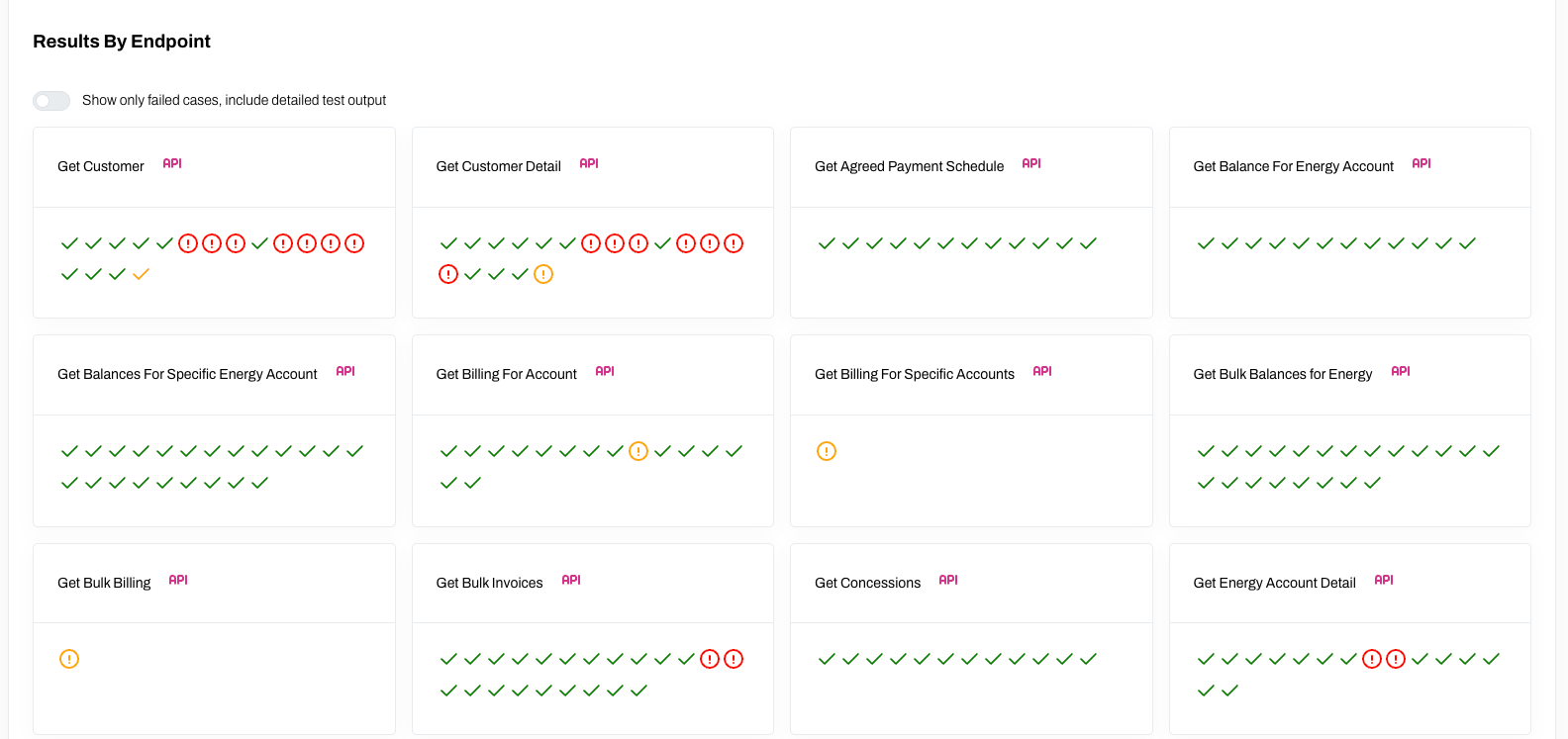
Test Results by Endpoint
Hovering over each icon will provide further information on what test scenario failed.

Test Result Information
Icons can be interpreted as follows
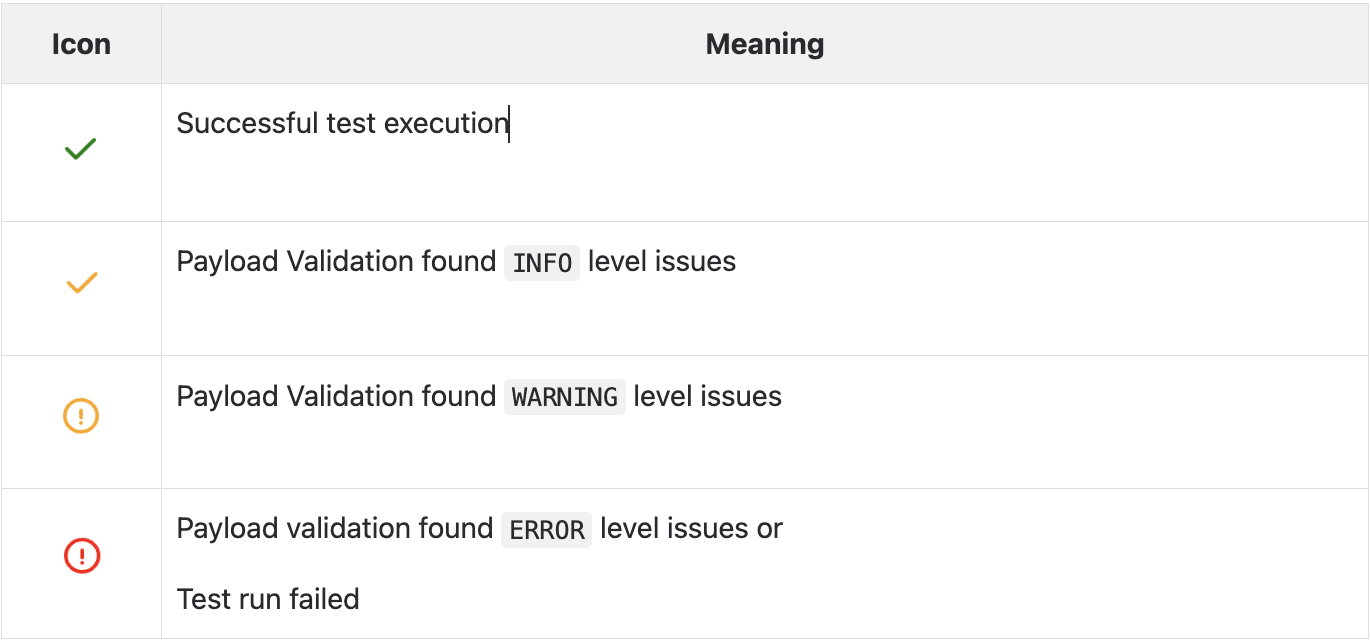
Icon Interpretation
If more information on the failures is required, click the Show only failed cases radio button.
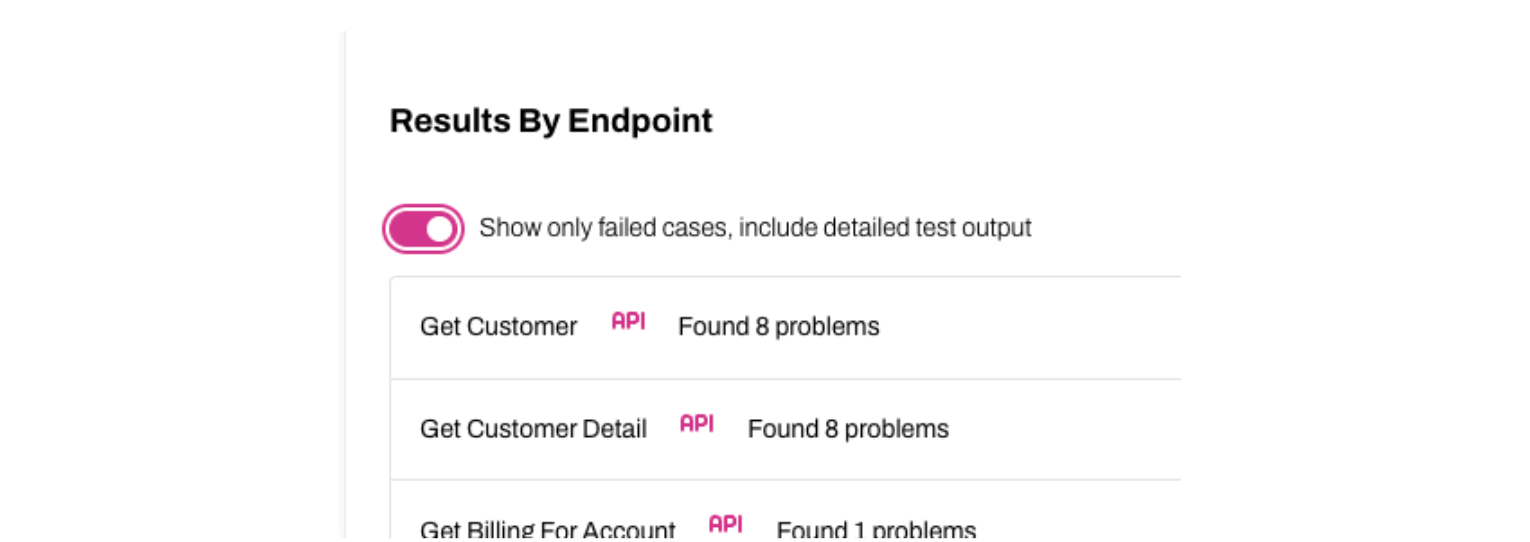
Show Only Failed Cases
Results are then filtered so all successful responses are excluded. Detailed responses are grouped by endpoint and include:
- Test execution message
- Request payload
- Response payload
To see payload information for successful tests, use the Download Test Results feature mentioned above.
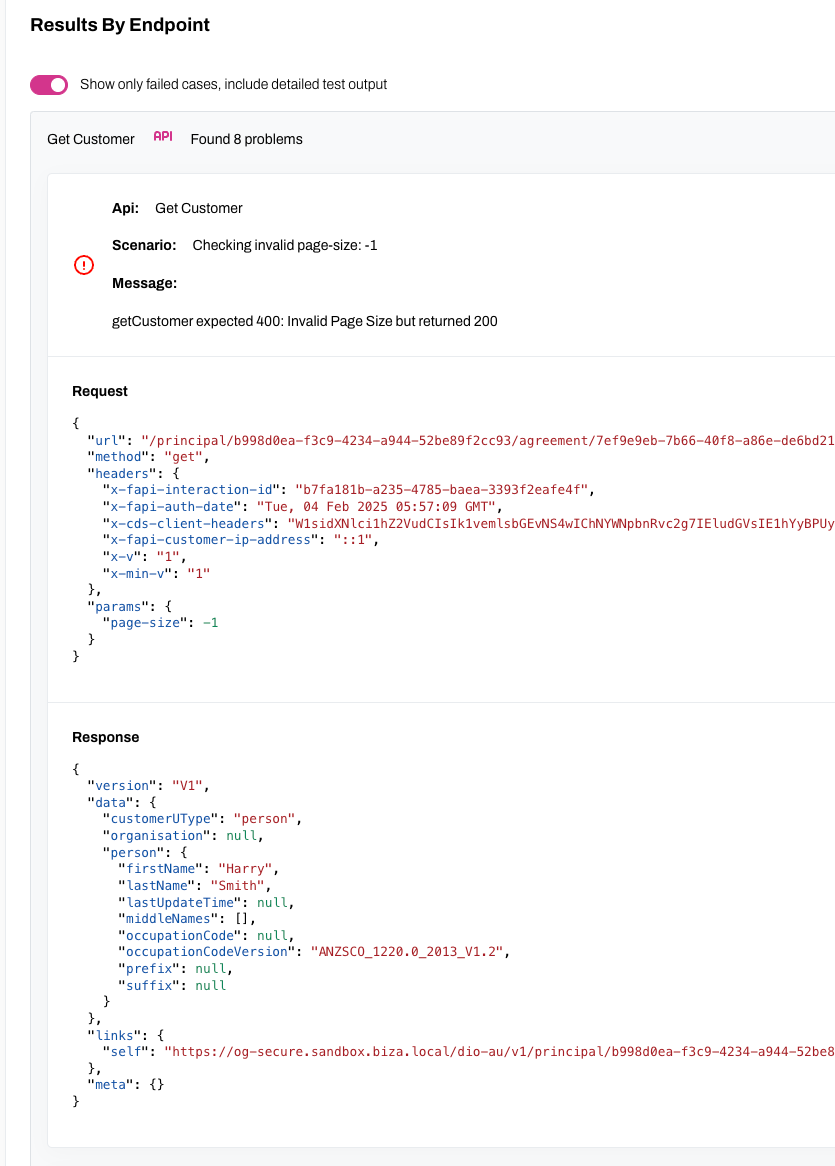
Failure Details