Set Customer Context
HaaS Manager allows you to perform certain CDR actions on behalf of a selected Customer using the Setup Customer Context Feature. The way you search for and identify a Customer depends on your chosen consumer authentication configuration.
For example
-
If you're using Double Blinded, you will see form fields for
userIdandprincipalId. -
If you're using Biza Managed, you may see additional extended authentication attributes like
usernameanddobto help identify theuserIdandprincipalIdthat uniquely represent a Customer.
Some of the options in HaaS Manager (i.e., accounts, DOMS requests, Secondary User Instructions, Authority to Operate and Nominated Representatives) will be non-functional until a customer context is set.
- Click on Setup button in the yellow Customer Context bar towards the top of the page.
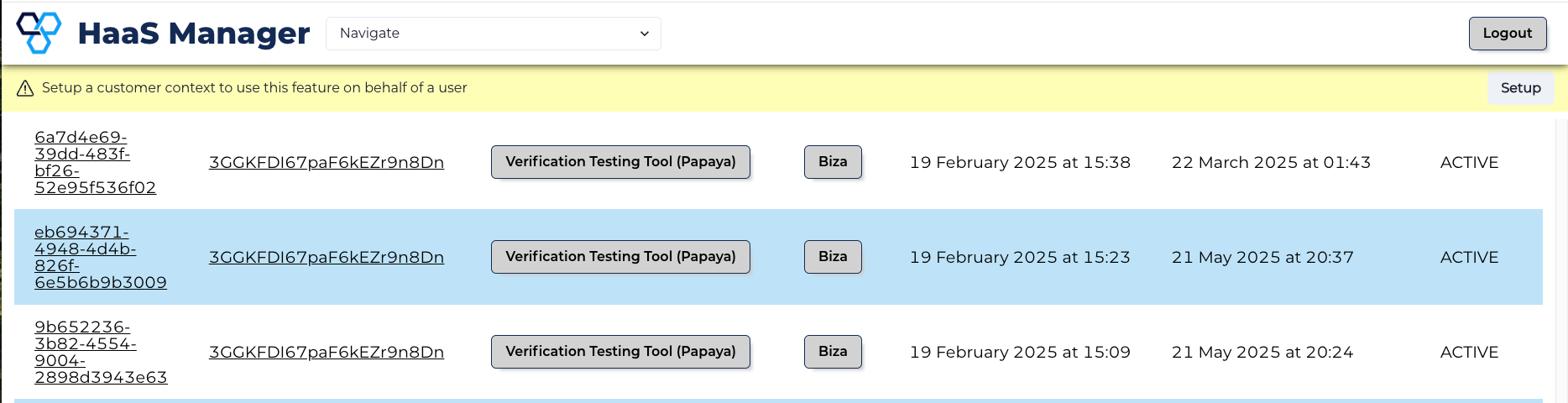
- Populate the form according to your consumer authentication configuration (as described in the note at the top of this guide).
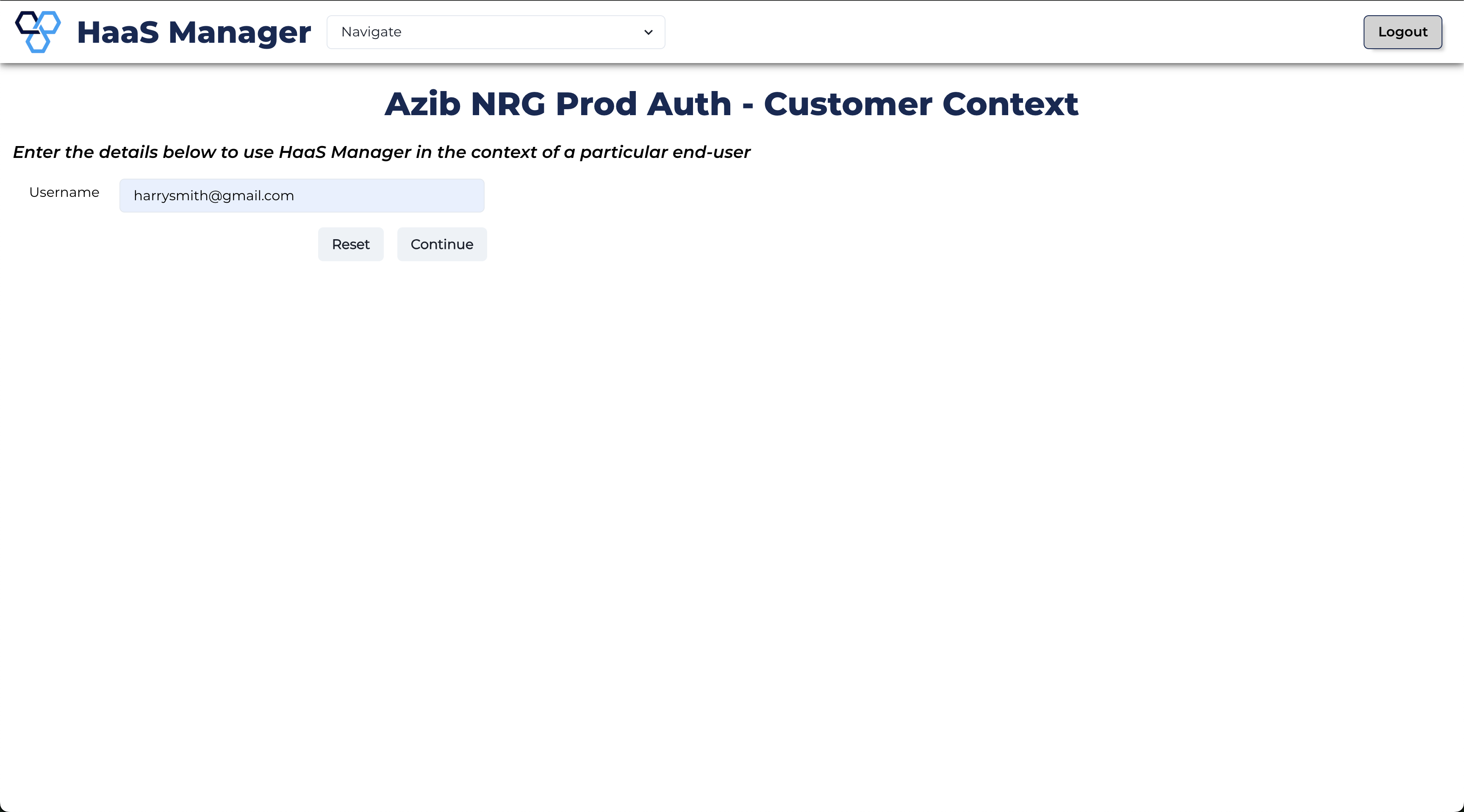
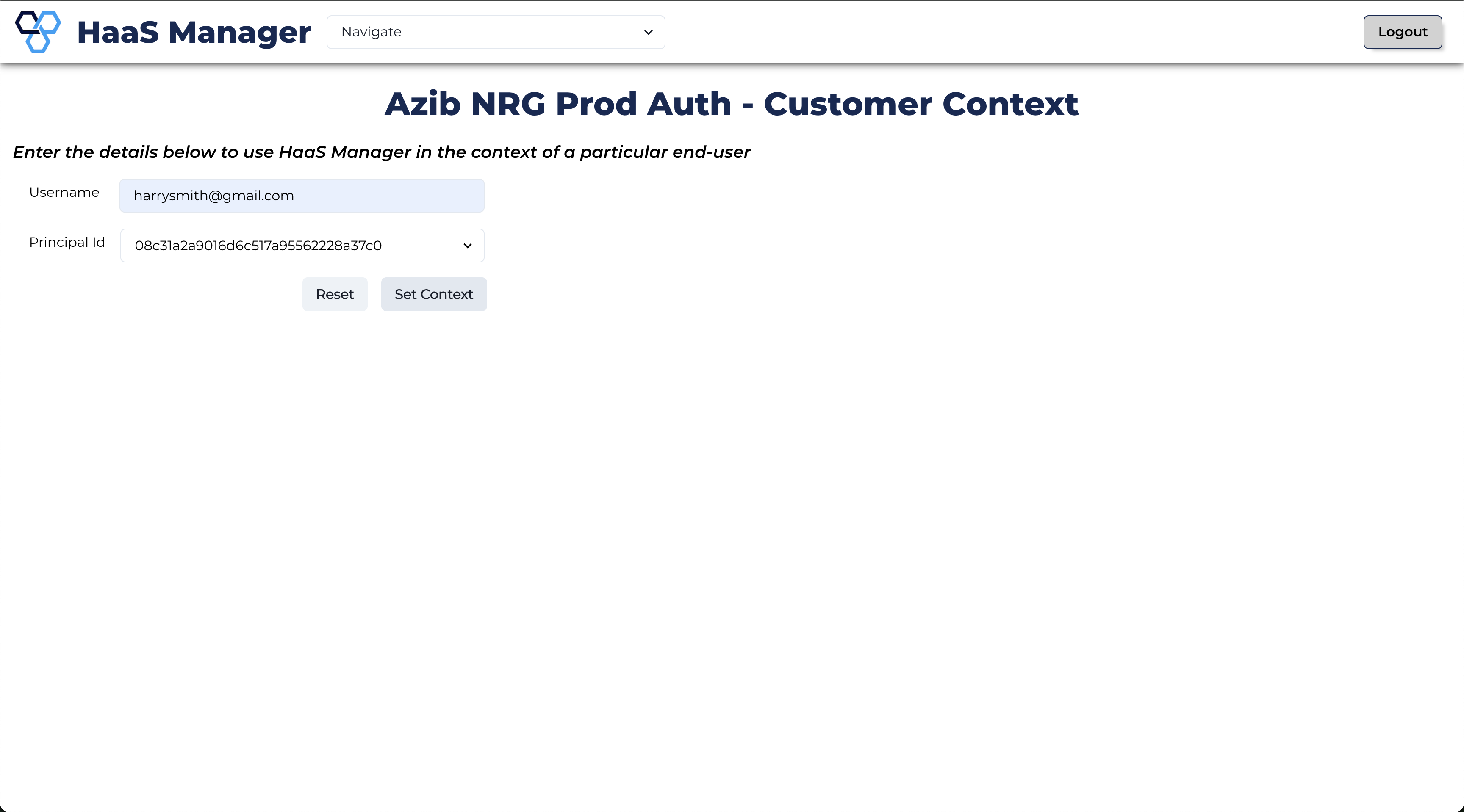
- If the form is not yet complete and a Principal still needs to be selected, click Continue, select a Principal and then click Set Context. If the Principal is not required, click Set Context.
- You will be taken back to the arrangements (grants) page where you are now
viewing arrangements in the context of the Customer you identified in the previous steps. This is denoted by the
userIdandprincipalIdin the yellow bar towards the top of the page.
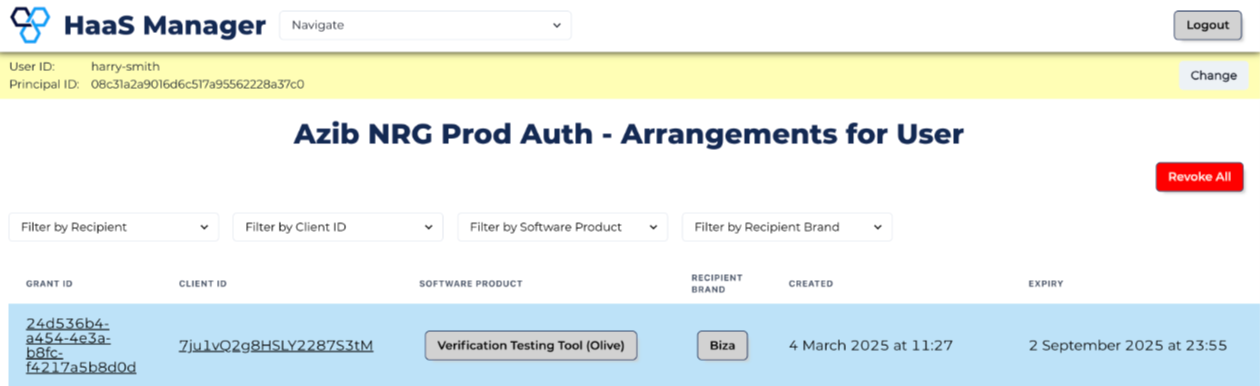
If at any point you want to remove the customer context or start again, click Change in the yellow context bar or click Reset from within the Customer Context page.