Theme Editor
Brand the consent flow and consumer dashboard to match your organisation.
HaaS Manager Theme Editor is available on the Nebula series and later.
The Theme Editor is a self-service branding interface built into HaaS Manager. It lets administrators customise the look, feel, and content of the two consumer-facing HaaS experiences, the Consent Flow and the Consumer Dashboard, so they reflect your brand rather than a generic default.
Rather than raising a request or waiting on a deployment, an administrator simply logs in to HaaS Manager and selects Brand Theme from the dropdown menu to begin editing.
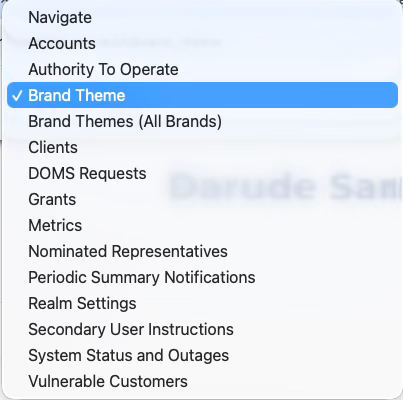
The Brand Theme entry point in HaaS Manager
What it does
The Theme Editor exposes your brand's presentation across the consent flow and consumer dashboard as a set of configurable areas:
- Identity (logo and favicon): Upload your organisation's logo and favicon so customers recognise your brand throughout the experience.
- Colours: Set the colours used for primary, secondary, and tertiary buttons, as well as page backgrounds, headings, body copy, and links.
- Typography: Choose the heading and body fonts, either a system default or an uploaded font file, and adjust weight and style.
- Content: Configure links, contact numbers and email addresses, the One Time Password (OTP) method and expiry time, and the language used throughout.
- Authorisation fields: Toggle which authentication methods appear on the consent flow and consumer dashboard login page.
Customer value & use cases
- White-labelling: Present the consent and dashboard experiences under your own brand identity, rather than a generic default.
- Rebrands and refreshes: Roll out a new logo, colour palette, or typeface across every customer touchpoint in minutes, without a release cycle.
- Content and localisation control: Keep contact details, links, OTP behaviour, and language settings accurate and appropriate for your audience.
- Authentication control: Decide exactly which authentication methods are offered to your customers at login.
- Confident, preview-first changes: A real-time preview panel shows the impact of every change before it is published, so administrators can iterate safely.
Access to the Theme Editor requires HaaS Manager access, which depends on Biza ID federation being configured and the user holding the appropriate roles and permissions.
Related guides
For step-by-step instructions covering each configuration area, see the Manage Theme Configuration guide:
- Identity configuration
- Colour configuration
- Typography
- Content configuration
- Authorisation fields configuration
To move a validated theme from Non-Production to Production, see Promote themes from Yellow to Red.
For an overview of the broader administrative console, see HaaS Manager.