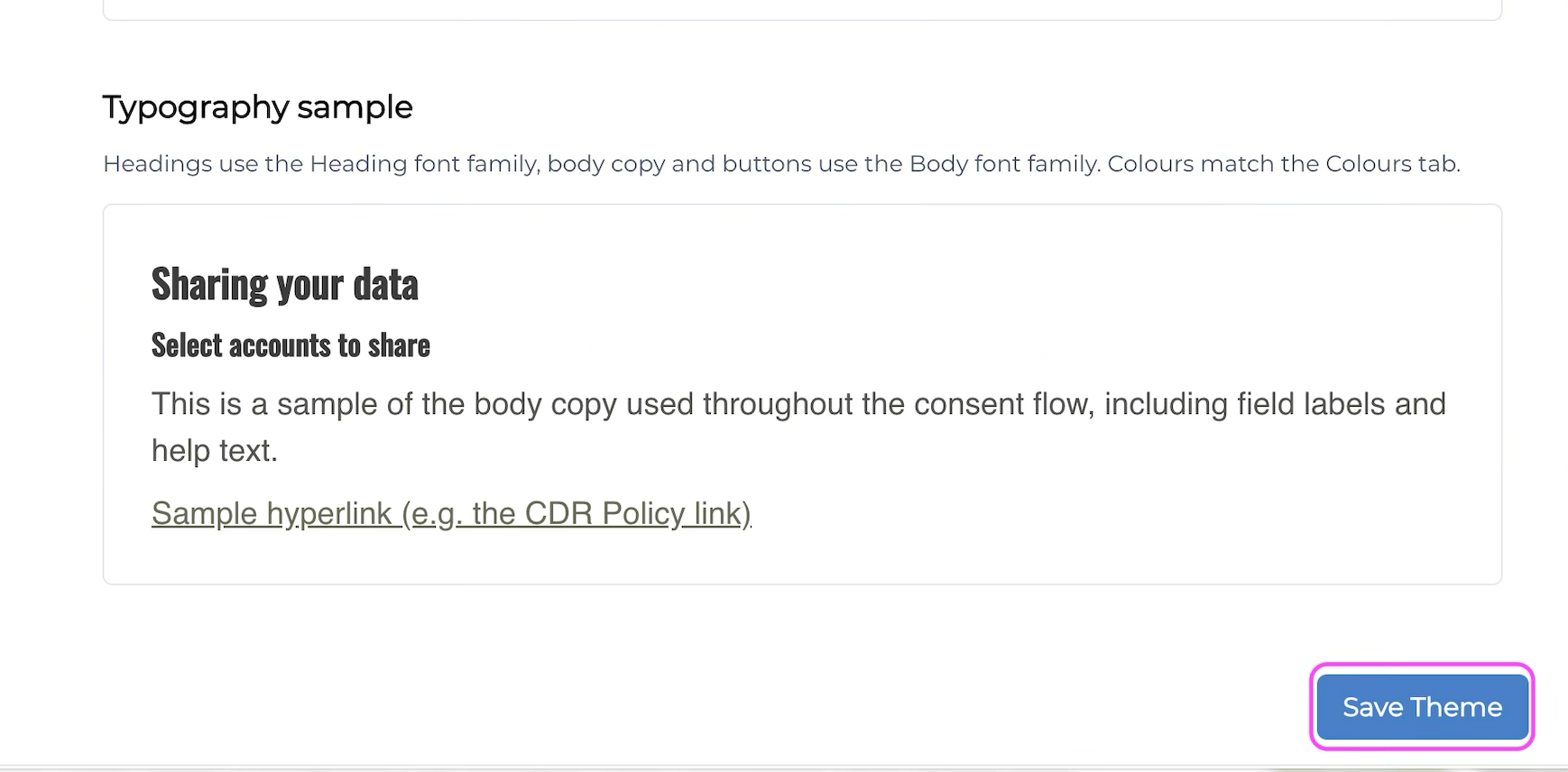
Typography Configuration
Learn how to change your typography.
HaaS Manager Theme Editor is available on the Nebula series and later.
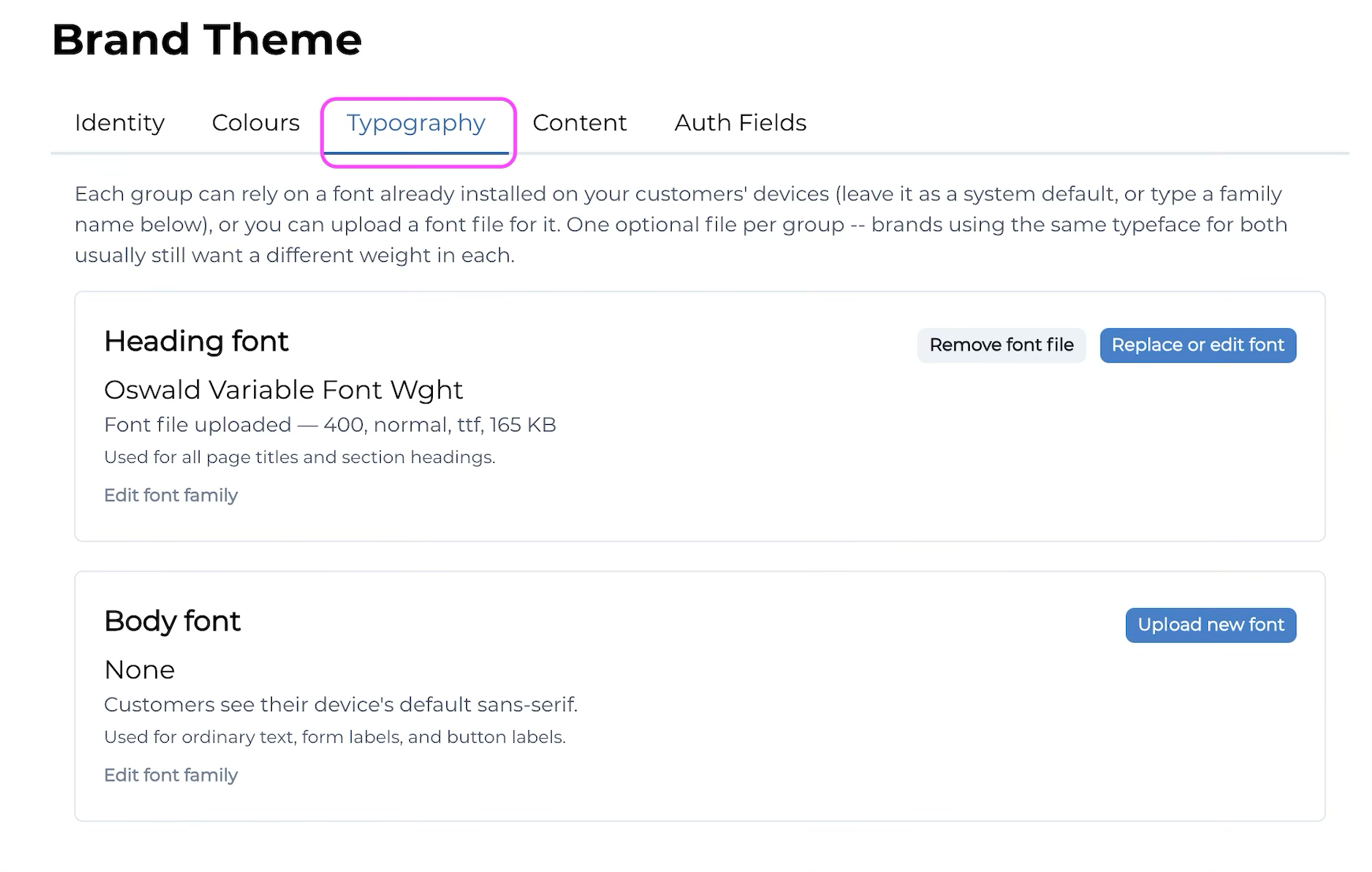
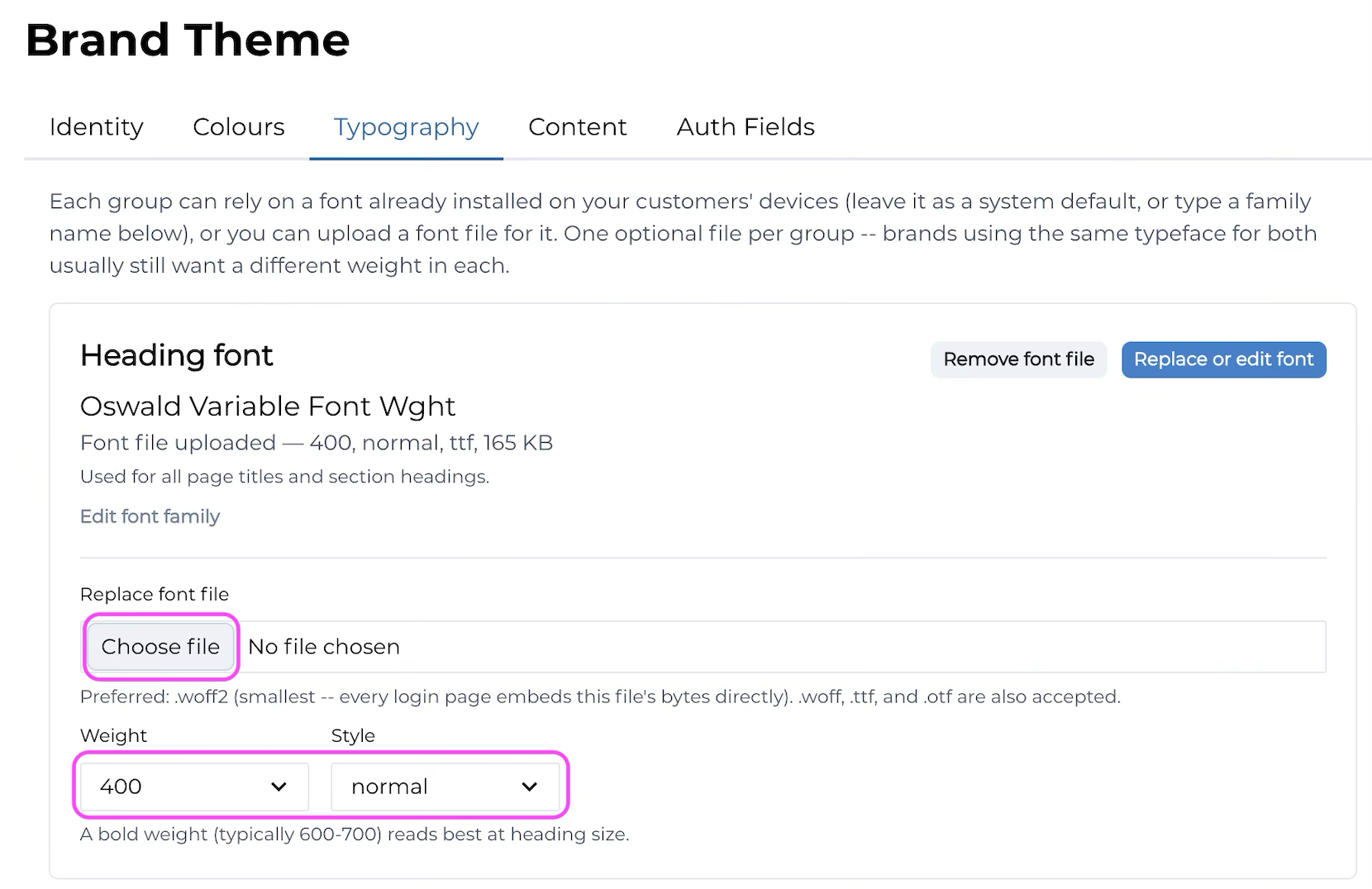
You can follow the steps below to change the typography displayed throughout consent flow and the consumer dashboard. You may choose to rely on a font already installed on your customer's device (i.e., leave it as a system default, or type a family name into HaaS Manager), or you can upload a font file for the font you wish to use. You can have one optional file per group, noting that brands using the same typeface for both the Heading and the Body font often prefer a different weight in each.
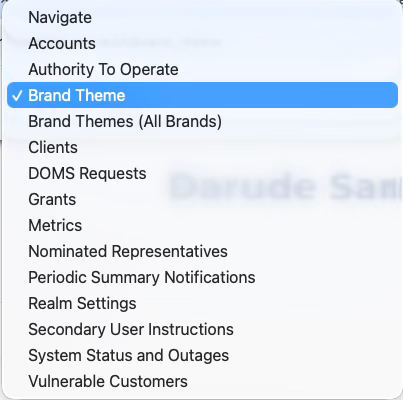
1. Login to HaaS Manager and select Brand Theme from the dropdown menu.
2. Select the Typography tab.
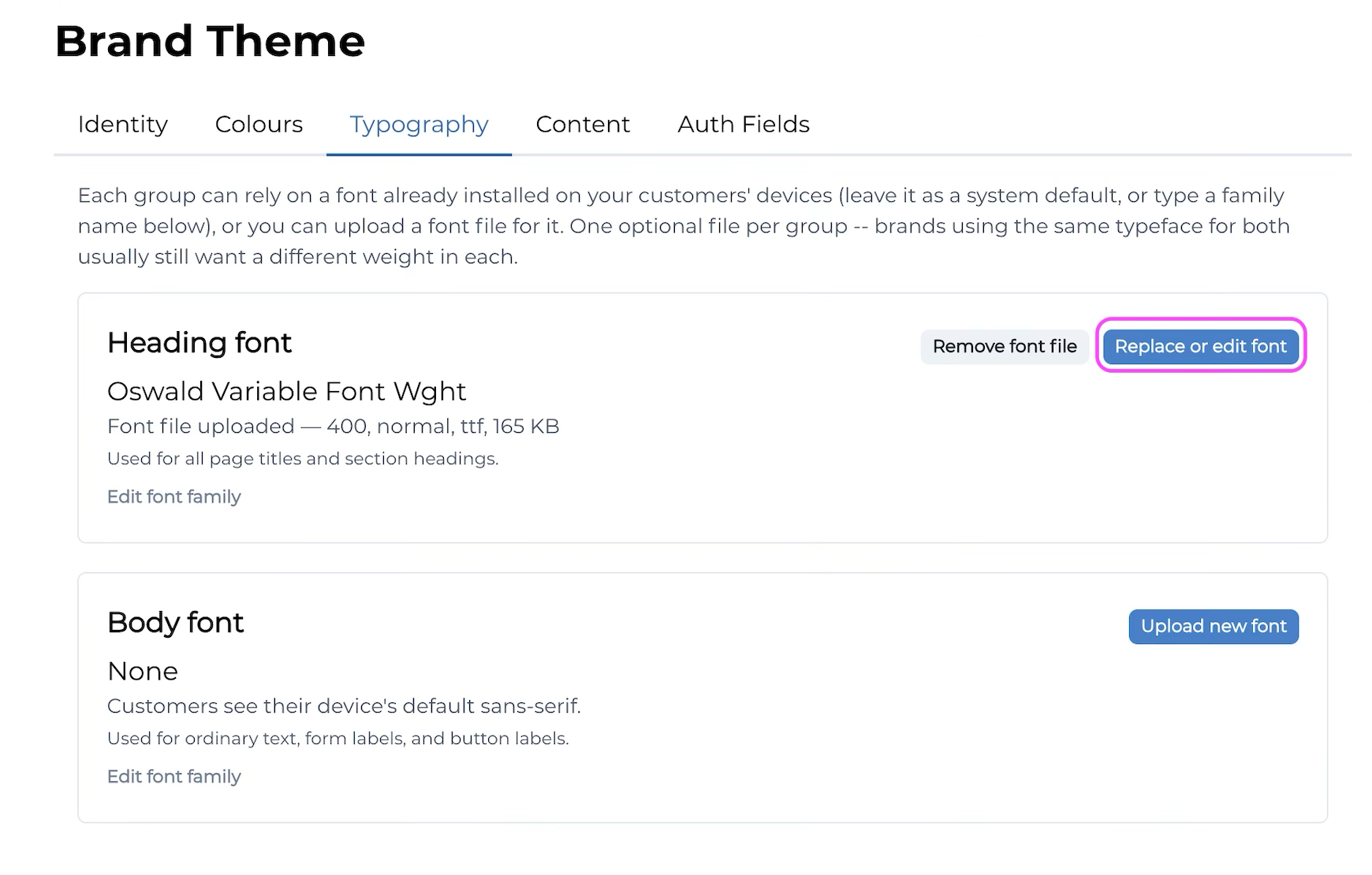
3. Select Replace or edit font.
4. Select Choose file to upload your chosen font's file. You can also adjust the Weight and Style if required. Any changes you make will be reflected in the preview panel on the right-hand side of the screen.
5. Click Save Theme.