Colour Configuration
Learn how to change your brand colours.
HaaS Manager Theme Editor is available on the Nebula series and later.
You can easily change the colours throughout consent flow and the consumer dashboard. This includes the colour of the primary (i.e., Next/Confirm), secondary (i.e., Cancel/Back), tertiary (resend one time password button), and colours throughout the pages (i.e., background, headings, body copy, and links). Simply follow the steps below.
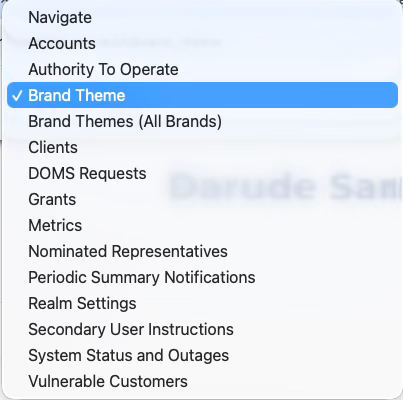
1. Login to HaaS Manager using your credentials and select 'Brand theme' from the dropdown menu.
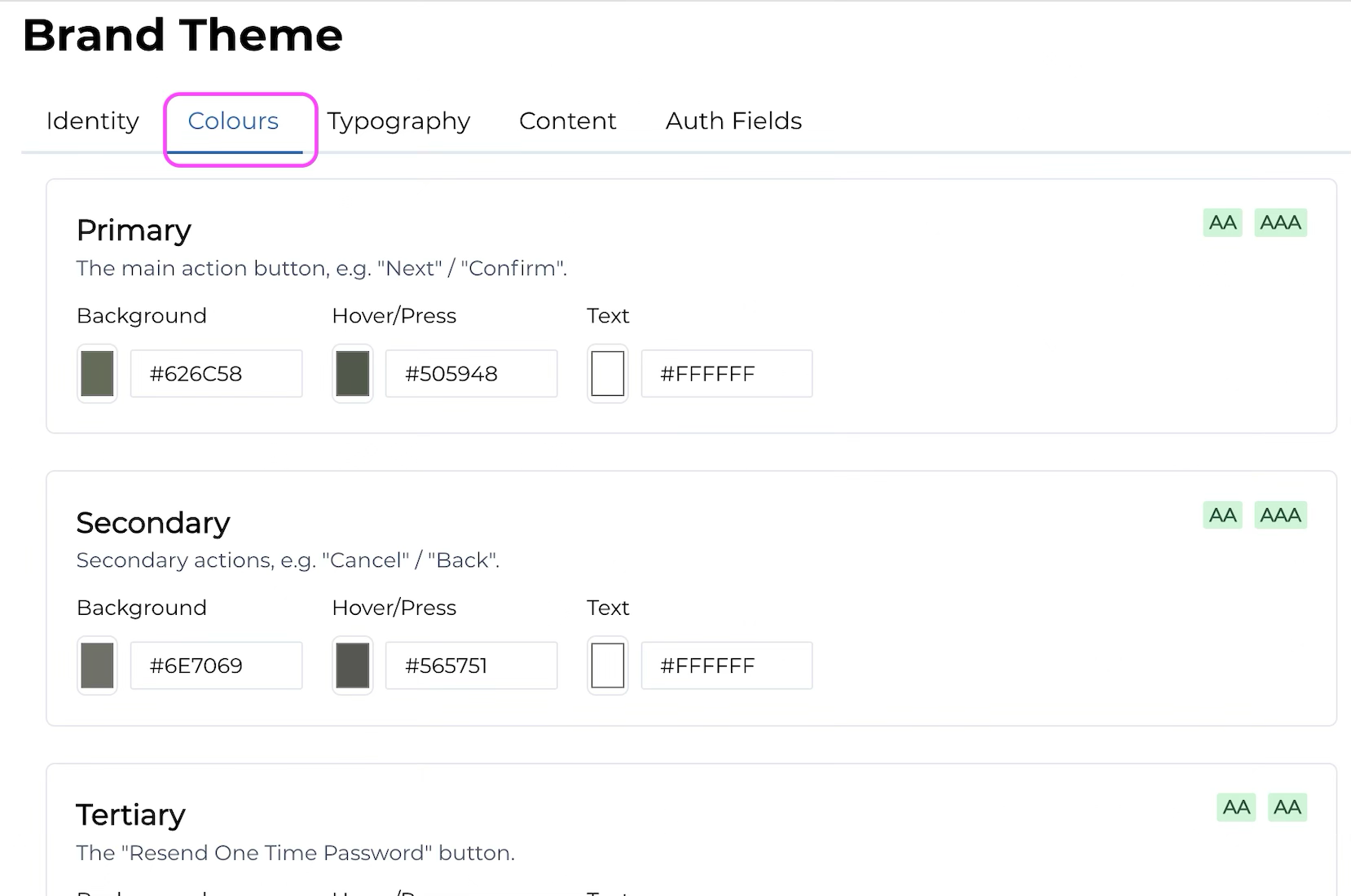
2. Select the Colours tab.
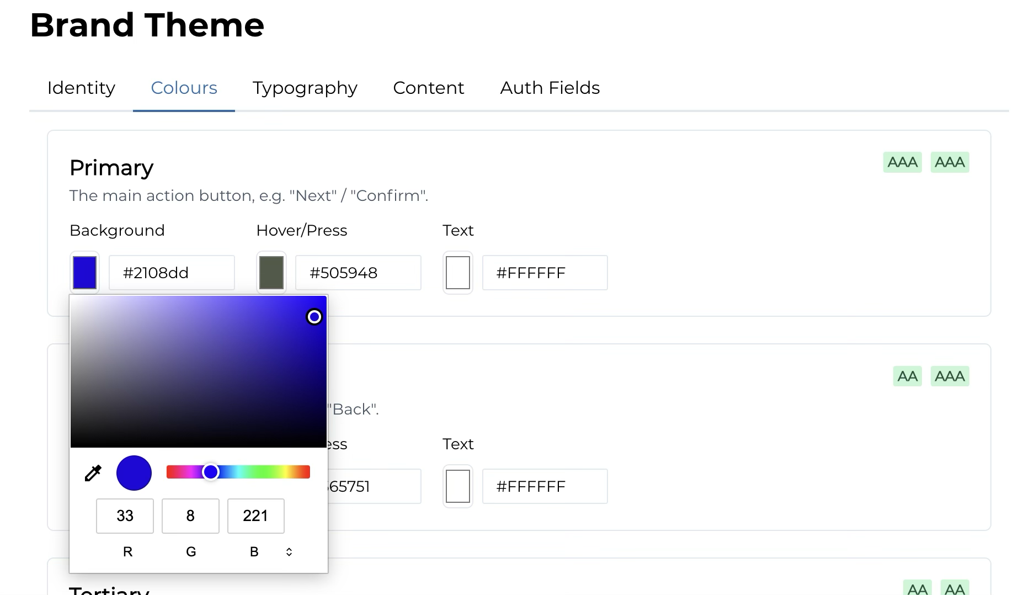
3. Change the hex value to your desired colour and click enter.
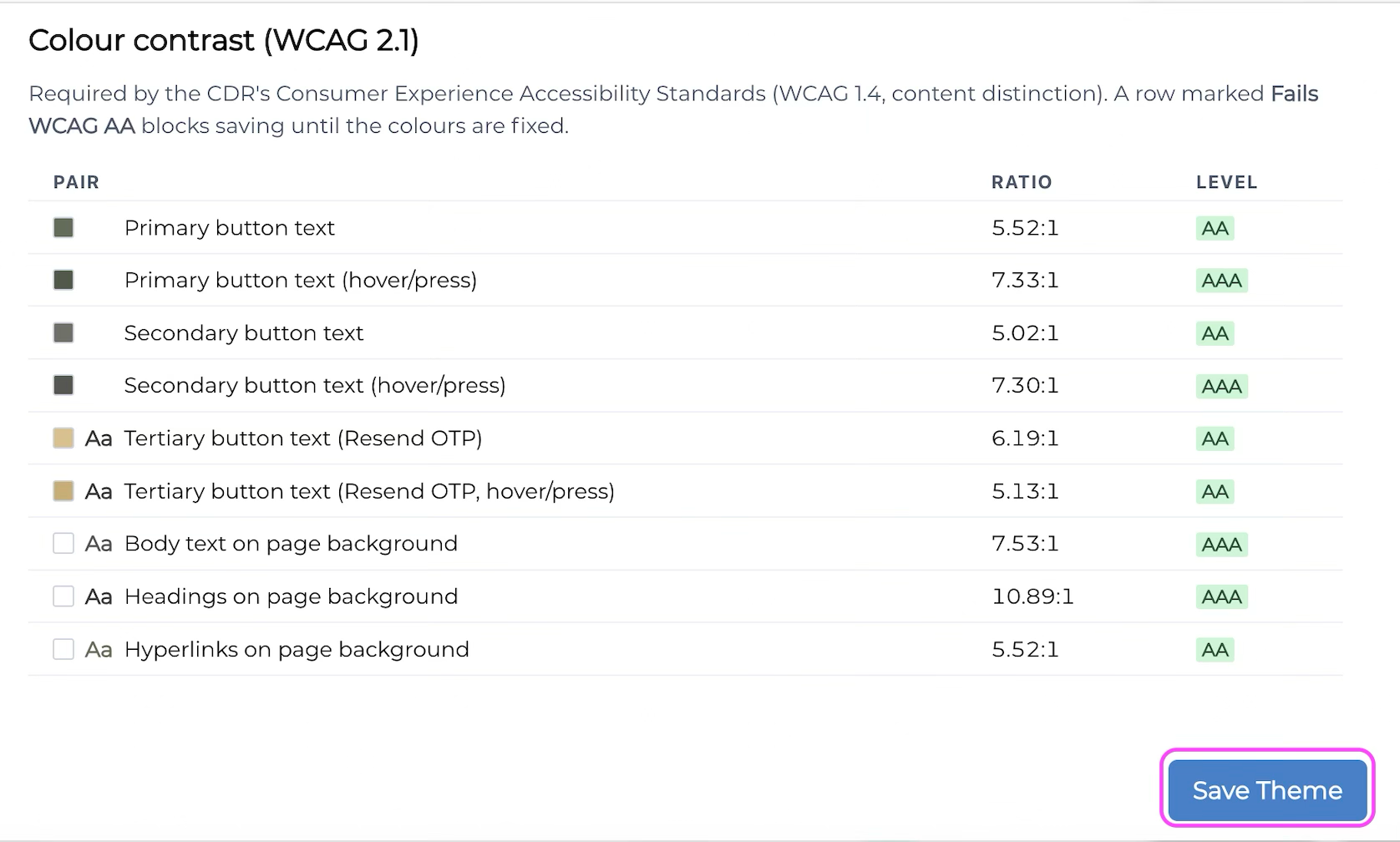
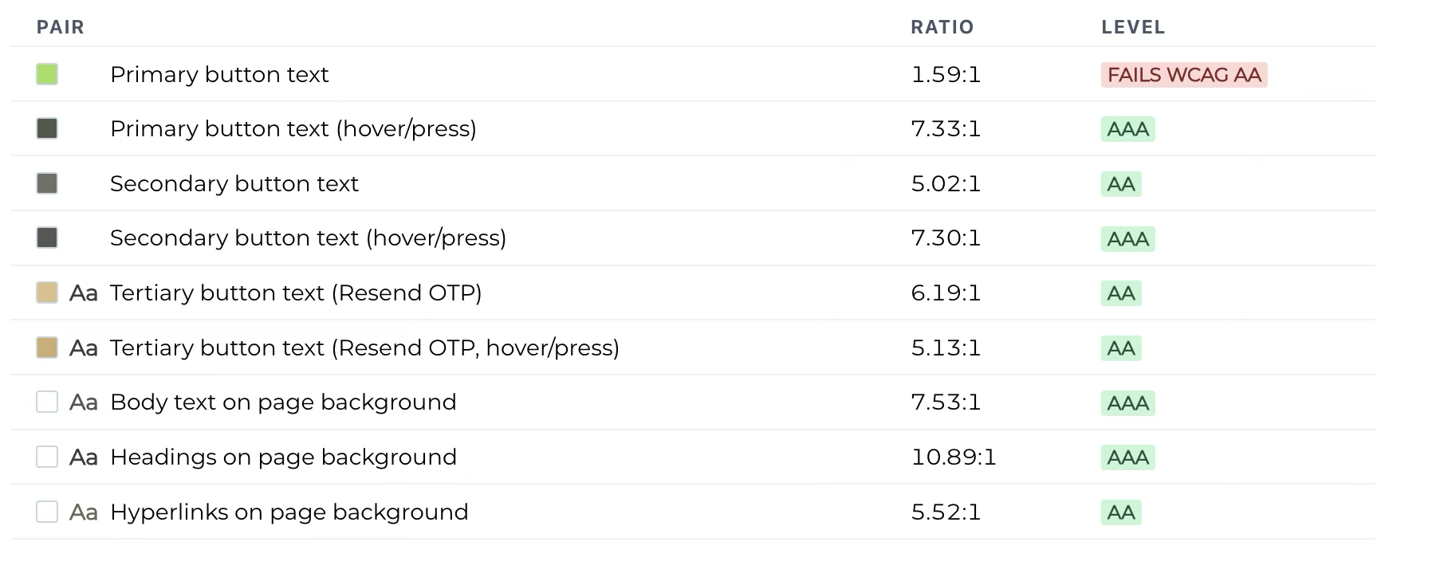
The Consumer Data Right's (CDRs) Consumer Experience Accessibility standards (WCAG 1.4) must be met. A row marked "Fails WCAG AA" will block you from saving the changes until the colours are fixed.
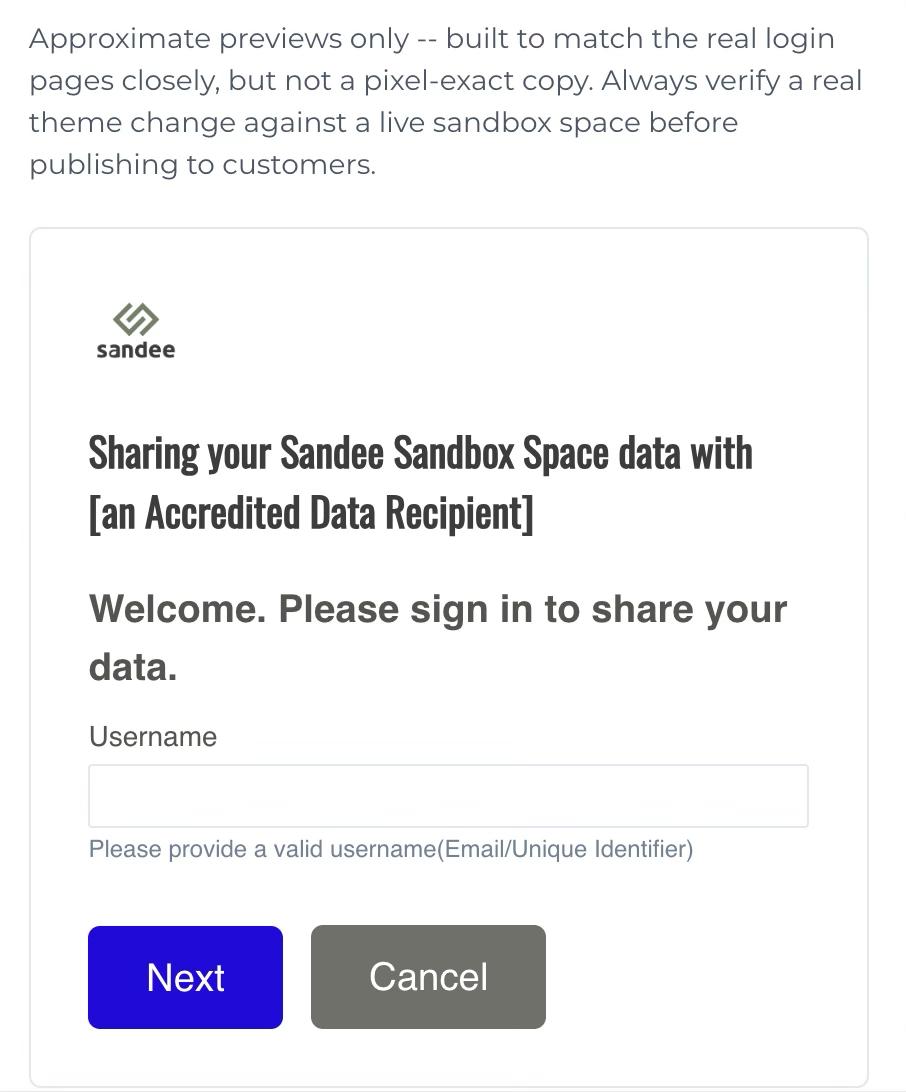
4. Your changes will be reflected in the preview panel on the right-hand side of the screen.
5. Click Save Theme.