▶️ Getting Started
If you're new to our documentation, you've come to the right place. This page will help you find the right information in the right order as you get started with us here at Biza.
1. Accessing Product Manager
1. Navigate to pm.biza.au, click 'Sign in with Biza ID' and type in the email address you provided to set up Product Manager. Then click Continue.
PM Enterprise customers will have been federated with Biza ID, so will be automatically logged in upon clicking 'Sign in with Biza ID`.
2. Click Forgot Password (this enables you to set up your own password).
3. On the Forgot Your Password screen, enter your email address and click Continue.
4. Locate the Forgotten password email from Biza in your email inbox and click Confirm on the email.
5. On the 'Change Your Password' screen, create your new password and click Reset Password.
6. Navigate back to pm.biza.au.
2. Setup your Product Manager Space
Each brand you provided to Biza will require its own space.
1. Enter a PM Space Name: something of your choosing that helps you identify your space within PM.
2. Enter a CRD Brand Name: this is the name that will be displayed to the CDR.
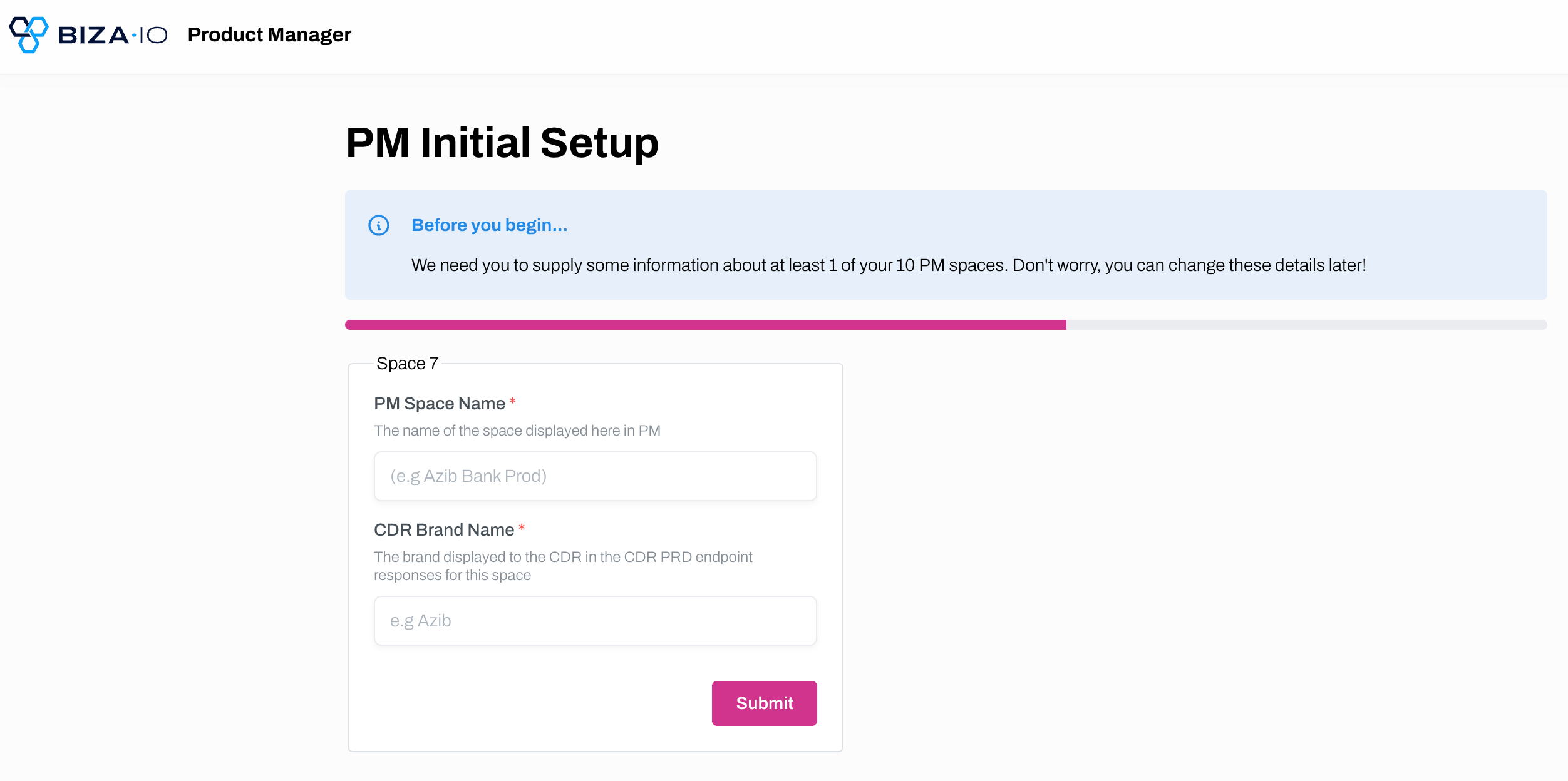
Initial Setup Screen
Only 5 spaces are available for PM Starter. Upgrade to PM Enterprise if you require more spaces by contacting us at pmstarter@biza.io.
3. Set up your Products
There are 3 options available to populate your PRD:
1. If you already have live CDR Product Reference Data in the CRD ecosystem, you can utilise the Biza CDR PRD import tool. This functionality is only available on PM Enterprise.
2. Manually create products (see video above).
3. Engage with Biza Professional Services to have a tailor-made import performed that follows our best practices for product structure and maximising the use of Product Manager shared tables.
4. Set up your Library
PM allows you to have libraries of tables for product attributes (i.e., fess, features, eligibility, constraints and bundles) which can be configured once and attached to products, rather than duplicating the data across each product. You can add library tables to your products by following the instructions found here.
5. Data Verification
This only applies to PM Enterprise customers. If you're a PM Starter customer and ready to upgrade, please contact us at pmstarter@biza.io
There are 2 options for verifying that your data is configured correctly in Product Manager before being used as the source of truth for your PRD.
1. You can use the CDR Endpoint Tool.
2. Biza can run the Biza Test Suite to do an automated data quality check.
You will be responsible for signing off the data quality check.
6. Connect your HaaS Space to Product Manager
If you have a Holder-as-a-Service (HaaS) space, it must be connected to PM to enable HaaS to report metrics. Importantly, the Product base uri must change with the ACCC once connected.
Once your data has been verified (see step 5), submit a ticket to Biza with your endpoint details so we can connect your HaaS space.