Bulk Rate Changes
Learn about how to make Bulk Rate Changes
Product Manager allows you to easily and efficiently make changes to Rates across multiple products by following the steps below.
Bulk Rate Changes are applicable to Lending and Deposit Rates. The example below uses Lending Rates as an example, but the same steps apply to Deposit Rates.
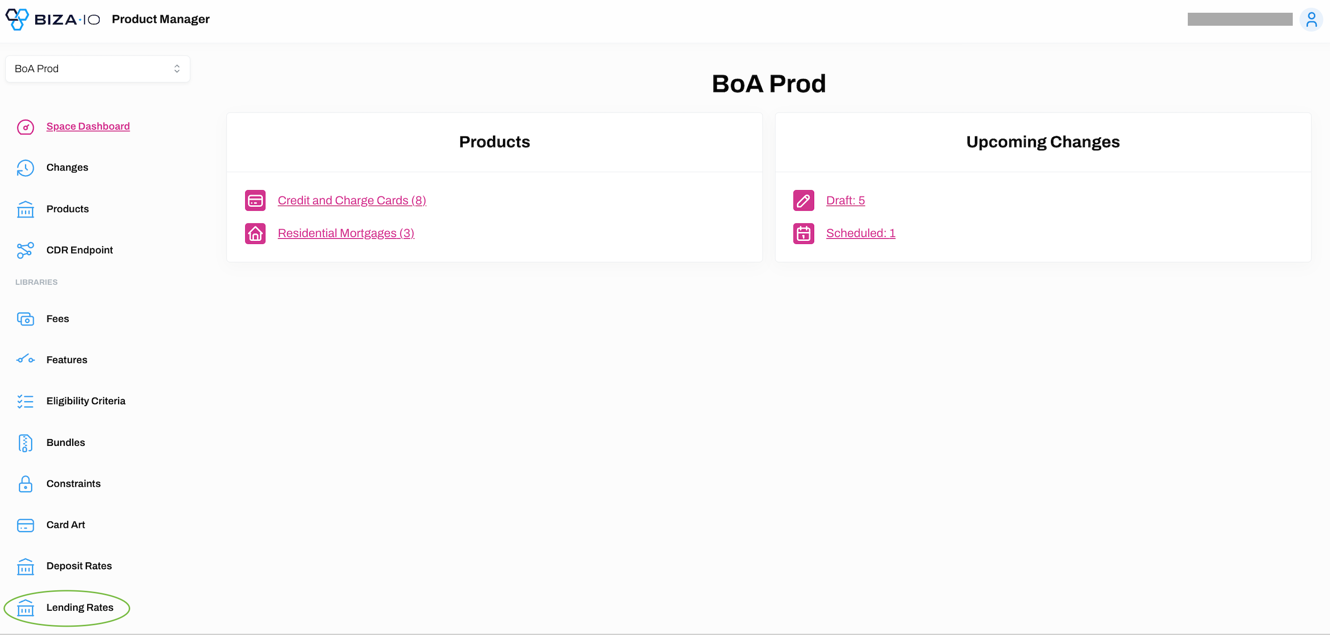
1. Select Lending Rates from the main menu.
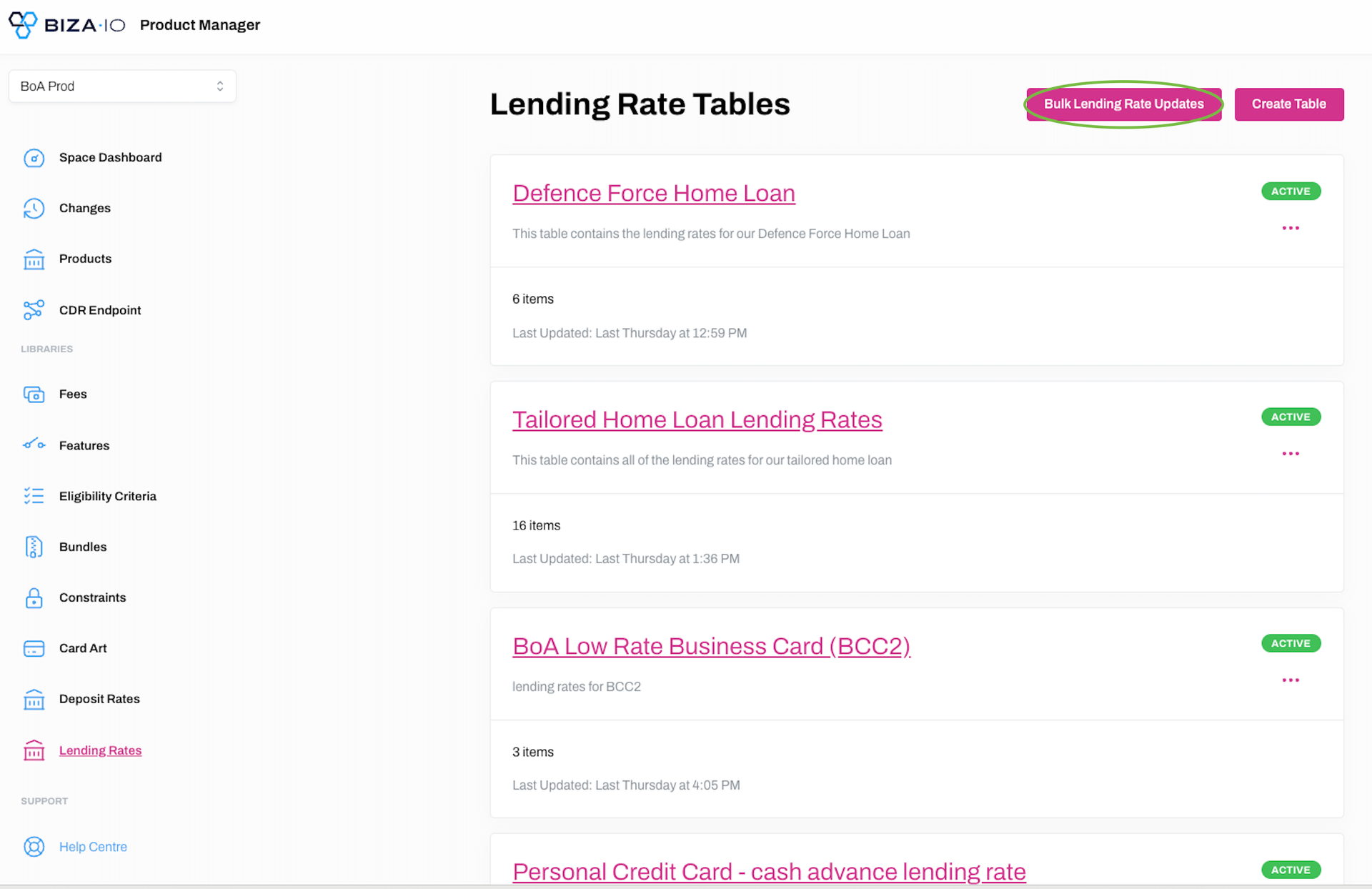
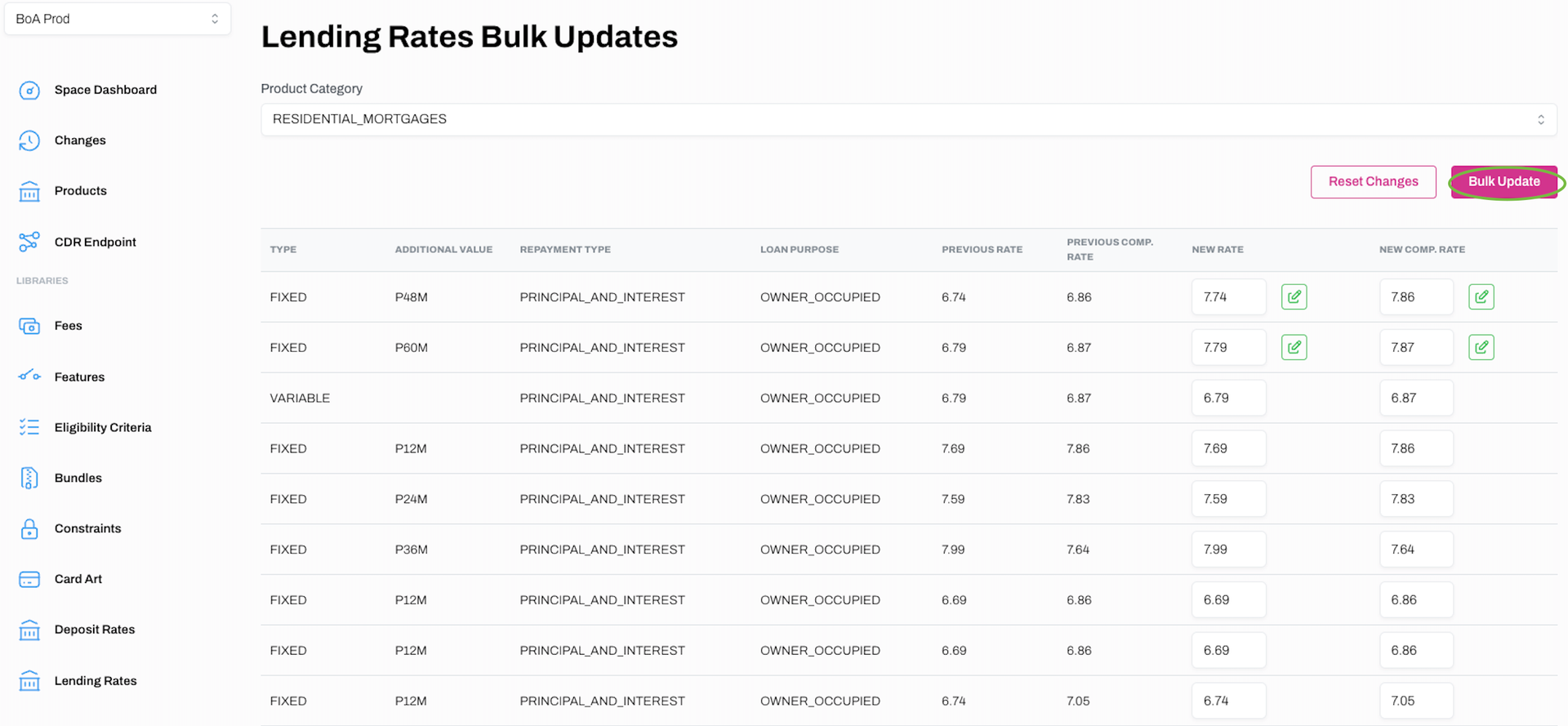
2. Click Bulk Lending Rate Updates on the Lending Rate Tables screen.
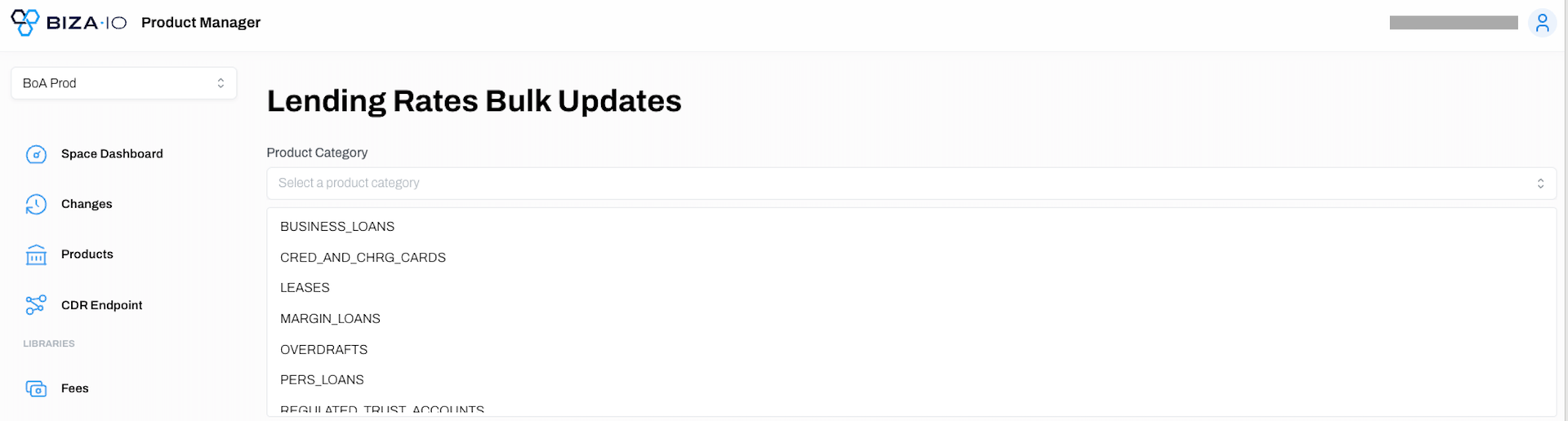
3. Select the relevant Product Category from the dropdown menu.
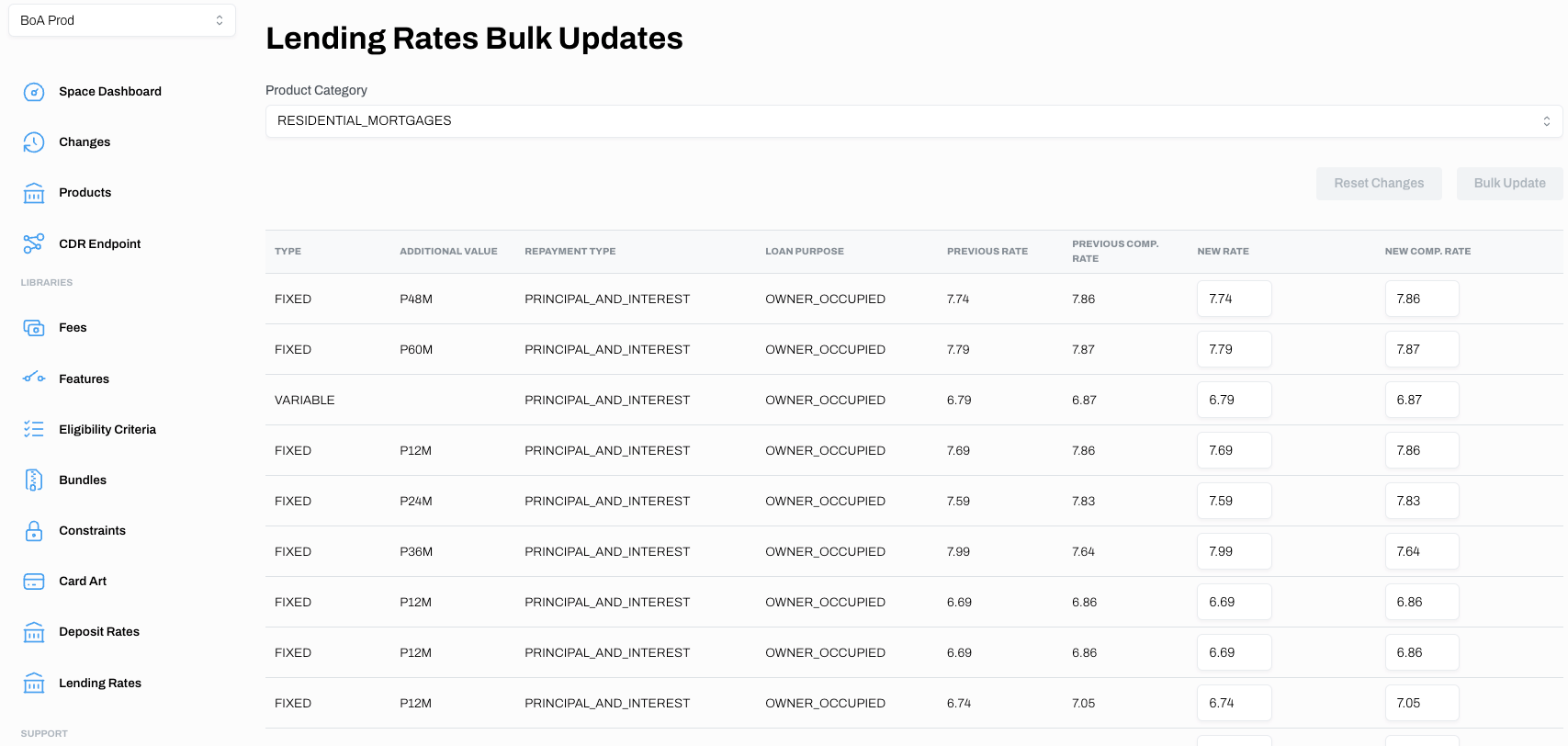
4. You will now see a table containing all Lending Rate Fees for your chosen product category. Make any necessary changes and click Bulk Update.
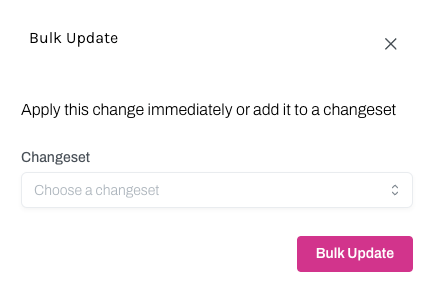
5. You can apply the change immediately by clicking Bulk Update on the dialogue box, or select a Changeset from the drop-down menu to schedule the update for a future date.
6. If the changes were successful, they will be reflected on the Lending Rates Bulk Updates page.