Scheduled Events/Updates
Learn how to schedule events and updates in PM.
PM allows the creation and changes to products to be scheduled in advance using Changesets so that any changes can be carried out prior to a go-live date and publication to the CDR.
Changes Quick View
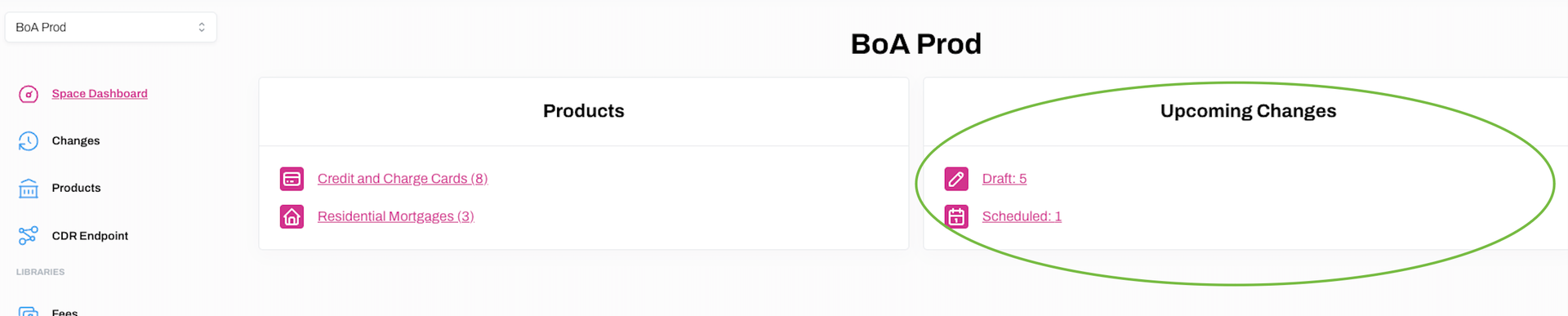
You can easily see what changes you have in Draft Status, or those that are Scheduled, by viewing the Space Dashboard/PM Home page.
Create a draft Changeset
Learn how to create a draft changeset.
Please note that these instructions show you how to create a draft Changeset. To actually schedule the Changeset, please see the Moving a Draft Changeset to Scheduled.
1. Select Changes from the main menu.
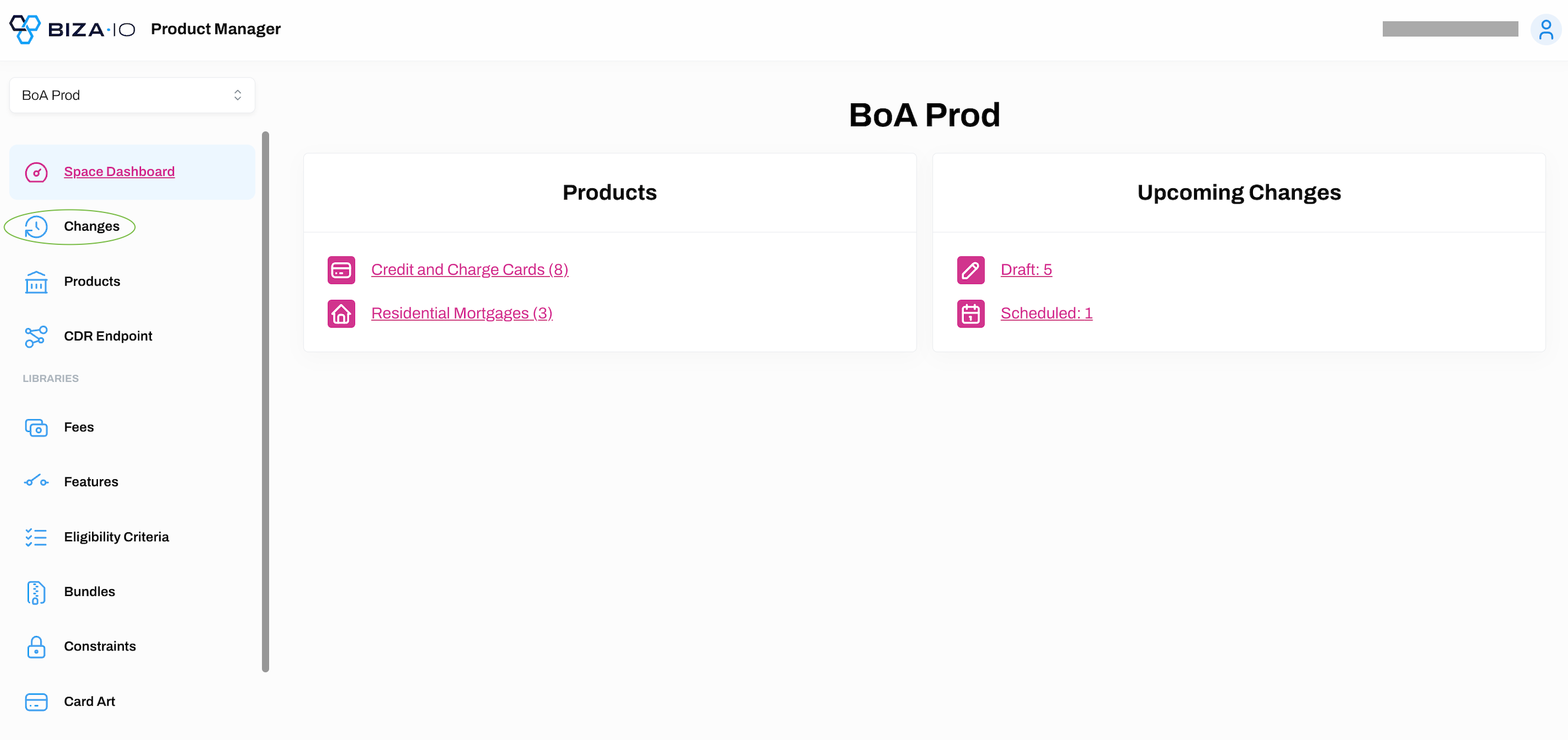
2. Click + New Changeset.
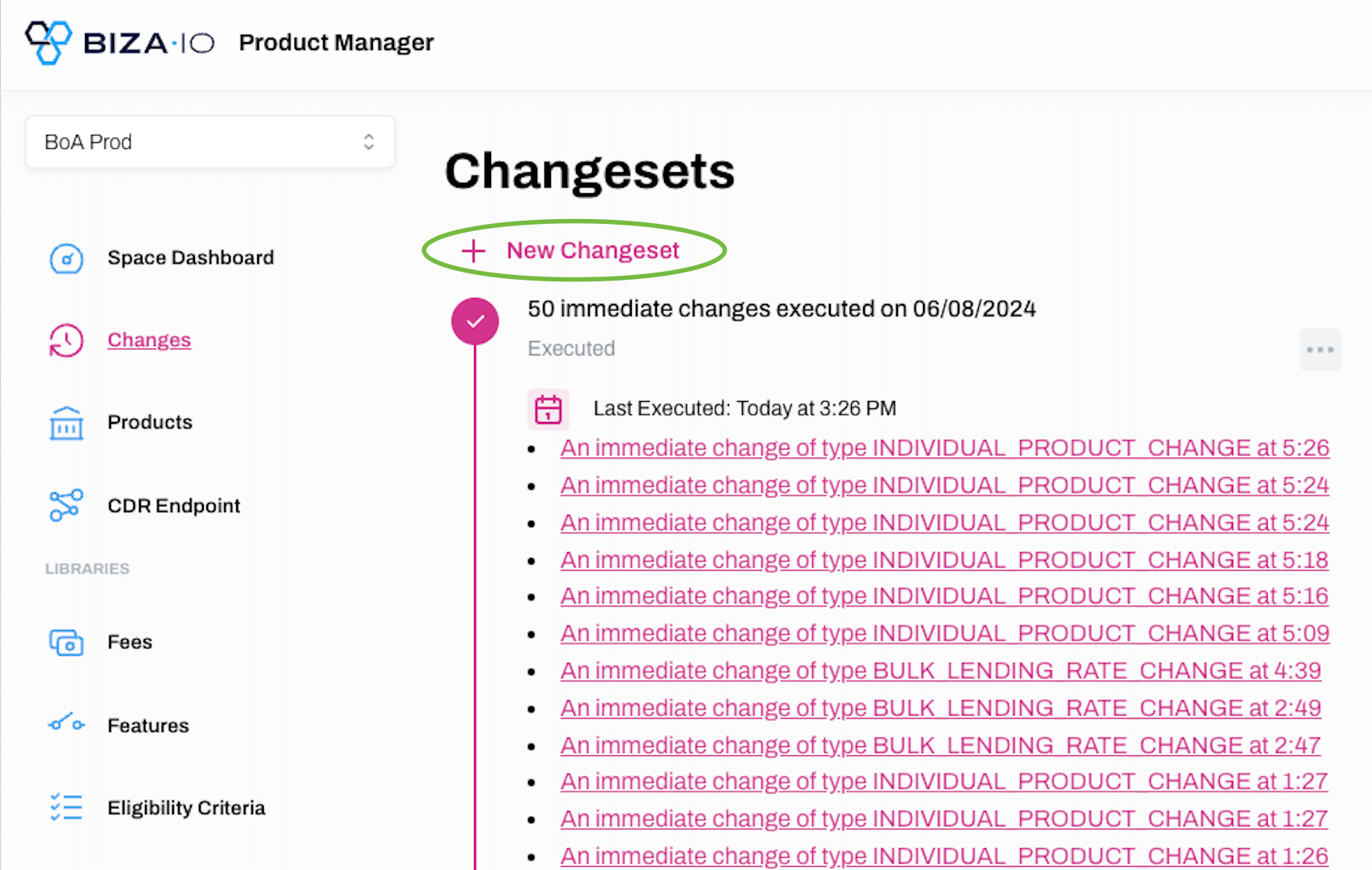
3. Add a Description in the Create Changeset dialogue box, and enter the required date for the change. Click Create.
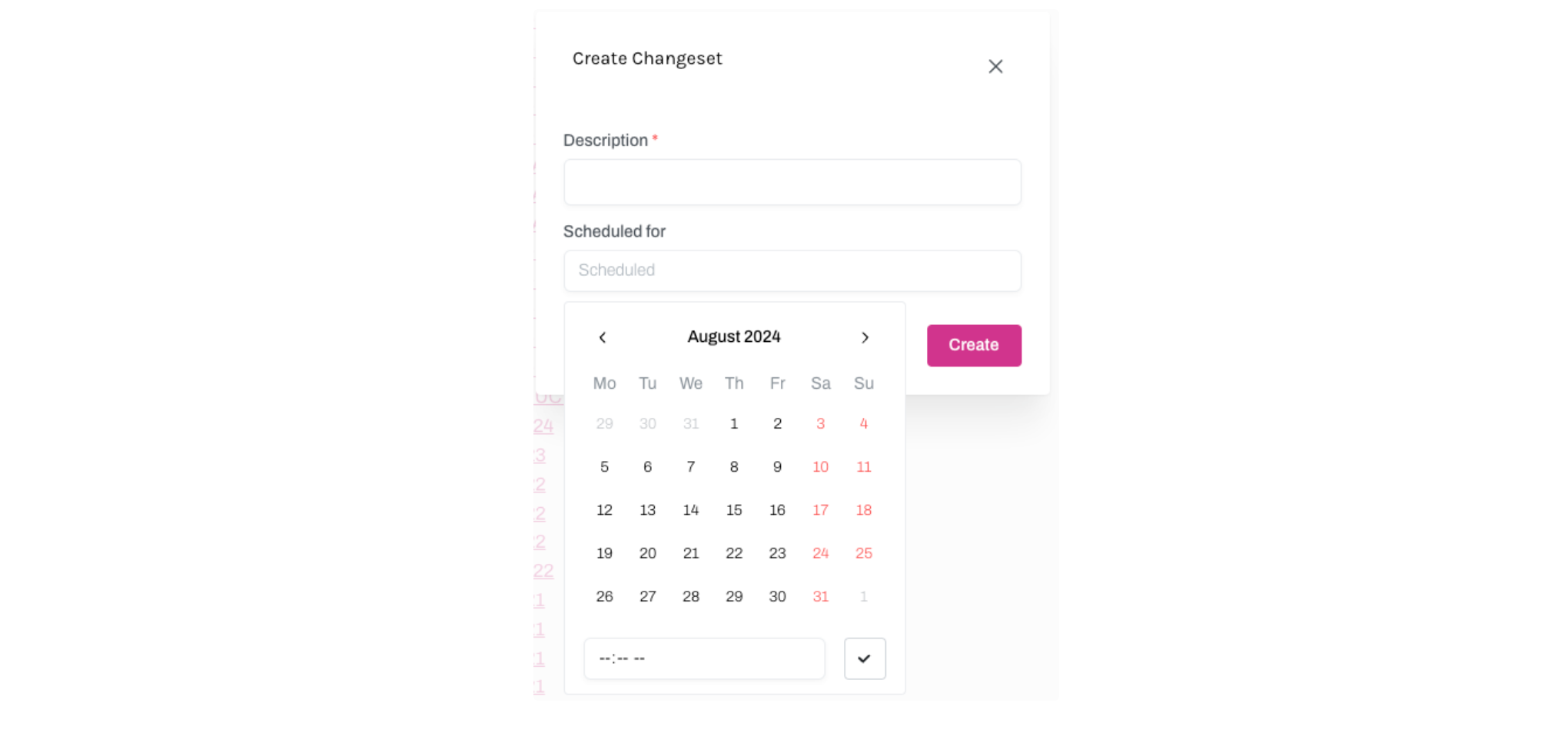
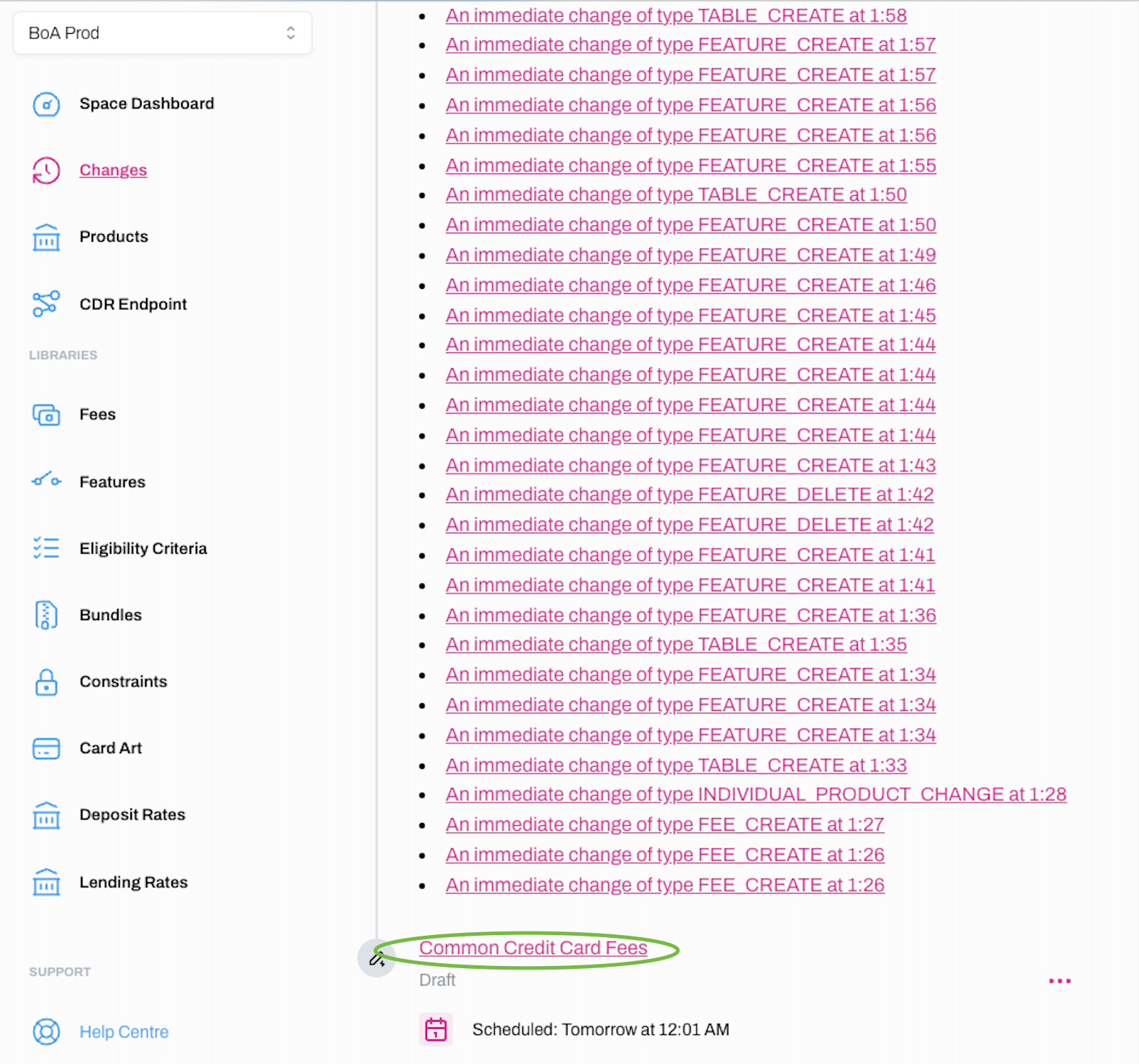
4. The Draft Changeset will appear at the bottom of the Changesets page.
Adding Changes to a Changeset
Learn how to add changes to a Changeset
Any changes you wish to make to the Libraries and Products can be added to a Changeset. All of the Tables (e.g., Fee Table) and the data in each table (e.g., the fees) can be added to a changeset simply by selecting the relevant changeset from a dropdown menu. Please see the instructions for managing each of the Libraries for further information.
Moving a Draft Changeset to Scheduled
Learn how to move your Draft Changeset to Scheduled.
1. Select Changes from the main menu.
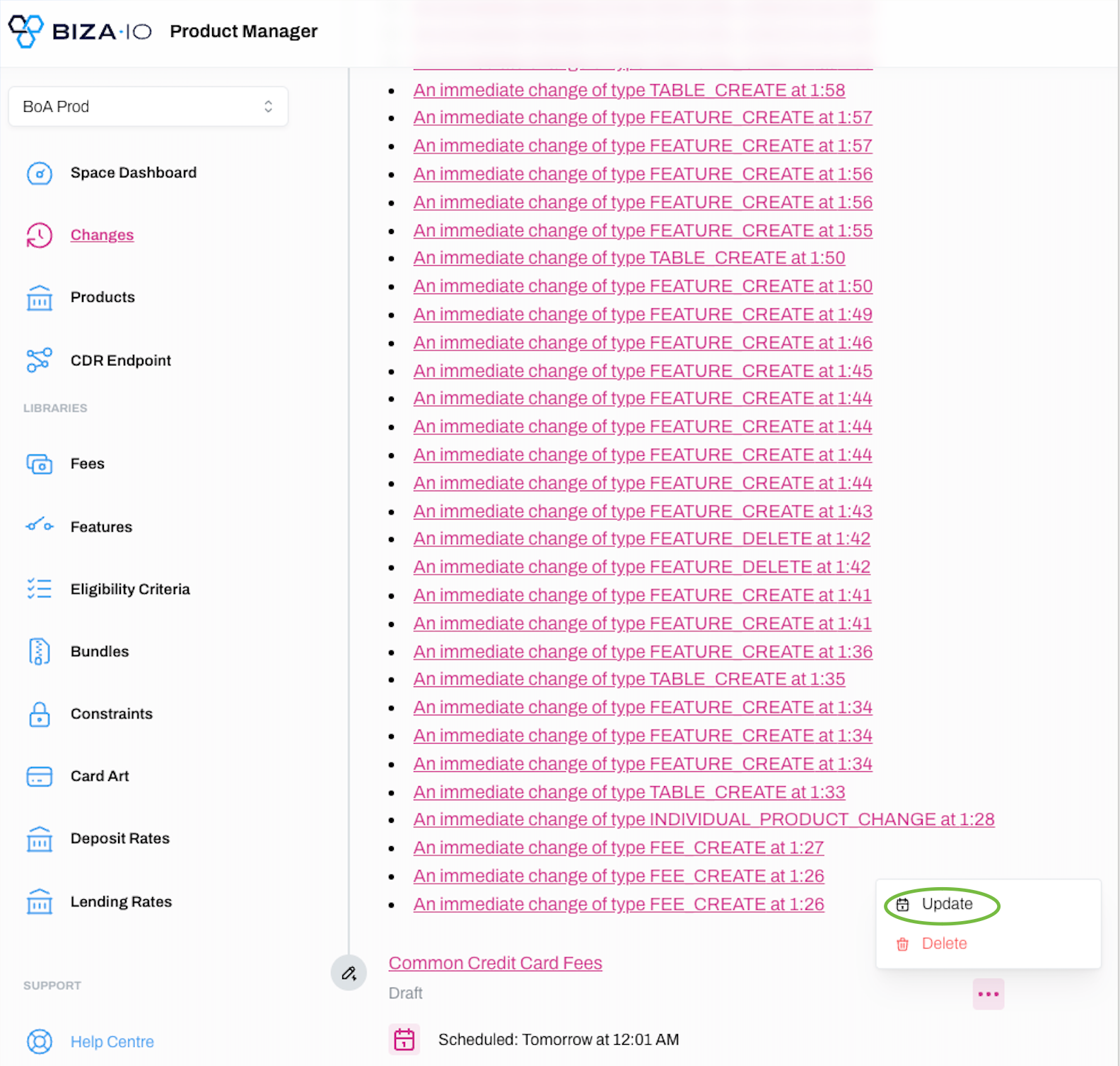
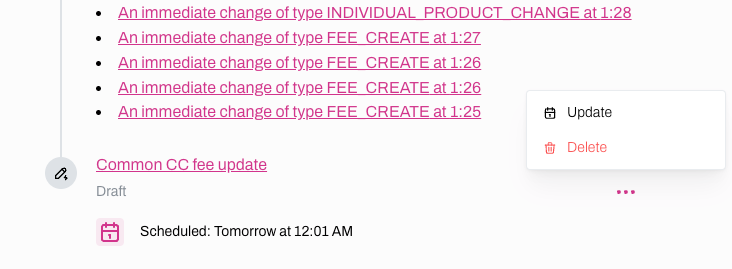
2. Scroll to find the relevant Draft Changeset. Click ... and Update.
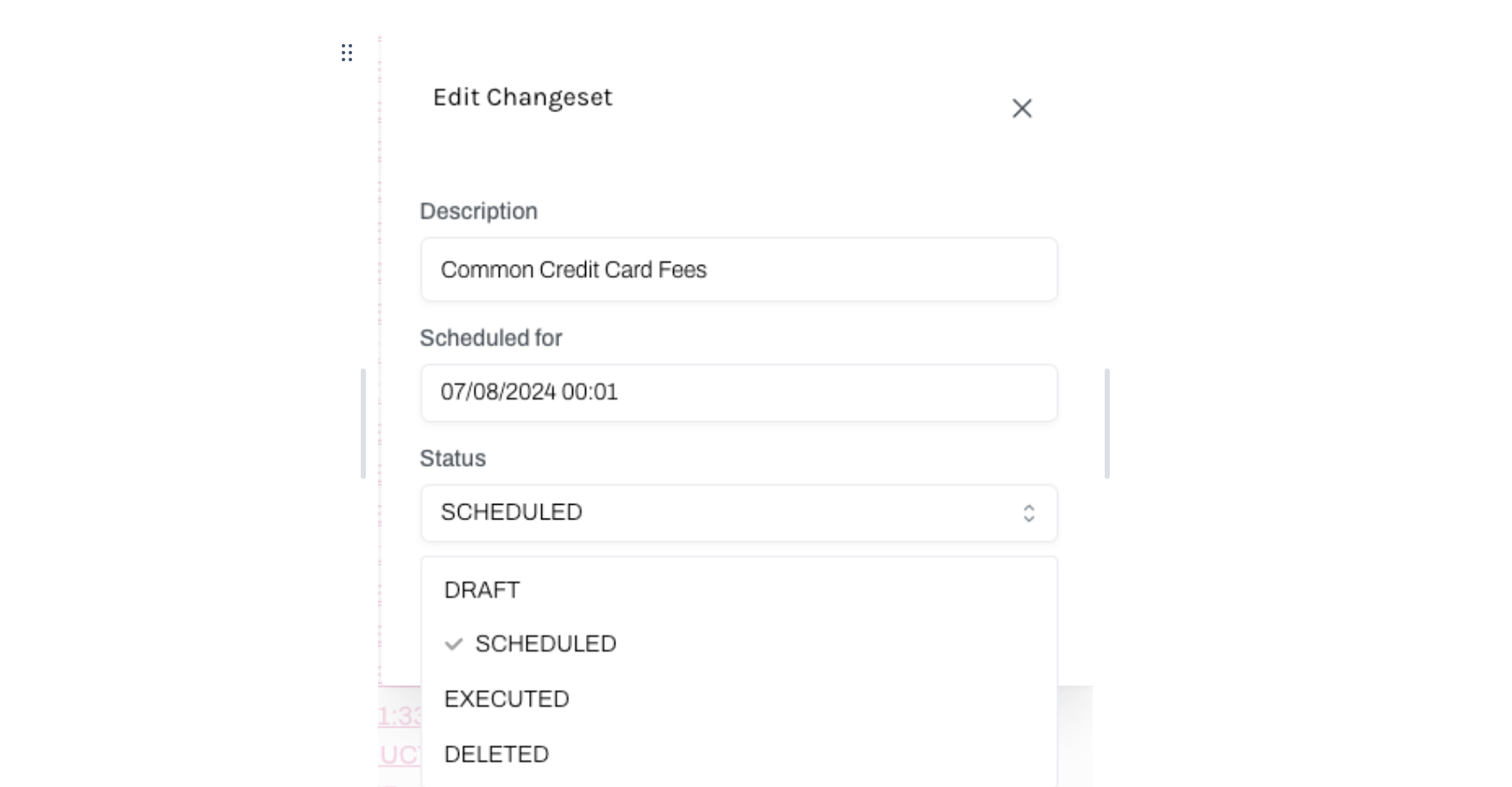
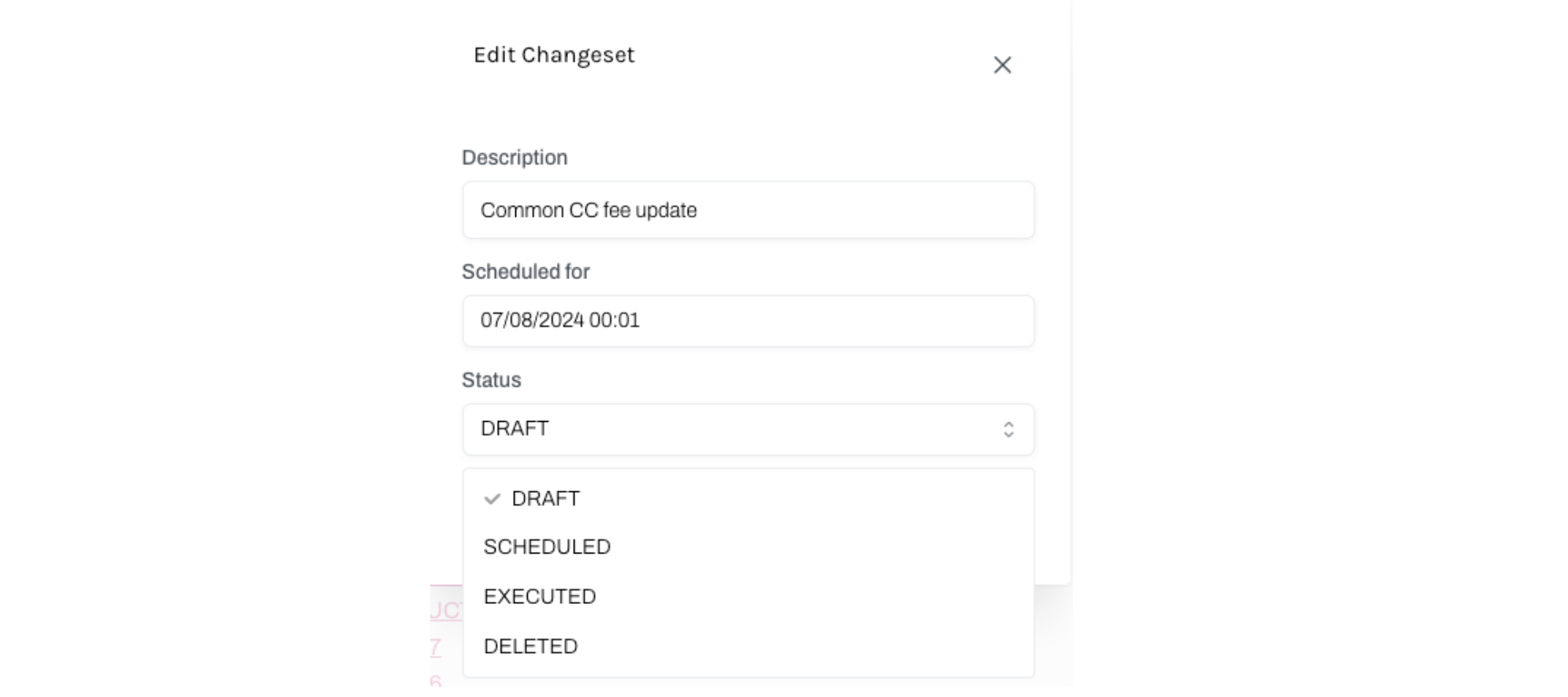
3. Select Scheduled from the dropdown menu on the Edit Changeset page. Click Edit.
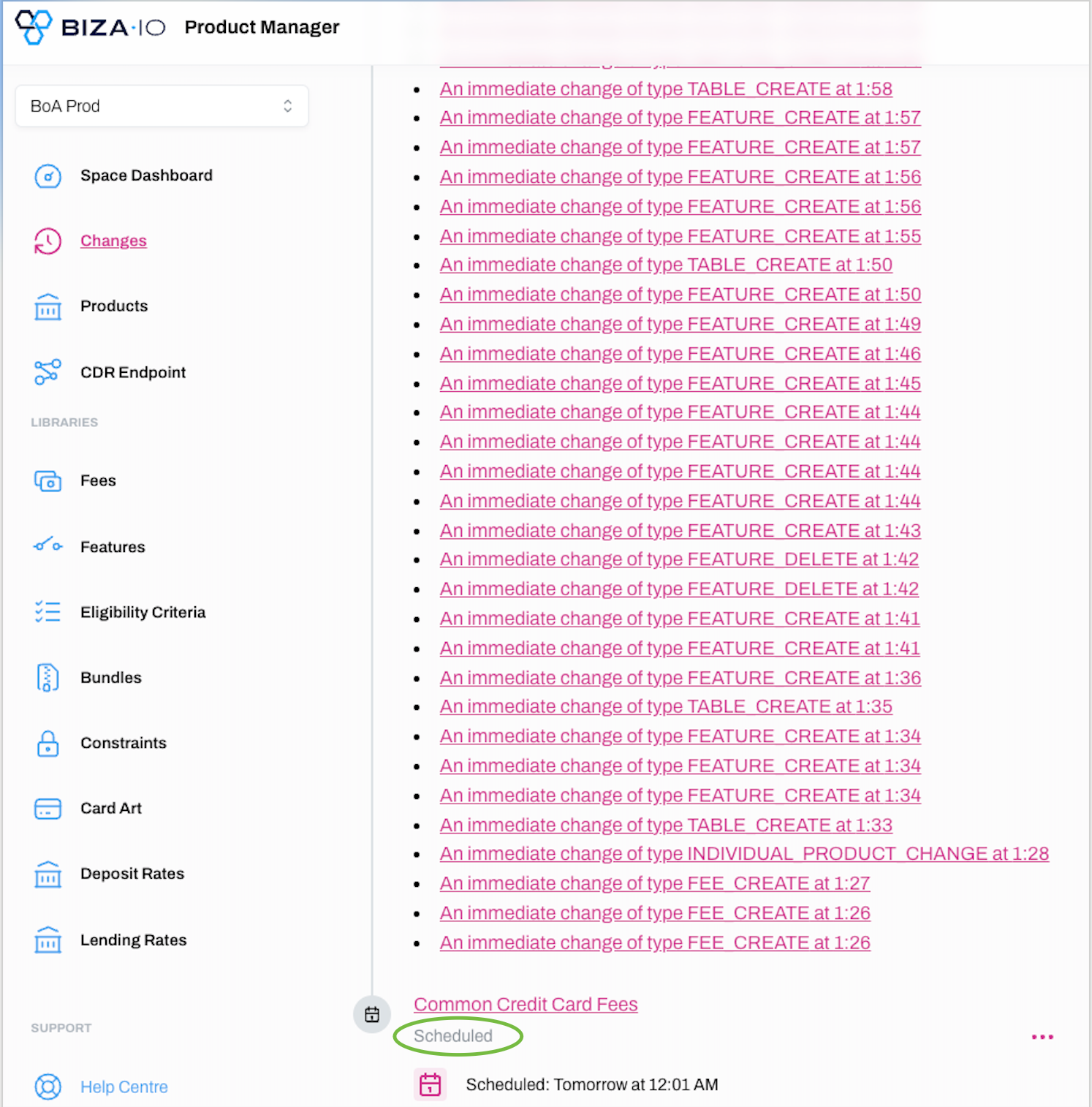
4. The Changeset should now be Scheduled on the Changesets homepage.
Editing a Changeset
Learn how to edit a draft Changeset, including changing the Status (i.e., Draft, Scheduled, Executed or Deleted).
You can only edit draft Changesets. Once you have set the status to Scheduled, the Changeset can be cancelled or transitioned back to draft, but not edited.
1. Select Changes from the main menu.
2. Scroll down to find the Changeset you wish to edit. Click ... and Delete.

3. You can edit the Description, Scheduled for date and change the Status (i.e., draft, scheduled, executed or deleted) on the Edit Changeset popup box.
 .
Delete a Changeset
Learn how to delete a Changeset
1. Select Changes from the main menu.
2. Scroll down to find the Changeset you wish to delete. Click ... and Delete.
3. Click Delete on the Delete Changeset popup box to confirm you wish to proceed.