Enable a secondary user
This page describes how to enable a secondary user for an account.
1. Navigate to the consumer dashboard and login.
2. Under Account settings, click Manage account settings.
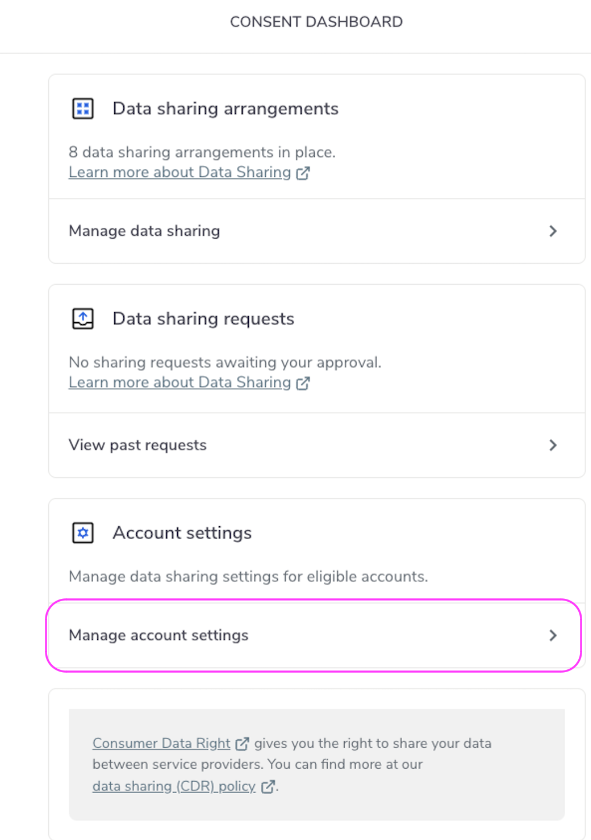
Manage Account Settings
3. Select the account for which you wish to enable a secondary user.
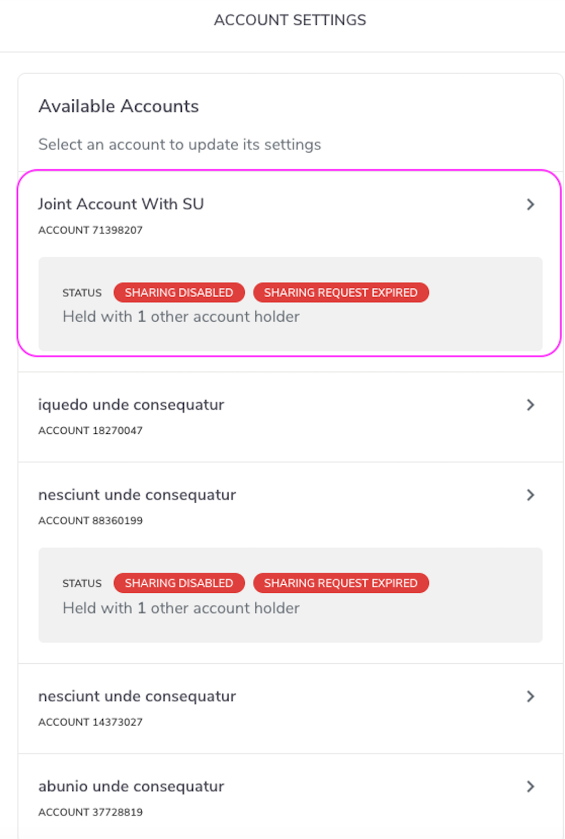
Enable Joint Account
4. Select the secondary user you want to enable sharing for and click Next.
In the event that you wish to enable multiple secondary users, you must enable them one at a time.
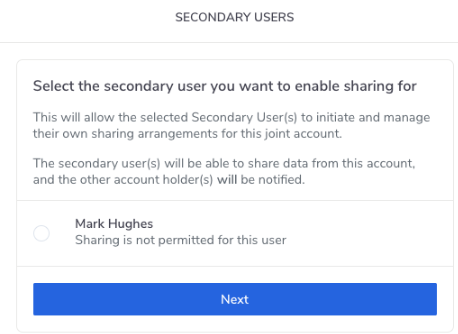
Secondary User Selection
5. Click Enable Secondary User Sharing.
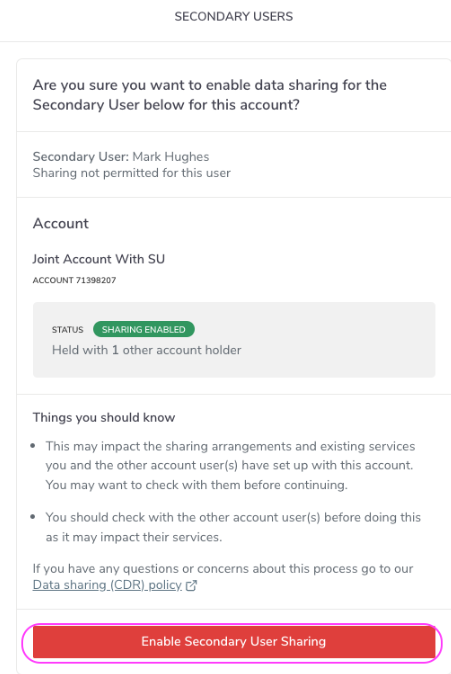
Secondary User Confirmation
6. Confirm that you want to enable data sharing for the selected secondary user by clicking Enable sharing, or click No to cancel the process. Please note that if the user who is logged in has been identified as vulnerable.
Please note that if the user who is logged in has been identified as vulnerable, the message displayed will be “The other account holders will not be notified”.
7. Click Done on the ‘Sharing Enabled for Secondary User’ screen.
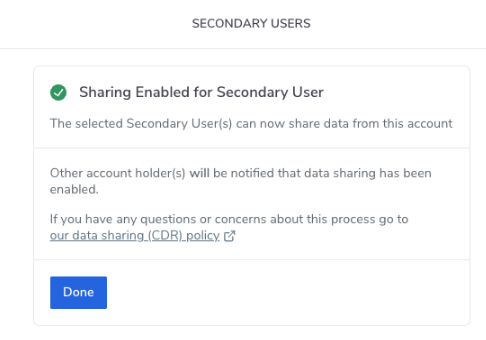
Done Button
8. Disable secondary users will now be displayed under Secondary User. Please note that Enable secondary users may also be displayed if there are other secondary users to enable.
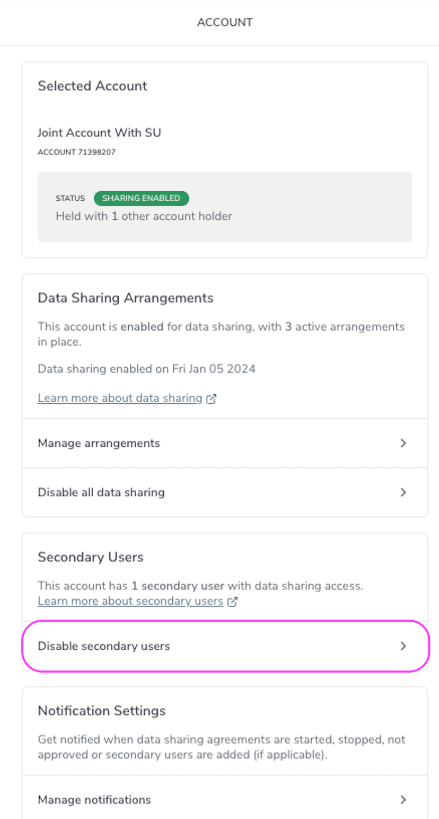
Disable Secondary Users Button