Fee Tables
Create a New Fee Table
Learn how to create a Fee Table
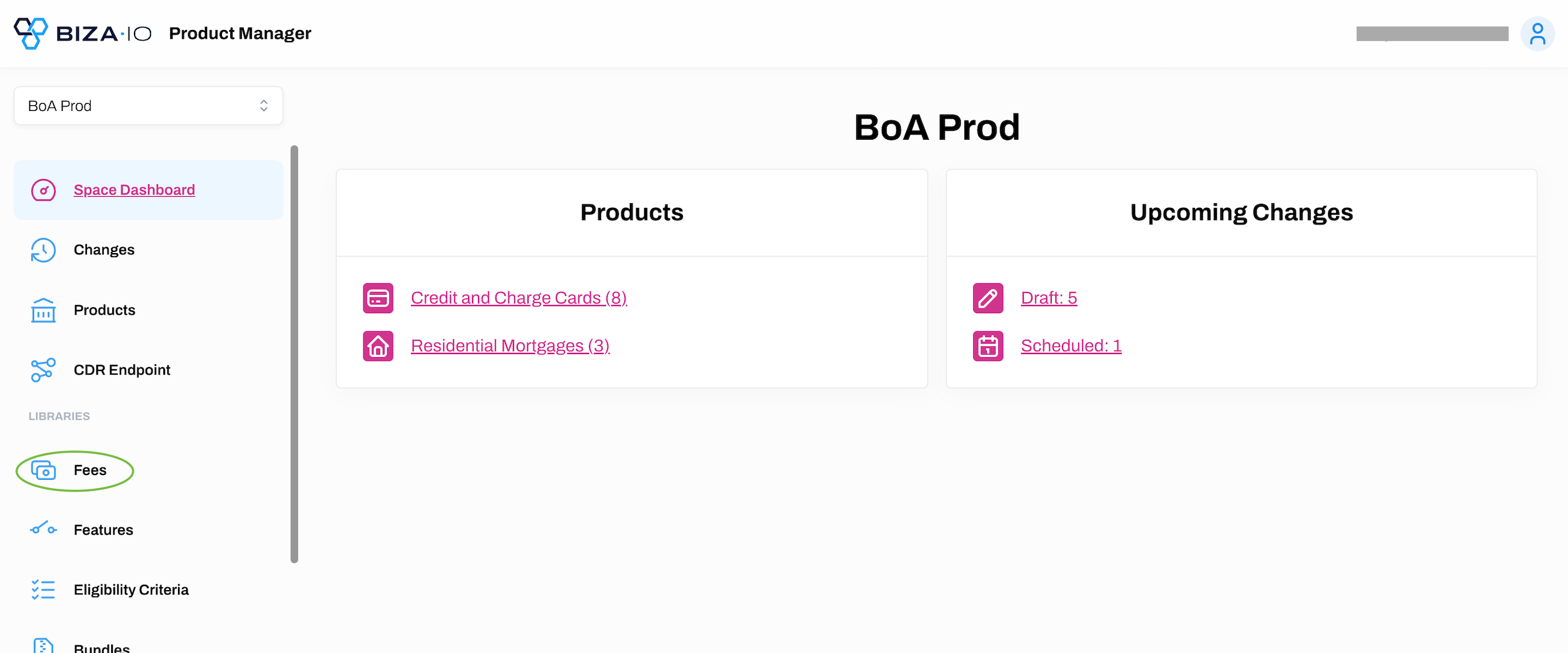
1. Select Fees from the main menu.
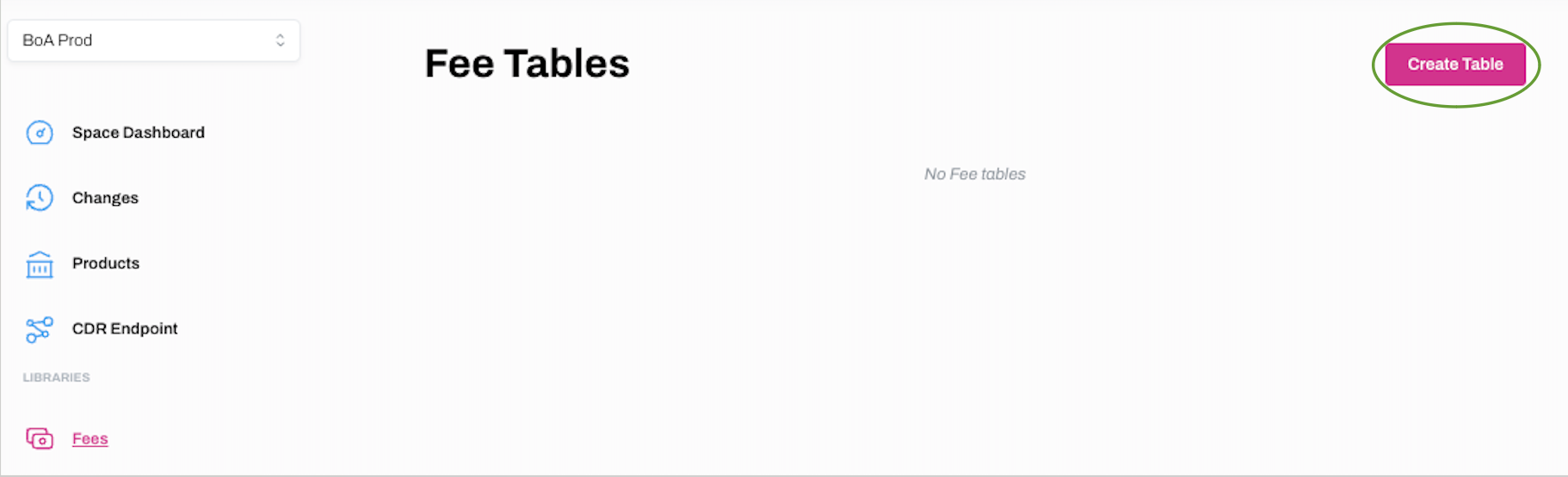
2. Click Create Table.
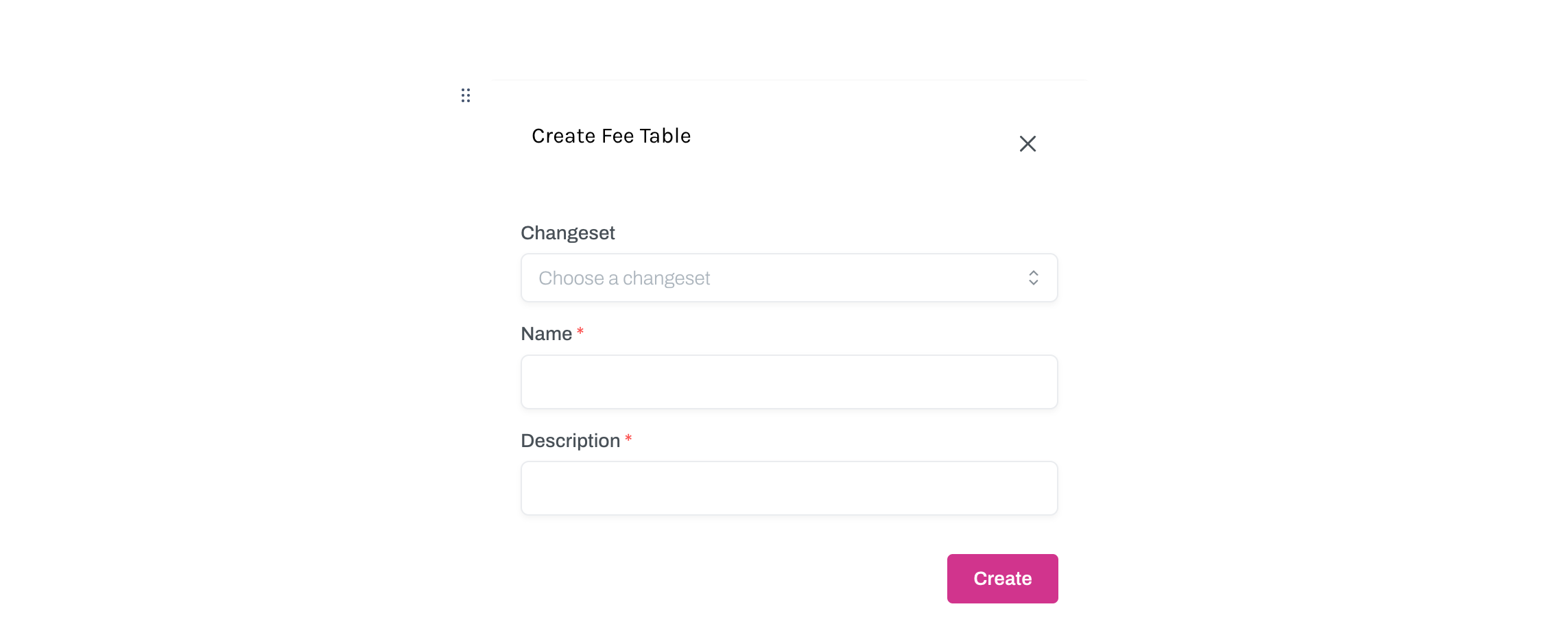
3. Enter a Name and Description for the new fee table in the Create Fee Table dialogue box. Optionally, you can add a Changeset to the fee table at this point. When you have entered the mandatory information as denoted by a red asterisk, click Create.
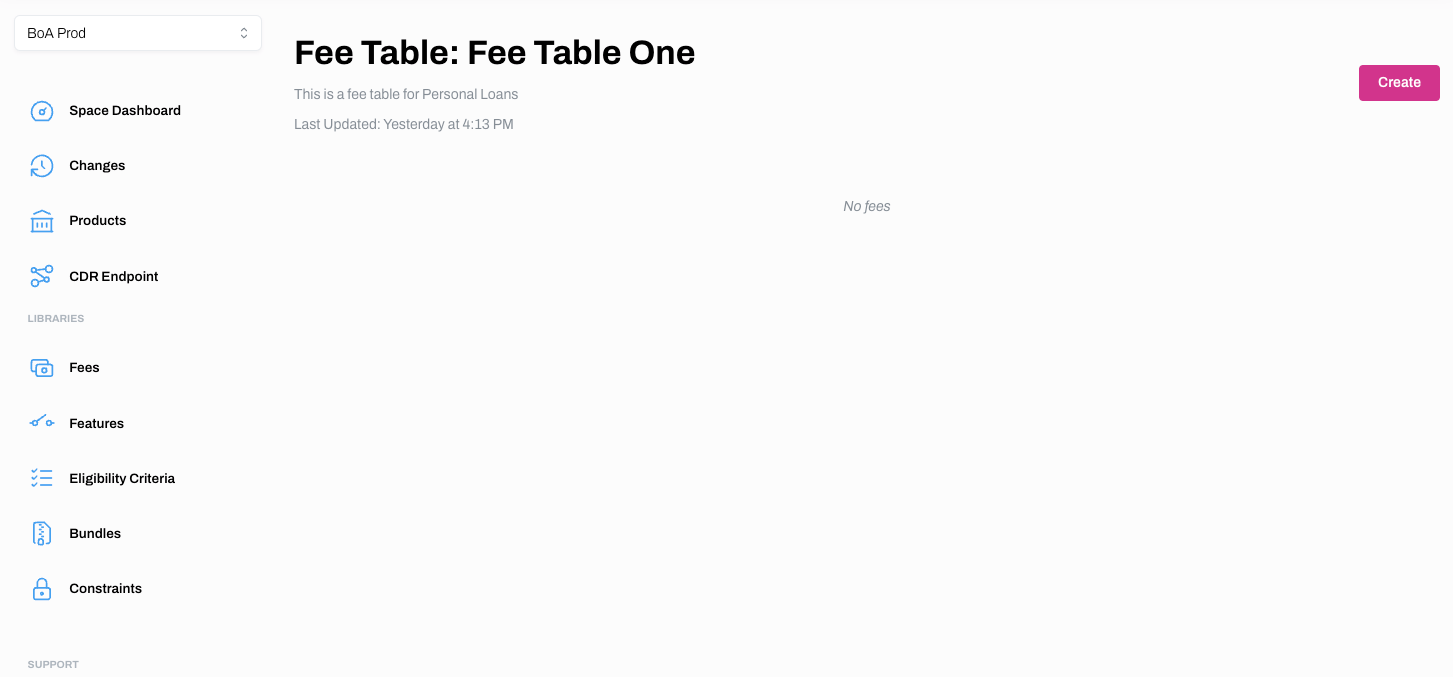
4. Your new fee table will appear on the Fees homepage.
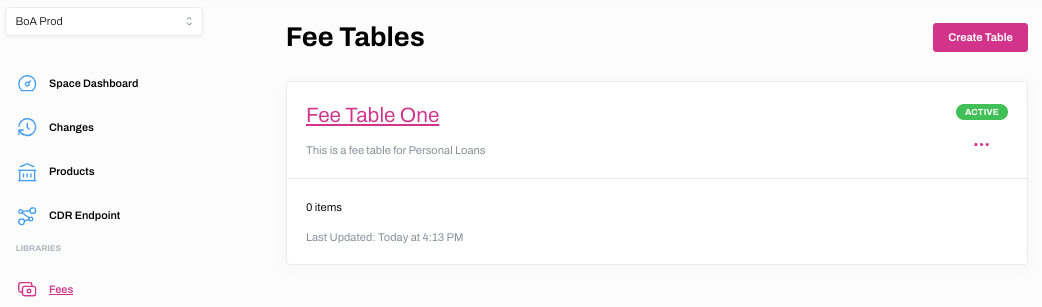
Add Fees to Fee Table
Learn how to add fees to a fee table
1. Select Fees from the main menu.
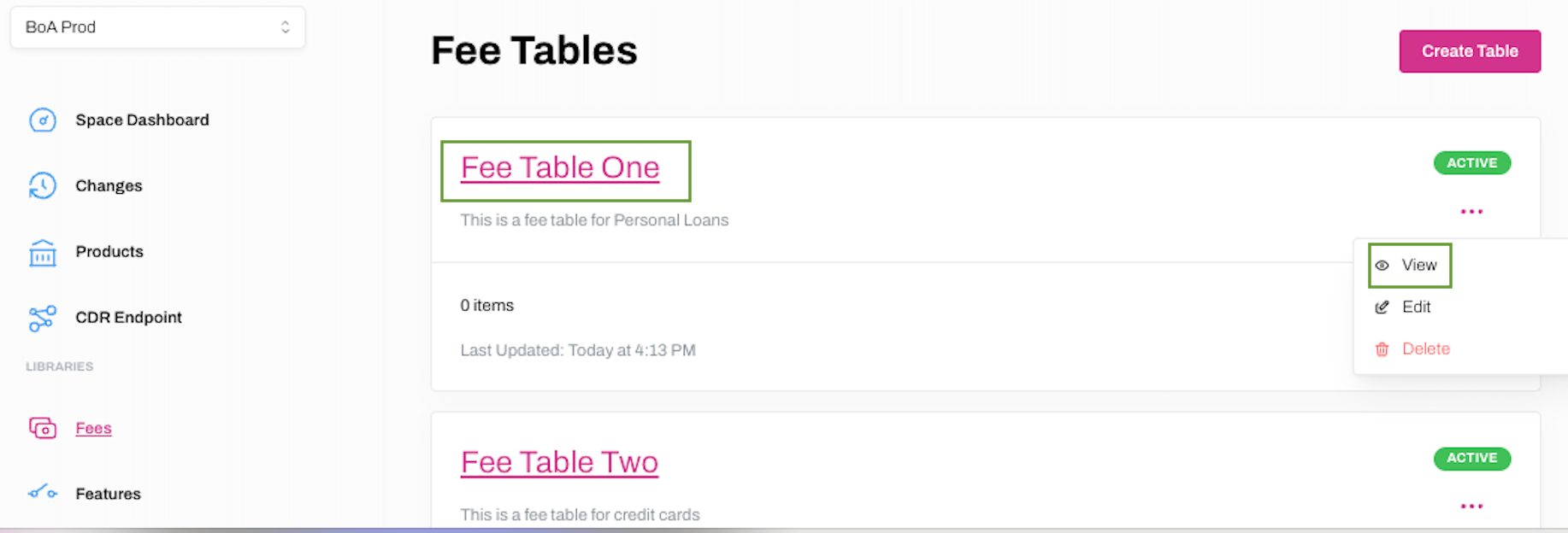
2. Click on either the hyperlinked name of the Fee Table you wish to add fees to, or ... and View.
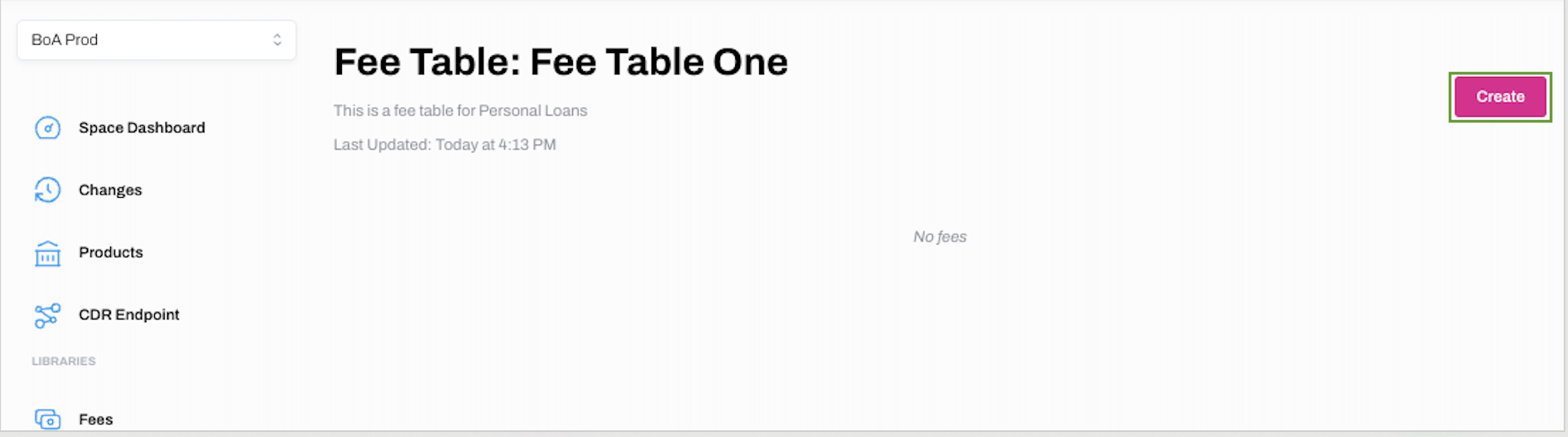
3. Click Create on the next screen.
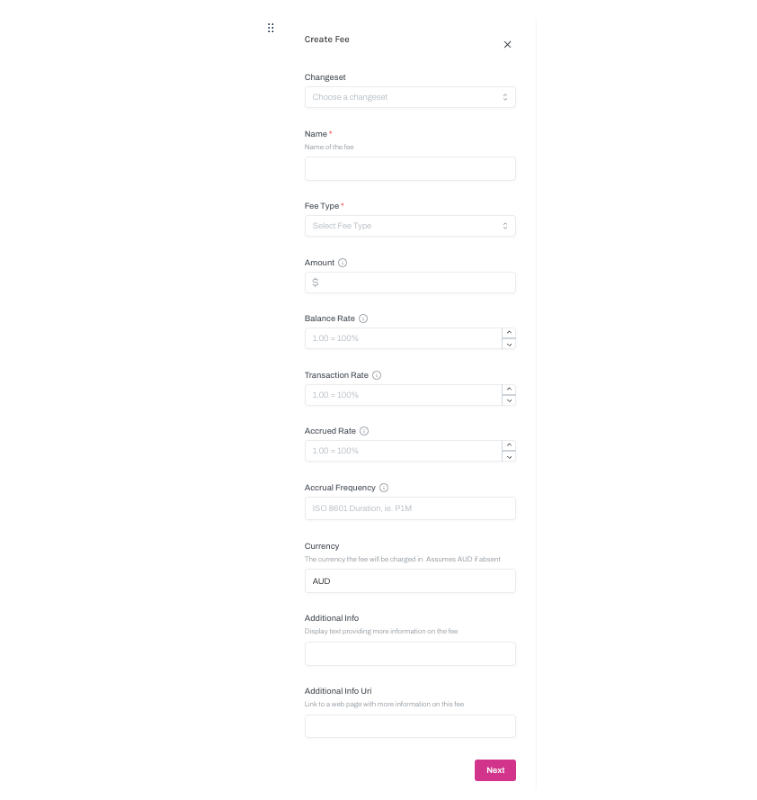
4. On the Create Fee: Basic Information page, please enter the mandatory information in the fields denoted with an asterisk. Note that unless the fee in variable, at least one of Amount, Balance Rate, Transaction Rate or Accrued Rate must be entered. When you have populated the table, click Next.
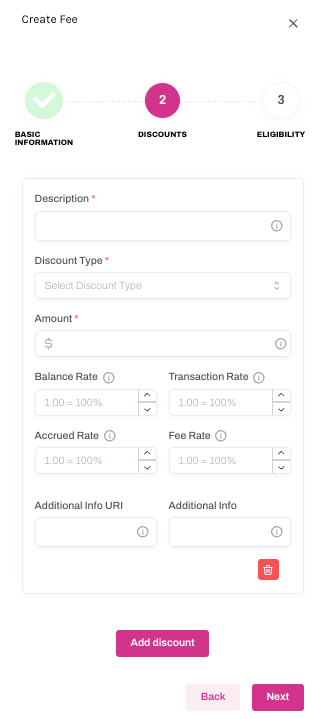
5. On the Create Table: Discounts page enter information into the mandatory fields as denoted by a red asterisk. You have the option of adding more discounts by clicking Add discount. Or you may choose not to add any discounts by clicking the bin icon.
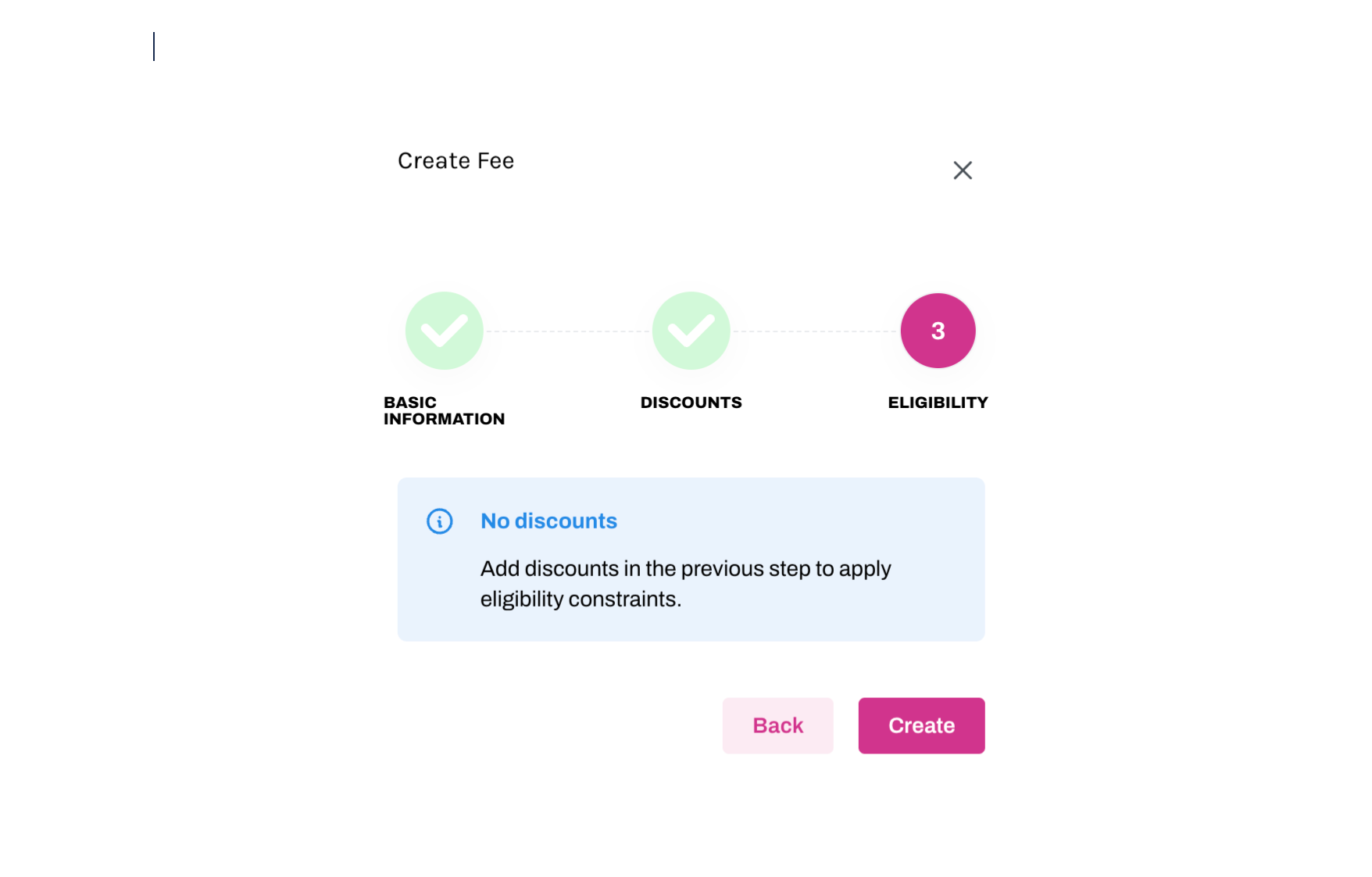
6. On the Create Fee: Eligibility dialogue box.
- If you did not add Discount table in the previous step you can click Create on the final screen.
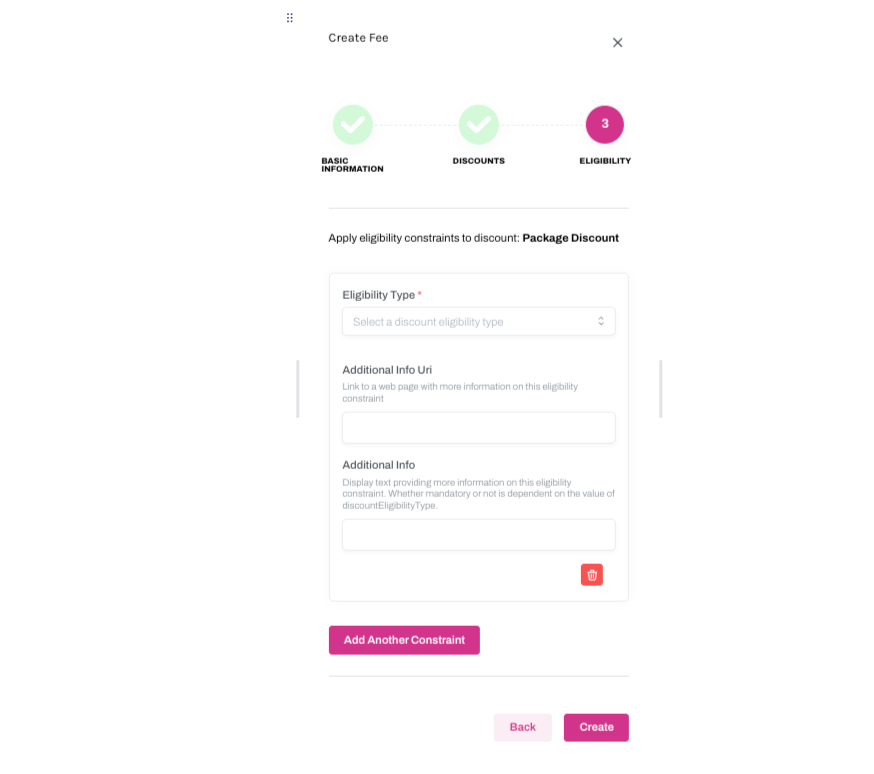
- If you added a Discount Table in the previous step, you have the option to add Eligibility constraints.
- CLick
+on the Eligibility screen. - Populate the mandatory field as denoted by a red asterisk and add any additional optional information. Click Create.
- CLick
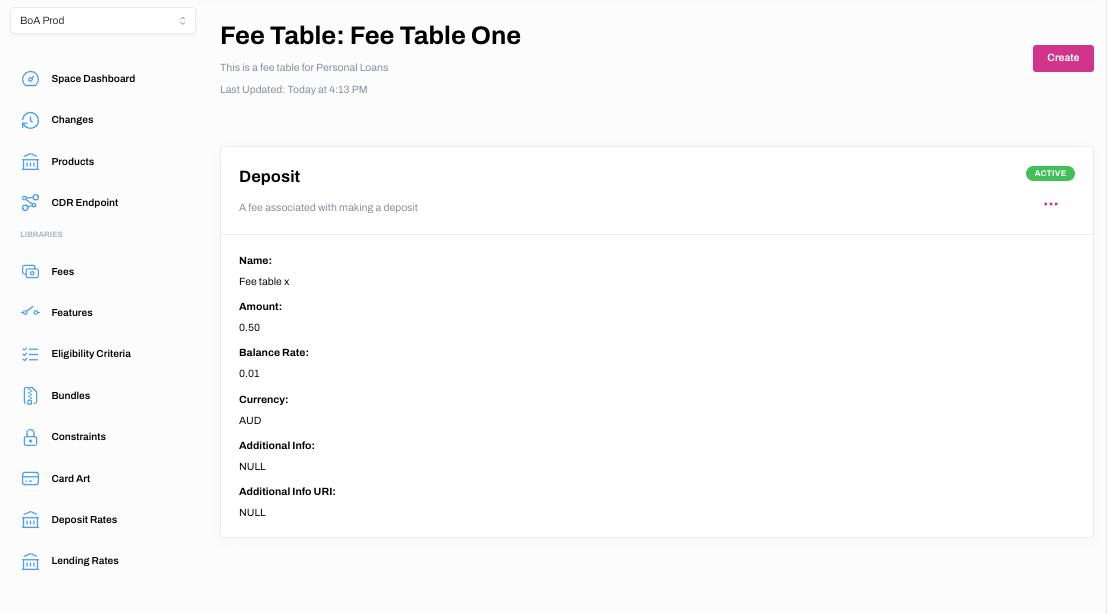
7. Your new Fee information will be displayed on the relevant Fee Table.
View Fees for a Fee Table
Learn how to view Fees attached to a Fee Table
1. Select Fees from the main menu.
2. Click on either the hyperlinked name of the Fee Table you wish to view, or ... and View.
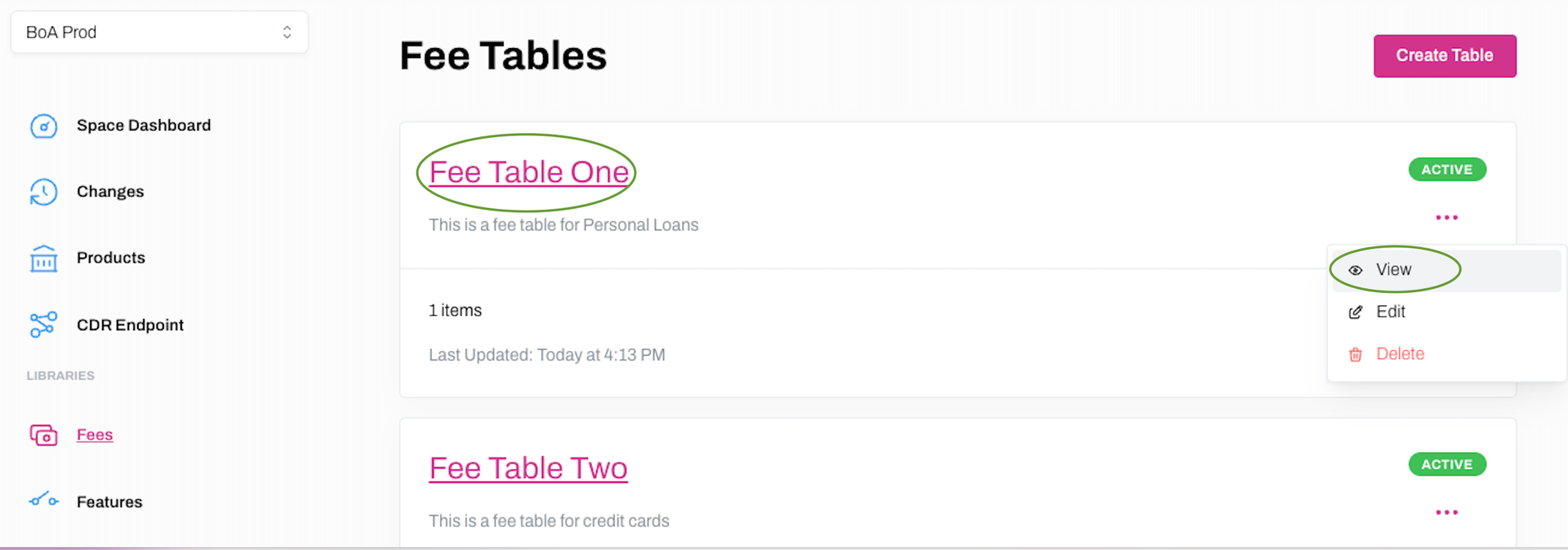
3. You will now see the details pertaining to the relevant Fee Table.
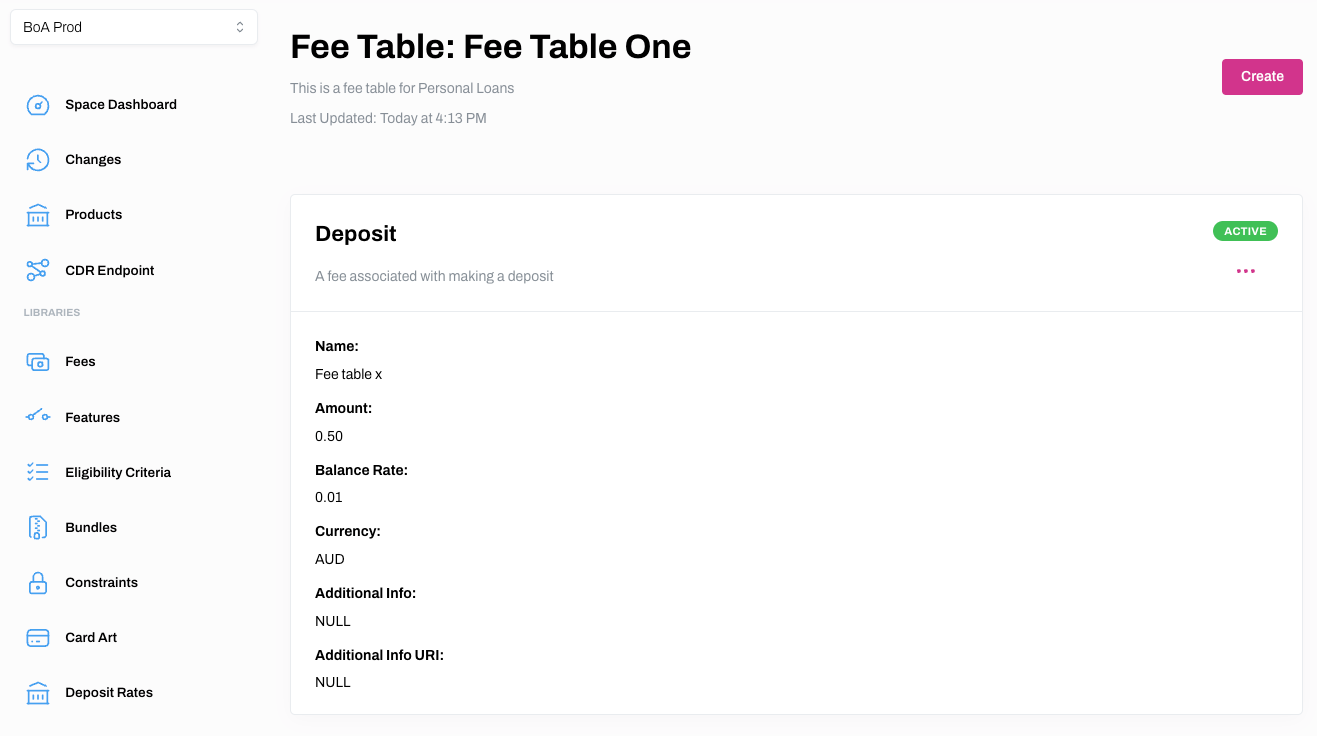
Edit a Fee Table
Learn how to edit a Fee Table
1. Select Fees from the main menu.
2. Click ... and Edit on the Fee Table you wish to edit.
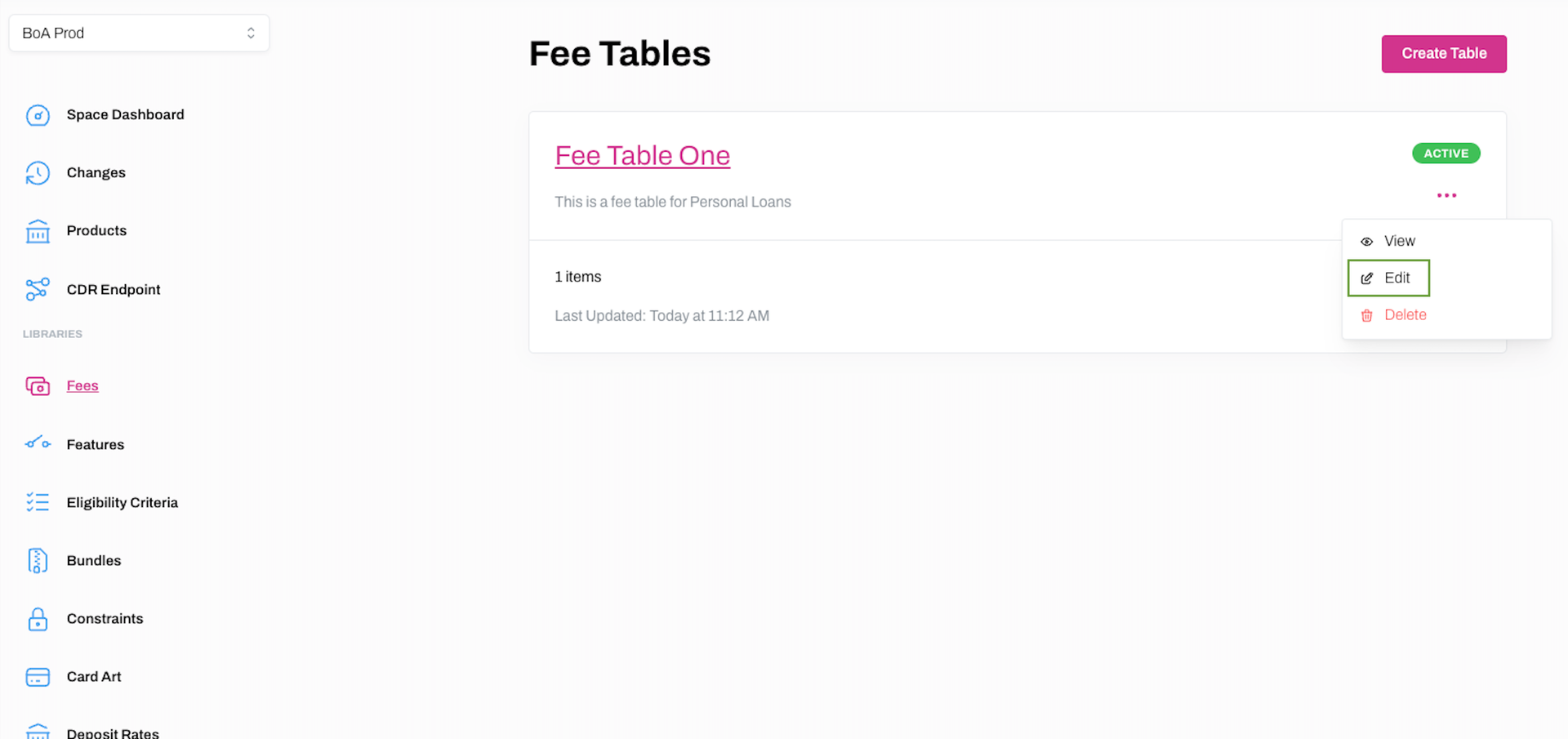
3. Make any required changes on the Edit Fee Table dialogue box and click Edit to save the changes.
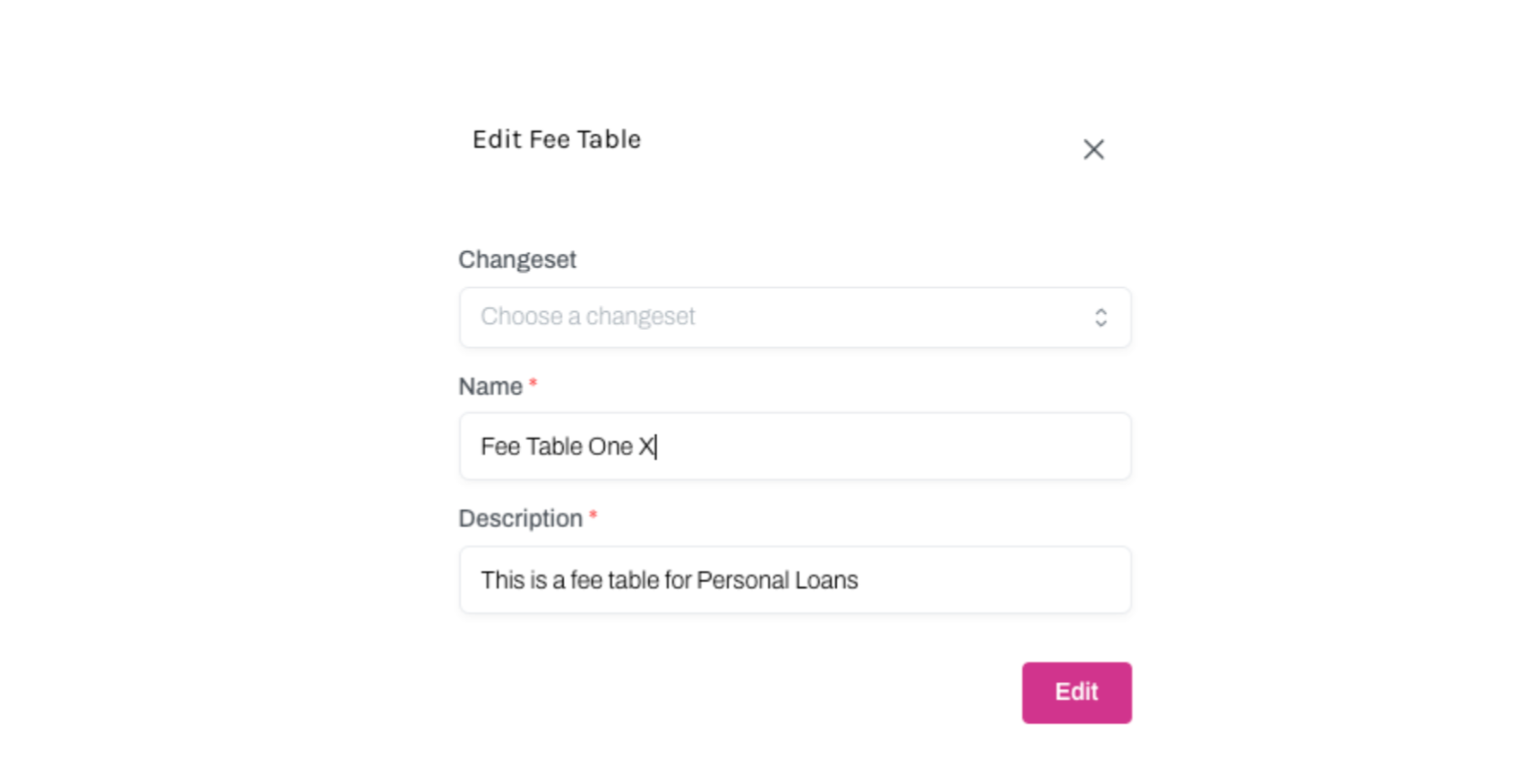
4. The changes will now be reflected on the Fees page.
Edit Fees for a Fee Table
Learn how to edit Fees attached to a Fee Table
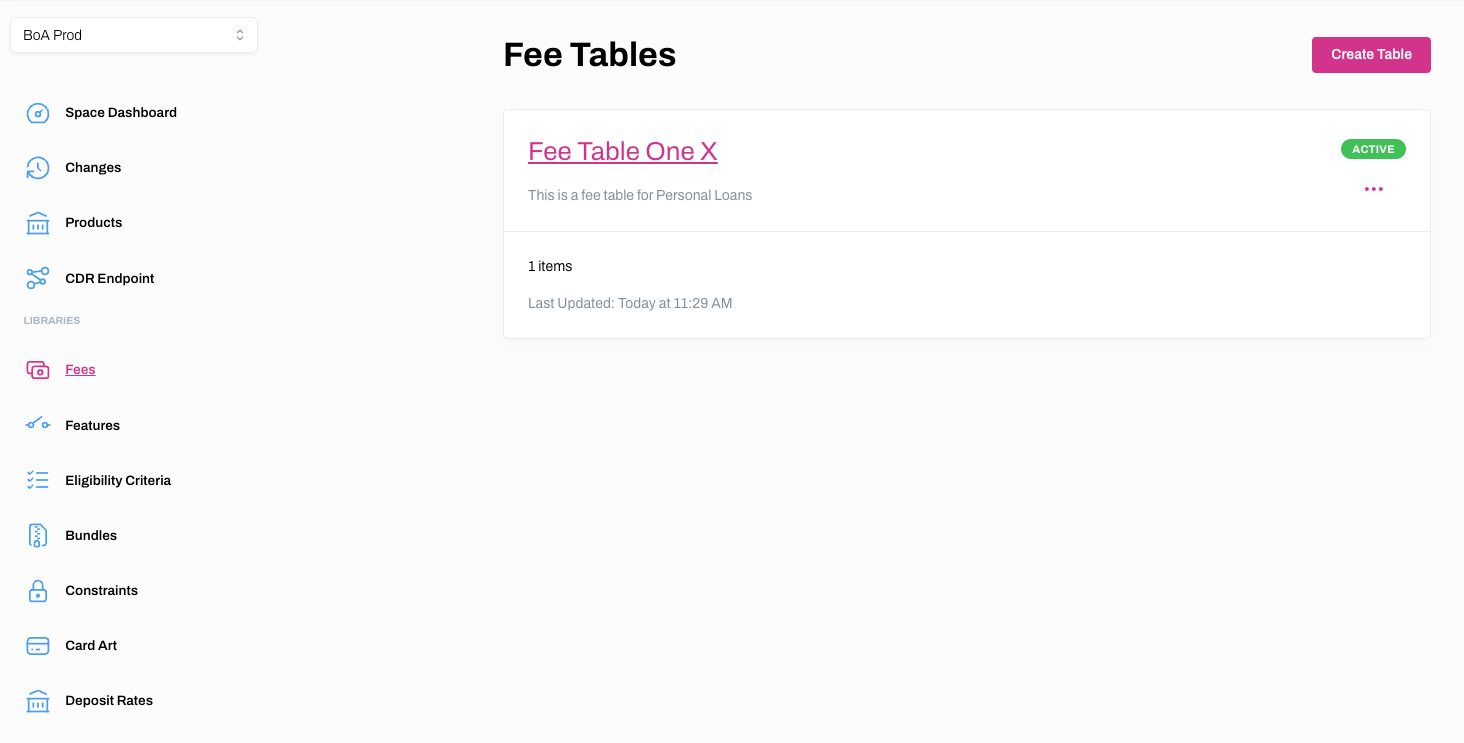
1. Select Fees from the main menu.
2. Click on either the hyperlinked name of the Fee Table you wish to edit fees for, or ... and View
3. Click ... and edit on the next screen.
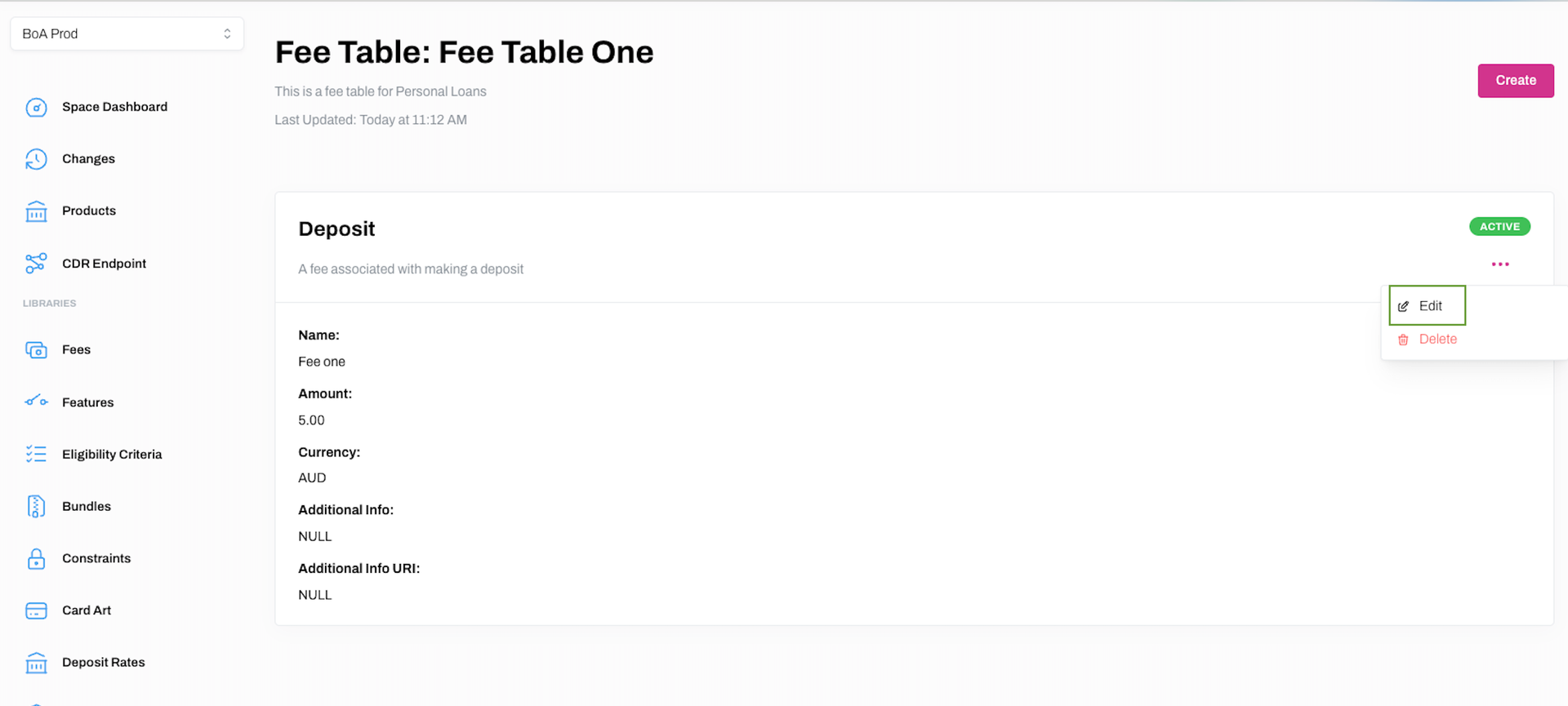
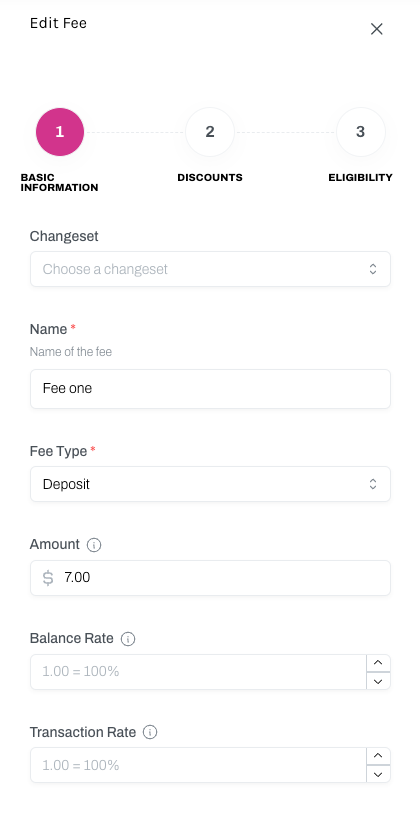
4. Make any required changes on Edit Fee dialogue boxes and click Edit to save the changes.
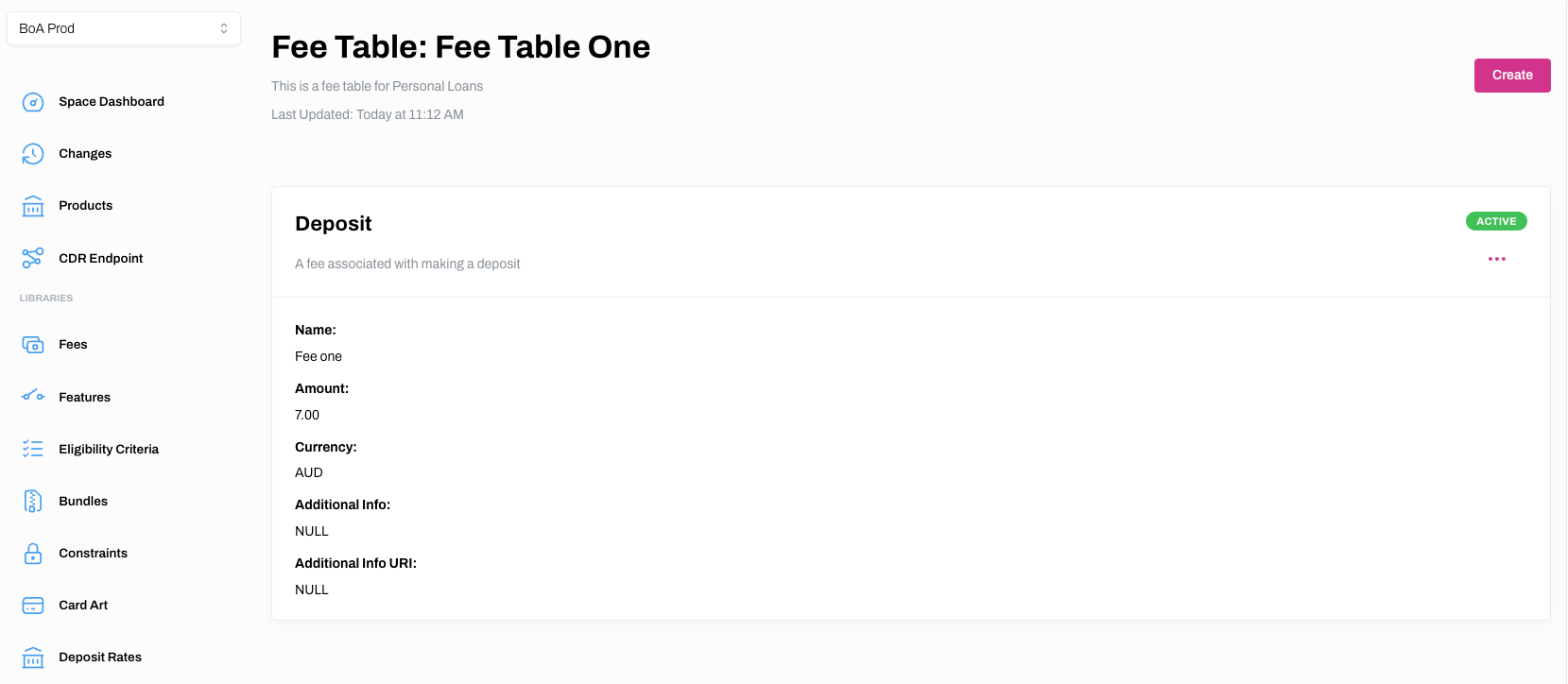
5. Your changes should now be reflected on the Fee Tables page.
Delete a Fee Table
Learn how to delete a fee table
1. Select Fees from the main menu.
2. CLick ... and Delete on the relevant Fee Table.
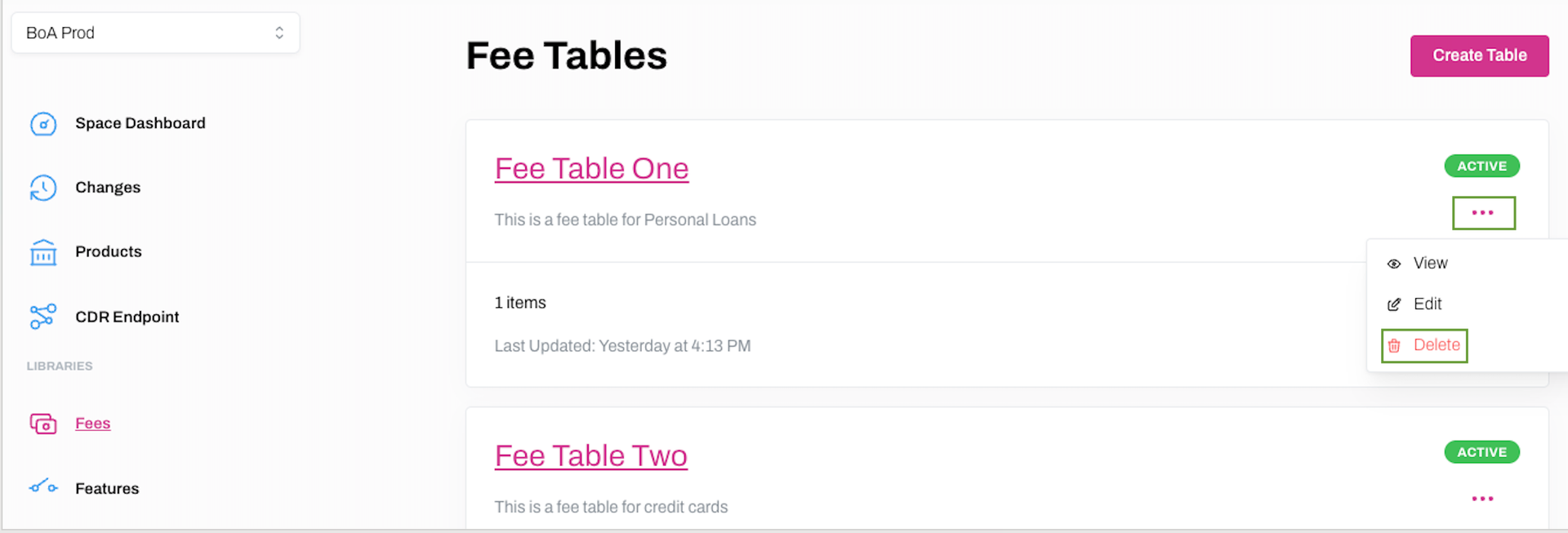
3. Click Delete on the Delete Fee Table screen to confirm you wish to delete the table.
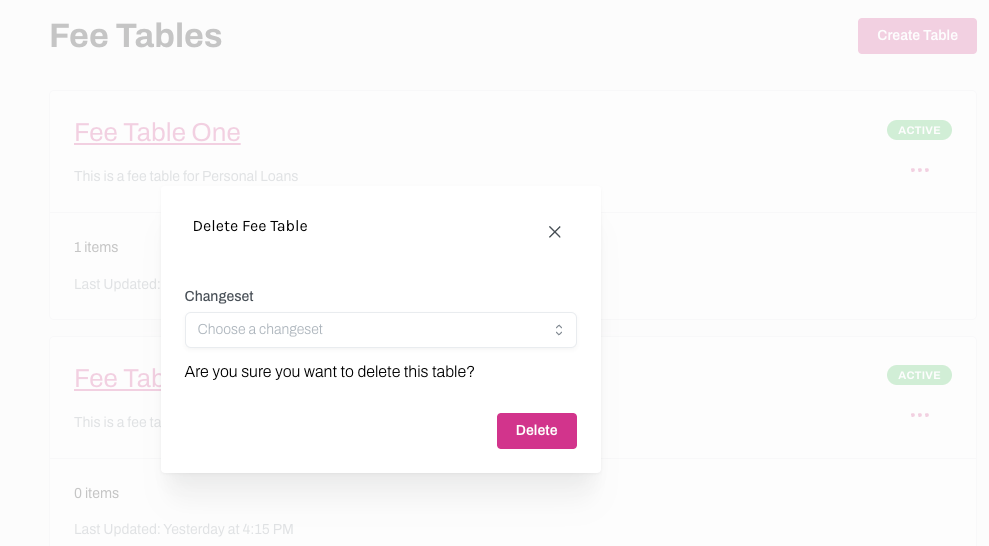
4. If successful, the Fee Table will no longer appear on the fees screen.
Delete a Fees from a Fee Table
Learn how to delete fees from a Fee Table
1. Select Fees from the main menu.
2. Click on either the hyperlinked name of the Fee Table you wish to delete fees from, or ... and View.
3. Click ... and Delete.
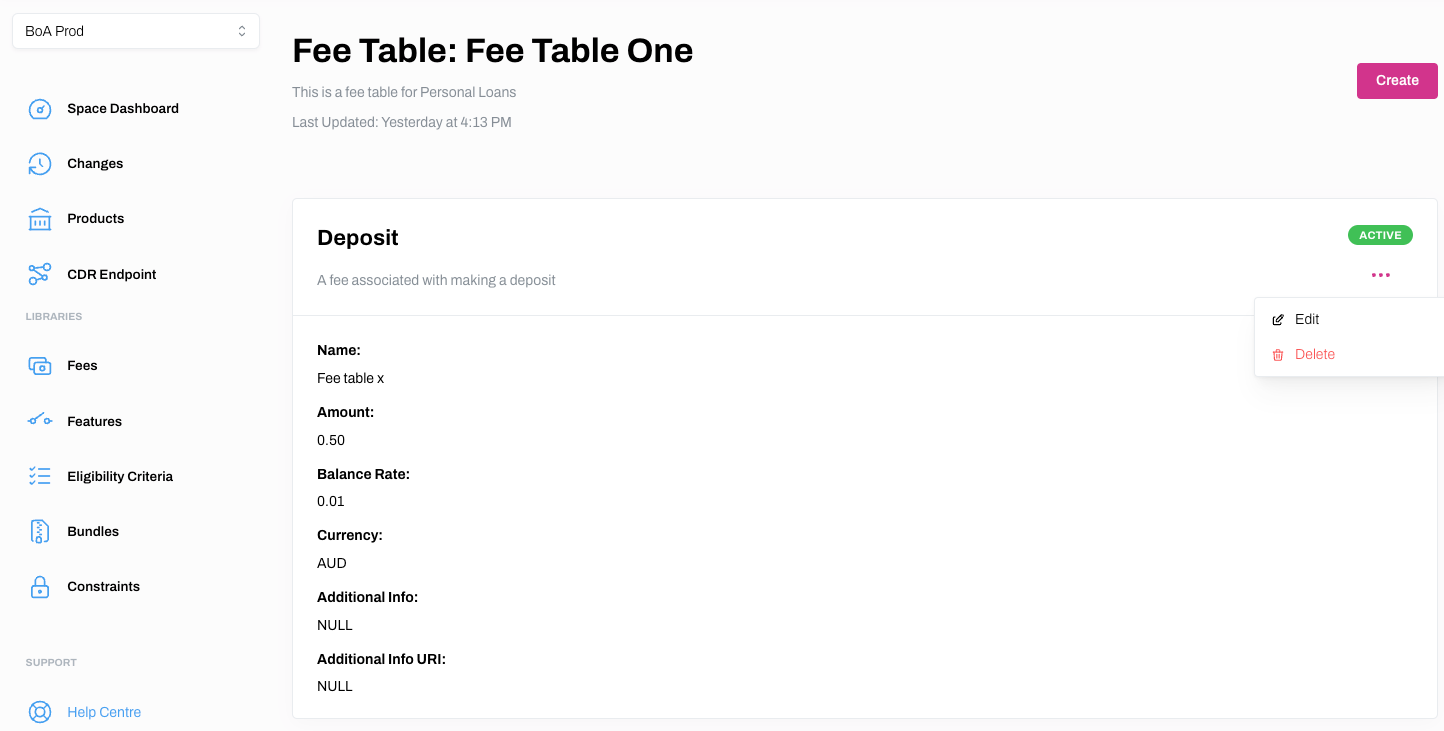
4. Click Delete on the Delete Fee screen to confirm you wish to proceed.
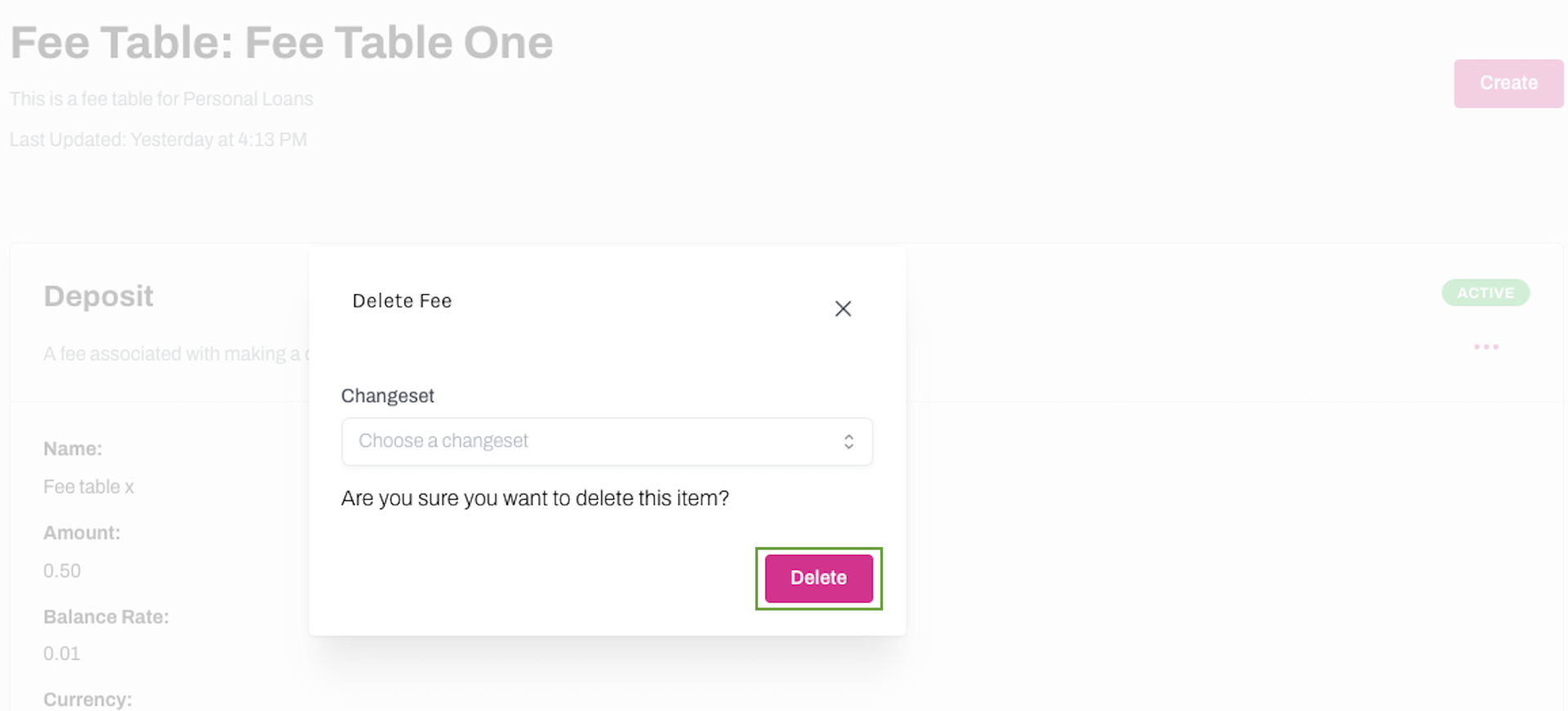
5. If successful, the Fee will no longer be attached to the relevant Fee Table.