Lending Rates
Create a new Lending Rates Table
Learn how to create a lending rate table
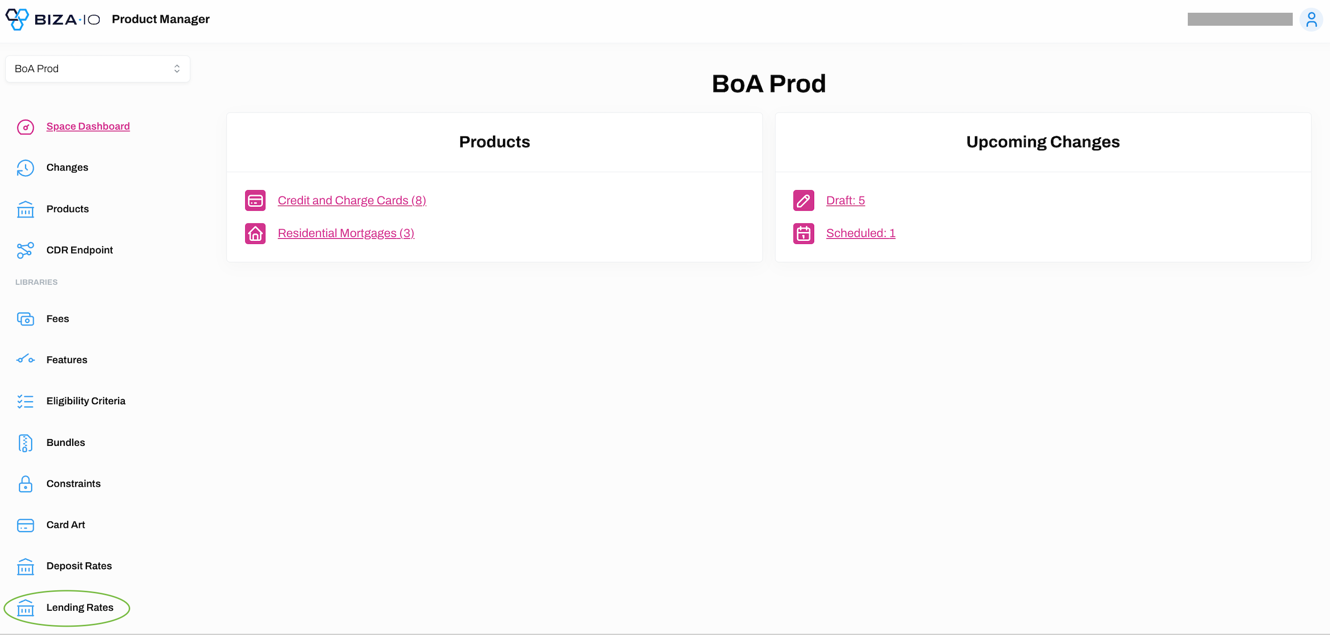
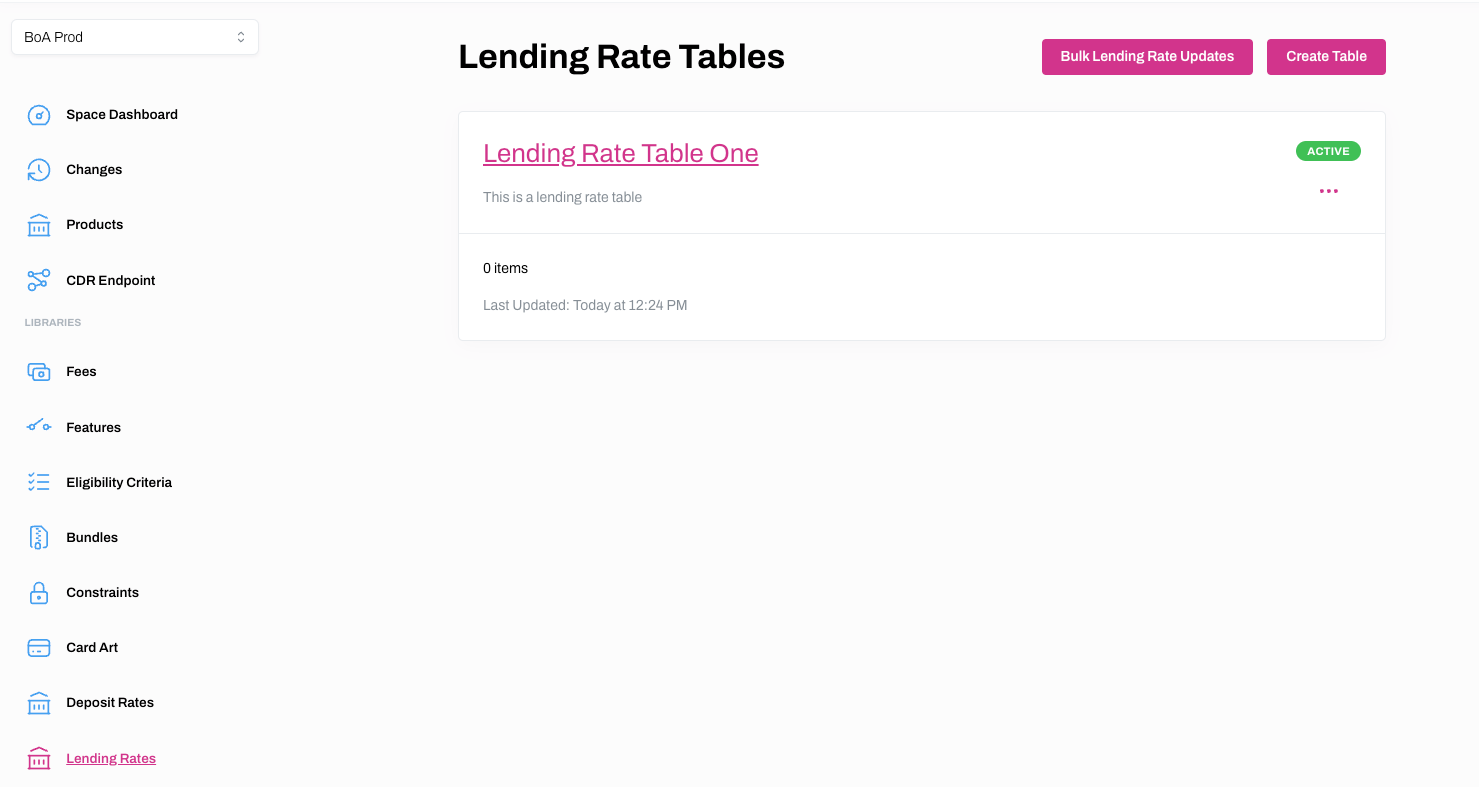
1. Select Lending Rates on the main menu.
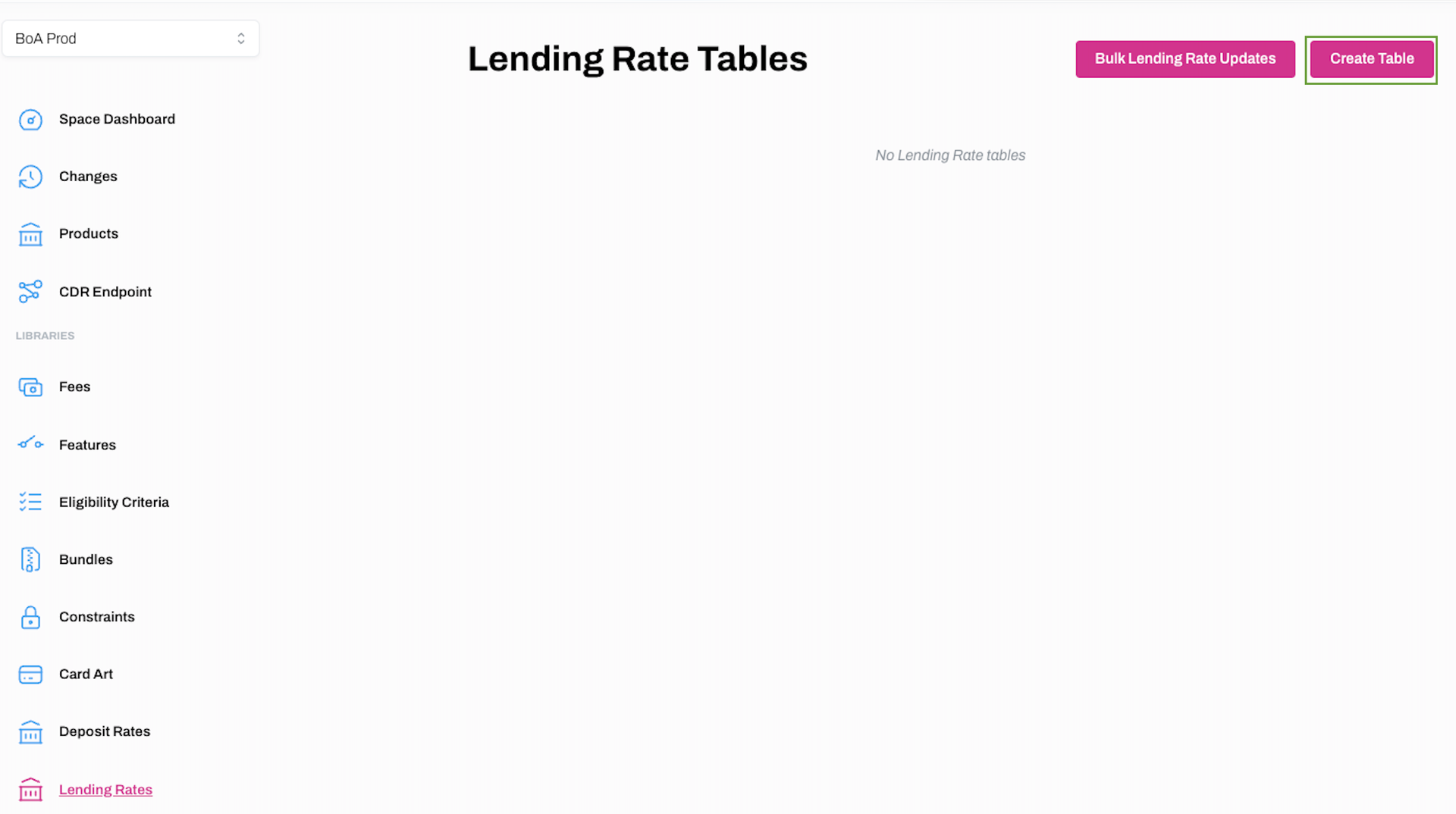
2. Click Create Table on the Lending Rates Tables screen.
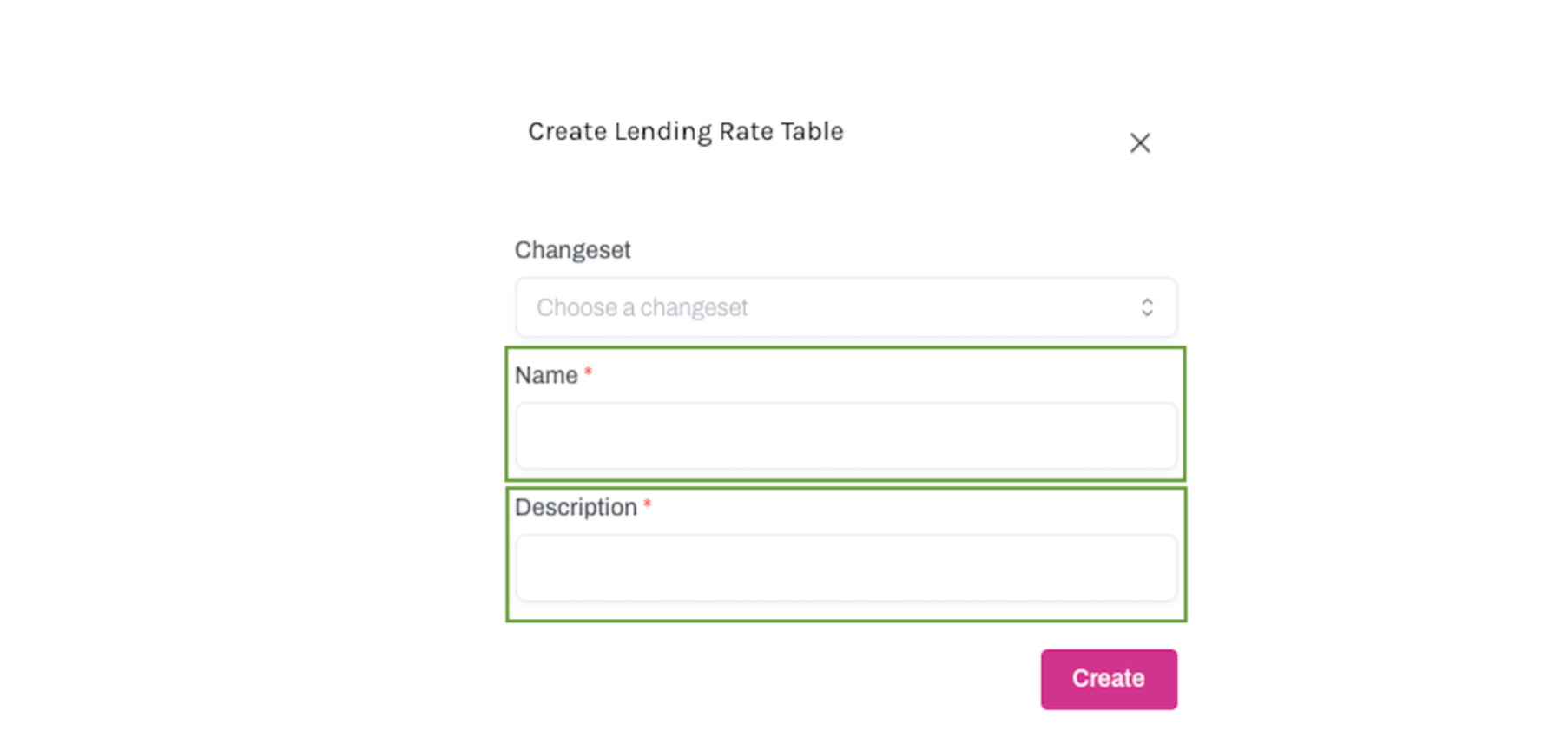
3. Enter a Name and Description on the Create Lending Rate Table screen. You also have the option of linking a changeset to the Eligibility table at this point. Click Create.
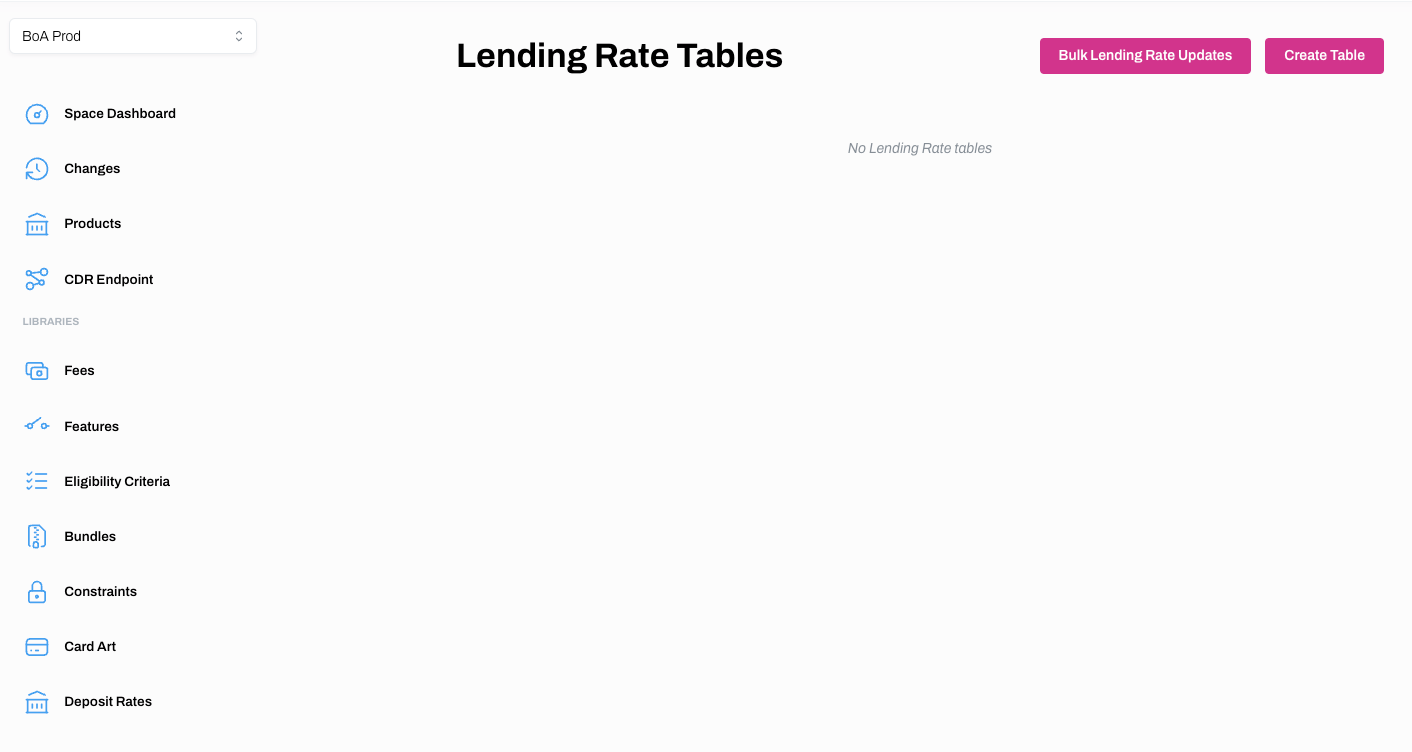
4. The newly created Lending Rate Table will now appear on the Lending Rate Tables Screen.
Add Lending Rates to a Lending Rates Table
_ Learn how to add Lending Rate to a Lending Rate Table_
1. Select Lending Rates on the main menu.
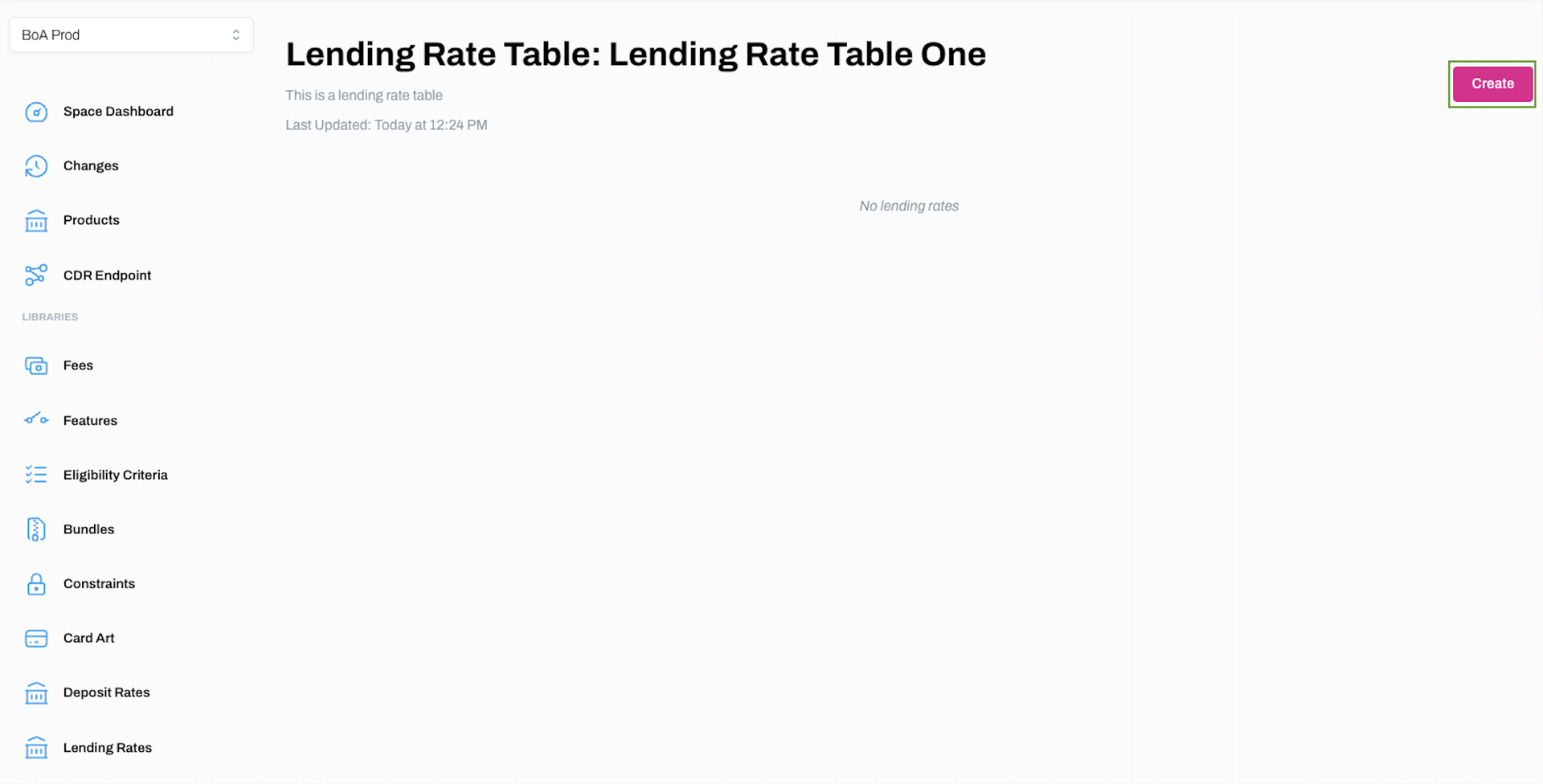
2. Click on the hyperlinked name of the Lending Rate Table you wish to add Lending Rates to, or click ... and Edit.
3. Click Create on the next screen to add Lending Rates.
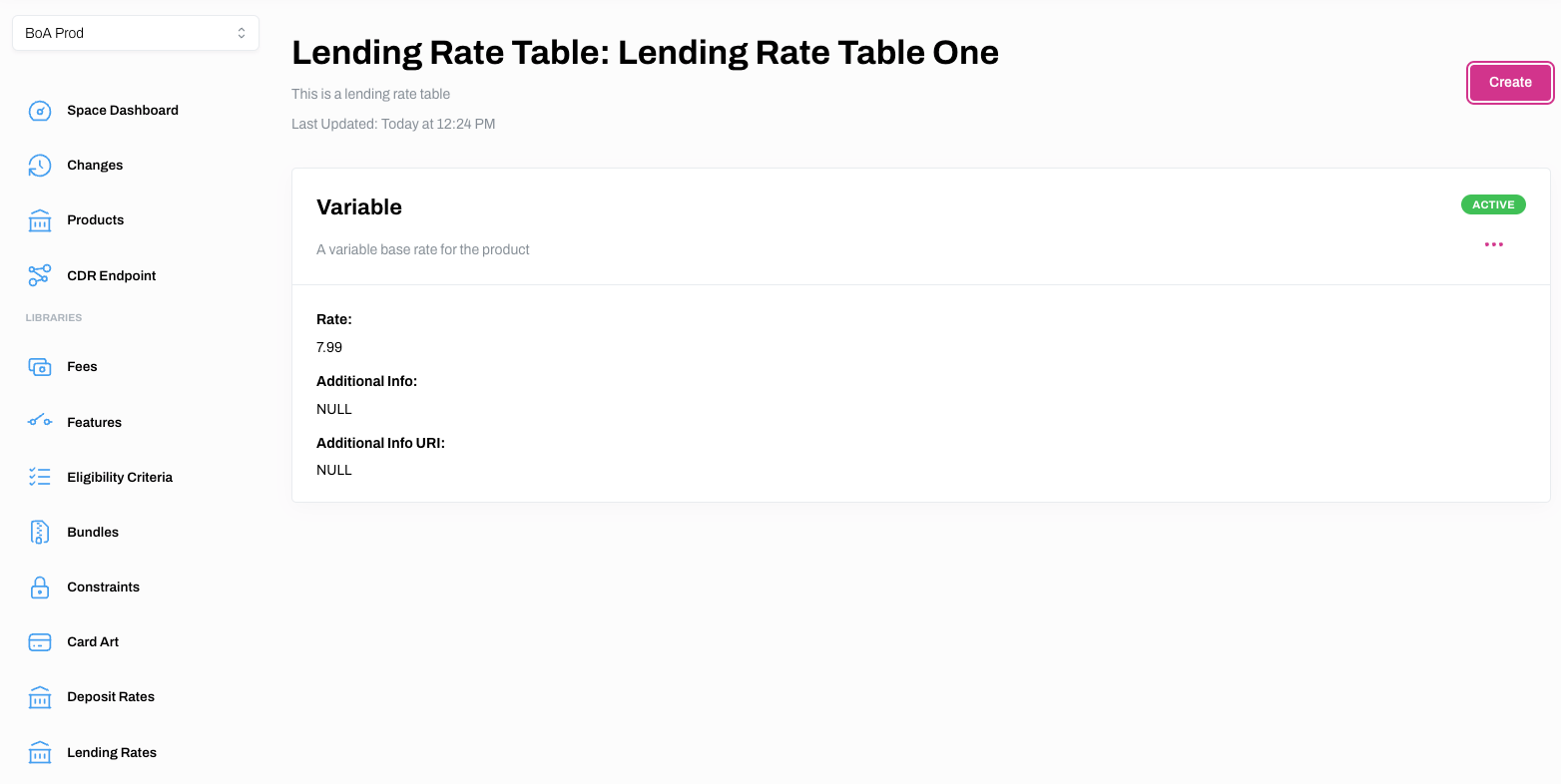
4. Select the Lending Rate Type from the dropdown menu and enter the desired Rate on the Create Lending Rate screen. You can add additional information depending on the Lending Rate Type you have selected, add Tiers if required, and you can link a Changeset at this point. Click Create when the mandatory fields are complete as denoted by a red asterisk.
5. The new Lending Rate will now be linked to the relevant Lending Rate Table.
View Lending Rates for a Lending Rates Table
Learn how to view Lending Rates attached to a Lending Rates Table
1. Select Lending Rates on the main menu.
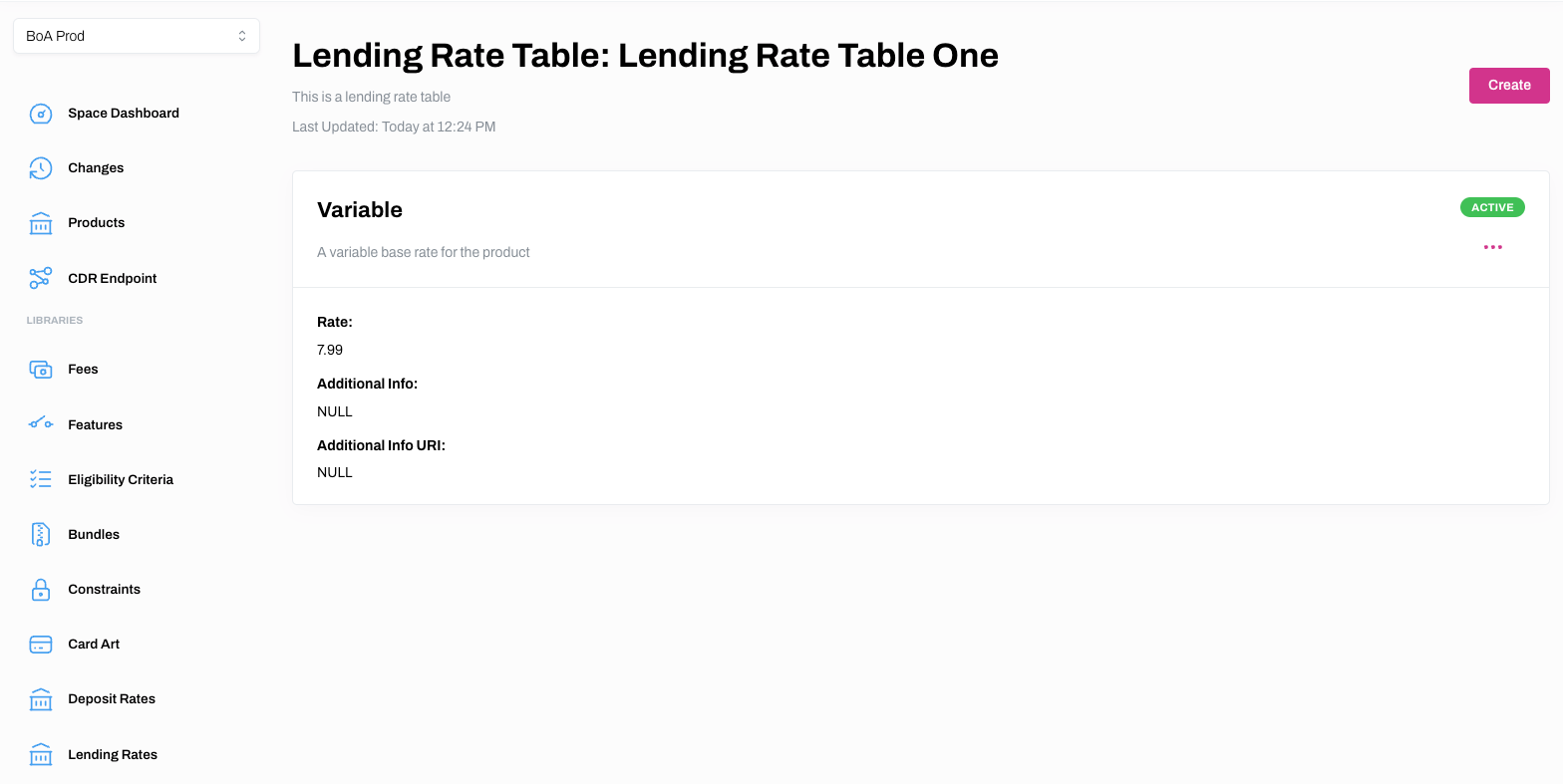
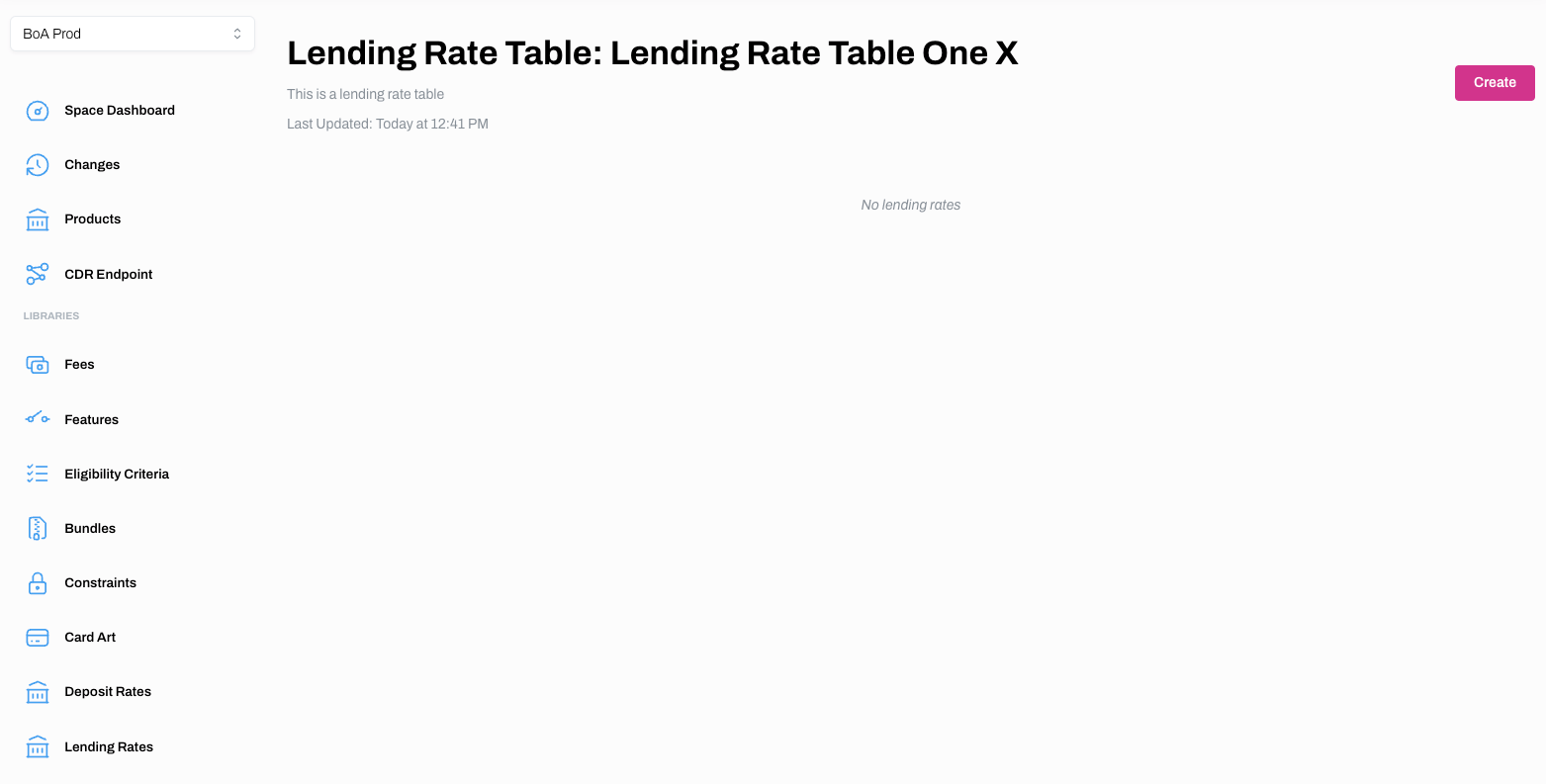
2. Click on the hyperlinked name of the Lending Rate Table you wish to add Lending Rates to, or click ... and View.
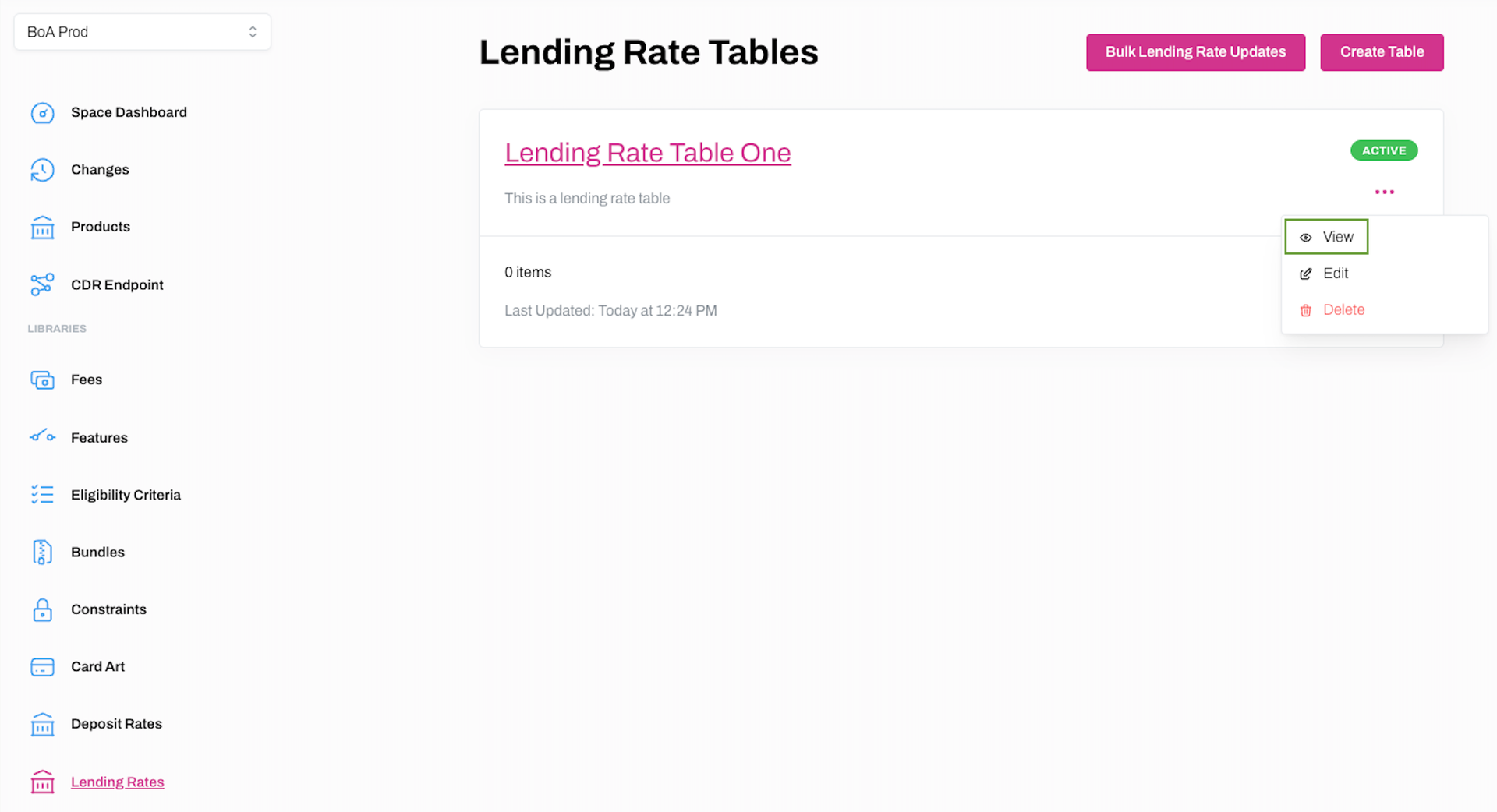
3. You will now see the details pertaining the relevant Lending Rates Table.
Edit a Lending Rates Table
_ Learn how to edit a Lending Rate Table_
1. Select Lending Rates on the main menu.
2. Click ... and Edit on the Lending Rate Tables you wish to edit.
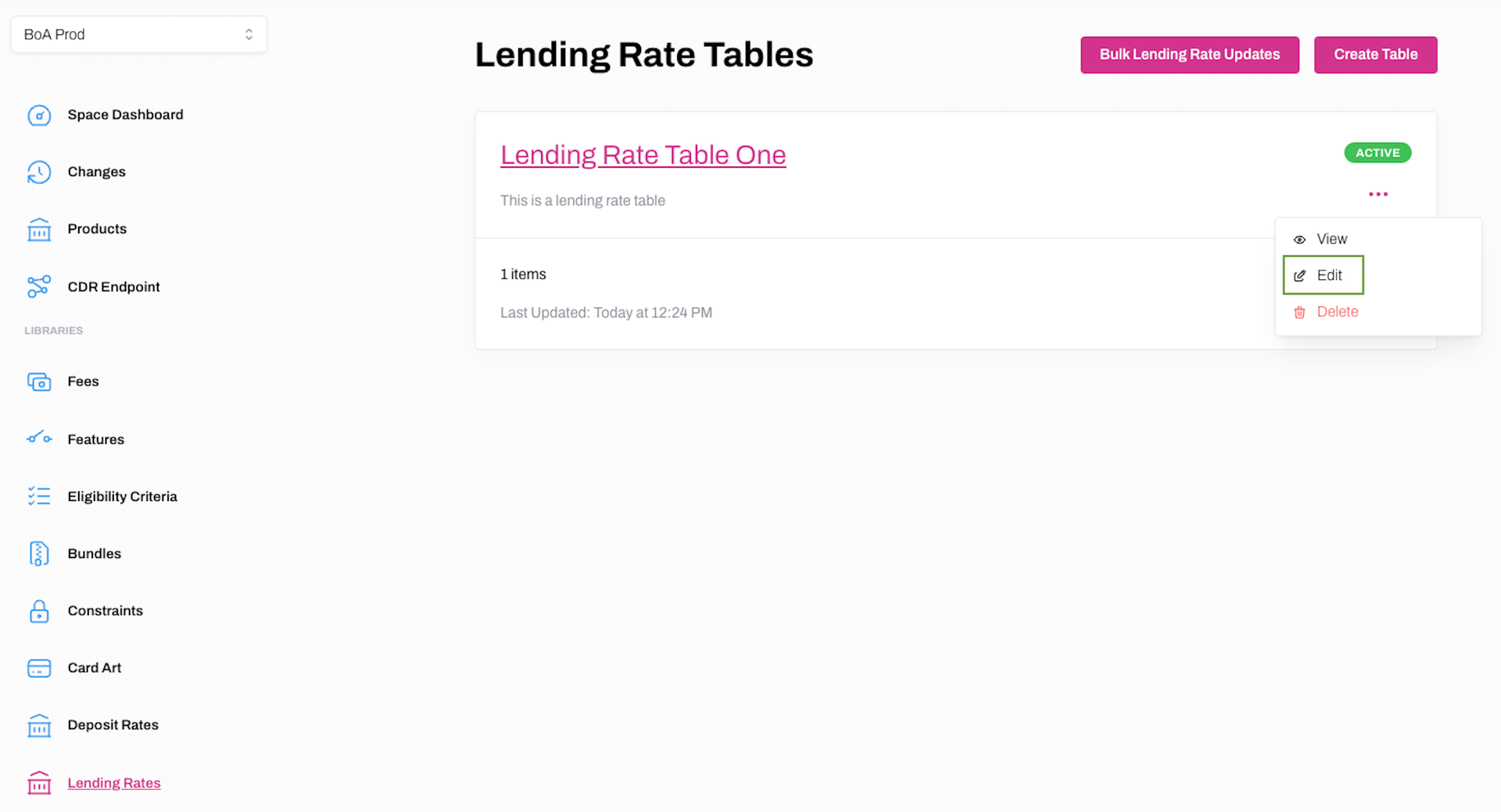
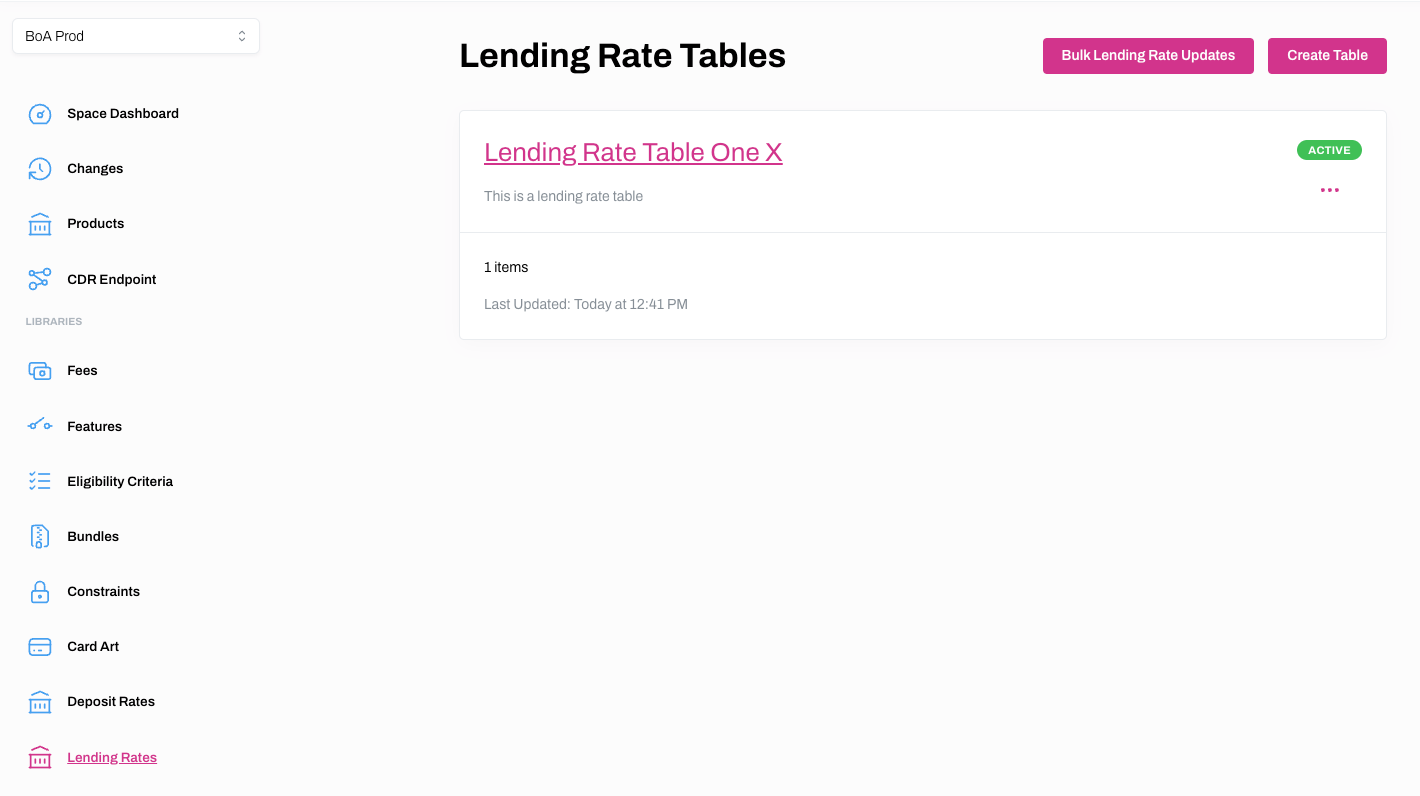
3. You will now be able to edit the Name and Description of the Lending Rate Table, as well link it to a Changeset if required. Click Edit to save your changes.
4. Your changes should now be reflected on the Lending Rate Tables page.
Edit Lending Rates for a Lending Rates Table
Learn how to edit Lending Rates attached to a Lending Rate Table
1. Select Lending Rates on the main menu.
2. Click on the hyperlinked name of the Lending Rate Table you wish to add Lending Rates to, or click ... and View.
3. Click ... and Edit on the next screen.
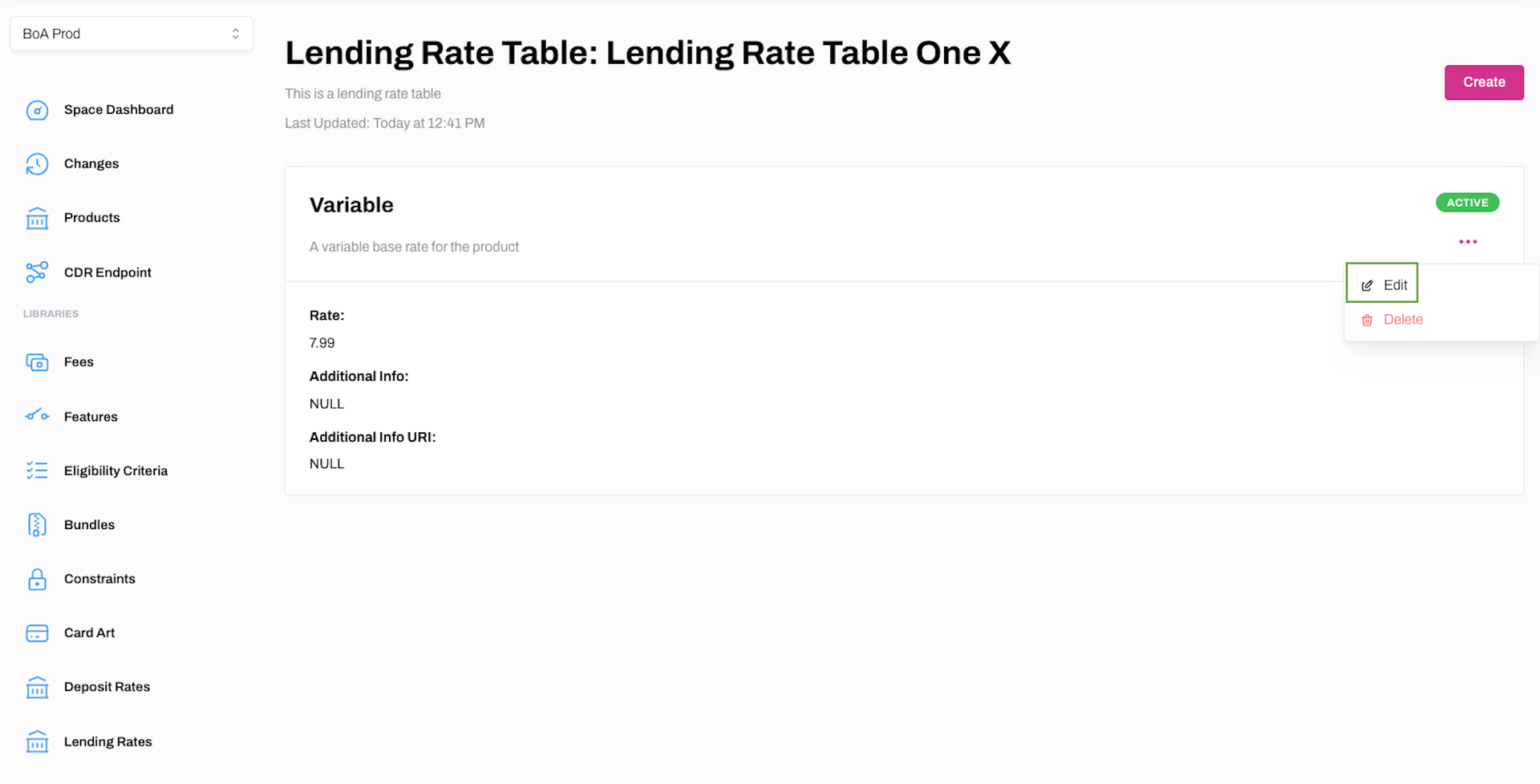
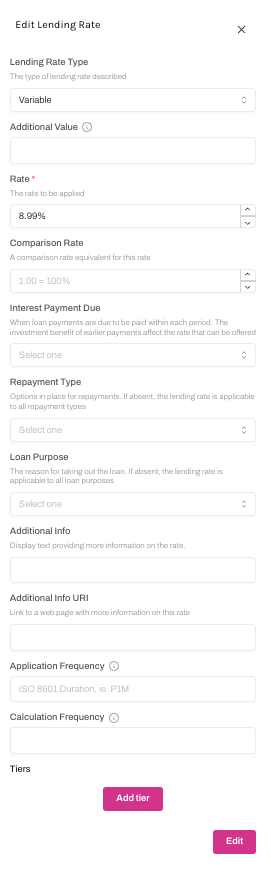
4. Make any required changes on Edit Lending Rate dialogue box and click Edit to save the changes.
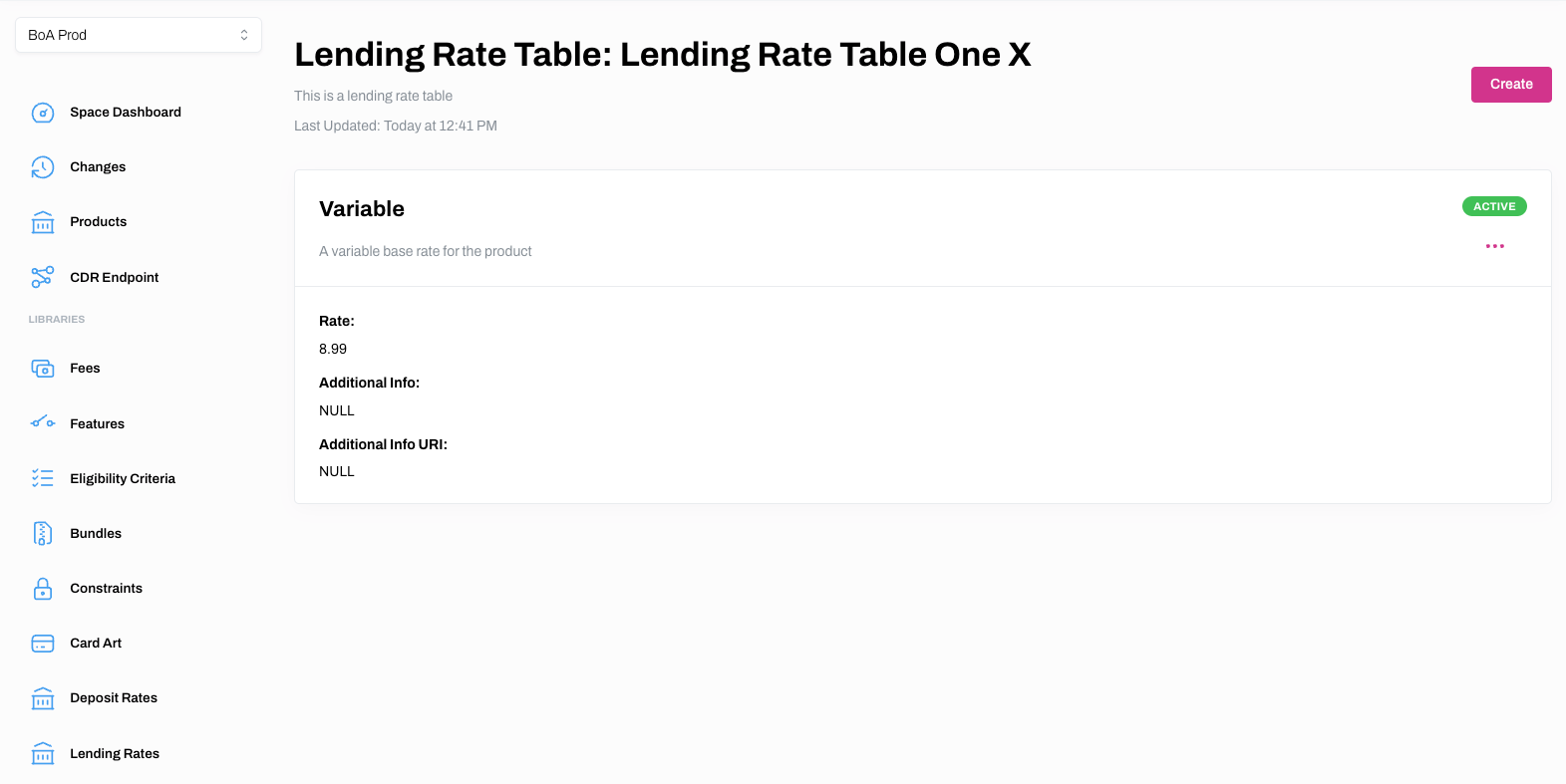
5. Your changes should now be reflected on the Lending Rate Table page.
Delete Lending Rates for a Lending Rates Table
1. Select Lending Rates on the main menu.
2. Click on the hyperlinked name of the Lending Rate Table you wish to add Lending Rates to, or click ... and View.
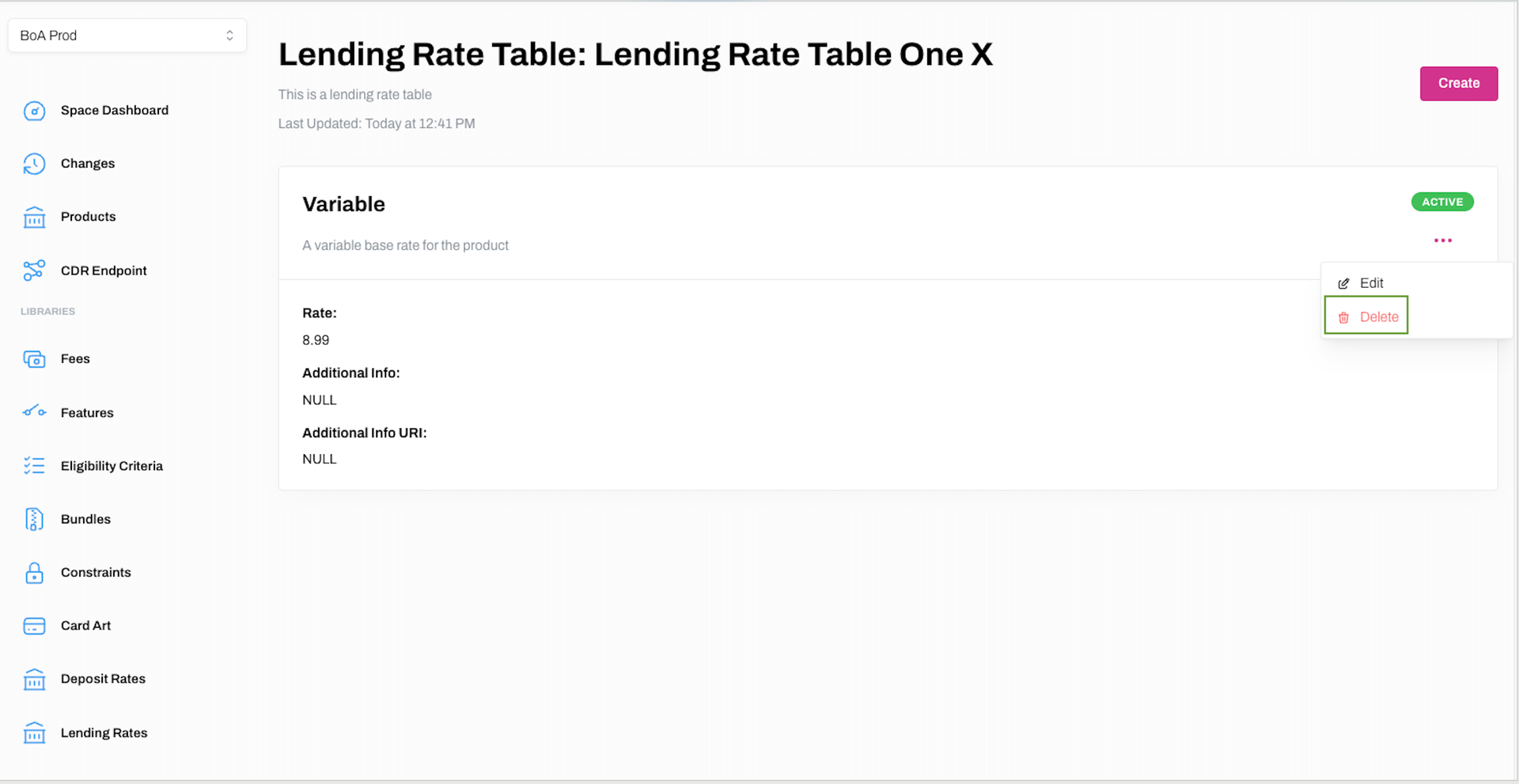
3. Click ... and Delete on the relevant Lending Rate.
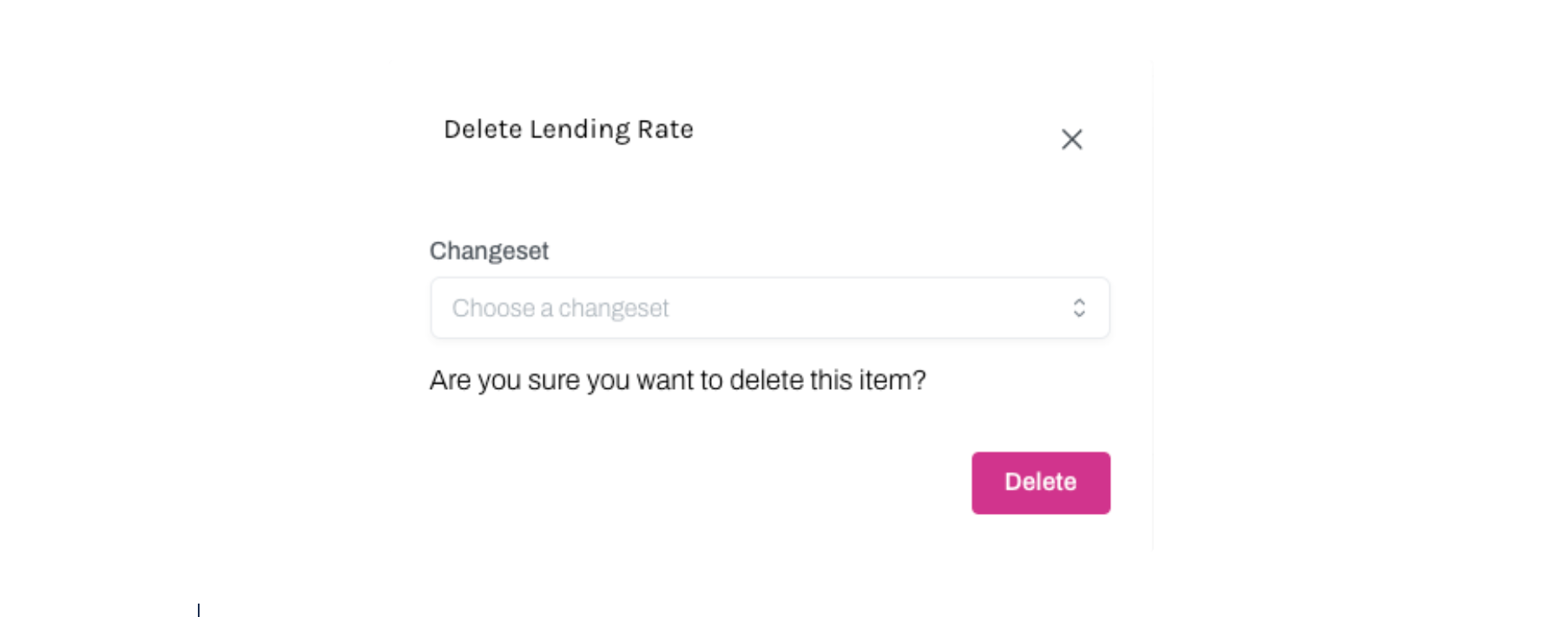
4. Click Delete on the Delete Lending Rate dialogue box to confirm you wish to delete the Lending Rate from the relevant Lending Rate Table.
5. If successful, the Lending Rate will no longer be linked to the relevant Lending Rate Table.
Delete a Lending Rate Table
Learn how to delete a Lending Rate Table.
1. Select Lending Rates on the main menu.
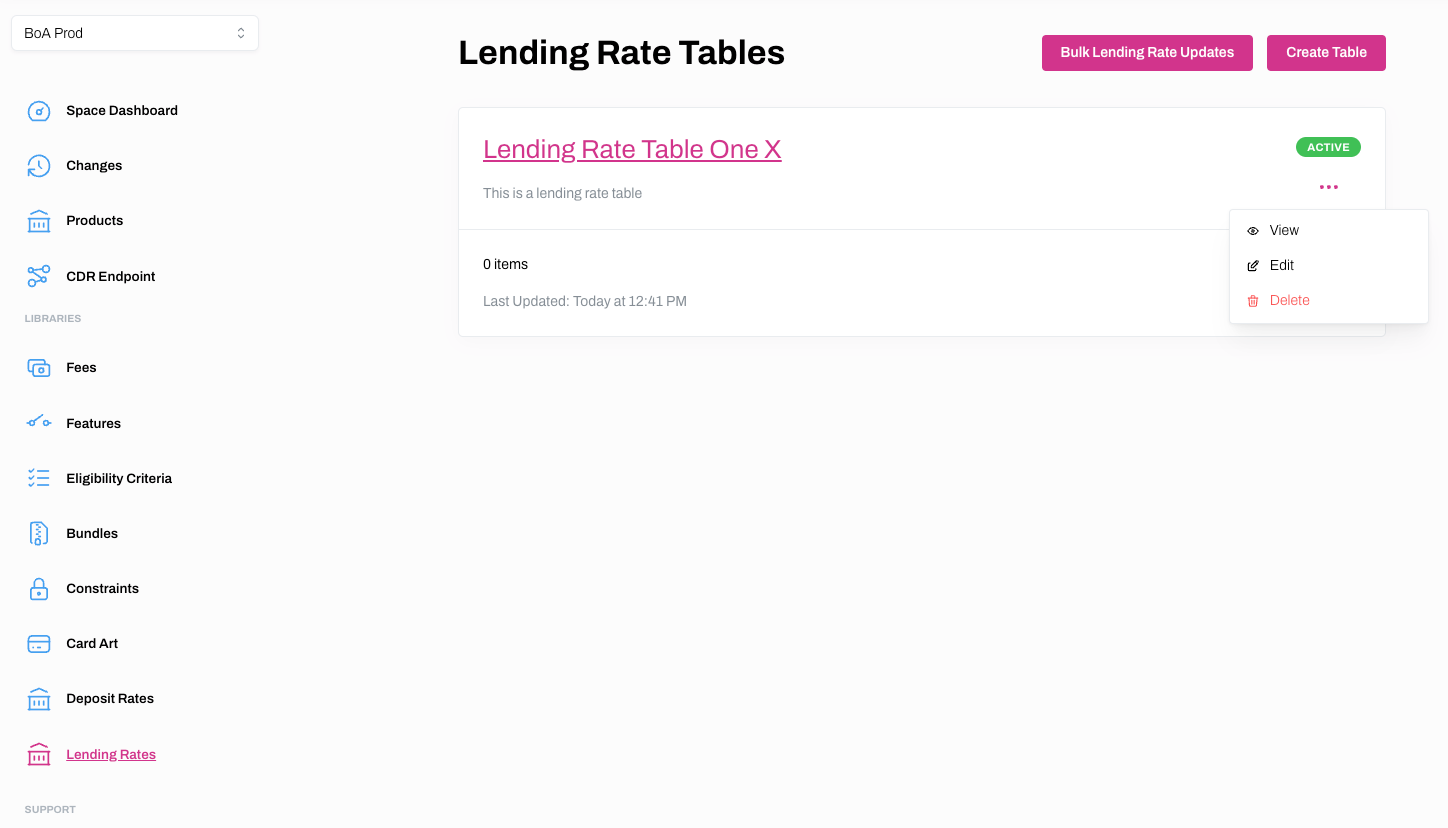
2. Click ... on the relevant Lending Rate Table and Delete.
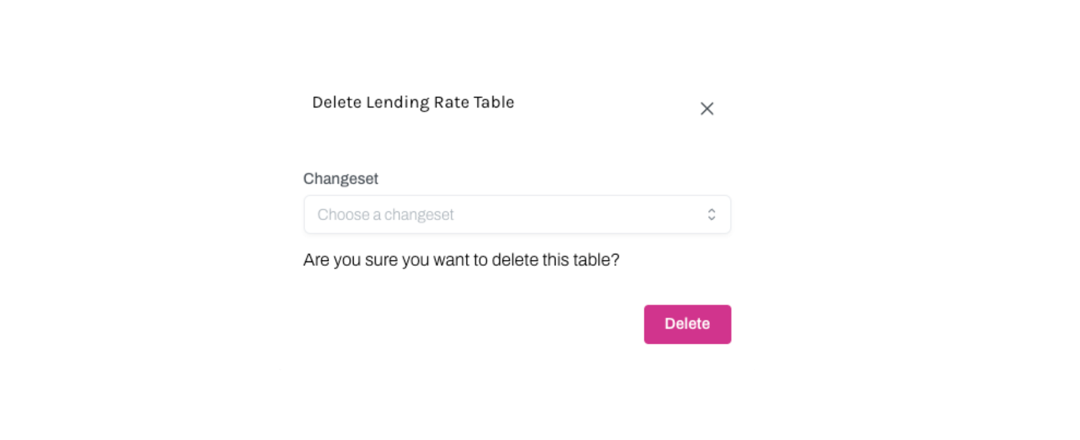
3. Click Delete on the Delete Lending Rate Table dialogue box to confirm you wish to delete the table.
4. If successful, the Lending Rate Table will no longer appear on the Lending Rate Tables page.