Adding and Removing Tables
Learn how to add and remove tables from your Products
Adding Tables to a Product
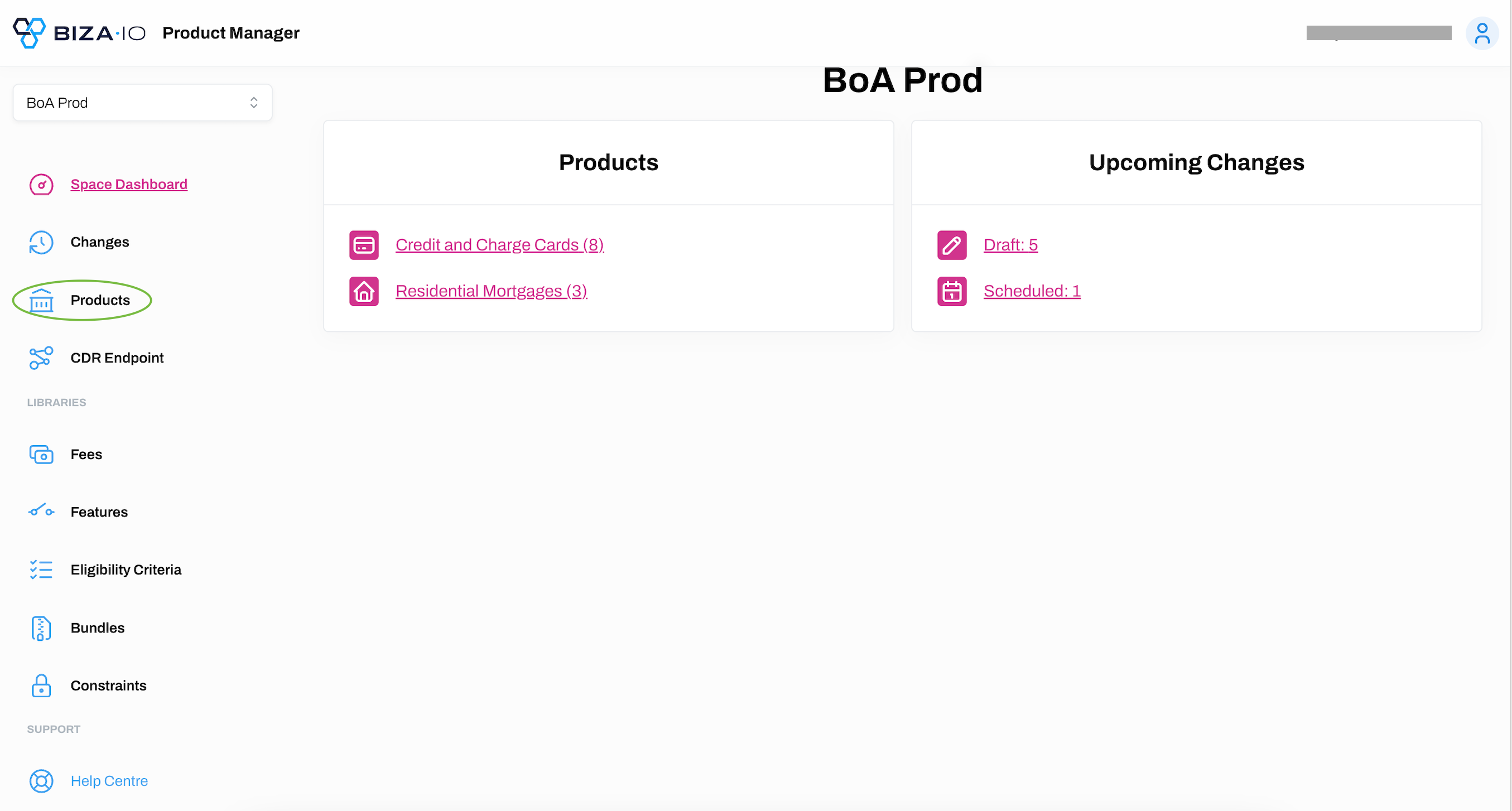
1. Select Products from the main menu.
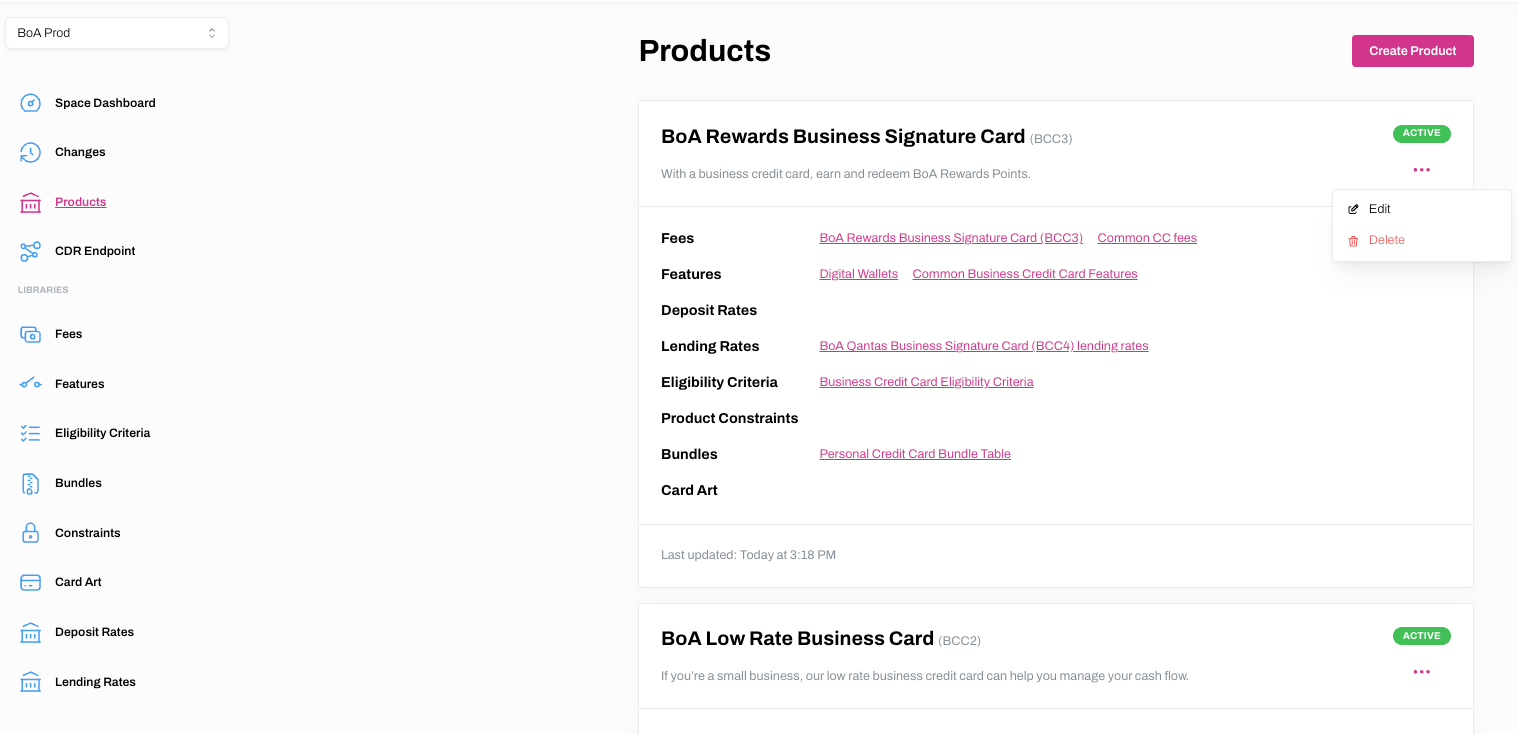
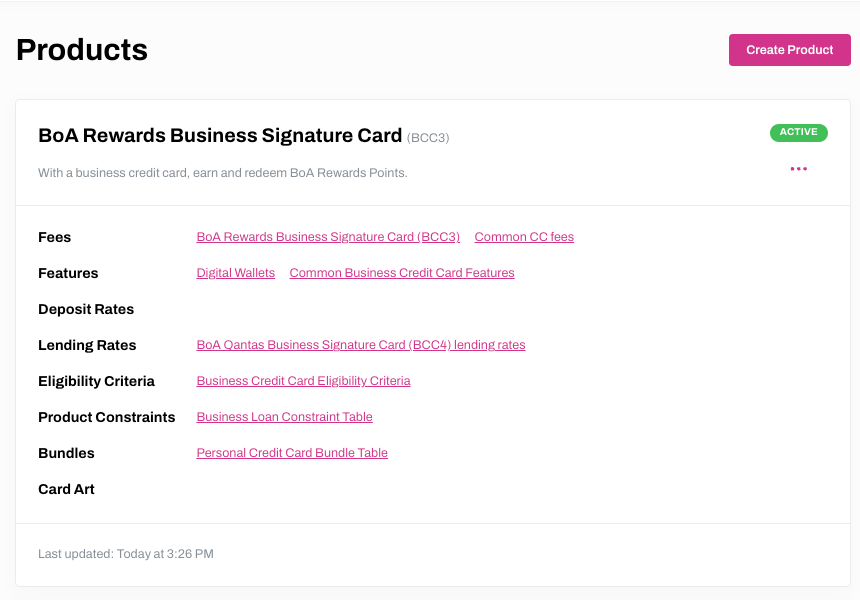
2. Find the Product for which you wish to add a table, click ... and Edit.
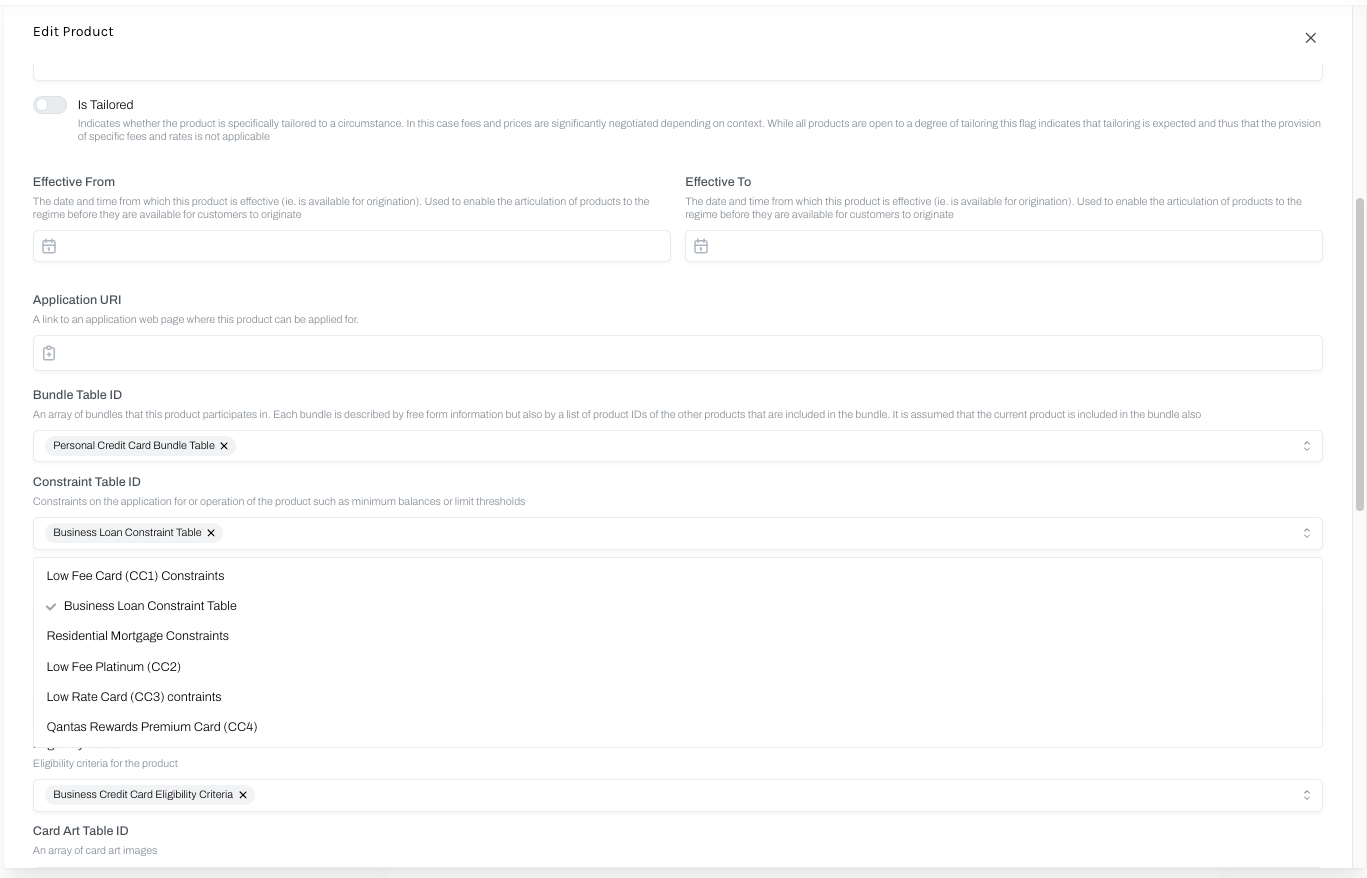
3. Scroll to find the relevant Table field and click on the Table you wish to add to your Product from the dropdown menu. Click Edit at the bottom of the Edit Product page to save your changes.
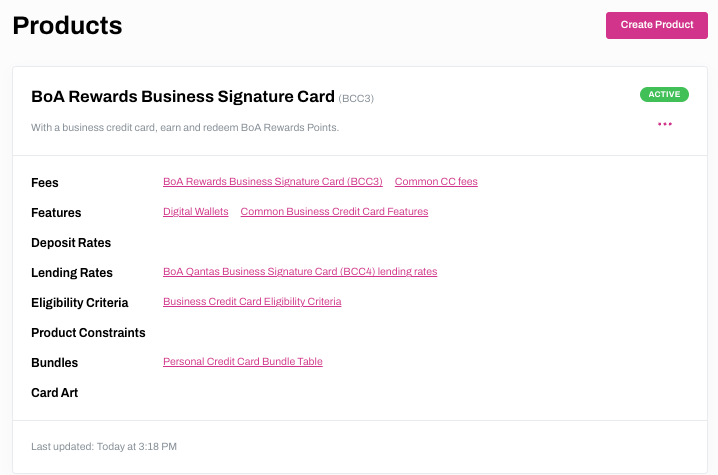
4. Any changes will be reflected on the Products home page.
Removing Table from a Product
1. Select Products from the main menu.
2. Find the Product for which you wish to remove a table, click ... and Edit.
3. Scroll to find the relevant Table field and un-tick the Table from the dropdown that you wish to remove from the Product.
4. The Table will no longer appear in the relevant box. Click Edit at the bottom of the Edit Product page to save your changes.
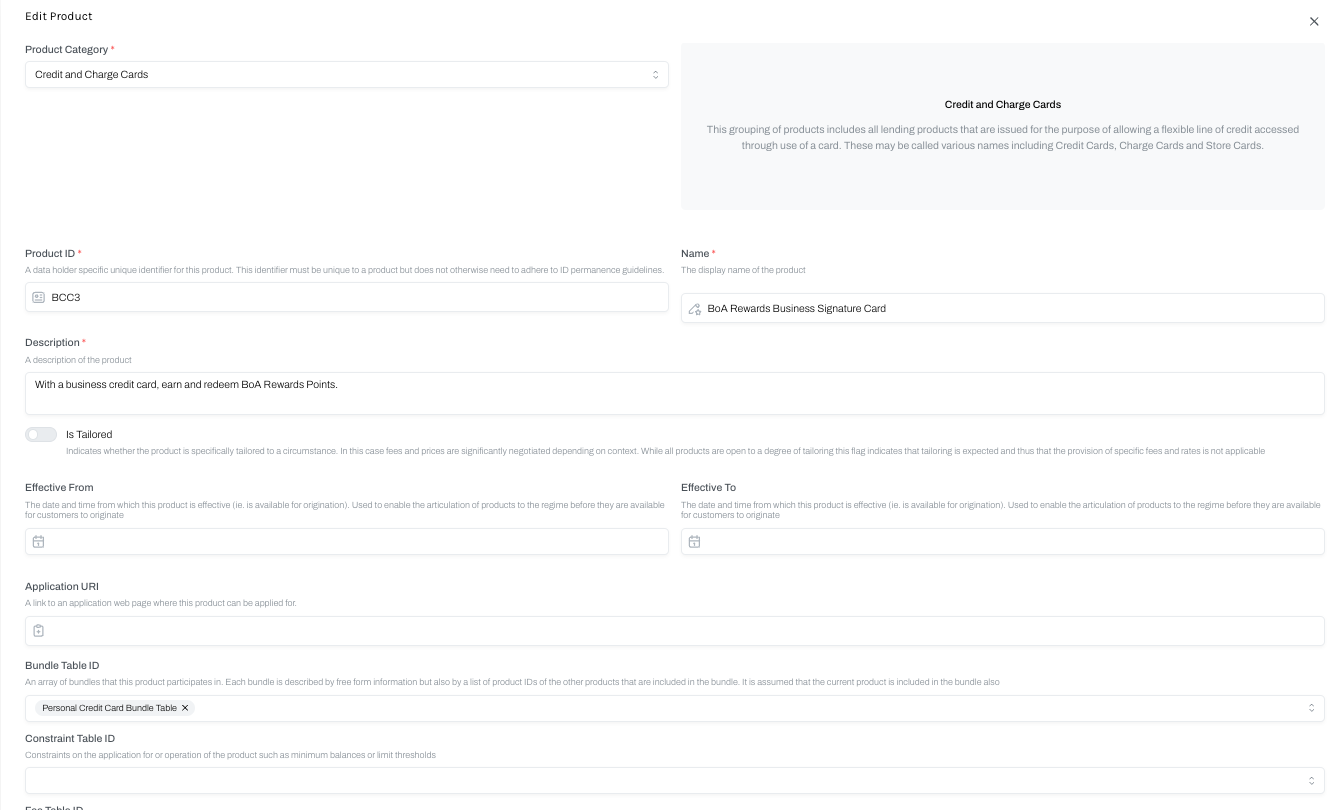
5. Any changes will be reflected on the Products home page.