Configuring Internal IDs
Learn how to configure Product Internal IDs so HaaS connectors can resolve CDR product details from a data-holder-specific identifier.
What is a Product Internal ID?
A Product Internal ID is a data-holder-specific identifier configured against a product in Product Manager (PM), in addition to the published CDR Product ID. A single product can have many Internal IDs, giving it a many-to-one relationship to the external productId. All Product Internal IDs within a space must be unique.
Internal IDs are not CDR identifiers — they do not need to adhere to CDR ID permanence guidelines and are not exposed via the public CDR APIs. They are consumed by first-party integrations (such as HaaS connectors) that look products up via PM's public adapter endpoint.
Why Internal IDs matter for data adapters
Sourcing CDR public product information is a common problem for data adapter implementations: the source banking system typically does not carry the CDR-shaped product detail (fees, features, deposit rates, lending rates), and exposes only a short, data-holder-specific product code on each account record. Adapters need a way to resolve that short code to the corresponding CDR product detail so the outbound response can be enriched.
The Product Manager Public API (Internal Lookup) endpoint addresses this by allowing an adapter to query using a source-system internalProductId and retrieve the corresponding full CDR product details. Any customer data adapter implementation can use this endpoint.
Biza's HaaS Connector for Universe (HCU) is one example of a HaaS connector that uses this endpoint to source public product information, because the product detail is not available in the underlying source system.
If no PM entry has the source-system code configured as an Internal ID, the adapter cannot populate the corresponding product detail fields
Configuring Internal IDs in the PM console
Internal IDs are set on the product itself. Follow these steps:
1. Open the product you want to configure by following steps 1–3 of Edit Products.
2. In the Edit Product dialogue, locate the Product Internal ID(s) field on the right-hand side. Type each identifier your source system uses for this product and press Enter to add it. Repeat to add additional Internal IDs for other source systems that need to resolve the same product.
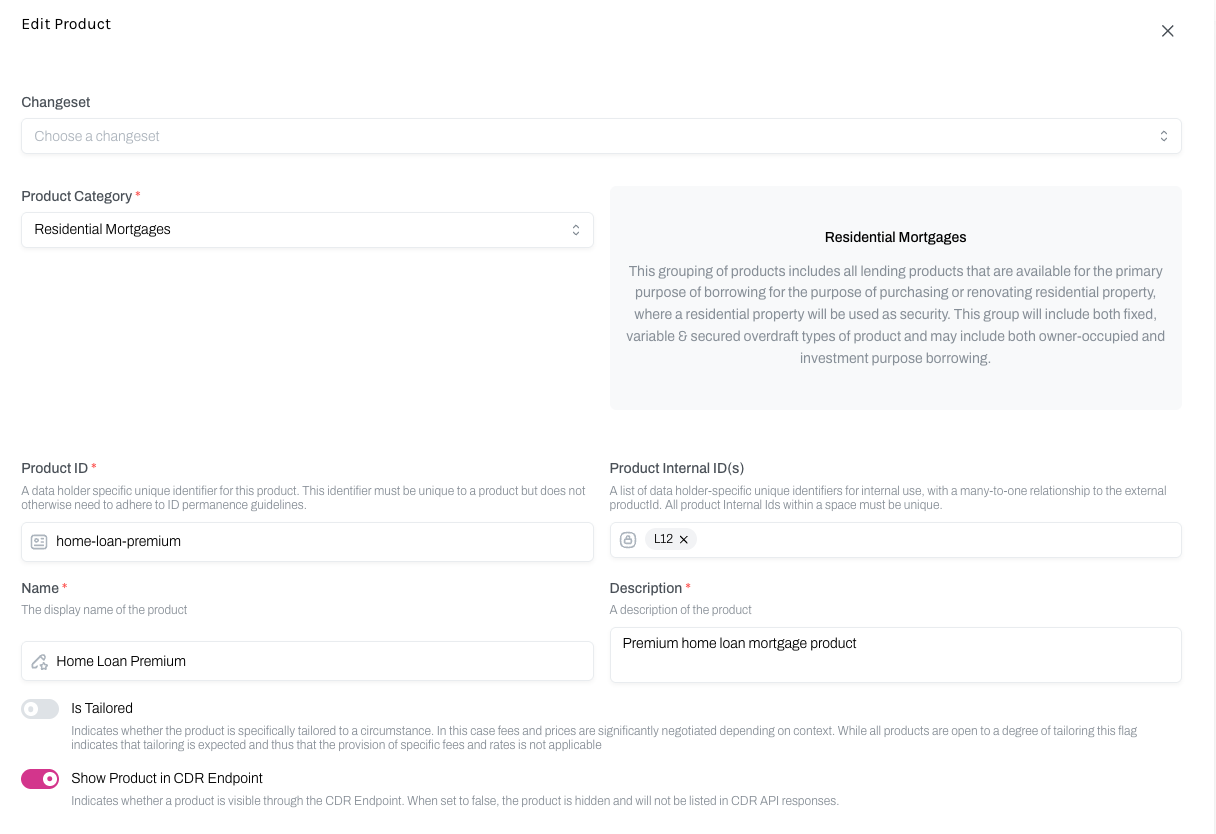
3. Click Edit to save. Newly added Internal IDs are effective immediately for subsequent PM public API lookups.